Windows Update Stuck? How to Fix It in Windows 10
Windows update stuck at 0%, 35% or 99%, or on "Working on updates"? Check it's really frozen, then fix it with the troubleshooter, a forced restart, SFC, DISM and a component reset.
In this guide
An update that freezes halfway through is one of the most common Windows annoyances. If your windows update stuck problem has you staring at the same percentage for hours, this guide explains why it happens and how to get things moving again.
Updates matter. They keep Windows running smoothly and patch security holes, but they can be a real headache.
Before Windows 10, you could choose whether to install updates automatically or wait, and whole forums existed to warn people about problem updates. Windows 10 Home changed that: updates are almost impossible to stop, and trying to block them can leave you unable to use your PC properly. That doesn't mean they always go smoothly, so here's how to deal with one that gets stuck.
Why Does Windows Update Get Stuck?
Several things can freeze Windows Update. The most common are:
- A software conflict with the update.
- A problem that already existed on your PC but only surfaced once the update started installing.
- A fault in the Windows Update installer itself.
- The update isn't actually stuck, just very slow because it's large.
Make Sure the Update Is Really Stuck
Some Windows updates genuinely take a long time to install or configure. Before you try any fix, make sure the update really is stuck. Interrupting an update that's still working can cause far worse problems.
First, watch the screen. If nothing at all has changed for about three hours or more (the same message, the same percentage, the same progress bar), it may be stuck. It's safer to wait the full time.
Then look at your hard drive activity light. If it shows no activity for about five minutes, the update is probably stuck. If it's lit or flickering, Windows is still working, so leave it alone.
Once you're sure the update has really frozen, move on to the fixes below.
How to Fix Windows 10 Update Stuck on the Restarting Screen
Here are the best ways to fix a windows update stuck problem. Start with the first and work down.
Restart Without Any Peripherals Connected
The restart process may be working fine, but an external device could be causing trouble, usually because of a driver problem. A driver for some other piece of hardware can hang and freeze the restart.
Force the PC to shut down, then unplug every external device: external hard drives, USB flash drives, your phone, extra SSDs and so on. Leave only the mouse and keyboard connected, and restart. If everything goes smoothly, plug your devices back in one at a time.
Force Your Windows 10 PC to Shut Down
A restart can get stuck for many reasons, but very often a fresh restart is all it takes. Shut down your Windows 10 computer by holding the power button for at least 6 seconds, until it turns off. Then switch it back on.
Update Your Hardware Drivers
If your computer is still stuck restarting, update or reinstall the drivers for your hardware through Device Manager. A faulty driver can stall the restart.
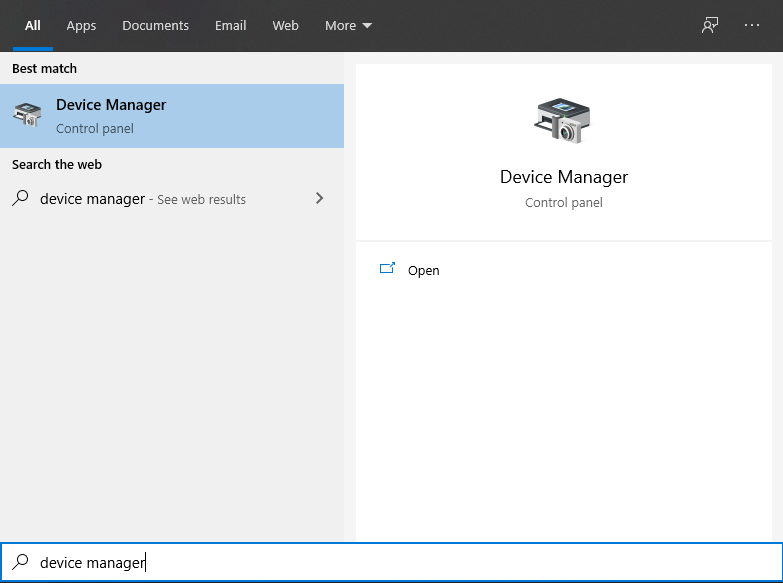
Step 1: Click the search box next to the Start button, type device manager and open the first result.
Step 2: Device Manager shows all your installed devices. Right-click each device that matters (graphics, network, storage, chipset) and choose Update driver. Alternatively, choose Uninstall device and let Windows reinstall it after a restart.
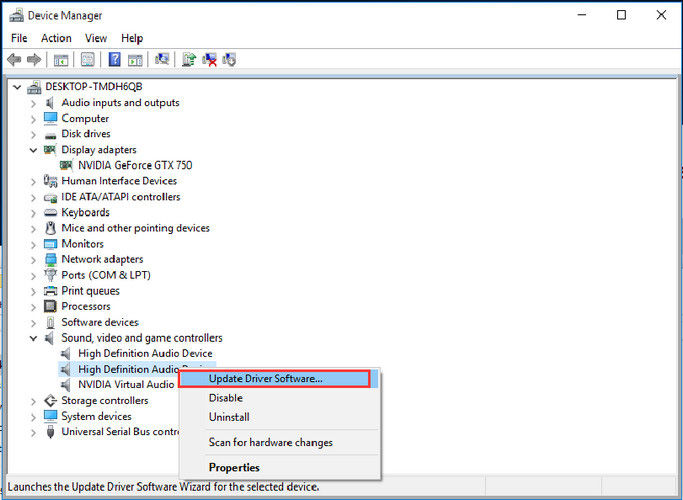
Step 3: Restart your PC. Keeping drivers up to date helps your system run smoothly in general.
Run the Windows 10 Troubleshooter
Windows' built-in troubleshooters can fix many windows update stuck problems.
Step 1: Click the search box next to Start, type Troubleshooting and open the first result.
Step 2: In Control Panel, click View all on the left to list every troubleshooter.
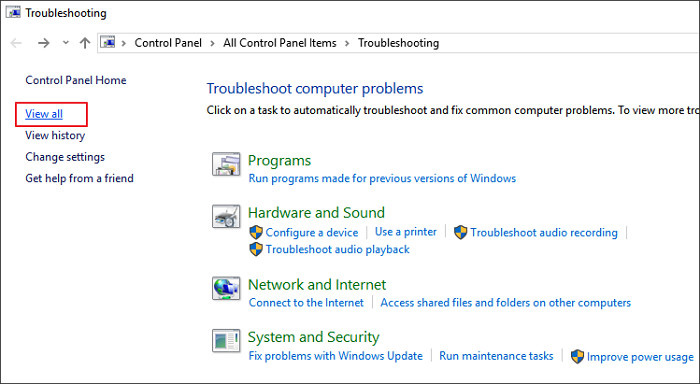
Step 3: Click System Maintenance. If asked, choose Apply repairs automatically and follow the prompts.
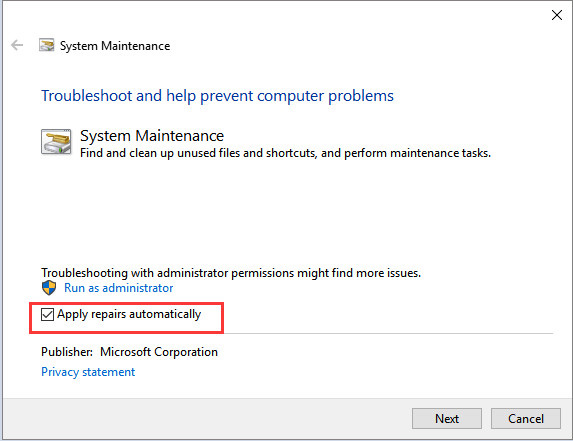
Step 4: Restart your PC when it's done. If your laptop is still stuck on restart, run the Power troubleshooter the same way, and run a System File Check by typing sfc /scannow in an admin Command Prompt.
Problems After the Latest Windows 10 Update
Sometimes the update itself finishes, but leaves problems behind. Here are the most common ones and what to do about them.
Missing files after an update
Some users report that files went missing after installing Windows 10 updates. Often they haven't been deleted at all, just moved somewhere like the Windows.old folder.
If you notice missing data after the latest windows 10 update:
- Stop using the device (or at least that folder) straight away, so nothing overwrites the files.
- Check the Recycle Bin and the Windows.old folder. If you find the files, restore them.
- If you can't find them, use reputable data recovery software.
To avoid data loss, always back up important files before a big update. Microsoft also recommends making sure the C: drive has plenty of free space first, either by freeing up space or expanding the partition.
Sound problems
Lots of people report broken audio after updates, often with the "No Audio Output Device Is Installed" message. On some PCs with Intel Smart Sound Technology, version 1809 installed the wrong driver. To check:
- Search for Device Manager and open it.
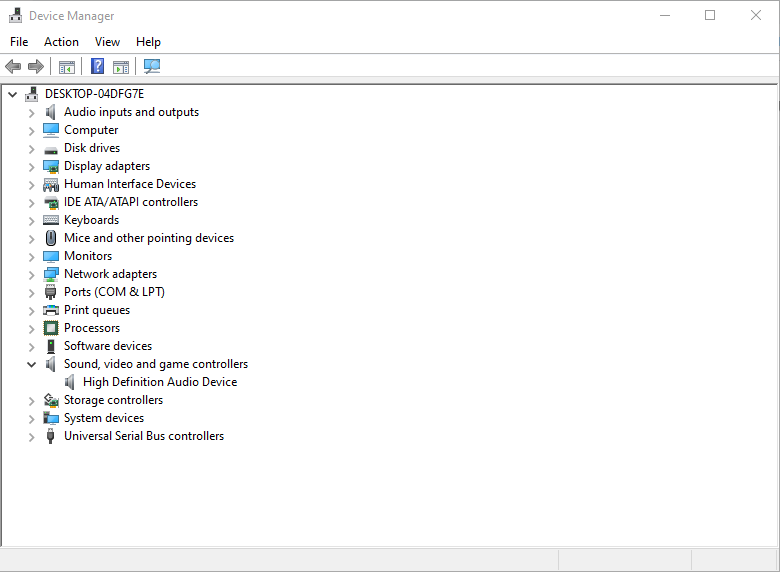
- Expand Sound, video and game controllers.
- Look for a device with a yellow warning triangle, often a Realtek device.
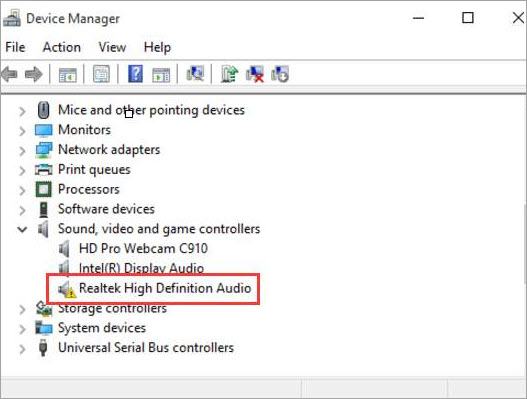 Image: drivereasy.com
- Select that device.
- From the View menu, choose Devices by connection.
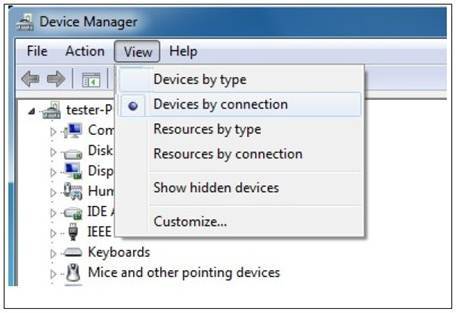
- You'll see its parent device, Intel Smart Sound Technology (Intel SST) Audio Controller.
- Right-click that parent controller.
- Choose Properties.
- On the Driver tab, check the version. If it's 9.21.0.3755, it's the wrong driver.
- If so, uninstall it and restart the PC.
- Windows reinstalls the correct driver, and sound should work again.
You can also reinstall the audio driver manually from the manufacturer's website.
No internet after an update
Some apps, or the whole PC, can't get online after an update; this was a common complaint after version 1809. Here's what to try:
- Restart the computer.
- Open Command Prompt, type
ipconfigand press Enter. Note the Default Gateway address, then typepingfollowed by that address and press Enter to check you can reach your router. - You can also run
ping 127.0.0.1to test your PC's own network configuration. If pinging the router works but you still can't get online, restart the router and try a different network cable. - Run Windows 10's network troubleshooter, which can diagnose and fix many connection problems. Resetting TCP/IP can also help.
- Update the network adapter driver; your current one may not be compatible with the latest update.
- If the adapter stopped working right after the update, uninstall its driver or reset the network adapter (Settings > Network & Internet > Network reset). Windows will reinstall a suitable driver automatically.
- If none of that works, temporarily disable your firewall and antivirus and test the connection again.
iCloud sync problems
Some versions of Apple iCloud weren't compatible with certain Windows 10 updates, which caused sync problems. Microsoft worked with Apple on a fix, and Apple confirmed that iCloud for Windows 7.8.1 and later is compatible. If you have sync trouble after an update, uninstall iCloud and install the latest version.
Intel graphics compatibility
Version 1809 also had compatibility problems with certain Intel graphics drivers. Microsoft advised against updating manually until the latest Intel drivers were installed; Intel fixed the issue in driver 24.20.100.6286. It mainly affected PCs with 6th-generation (Skylake) and newer Intel processors.
Reset the Windows Update components
If none of the above helps, reset Windows Update:
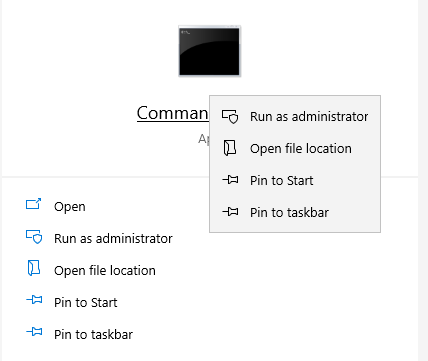
- Type cmd in the search box, right-click Command Prompt and choose Run as administrator.
- Enter these commands one at a time, pressing Enter after each:
net stop wuauserv
net stop bits
net stop cryptsvc
ren %systemroot%\SoftwareDistribution SoftwareDistribution.bak
ren %systemroot%\system32\catroot2 catroot2.bak
net start wuauserv
net start bits
net start cryptsvc
Restart your PC and try Windows Update again. These commands clear Windows Update's downloaded files and cache so it can start fresh. If you still can't solve the problem, contact Microsoft Support.
Windows Update Cleanup Stuck
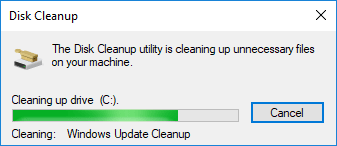
Is Disk Cleanup hanging on Windows Update Cleanup in Windows 10? Here's how to fix it.
Sooner or later most Windows users try one of those "PC optimizer" programs that promise to clean out junk files. Most of them just waste your time. When you genuinely need to free up space, the built-in Disk Cleanup tool is the better choice.
But what if Disk Cleanup itself freezes? Many users report that when they run it on the C: drive, choose Clean up system files and tick Windows Update Cleanup, the tool gets stuck and never finishes.
The Windows Update Cleanup option only appears when Disk Cleanup finds old update files or a previous Windows installation you no longer need. It was introduced with Windows 8 and added to Windows 7 through an update, and it removes leftover pieces of old updates that can take up a lot of space.
Before anything else: Windows Update Cleanup can genuinely take a long time (sometimes over an hour) on a slow drive. If it's still showing activity, give it time. If it really is frozen, try these fixes.
Run the Windows Update Troubleshooter
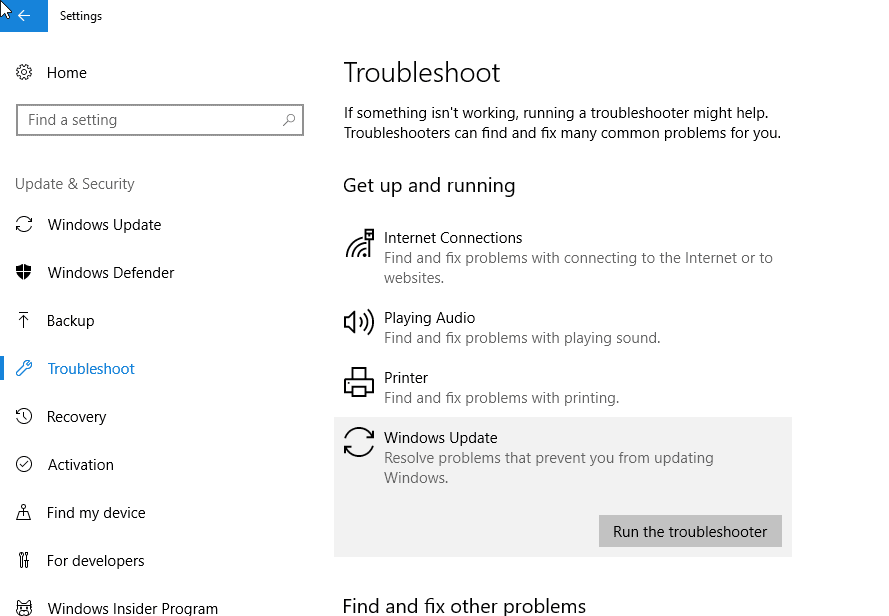
The Windows Update Troubleshooter is designed for exactly this kind of problem:
- Go to Settings > Update & Security > Troubleshoot.
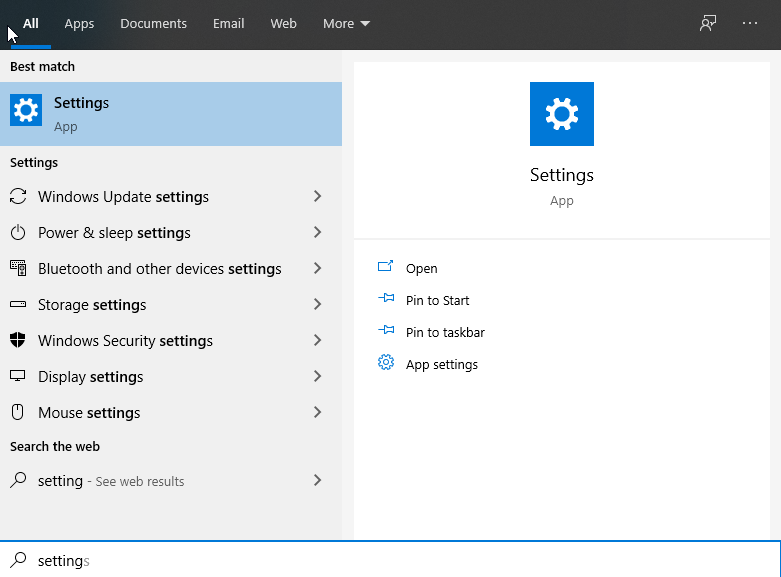
- Select Windows Update and click Run the troubleshooter.
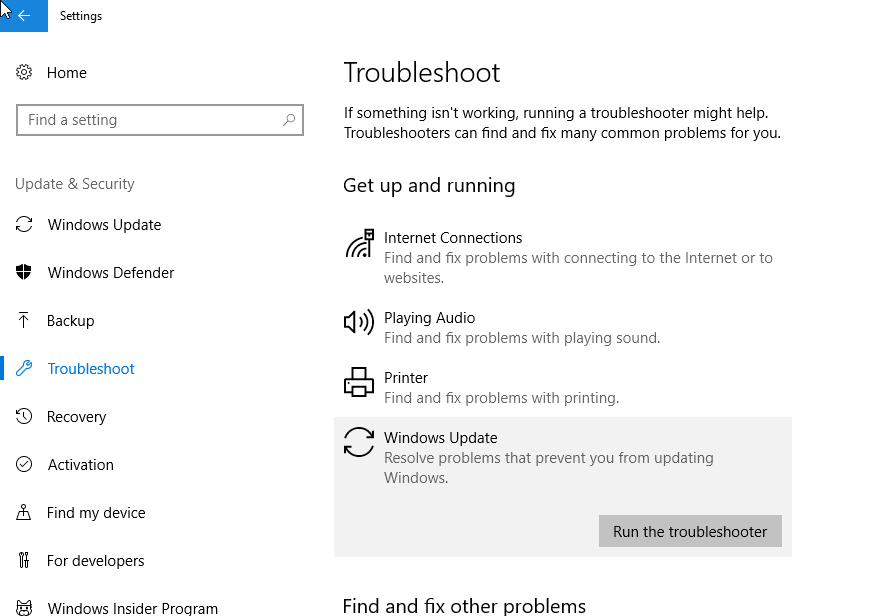
- The troubleshooter starts looking for problems, which takes a few minutes.
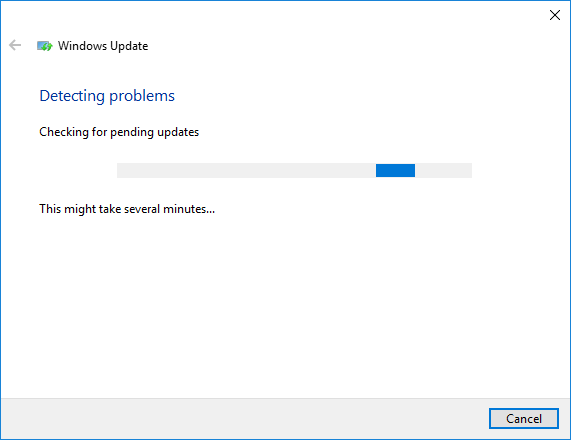
- Follow the on-screen instructions. Any problems it finds are fixed automatically.
Restart your computer and run Disk Cleanup again to see whether the Windows update cleanup step finishes now.
Run System File Checker
Missing or corrupted system files can also make Disk Cleanup hang. System File Checker (SFC.exe) finds and repairs them:
- Right-click Start and choose Command Prompt (Admin).
- Type sfc /scannow and press Enter.
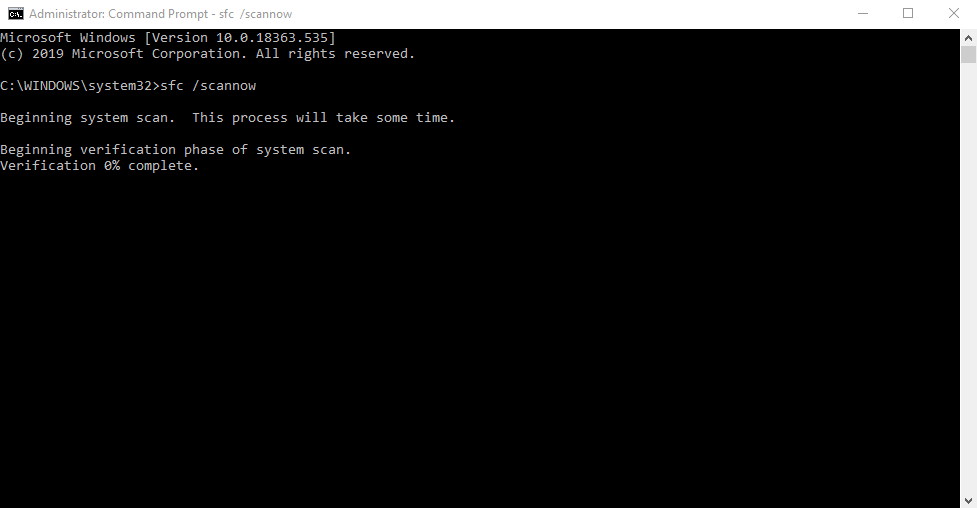
- The scan takes a while. Wait until it reaches 100%.
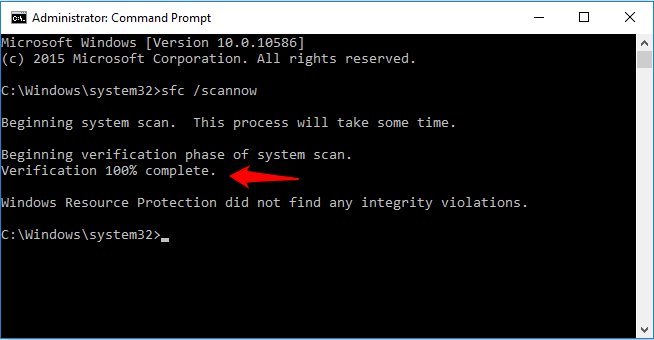
- If it finds and repairs problems, run it again (up to three times) until it reports no integrity violations.
This is one of the most effective ways to fix Windows Update Cleanup stuck.
Windows Update Standalone Installer Stuck
The Windows Update Standalone Installer (wusa.exe) can also hang, on Windows 7, 8 and 10 alike. Here's how to fix it.
Disable Automatic Updates Temporarily (Windows 7/8)
On Windows 7, try turning off automatic updates and then running the standalone installer:
- Type windows update in the search box.
- Choose Windows Update under Programs.
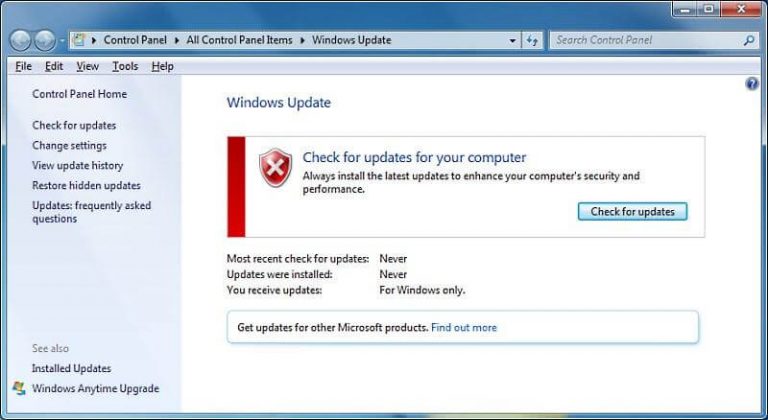 Image: windowsreport.com
- In Control Panel, click Change settings.
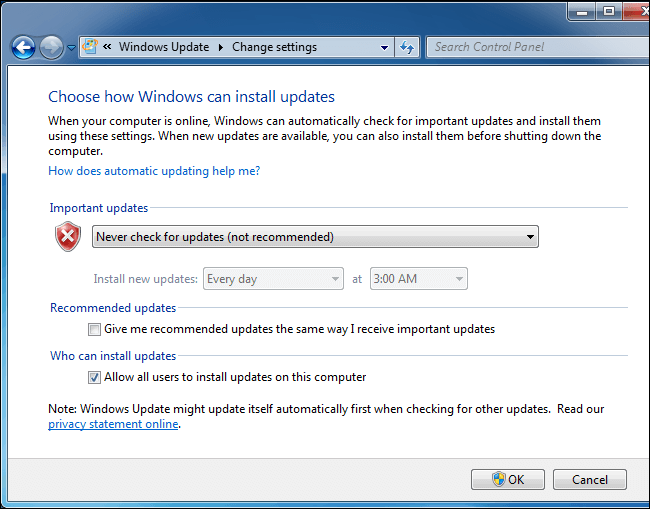 Image: windowsreport.com
- Under Important updates, choose Never check for updates.
- Click OK.
- Restart your computer, then run the standalone installer again.
If that doesn't help:
- Download the servicing stack update KB4490628, making sure you pick the right version for your edition of Windows, and install it.
- Restart your PC.
- Go to Windows Update > Change settings, set Important updates back to Install updates automatically and click OK.
Image: windowsreport.com
- Click Check for updates and install any pending updates.
Run the Windows Update Troubleshooter (Windows 10)
- Download the Windows Update Troubleshooter.
- Run it, click Next and follow the instructions.
It scans your system and suggests fixes.
Download the Latest Update Manually
If the servicing stack update didn't help, download the latest cumulative update (KB) directly from Microsoft:
- Check your Windows version under Start > Settings > System > About (look at System type and Version).
- Open the Windows 10 update history page.
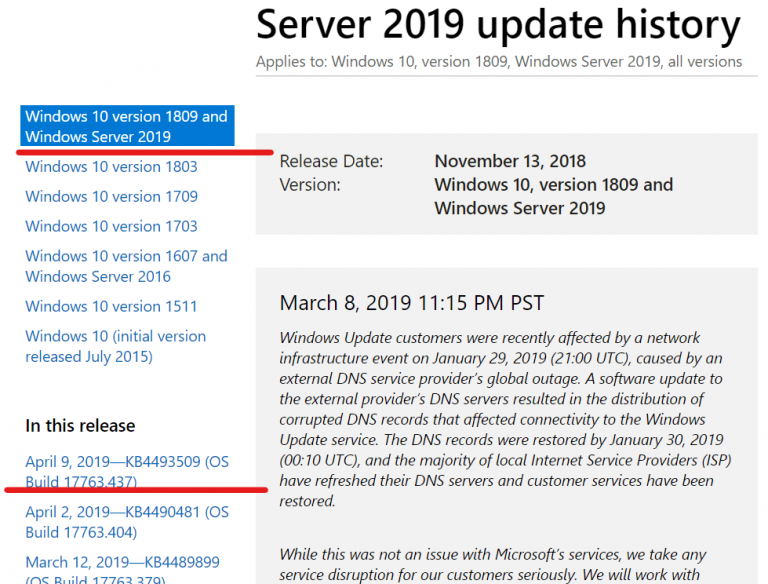
- Find the latest KB number for your version of Windows 10 and note it down.
- Go to the Microsoft Update Catalog and search for that KB number.
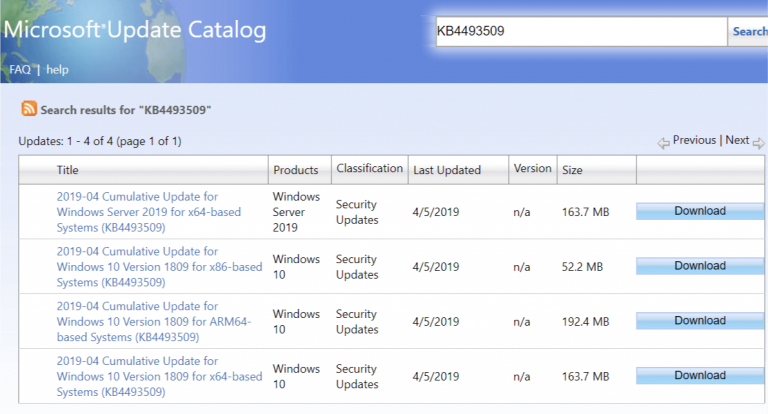
- Download the right update for your system and double-click it to install.
Repair Windows File Corruption
If it still won't install, repair system files with DISM and SFC:
- Type cmd in the search box, right-click Command Prompt and choose Run as administrator.
- Type DISM.exe /Online /Cleanup-image /Restorehealth and press Enter.
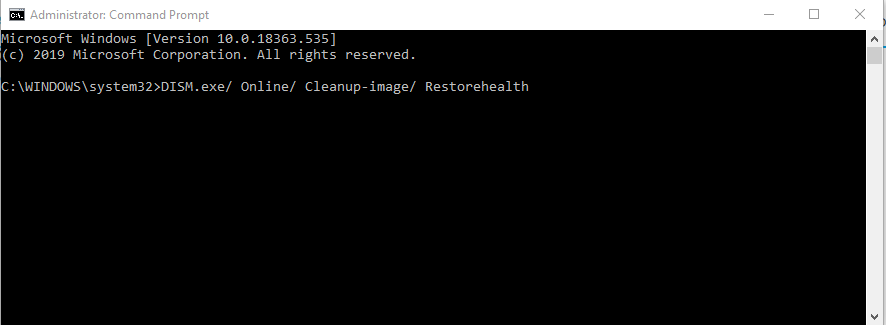
- Then type sfc /scannow and press Enter.
Windows Update Stuck at 0%, 3%, 35%, 48%, 81% or 99%
Windows 10 upgrades and updates often get stuck at specific percentages. There are three common situations:
Windows 10 Update Assistant stuck
While downloading and installing, the Update Assistant can freeze at 0%, 3%, 35%, 48%, 81% or 99%, or show messages like "Windows 10 upgrade stuck at checking for updates," "Windows 10 upgrade stuck on checking your PC," "Windows update stuck installing" or "Windows 10 update stuck restarting." This can go on for hours.
Windows Update progress bar stuck
Windows Update downloads the latest updates automatically, but sometimes the download freezes partway.
Stuck on the blue update screen
After downloading, Windows installs what it can and saves the rest for your next restart. During that restart you'll see a blue screen saying something like "Keep your PC on until this is done. Installing update 4 of 7...", and sometimes it stops there.
Is Windows Update Really Stuck?
On a PC with an SSD, an update typically takes 10 to 30 minutes. On a hard drive it can take much longer, sometimes 90 minutes or more for a big feature update.
If it's taking far longer than that, it's probably stuck. Common reasons for getting stuck at 0% or 99% include outdated, corrupted or missing drivers, pending updates from an older Windows version, and hardware problems.
Try the built-in troubleshooter first, or one of the fixes below. And once the problem is solved, make a fresh system backup.
How to Fix Windows 10 Update Stuck at 0% or 99%
Update missing drivers
Missing drivers are a common reason updates stall. Check and reinstall them:
- Press Win + R, type devmgmt.msc and press Enter.
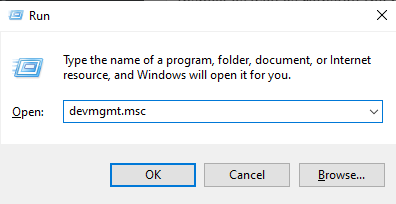
- Expand each category and look for devices with a yellow exclamation mark.
- Download the right driver from your PC manufacturer's website and install it.
Use the $GetCurrent folder
This method comes from Microsoft's community forums and has helped many people stuck at 99% during a feature upgrade:
- Restart your computer.
- Open your system drive in File Explorer, go to View > Options > View and tick Show hidden files, folders, and drives.
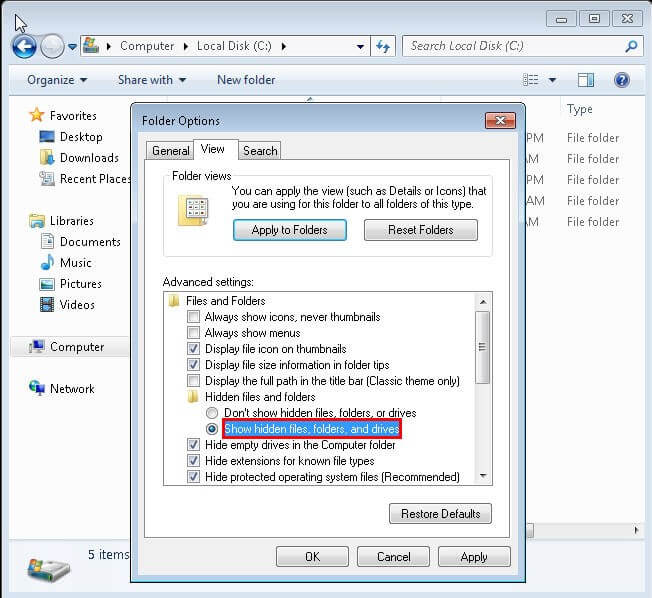
- Open the $GetCurrent folder and copy the media folder inside it to your desktop. It contains a complete Windows 10 installation package for the version you were upgrading to.
- Open the media folder and run setup.exe to install the update the normal way.
Reset Windows Update with a batch file
You can put the reset commands into a script so they run in one go:
- Open Notepad.
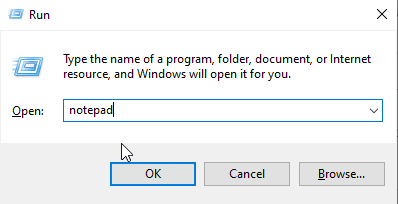
- Paste the commands from the "Reset the Windows Update components" section above, then save the file on your desktop as fix.bat (make sure the extension is .bat, not .txt).
- Right-click the file and choose Run as administrator.
- Restart your computer and try Windows Update again.
References: ubackup.com, windowsreport.com, windowsdigitals.com, zerodollartips.com, techpchelp.com, tenorshare.com