Potential Windows Update Database Error Detected: How to Fix It
Windows Update Troubleshooter says potential windows update database error detected? Fix it with SFC, DISM, a clean boot and a manual reset, plus fixes for error 0x80070002.
In this guide
You run the Windows Update Troubleshooter hoping it'll sort out a stuck update, and instead it reports "Potential Windows Update Database error detected." Here's how to fix that, and the related error 0x80070002, on a Windows 10 PC.
Most of us install Windows updates to stay on top of security patches and new features. But every so often, Windows Update throws an error that refuses to go away.
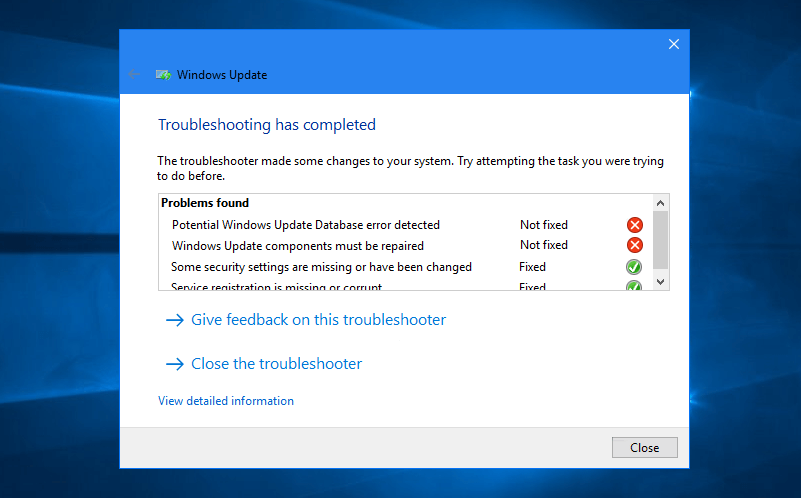
Along with Windows updates stuck at 0% and endless "Checking for updates" screens, Potential Windows Update Database error detected is one of the most common Windows 10 update problems we hear about.
It usually shows up when you run the Windows Update Troubleshooter to fix a download or install problem, whether you're upgrading to a newer version of Windows or just installing regular updates. The troubleshooter reports Potential Windows Update Database error detected or says that Windows Update components must be repaired, and doesn't fix it.
Don't worry. There are several ways to fix it. Below are the ones that work most reliably; try them one at a time.
How to Fix Potential Windows Update Database Error Detected in Windows 10
In most cases, "Potential Windows Update Database error detected" means Windows can't properly access files it needs in the C:\Windows folder, often because of corrupted system files or bad registry entries.
Follow the steps below in order and Windows Update should be back to normal.
Run System File Checker (sfc /scannow)
Corrupted system files are a common cause of a damaged Windows Update database. The System File Checker tool scans Windows system files and restores any that are broken.
Right-click the Start button and choose Command Prompt (Admin).
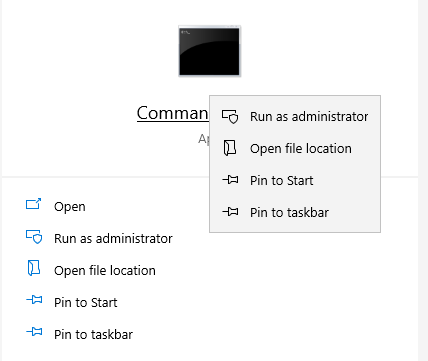
Type this command and press Enter:
sfc /scannow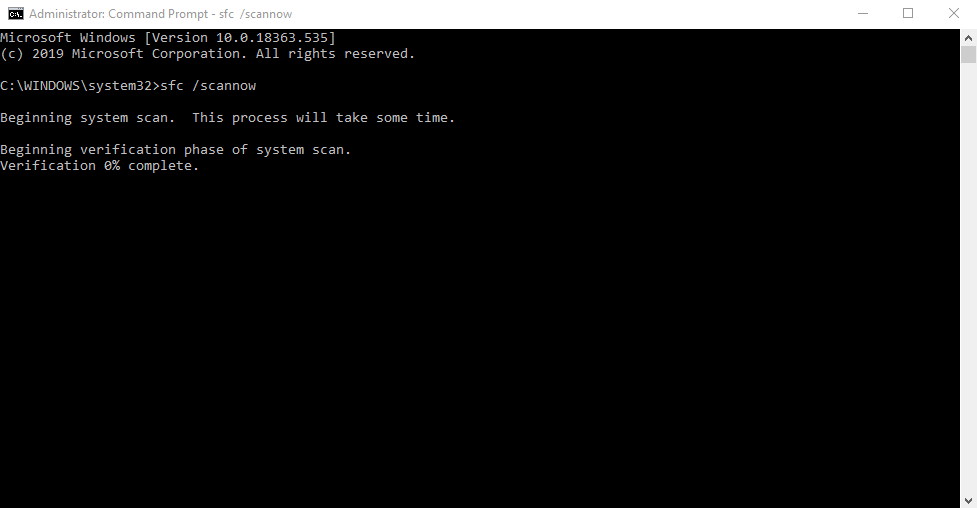
The scan starts, and any missing or corrupted files are repaired automatically.
When it's finished, restart your computer.
Run the DISM Tool
Windows updates may fail to install if the Windows image itself is corrupted. The DISM (Deployment Image Servicing and Management) tool repairs it.
Right-click the Start button and choose Command Prompt (Admin).
Type this command and press Enter:
DISM.exe /Online /Cleanup-image /Restorehealth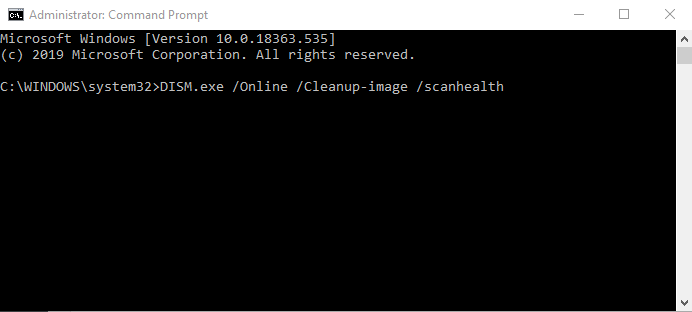
The repair can take several minutes, so be patient.
When it's done, close Command Prompt, restart your computer and run Windows Update again.
Perform a Clean Boot, Then Install Windows Update
A third-party program or service can interfere with Windows Update. A clean boot starts Windows with only Microsoft services running, which often lets the update go through.
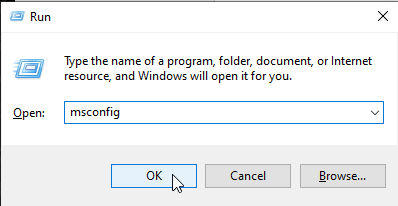
- Press Windows + R, type msconfig and click OK.
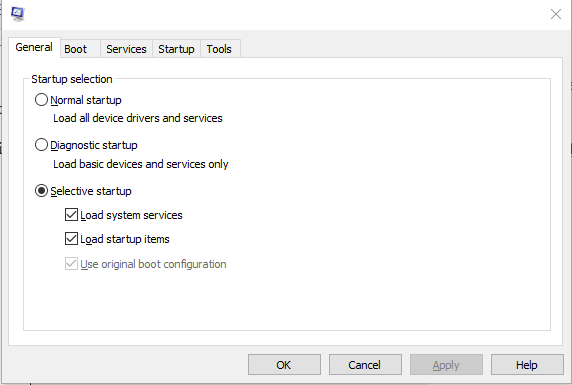
- On the General tab, select Selective startup and untick Load startup items.
- Open the Services tab, tick Hide all Microsoft services and click Disable all.
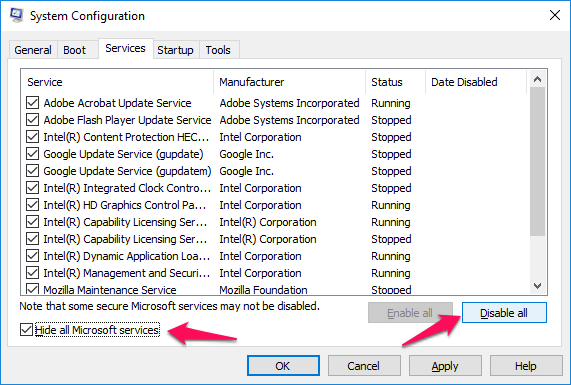 Image: zerodollartips.com
- Open the Startup tab and click Open Task Manager.
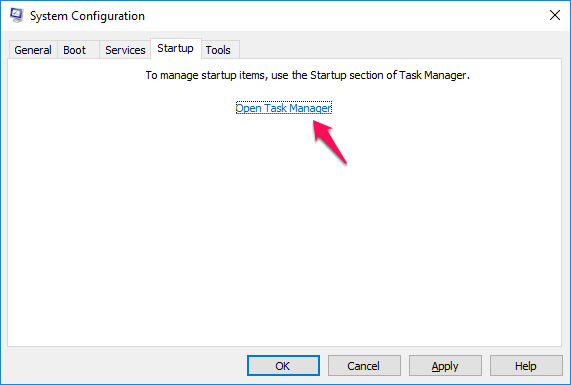 Image: zerodollartips.com
- In Task Manager's Startup tab, disable every startup item that's enabled.
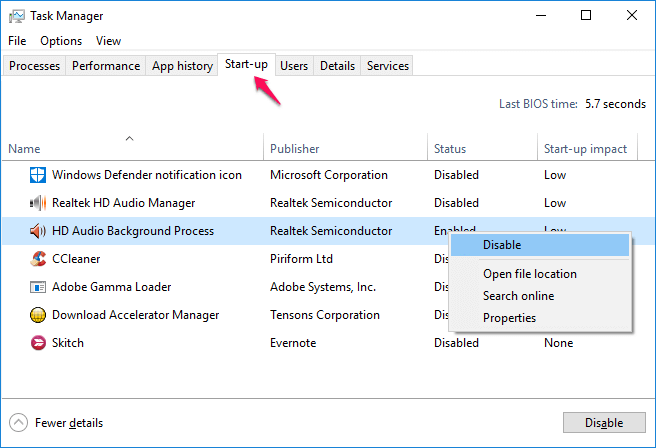 Image: zerodollartips.com
- Click OK and close System Configuration.
Restart your computer and try installing the updates again. Once they're installed, go back to msconfig and choose Normal startup to undo the clean boot.
Reset the Windows Update Components Manually
If Windows Update errors keep coming back, resetting its components to their defaults is one of the most effective fixes.
Right-click the Start button and choose Command Prompt (Admin).
Enter these commands one at a time, pressing Enter after each. They stop the Windows Update, BITS, Cryptographic and MSI Installer services:
net stop wuauserv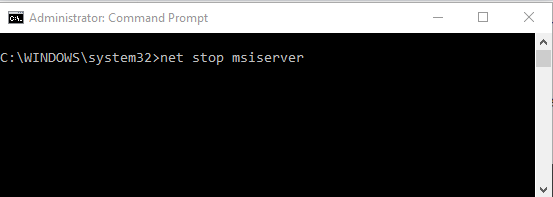
net stop bits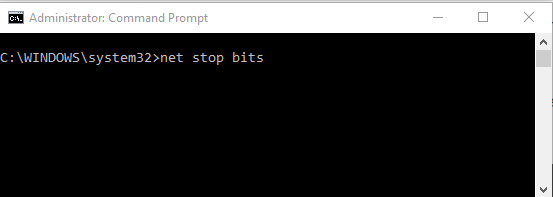
net stop cryptSvc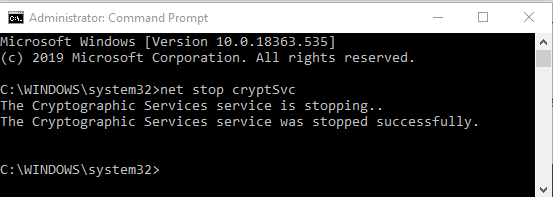
net stop msiserver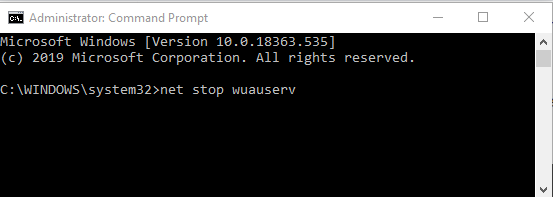
Next, rename the SoftwareDistribution and catroot2 folders by entering these commands:
ren C:\Windows\SoftwareDistribution SoftwareDistribution.old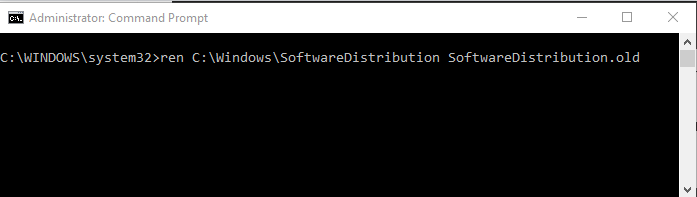
ren C:\Windows\System32\catroot2 Catroot2.old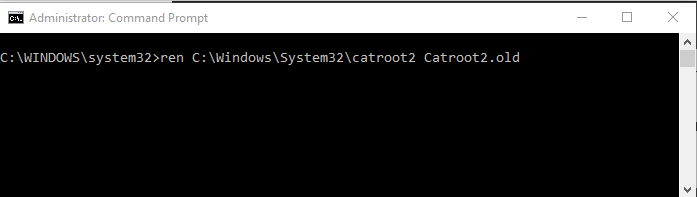
Start the services again:
net start wuauserv
net start bits
net start cryptSvc
net start msiserver
Restart your PC and try Windows Update again. The potential Windows update database error detected message should be gone.
How to Fix Windows Update Error 0x80070002 (and 0x80070490)
What Is Error 0x80070002?
Error 0x80070002 is one of the most common problems people run into when updating Windows. When it appears, you'll see a message like this:
"Windows could not search for new updates. An error occurred while checking for new updates for your computer. Error(s) found: Code 80070002. Windows Update encountered an unknown error."
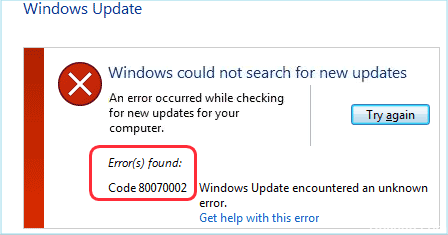
The same "Windows could not search for new updates" message can come with other codes too, such as 80244001 or 80244022, but they all point to the same kind of problem.
Error 0x80070002 usually means some update files are missing, or the Windows Update database on your PC doesn't match what the update expects.
Below are seven fixes. Try them in order.
Before You Start: Protect Your Data
Windows problems can sometimes lead to data loss, and so can a wrong step while fixing them. Back up your important files before you begin.
1. Check Your Date and Time Settings
It sounds unlikely, but a wrong date or time is a surprisingly common cause of 0x80070002, because Windows Update relies on secure connections that check the clock.
In Windows 10, right-click the clock on the taskbar and choose Adjust date/time. Make sure Set time automatically and Set time zone automatically are on.
You can also go through Control Panel > Date and Time > Change date and time.
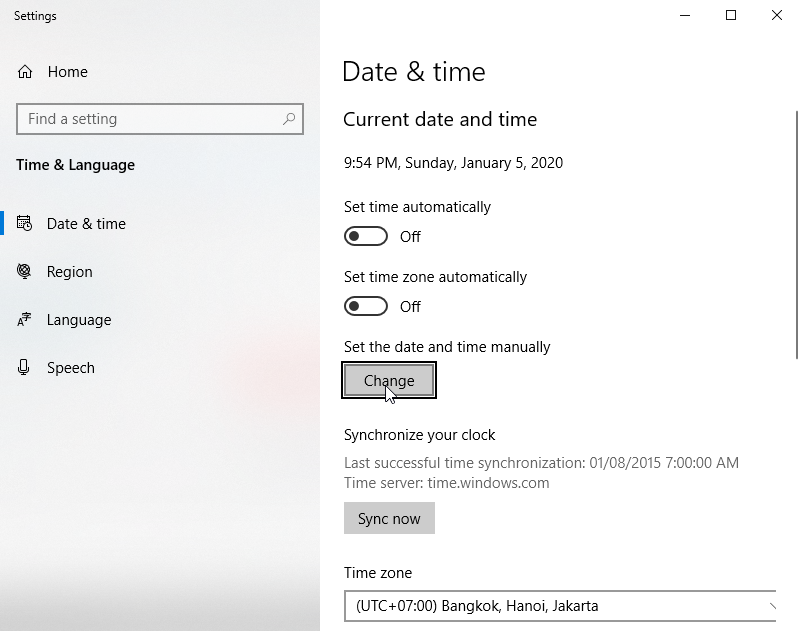
Restart your computer and run Windows Update again. If the error is still there, try the next fix.
2. Temporarily Disable Your Security Software
Security software protects you from viruses, but sometimes it blocks Windows Update too.
If you use a third-party antivirus, right-click its icon in the taskbar's notification area and choose the option to disable it temporarily.
On Windows 10 you can also temporarily turn off Windows Defender and Windows Firewall.
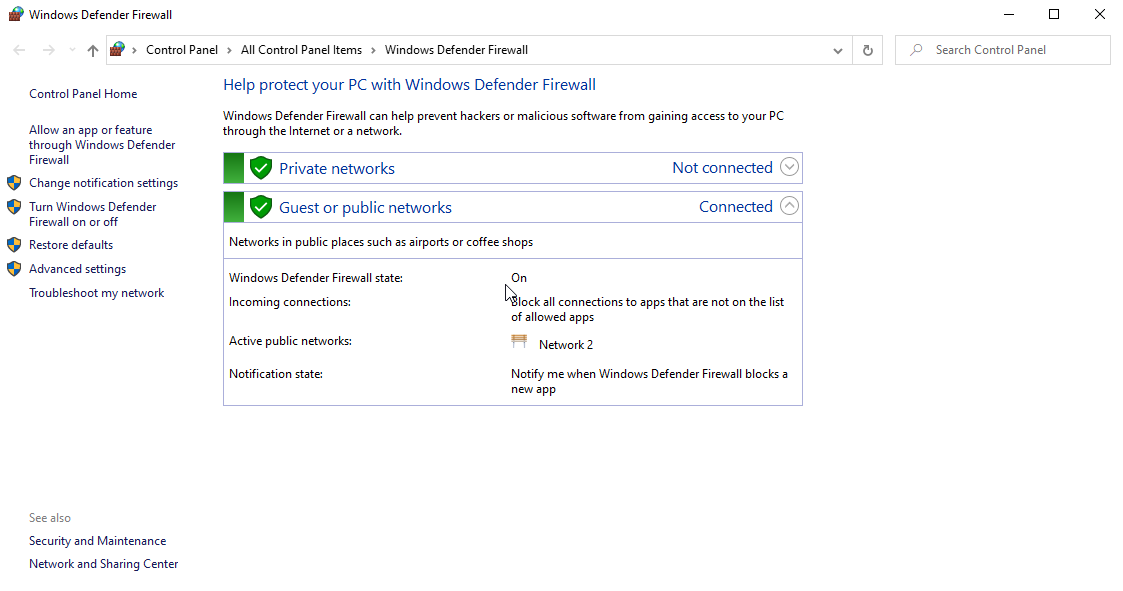
Restart and check whether error 0x80070002 is gone. Remember to turn your protection back on afterwards.
3. Run System File Checker
Damaged system files can also trigger 0x80070002.
Step 1: Type Command Prompt in the Windows 10 search bar, right-click the result and choose Run as administrator.
Step 2: Type sfc /scannow and press Enter. Don't close the window until you see "Verification 100% complete."
4. Delete the SoftwareDistribution Folder
The SoftwareDistribution folder stores all downloaded Windows Update files. If some of them are corrupted, you may see error 0x80070002.
Step 1: Find the SoftwareDistribution folder
- Open File Explorer.
- Open the C: drive (where Windows is installed).
- Open the Windows folder.
- Find the SoftwareDistribution folder.
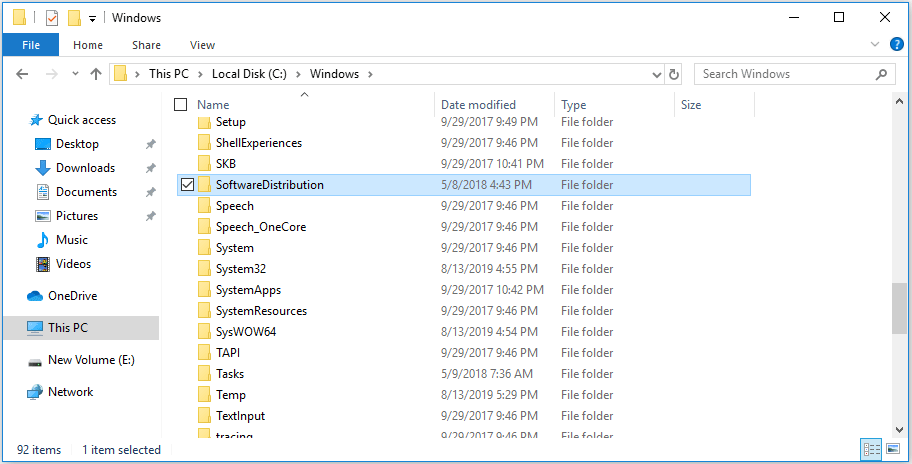 Image: partitionwizard.com
Step 2: Delete it
First stop the Windows Update service (run net stop wuauserv in an admin Command Prompt), then right-click the folder and choose Delete.
Restart your computer and run Windows Update again. Windows recreates the folder automatically.
5. Reset the Winsock Catalog
Corrupted Winsock settings can also cause Windows Update errors.
Step 1: Open Command Prompt as administrator, as described above.
Step 2: Run the command
- Type netsh winsock reset.
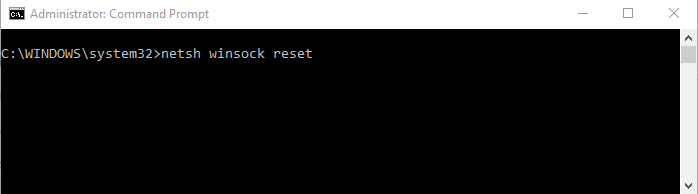
- Press Enter.
Restart your computer, then run Windows Update again.
6. Run the Windows Update Troubleshooter
The troubleshooter can often find the cause of the error and fix it for you.
Step 1: Open the troubleshooter
- Press Windows key + I to open Settings.
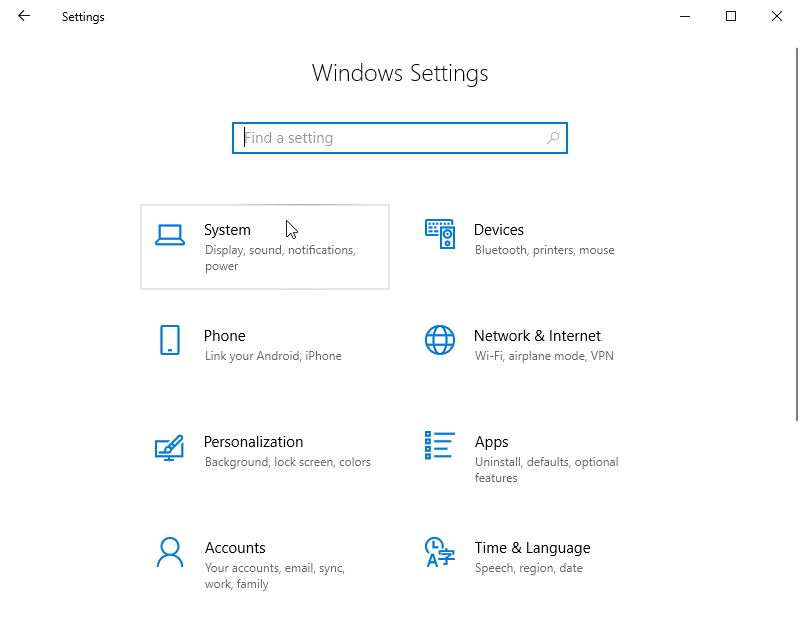
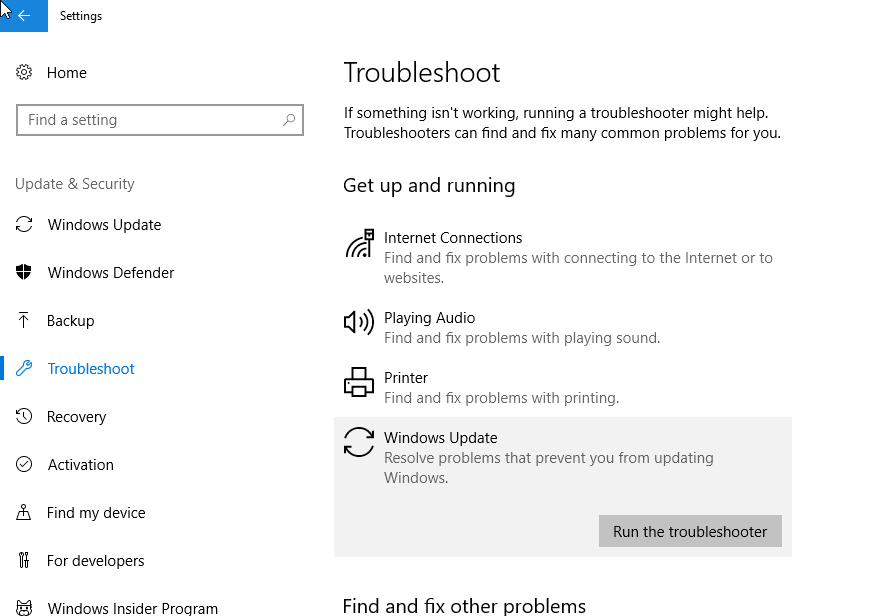
- Go to Update & Security > Troubleshoot and choose Windows Update.
Step 2: Run it
- Click Run the troubleshooter.
- Wait while it looks for problems; this can take a little while.
- Choose Apply this fix (or Skip this fix) when prompted.
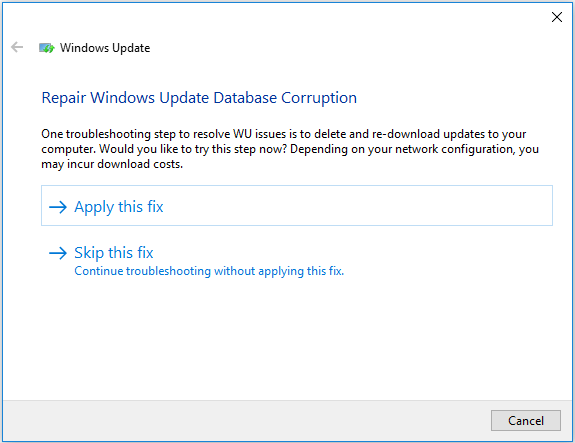 Repairing Windows Update database corruption
When it's done, restart your computer, run Windows Update again and see whether error 0x80070002 has gone.
7. Reset the Windows Update Components
If the error is still there, reset the Windows Update components using the commands in the first part of this guide. Between them, these fixes solve 0x80070002 for the vast majority of people.
Do you have another fix that worked for you? Share it in the comments.
References: partitionwizard.com, zerodollartips.com