Windows Home Server: Turn Windows 10 Into a Home Server
Windows home server 2011 is no longer supported, but Windows 10 Pro can replace it. Set up shared folders, remote access, Plex streaming and backups, plus free alternatives.
For years I ran Windows Home Server 2011 at home, and I loved it. When it reached end of support, I had to decide what to replace it with, and I ended up using Windows 10. Here's why, and how I set it up.
Using Windows 10 as a home server has some real advantages. You may already have it from the free upgrade, and even if you don't, it costs far less than a legal copy of Windows Server (especially an OEM license). Microsoft also keeps updating Windows 10 instead of pushing a brand-new OS every three years, so it should be around and supported for a long time.
The other big plus is familiarity. You don't need to learn complex server software. Even windows home server 2011, which was designed to be easy to use at home, had a learning curve: I had to get to grips with Server Manager, Remote Apps and port forwarding just to reach the Remote Web Access page. Windows 10 has none of that server complexity.
To be clear, Windows 10 isn't server software and was never meant to be a server OS. It can't do everything a real server can out of the box. But with some help from third-party tools, it does a very respectable job. I strongly recommend Windows 10 Pro rather than Home.
When I rebuilt my home server, I didn't want to spend hours learning Linux, and I wasn't sure Amahi would cover everything I needed. I'm one of the few people I know who actually likes Windows 10, but I wanted to keep the windows home server 2011 features I really used:
- A file server for my home network
- Remote access to my files
- Media streaming, both at home and remotely
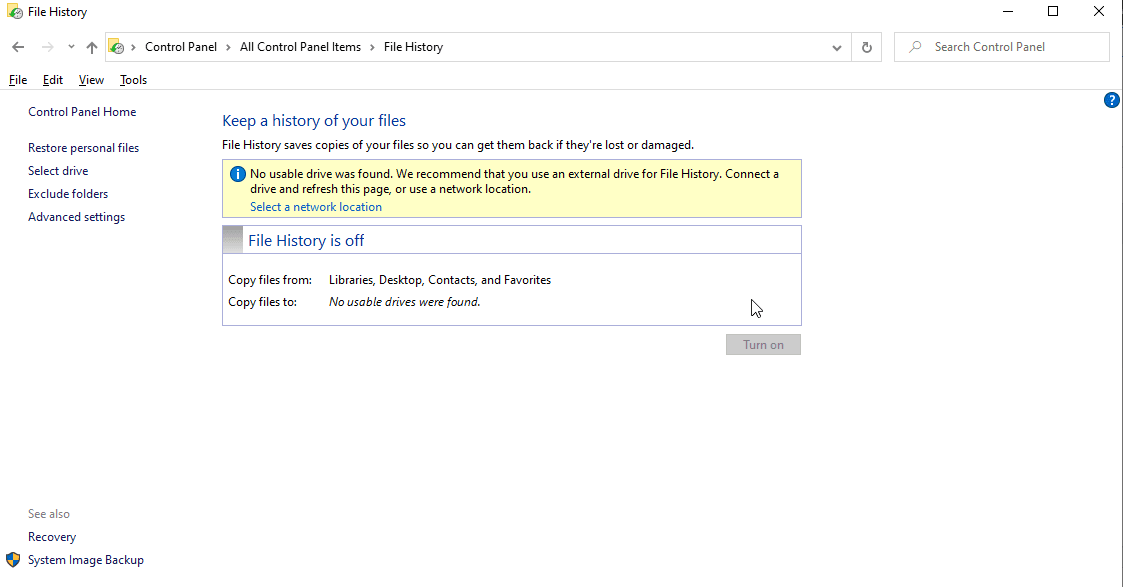
- Automatic backups of the family PCs
This guide assumes Windows 10 Pro, not Windows 10 Home. Let's get started.
Setting Up Windows 10 as a Home Server
You might think this is just a matter of setting up a HomeGroup. Unfortunately, Microsoft removed HomeGroup in Windows 10 version 1803, and I wouldn't have recommended it anyway. In windows home server 2011, we created users and gave them permissions to shared folders. We'll do exactly the same here, just by hand instead of through the old Dashboard.
You might also like: Windows 2000 Was the Best
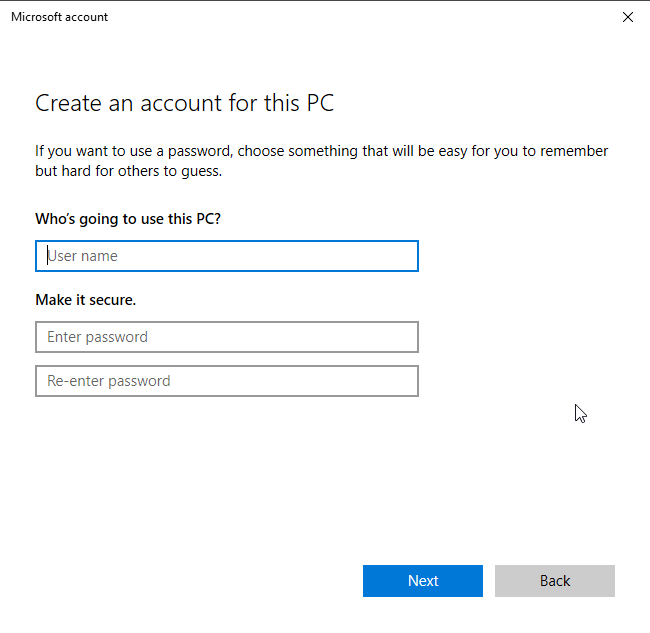
First, create the users who will need access to the shared folders. For a home server that's probably only a handful of people; the more users you add, the more time you'll spend sorting out permissions. They can be Microsoft accounts or local accounts.
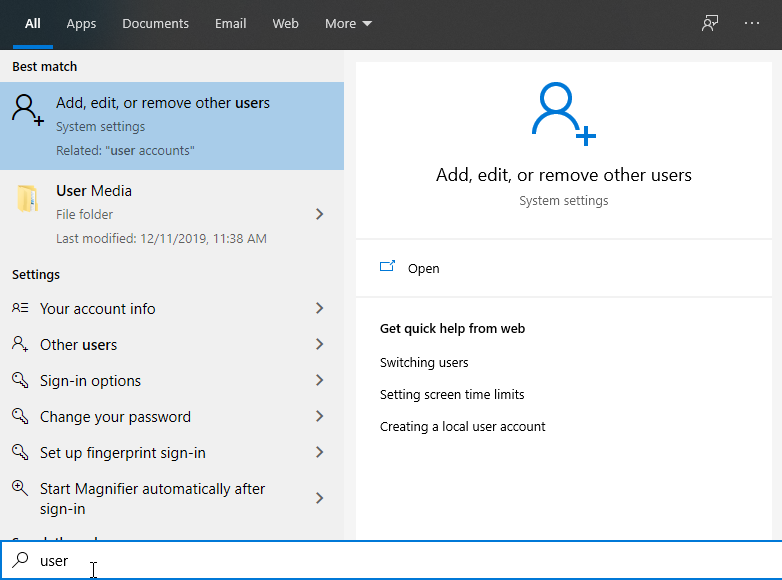
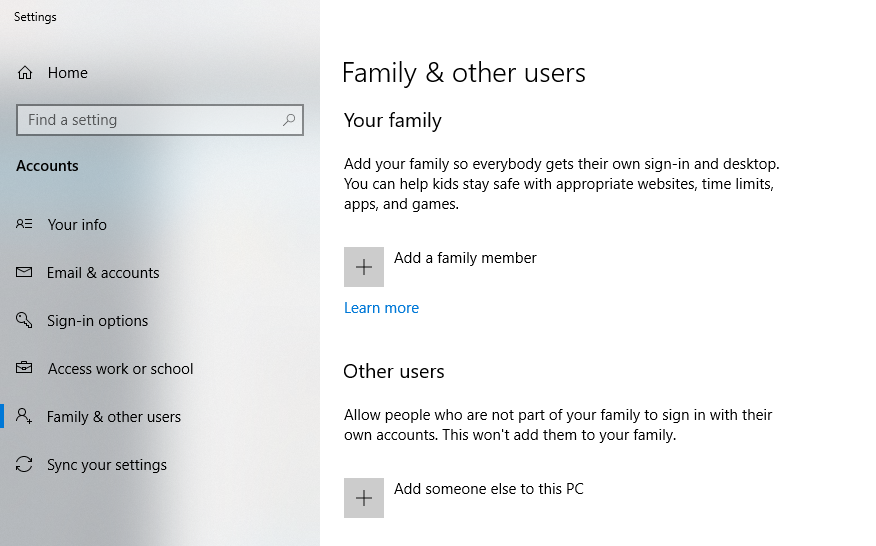
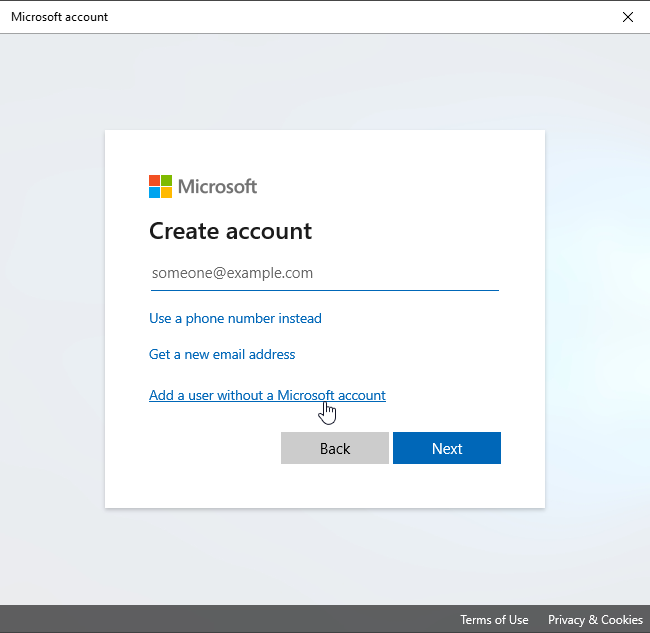
Click Start and type users. Click Add, edit, or remove other people, then + Add someone else to this PC. Choose Add a user without a Microsoft account, enter a username and password, fill in the security questions and click Next. Follow the prompts to finish adding the new user.
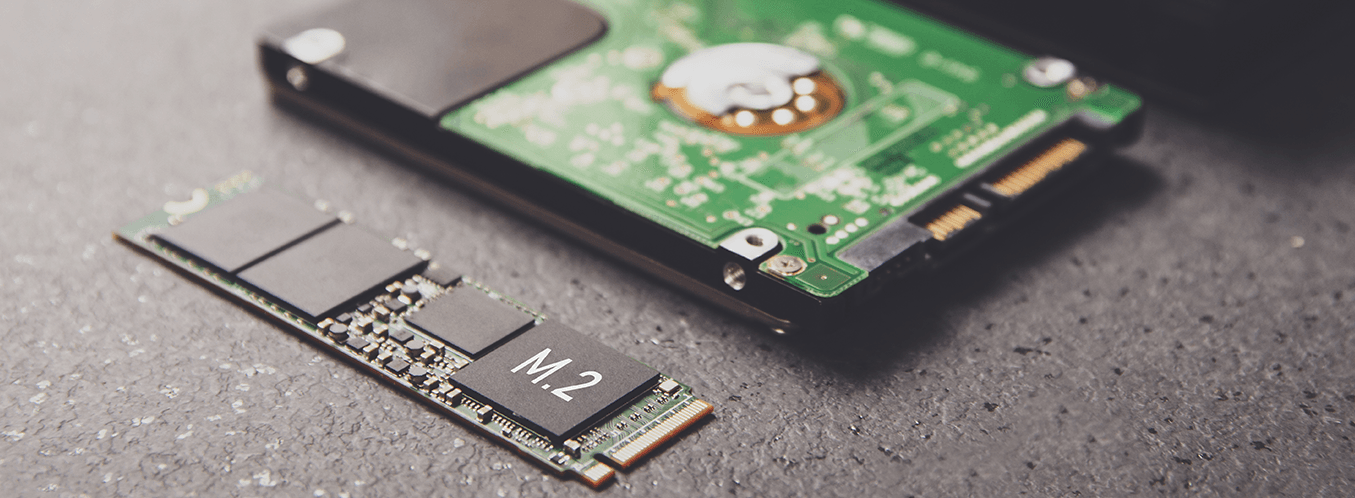
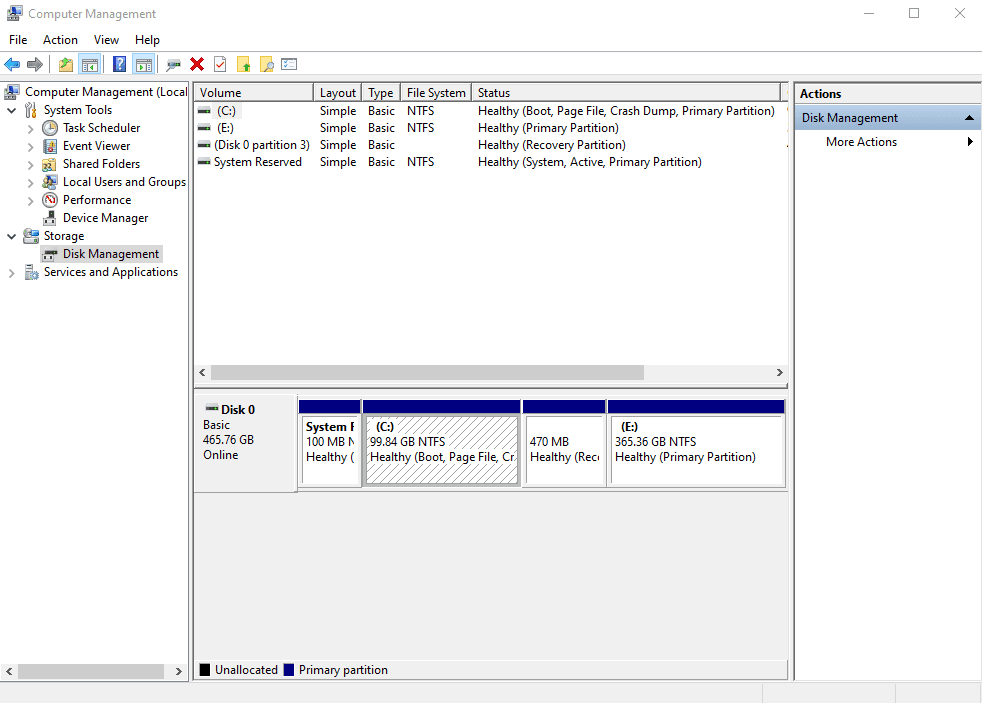
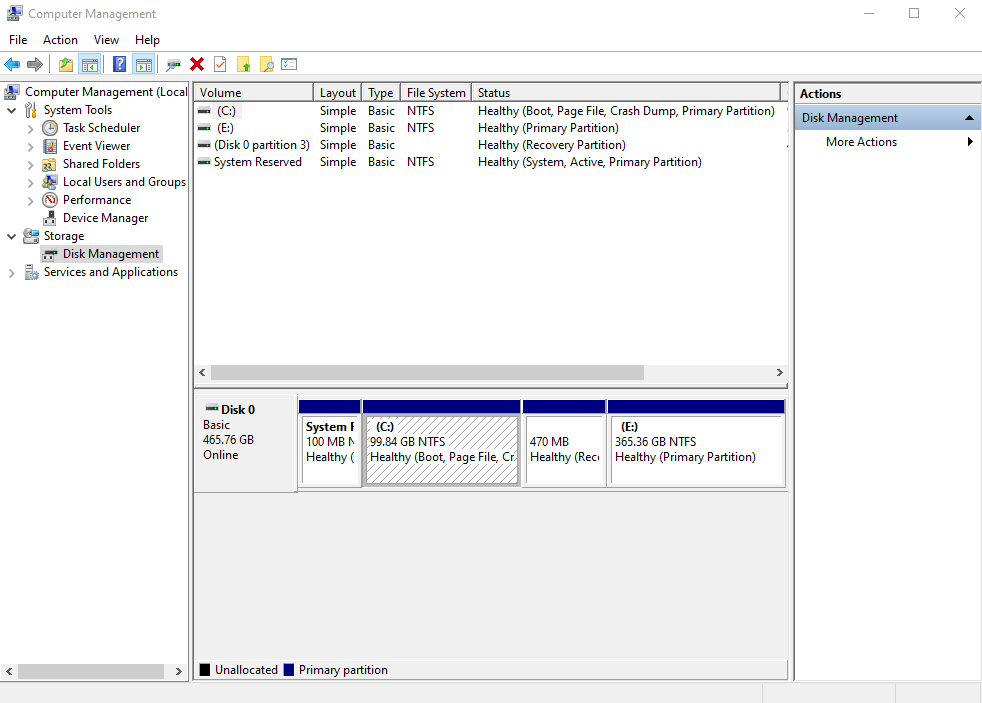
Next, make sure you're happy with how your drives are laid out. You probably did this when installing Windows, but it's worth getting your partitions right now, because changing them later is a pain. I like to keep my important files (documents, photos, programs) on one drive and entertainment (movies, TV shows, music) on another. A little planning now saves a lot of headaches later.
Now create the folders you're going to share.
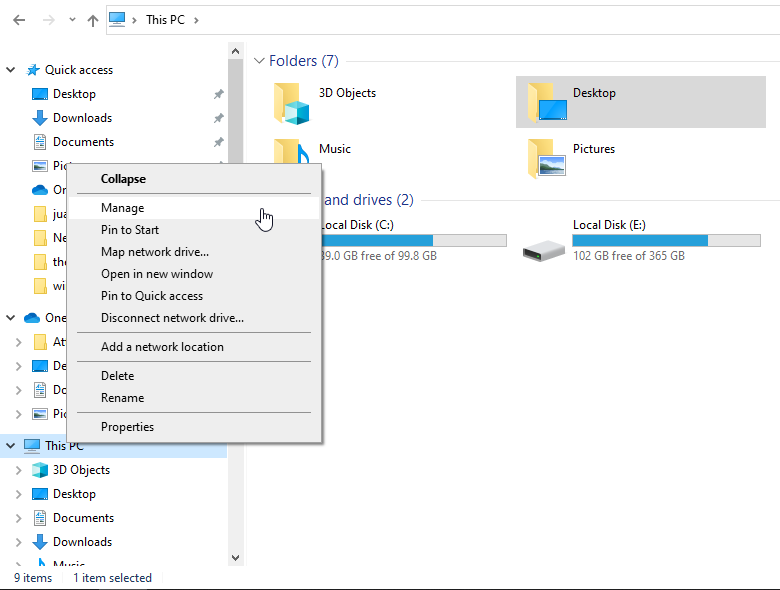
Right-click This PC and choose Manage.
Click Disk Management and check your partition layout before you start adding shared folders.
In File Explorer, open the partition where you want the shared folder, right-click and choose New > Folder.
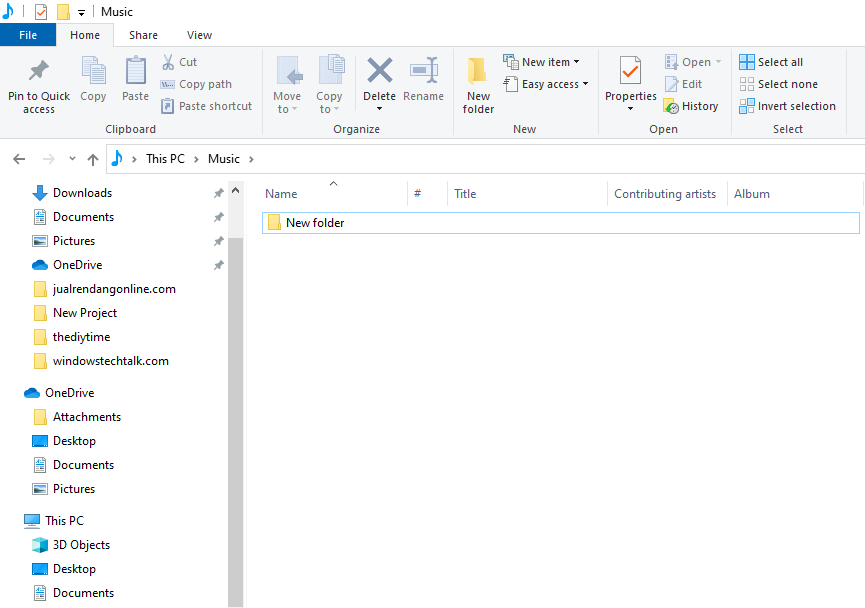
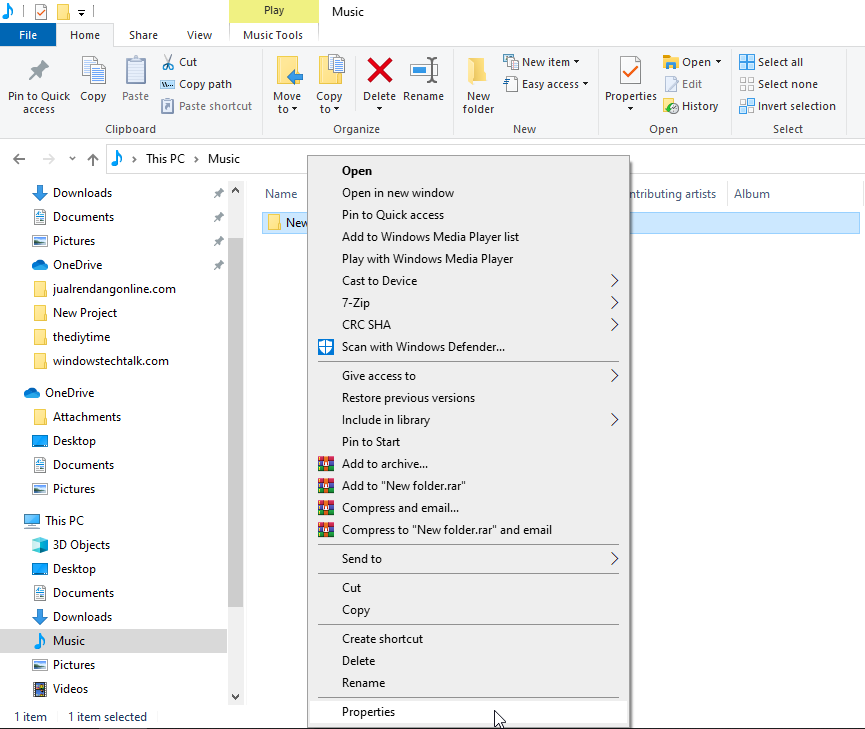
Right-click the new folder, choose Properties, open the Sharing tab and click Advanced Sharing.
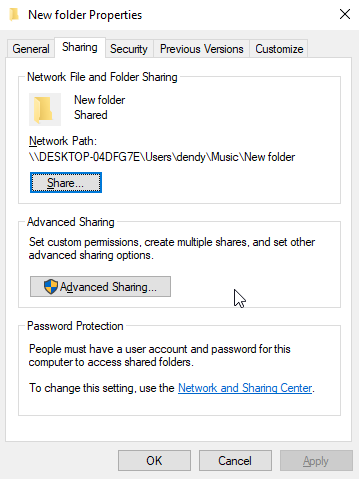
Tick Share this folder.
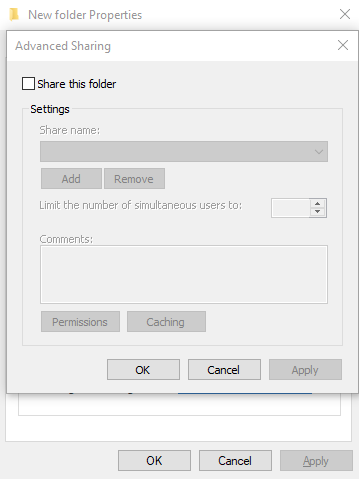
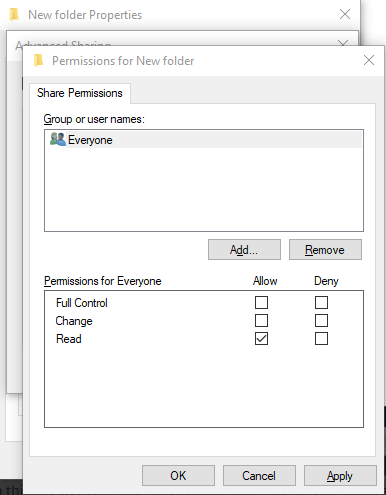
Give the share a name and click Permissions.
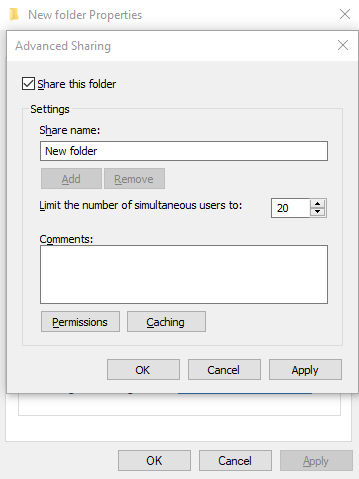
Remove Everyone. You definitely don't want everyone to have access to your files.
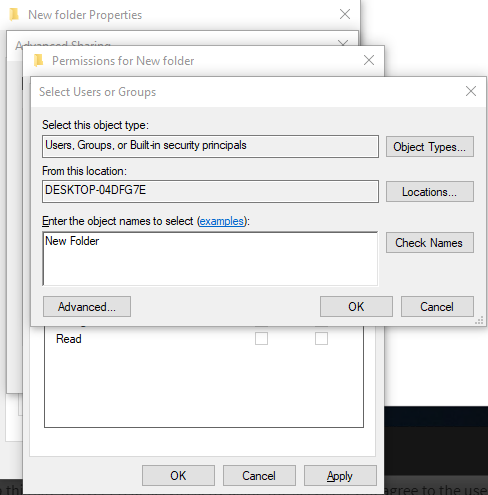
Click Add and enter the user you created (a Microsoft account or a local account). Click Check Names to verify it, then OK.
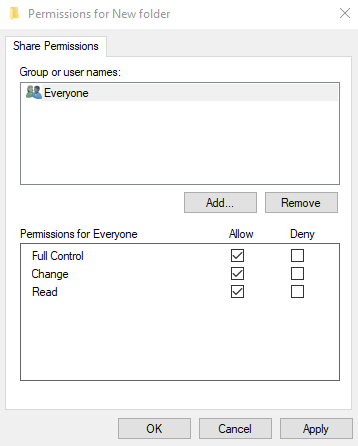
Choose the permissions you want to allow, click OK, then Close.
Windows 10 as a Remote File Server
This is where I really miss Windows Home Server. Windows home server 2011 had Remote Web Access, basically a website you logged into to reach your files from anywhere. Windows 10 has nothing like it, so we'll use the next best thing: a VPN (virtual private network), which encrypts the connection end to end and keeps your data safe.
The catch is that you need a VPN server on your network. Some higher-end home routers, such as Netgear Orbi, have one built in. Personally, I've used pfSense (free router software) with OpenVPN for years without any trouble. You can also run a VPN server on Windows 10 Pro itself and forward the ports from your router. There are many ways to do this, but that's beyond the scope of this article.
Once the VPN is working, accessing your files from outside feels just like being at home.
Windows 10 as a Media Server
Streaming movies, shows and music over the internet was one of my favourite Windows Home Server features, until I discovered Plex. Plex is a streaming service and media organizer in one, and its interface is excellent. It automatically downloads artwork and information to keep your library tidy, and there are apps for every major platform. Plex is free, with an optional paid tier that adds extra users, newer features and premium content.
Windows 10 as a Backup Server
One of the best things about windows home server 2011 was automatic PC backups, which let you do a "bare-metal" restore of a PC quickly. That worked well until PCs started shipping with UEFI Secure Boot, which made restoring from the recovery disc almost impossible for me. The backups were still useful, because each one was stored as an archive I could browse like File Explorer, and that saved me more than once when I needed a deleted file back.
Windows 10 doesn't offer anything like this, but you can get very close with Acronis True Image. Depending on how many PCs you need to back up, it can add a fair amount to the cost of your server, so price it out first. Acronis can run automatic backups to a network location, and like windows home server 2011 its backups are archives you can open and browse in File Explorer.
Other Advantages of Windows 10 as a Home Server
My server does a lot more than store files. I run Blue Iris to record my security cameras, so it doubles as an NVR. ViceVersa Pro automatically copies folders to my NAS. The server is hooked up to a 50-inch TV, so it's also a gaming machine. NxFilter lets me keep an eye on my kids' web activity, and a TV tuner card lets me record live TV. With Windows, you get a huge range of software that works with just about any hardware.
Automatic updates are one of the most controversial parts of Windows 10. Lots of people hate them, but I like knowing my PC is always patched. I haven't had a single malware problem since installing Windows 10, using only the built-in Windows Defender, and the server has never restarted on me while I was using it. You can set active hours to make sure that doesn't happen. All in all, automatic updates help make Windows 10 a safe choice for a server.
Best Free Home Server Software
If Windows 10 isn't for you, these are the alternatives worth considering.
Windows Home Server
Microsoft's own home server software lets you reach your files and media from any computer in the house, whether you're at home or away.
It was designed for households and home businesses with several computers, helping you protect, organize and access all your media from one central place.
Thanks to its 64-bit design you can expand storage with external hard drives and install add-ins to get more out of your home network. Keep in mind that it's no longer supported by Microsoft.
Amahi Home Server
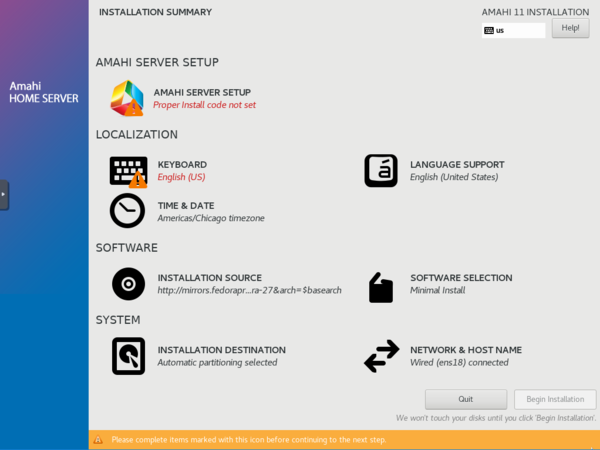
Amahi is designed for homes and small businesses.
One of its biggest strengths is a large app store that lets you add new features to your server with a single click.
It's powerful and simple, and lets you stream and share your media to all your devices and screens.
If you want to build your home server from a clean, simple base, Amahi is a great choice.
Ubuntu Server
Ubuntu Server is one of the most popular server operating systems in the world, and it handles remote backups, file sharing and media streaming with ease.
It's known for being easy to install, with automated setup that saves you from configuring each part by hand, and it comes with plenty of apps to integrate it with your home network.
Canonical's Ubuntu Advantage program offers paid support with direct access to Ubuntu experts if you ever need help.
FreeNAS (TrueNAS CORE)
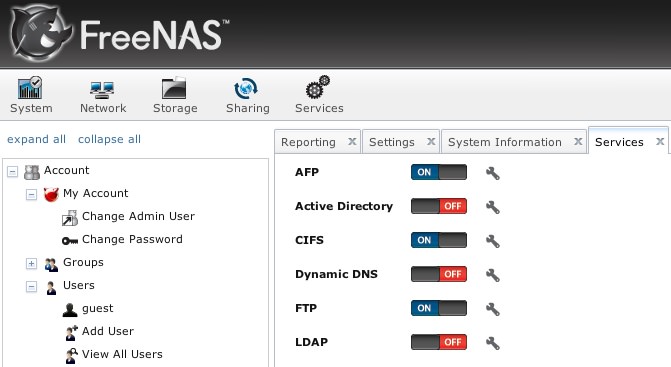
FreeNAS is an operating system that turns a computer into a central storage hub for your files. It runs on almost any hardware and uses ZFS, a flexible, enterprise-grade open-source file system that avoids many of the weaknesses of older file systems.
Key features include:
- File sharing: supports SMB/CIFS (for Windows), NFS, AFP, FTP, iSCSI, WebDAV and more.
- Data protection: ZFS is built for data integrity and can repair corrupted data automatically.
- Encryption: protect your data against loss or theft.
- Snapshots and replication: take snapshots of the whole file system and roll back to them, or replicate them to another system, much like local backups.
- Web interface: a simple web interface makes complex admin tasks manageable for almost anyone.
- Backup services: back up Windows and other operating systems to it.
- Plugins: add BitTorrent, CouchPotato, Plex and many more, or write your own.
ClearOS
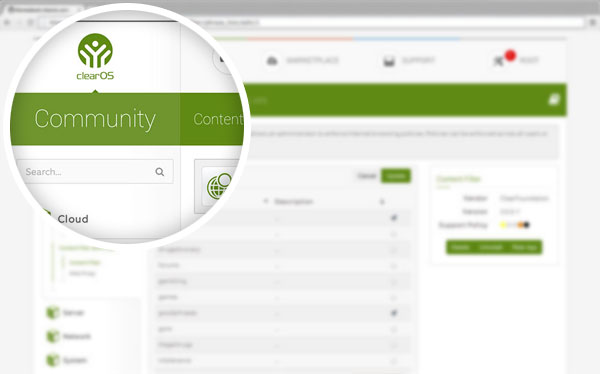
ClearOS combines free open-source technologies into a simple, affordable hybrid system for your home network.
You get the core system free and only pay for the extra services you actually need.
What sets ClearOS apart is how well everything is integrated, along with a clean, intuitive web interface that makes setup quick.
Its built-in Marketplace offers over 100 apps and services, so you can install just the ones you want.
References: hometechhowto.com, windowsreport.com