DNS Server Not Responding Windows 10: How to Fix It
Fix the dns server not responding windows 10 error: switch to Google or OpenDNS, clear Chrome's host cache, flush and renew DNS, and check your hosts file.

In this guide
I've run into the "dns server not responding windows 10" error more times than I'd like, usually right when I needed the internet most. The advice I found online was thin, so I worked out the fixes myself. Here they are, in the order I'd try them. They also work on Windows 7 and 8.

What Is a DNS Server?
Computers work with numbers, and people work with names. Every website has a numeric address called an IP (Internet Protocol) address, but nobody wants to type 142.250.x.x to reach Google. A DNS server is the translator in the middle: you type www.google.com, and the DNS server looks up the matching IP address so your computer knows where to go.
Think of it like a phone book for the internet. Without it, you'd have to memorise the exact coordinates of every house you wanted to visit. If DNS fails, websites won't load even though your connection is technically working. (A broken connection can cause other errors too, such as windows update stuck.)
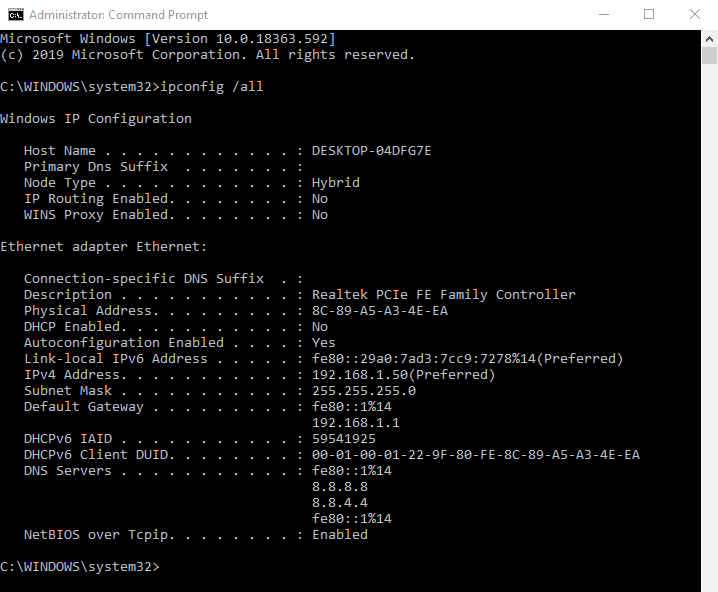
You've probably never told your computer which DNS server to use, and that's normal. Your internet provider runs its own DNS servers, and your PC picks them up automatically through DHCP (Dynamic Host Configuration Protocol) when it connects. But nothing stops you from switching to a different DNS server if your provider's is slow or unreliable.
How to Change the DNS Server in Windows 10
By default, your Internet Service Provider (ISP) gives you its DNS server, usually set in your router. Sometimes there are good reasons to use a different one. A third-party DNS service may respond faster, update its cache more quickly, add security filtering, or even block ads. And if your ISP's DNS is flaky, pages may load slowly or not at all.
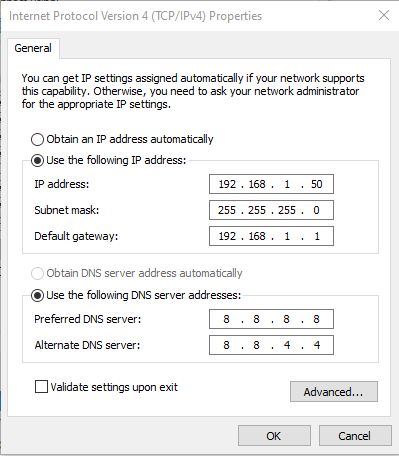
Where I live, the ISP's DNS server is honestly terrible, which is exactly why I switched to Google Public DNS. Google's IPv4 DNS servers are 8.8.8.8 and 8.8.4.4. Another popular choice is OpenDNS (208.67.222.222 and 208.67.220.220).
Make sure you're signed in as an administrator before you start, or you won't be able to change the DNS settings.
To change the DNS server in Windows 10:
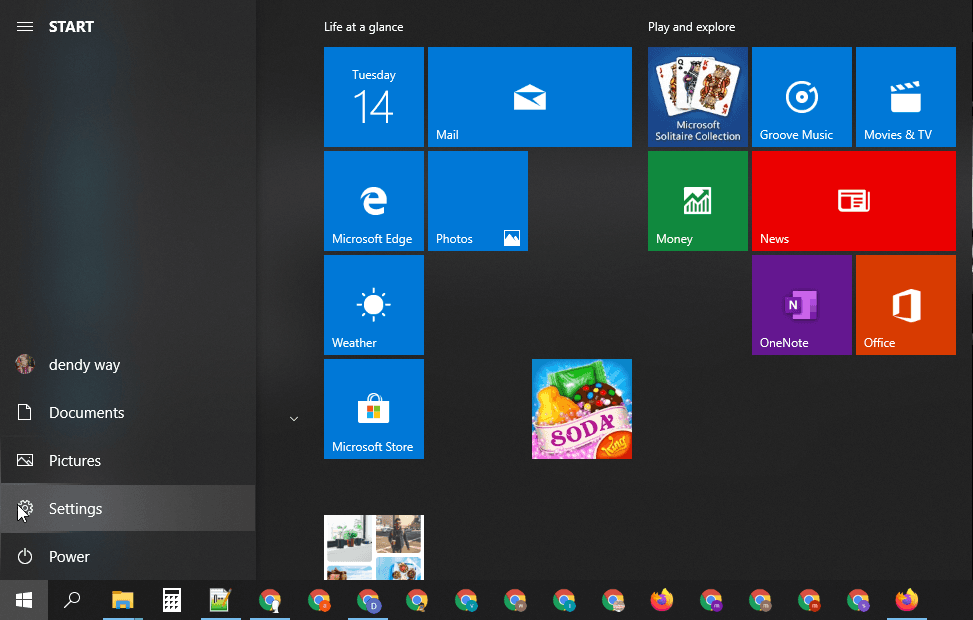
- Open Settings.
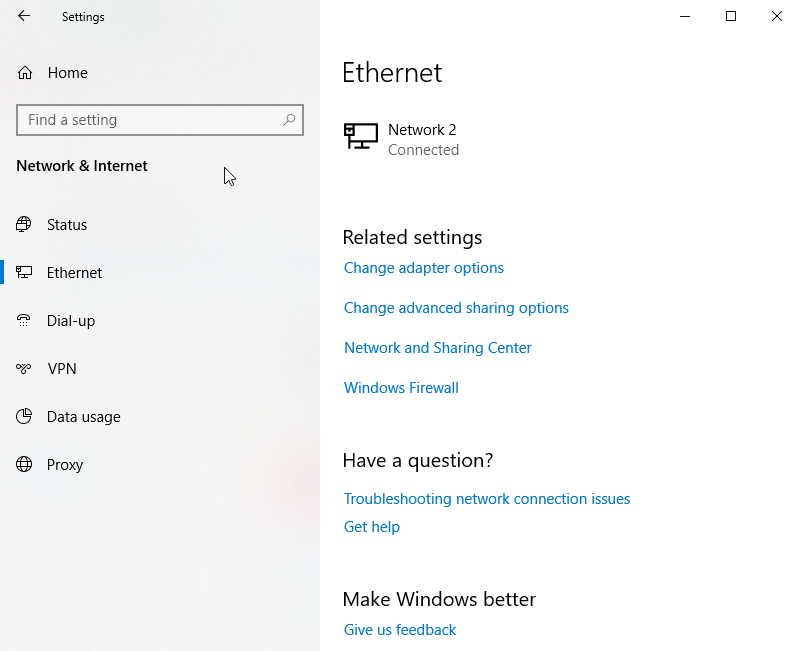
- Go to Network & Internet.
- If you're on a wired connection, click Ethernet on the left.
- If you're on wireless, click Wi-Fi on the left.
- Under Related settings, click Change adapter options.
- In the window that opens, double-click your network connection.
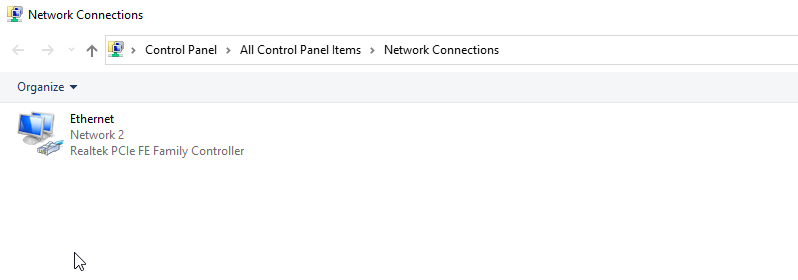
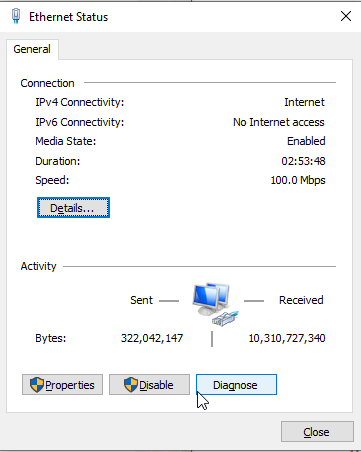
- Click the Properties button (the one with the blue and yellow shield). Confirm the UAC prompt if it appears.
- On the Networking tab, select Internet Protocol Version 4 (TCP/IPv4) and click Properties.
- In the Internet Protocol Version 4 (TCP/IPv4) Properties window, select Use the following DNS server addresses on the General tab. Enter your preferred and alternate DNS servers. In the screenshot below I'm using Google's public DNS.
- Click OK, then Close on each open window to apply the change.
Server DNS Address Could Not Be Found
Using Google Chrome and seeing "server DNS address could not be found" on some websites? It's closely related, and you can usually fix it with one of these.
Fix 1: Check the hosts file in the etc folder
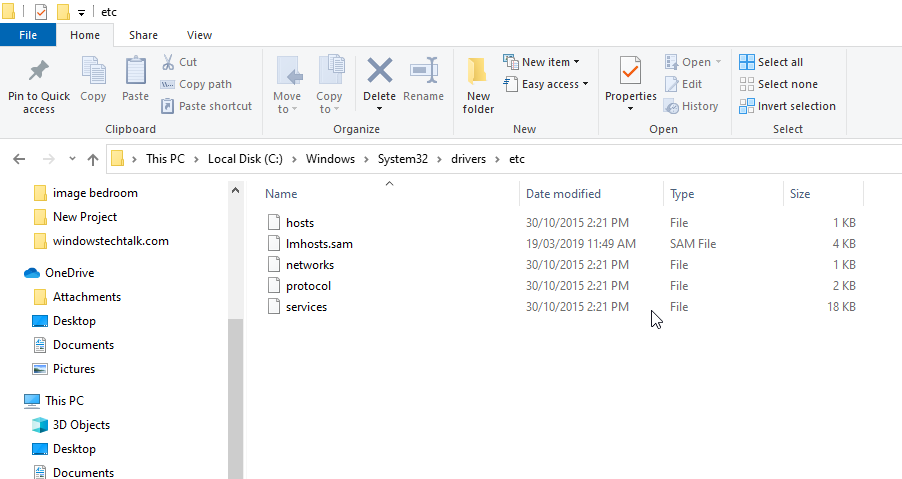
Go to C:\Windows\System32\drivers\etc and open the hosts file with Notepad (run Notepad as administrator so you can save changes). Look for lines that point the website you're trying to reach to a strange IP address, and delete them. Lines starting with # are only comments and can stay. Save the file and try Chrome again.
Be careful not to delete the whole folder: Windows needs the files in it.
Fix 2: Clear Chrome's host cache
If Chrome's internal DNS cache is corrupted or full, sites may refuse to load. This is a very common cause and an easy one to fix:
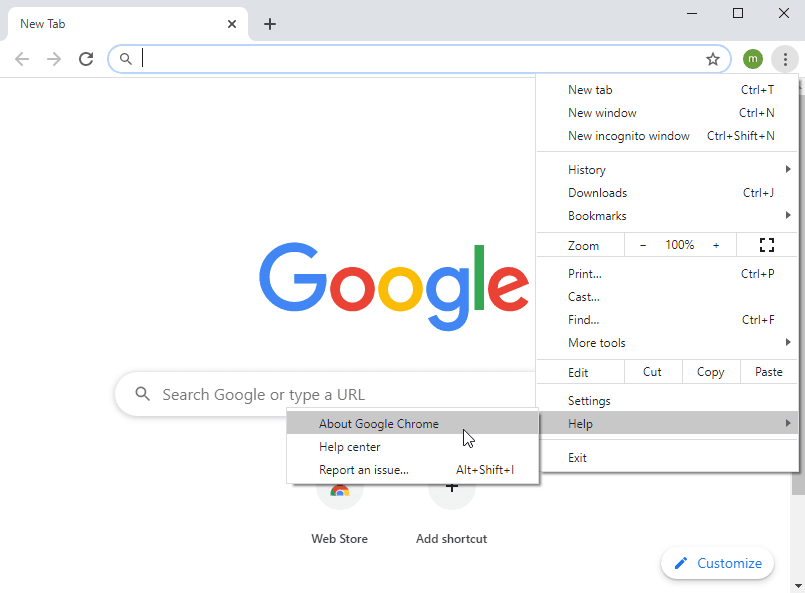
- Open Chrome, type chrome://net-internals/#dns in the address bar and press Enter. Click Clear host cache.
- Check whether the problem is gone.
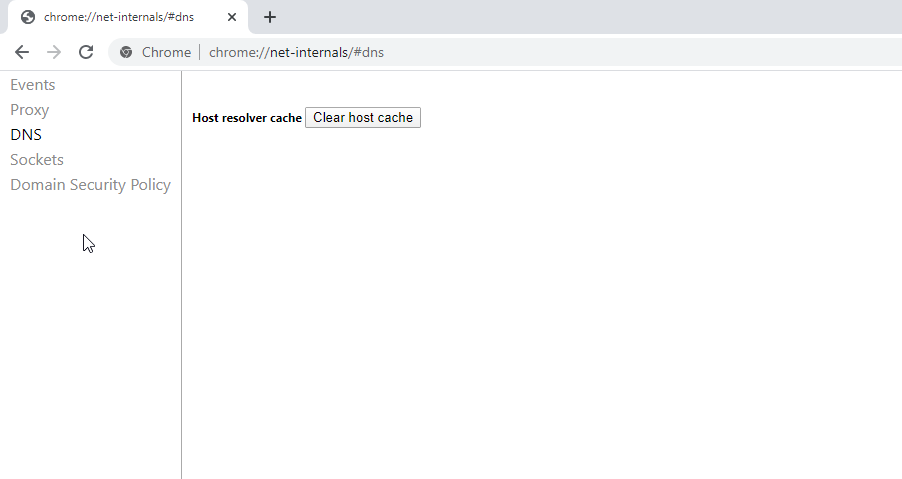
Fix 3: Flush and renew the DNS
Windows remembers the IP addresses of sites you've visited so they open faster next time. If that cache gets out of date or corrupted, it can block you from reaching websites. Flushing it takes a minute:
- Press Windows + R on your keyboard.
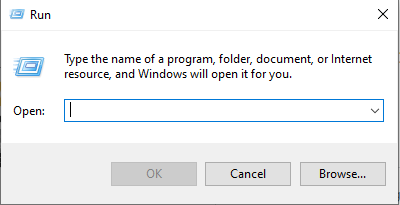 The Run utility
- Type cmd and press Ctrl + Shift + Enter to open Command Prompt as administrator. (Just pressing Enter won't give you admin rights.)
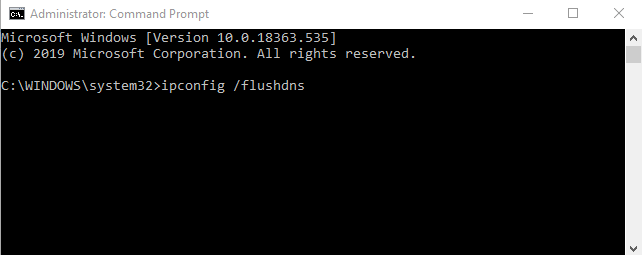
- Type ipconfig /flushdns and press Enter.
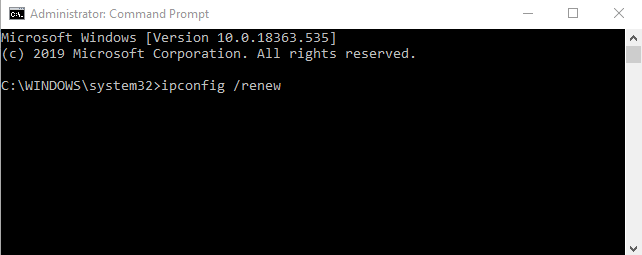
- Type ipconfig /renew and press Enter.
- Type ipconfig /registerdns and press Enter.
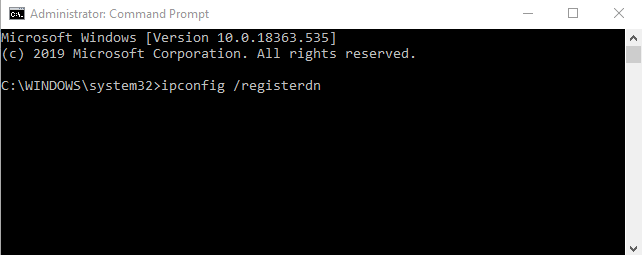
- Restart your PC and check whether the error is fixed.
Fix 4: Try a VPN
If only certain websites give you the DNS error, your ISP may be blocking them at the DNS level. A reputable VPN routes your traffic, including DNS lookups, through its own servers, which gets around that kind of block.
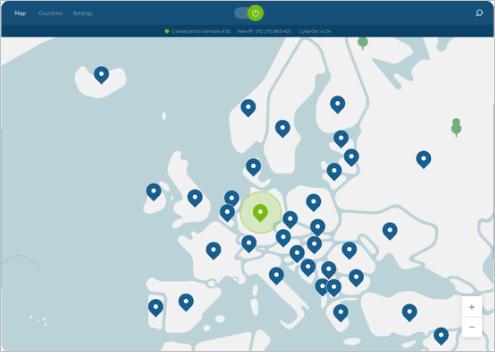
Choose a well-known VPN provider with a good track record. Install the app, sign in, and connect to a server in the country of your choice. Then try the website again.
References: techwalla.com, winaero.com, drivereasy.com, ubergizmo.com