No Audio Output Device Is Installed Windows 10: How to Fix It
Red X on the speaker icon? Fix no audio output device is installed windows 10 by re-enabling the sound device, reinstalling the audio driver and running the sound troubleshooter.
In this guide
A red X on the speaker icon in your taskbar means one thing: no sound at all. Hover over it and you'll see the message "No Audio Output Device is installed."

This No Audio Output Device is installed Windows 10 error usually has one of two causes: Windows has disabled your audio device, or the correct audio driver isn't installed, so Windows can't talk to the sound hardware. Less often, a damaged headphone jack or motherboard is to blame.
The fixes below have worked for lots of users. You probably won't need them all; start at the top and work down. If you use a Realtek sound card, it also helps to know your way around the Realtek HD Audio Manager.
How to Fix "No Audio Output Device Is Installed" in Windows 10
Re-enable the Sound Output Device
Many Windows users fixed this simply by re-enabling their audio device. Here's how:
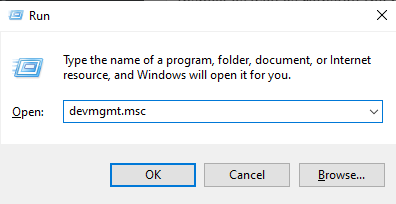
- Press Windows + R, type devmgmt.msc and press Enter to open Device Manager.
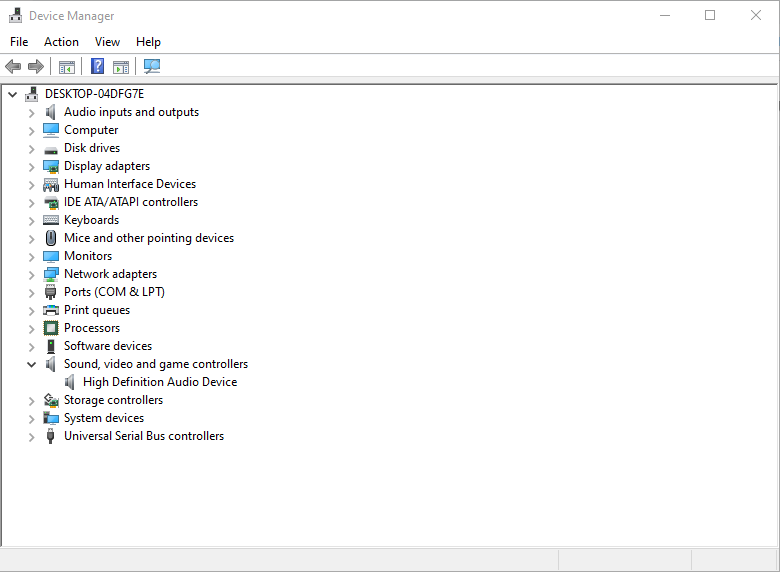
- Look for the Sound, video and game controllers category. If it's missing from Device Manager, follow the next steps to bring it back.
- Click Action at the top of Device Manager and choose Add legacy hardware.
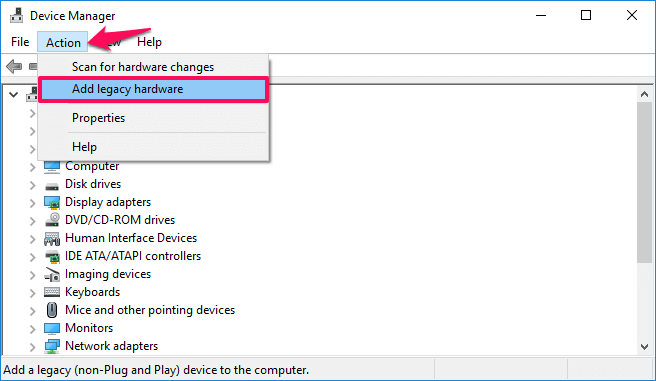 Image: zerodollartips.com
- On the Welcome to the Add Hardware Wizard screen, click Next.
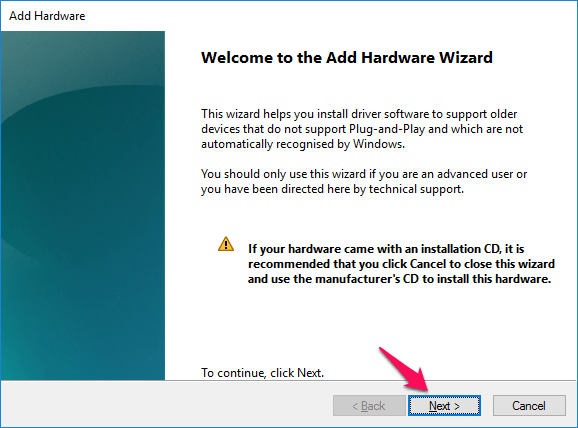 Image: zerodollartips.com
- Select Search for and install the hardware automatically (Recommended) and click Next.
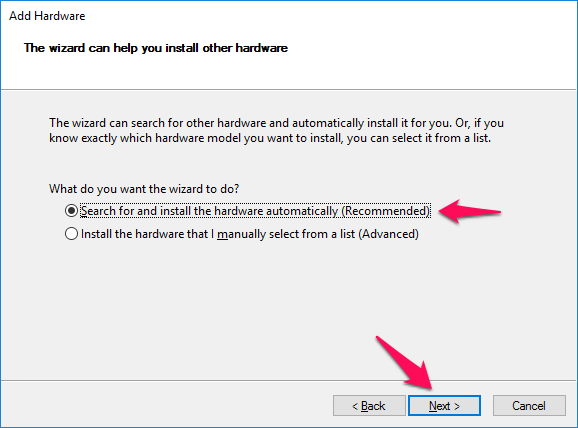 Image: zerodollartips.com
- If the wizard says "The wizard did not find any new hardware on your computer," just click Next.
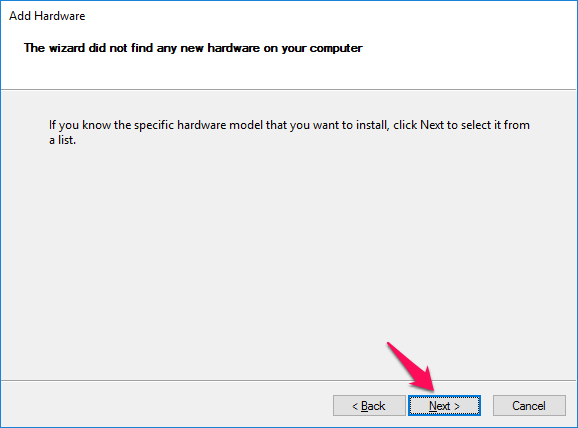 Image: zerodollartips.com
- In the list of hardware types, scroll down, select Sound, video and game controllers and click Next.
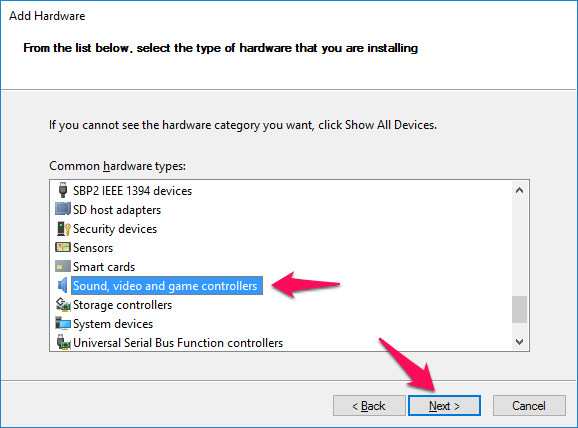 Image: zerodollartips.com
- Choose the manufacturer and model of your sound card, then click Next.
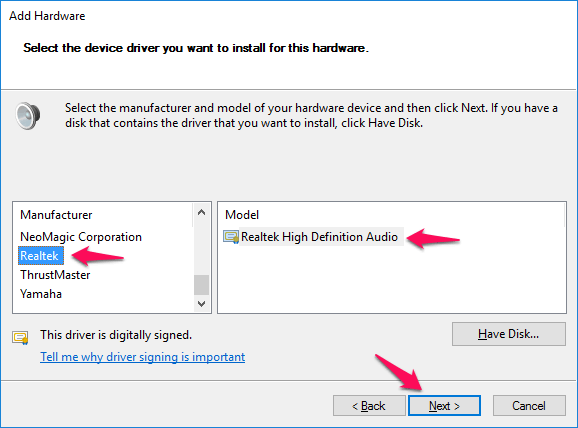 Image: zerodollartips.com
- On The wizard is ready to install your hardware screen, click Next.
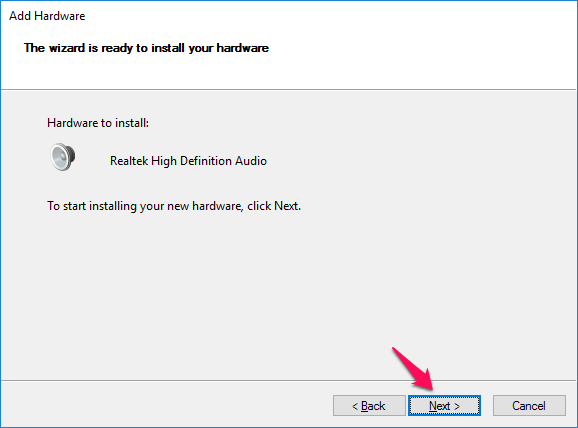 Image: zerodollartips.com
- Windows installs the device. When it's done, click Finish.
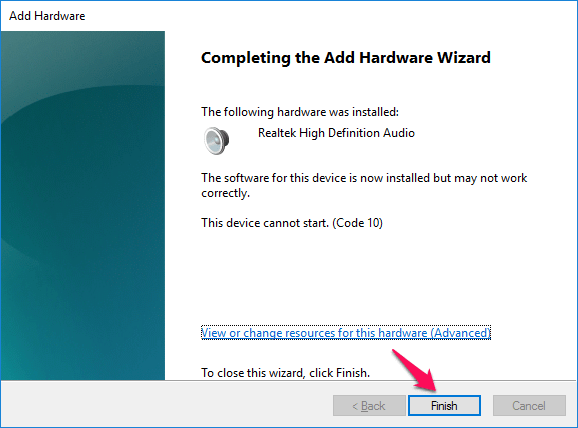 Image: zerodollartips.com
- Sound, video and game controllers now appears in Device Manager. Expand it, right-click your audio device and choose Enable device.
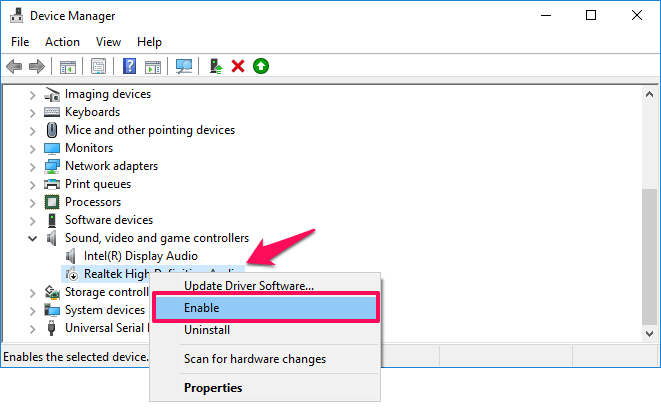 Image: zerodollartips.com
That should clear the No Audio Output Device is installed Windows 10 error. If you still have no sound, try the next fix.
Uninstall and Reinstall the Audio Driver
Most sound problems on Windows come down to drivers, and this one is no exception. If re-enabling the device didn't help, reinstall the audio driver:
- Press Windows + R, type devmgmt.msc and press Enter.
- Expand Sound, video and game controllers, right-click your audio device and choose Uninstall device.
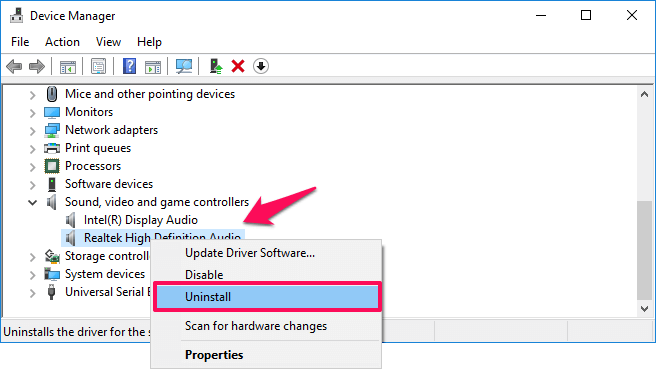 Image: zerodollartips.com
- Restart your computer. Windows 10 reinstalls the audio driver automatically.
The red X should be gone, and you can get back to your music and videos.
No Audio Output Device Is Installed on Windows 10 (HP Computers)
HP recommends running its automated tools and checking the driver status to get the device working again in Windows 10 or 8. These steps work on most other brands too.
Run the Audio Troubleshooter
Windows can detect and fix many sound problems on its own.
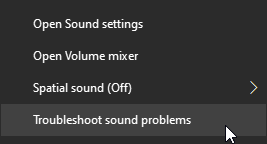
- Right-click the speaker icon in the notification area and choose Troubleshoot sound problems.
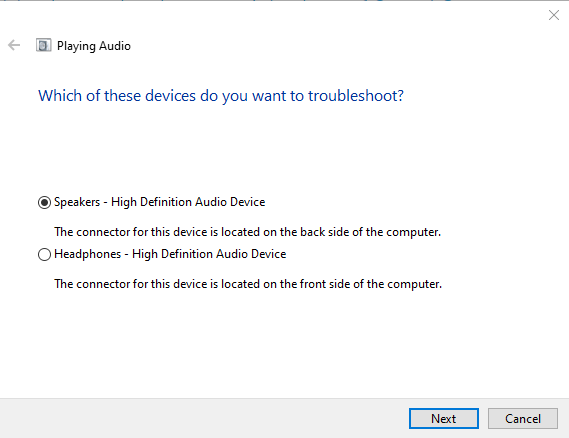
- Select the device you want to troubleshoot and click Next.
- If the troubleshooter recommends something, click Apply this fix, then test the sound.
Check the Device and Driver Status in Device Manager
An outdated sound driver can cause all kinds of audio errors. Use Device Manager to make sure the device isn't disabled and to install any available driver update.
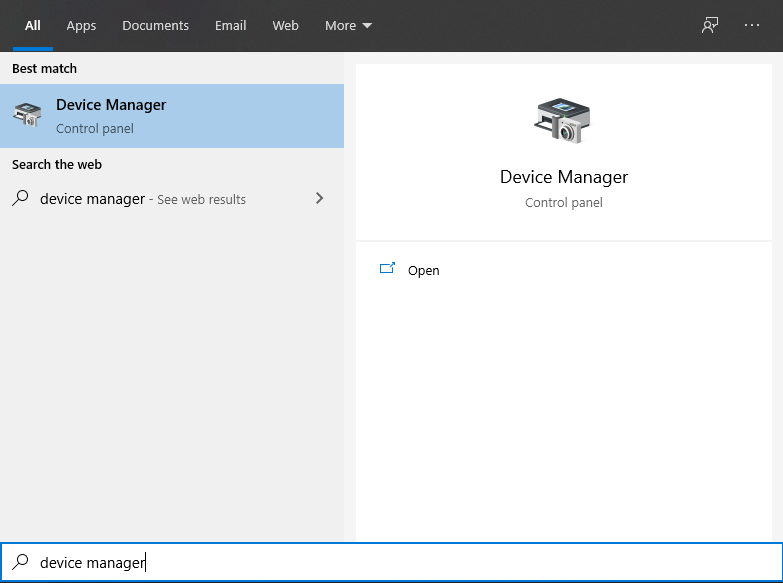
- Search for Device Manager in Windows and open it.
- Double-click Sound, video and game controllers.
- Right-click your audio device and choose Update driver.
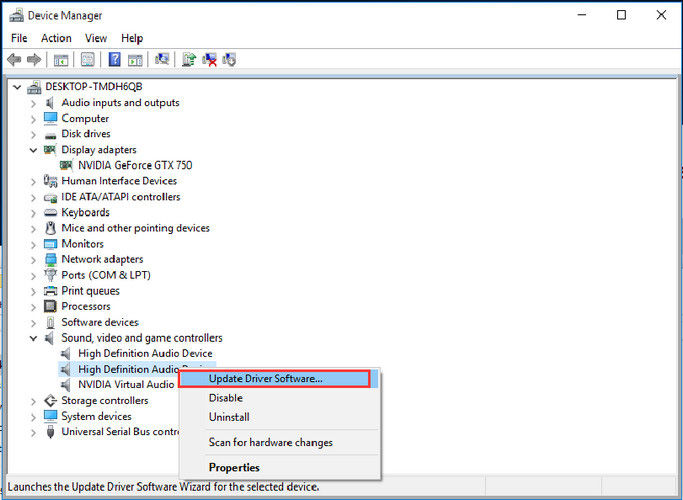
- Click Search automatically for updated driver software.
- If a new driver installs, restart the computer if asked and test the sound. (If updates won't install at all, see our guide to windows update stuck.)
- If no updated driver is found, carry on to reinstall the current one.
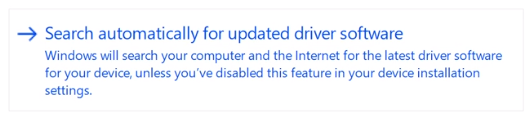
- Right-click the audio device again and choose Uninstall device.
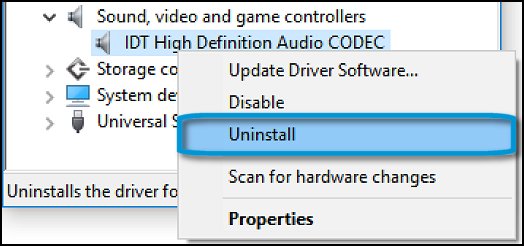 Image: support.hp.com
- Tick Delete the driver software for this device and click Uninstall.
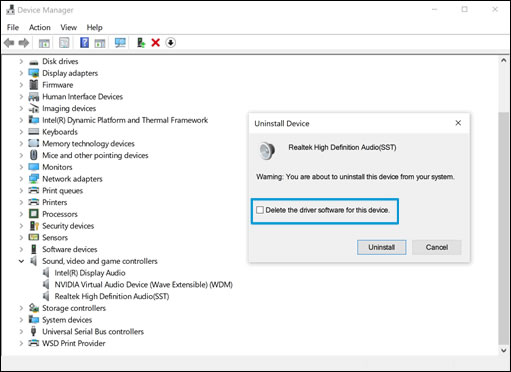 Image: support.hp.com
- In the menu bar, click Action and choose Scan for hardware changes to reinstall the device.
- Test the sound.
Still nothing? Right-click the speaker icon, choose Playback devices (or Sounds, then Playback) and reconnect your audio device if it isn't listed. If it is listed, select it, open its properties and use the test option to play a sound. If it doesn't appear at all, restart the computer and check the list again.
Check the Playback Device and Its Connection
- Right-click the speaker icon in the notification area and choose Playback devices.
- Make sure your device is listed with a green check mark, which means it's the default. If not, right-click it, choose Set as Default Device and test it.
- If it works now, you're done.
- If it isn't listed, continue below.
- Check how the device is connected:
- Wired: make sure it's plugged into the right port and the plug is fully inserted. Unplug it and plug it back in, in case Windows missed it the first time.
- Wireless: make sure the device is set up and paired with the PC.
Note that some desktop computers don't have built-in speakers, so you'll need headphones or external speakers to hear anything. If the error is gone but there's still no sound, try a different playback device and check whether yours has any special requirements.
Run an Audio Hardware Diagnostic Test
On HP computers, the HP PC Hardware Diagnostics Windows tool can run an Audio Playback Test that checks the sound controllers and codecs.
- Download and install the latest HP PC Hardware Diagnostics for Windows.
- Search Windows for HP PC Hardware Diagnostics Windows, right-click it and choose Run as administrator.
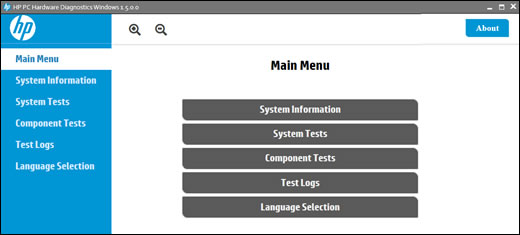 Image: support.hp.com
- Click Component Tests, then Audio, then Audio Playback Test.
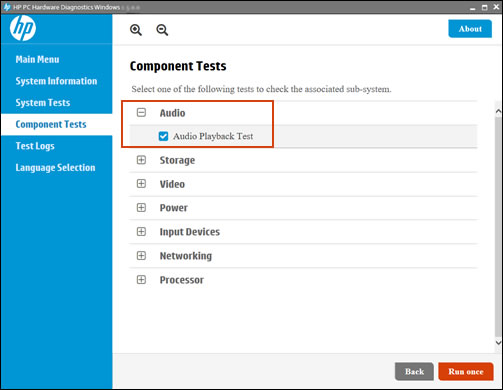 Image: support.hp.com
- Click Run once and choose an audio output device.
- If the test fails, write down the 24-digit failure ID (also in the Test Logs) and contact HP Customer Support.
- If it passes but you still have no sound, move on to the next step.
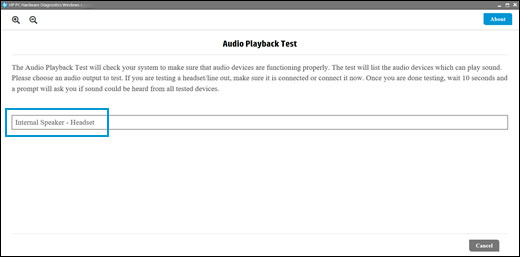 Image: support.hp.com
Use System Restore or HP System Recovery
- If the problem persists, use Microsoft System Restore to return your computer to a point when sound was working.
- If System Restore doesn't help, HP computers can be reset with HP System Recovery (Windows 10).
- If the error is still there after that, the hardware probably needs servicing.
References: support.hp.com, zerodollartips.com