Windows Explorer Keeps Crashing in Windows 10? 6 Fixes
Windows explorer keeps crashing or freezing on Windows 10? Clear Explorer history, reset Winsock, run chkdsk, DISM and SFC, and turn off the preview pane to fix it.
In this guide
Few things are as frustrating as File Explorer locking up just as you need it. If windows explorer keeps crashing on your Windows 10 PC, or you keep seeing "Windows Explorer has stopped working," this guide is for you.
When a normal app freezes you can just close it from Task Manager. Explorer is different. It runs your desktop, taskbar and file windows, so when it hangs, the whole computer feels frozen and you can't do much of anything.
File Explorer (also called Windows Explorer) is the file manager built into every version of Windows, from Windows 2000 to Windows 10. The Windows 10 version of explorer.exe has had its share of bugs, and plenty of users complain that it keeps crashing or freezing from time to time.
Restarting the PC usually makes the problem go away for a while, but rebooting several times a day isn't a real fix and it kills your productivity. Here's how to solve it properly.
How to Fix It When Windows Explorer Keeps Crashing
There are several possible causes, and they differ from one PC to the next, so not every fix will apply to you. Work through the list until Explorer behaves.
Clear File Explorer History
File Explorer keeps a cache of recent files, frequent folders and thumbnails so it loads faster. When that data gets corrupted, it can make Explorer crash without warning. Clearing it is a quick first step.
- Press Win + R to open the Run dialog.
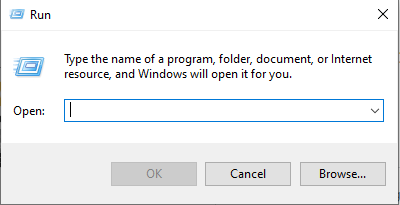 The Run utility
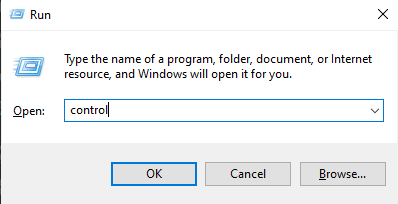
- Type control panel and press Enter.
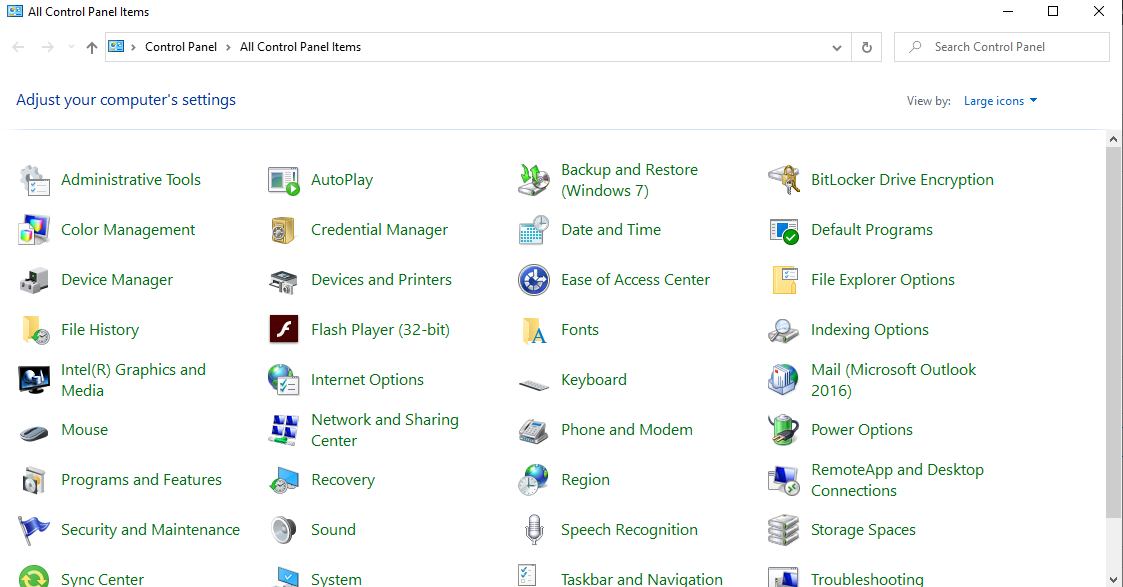
- Click File Explorer Options. A new window opens.
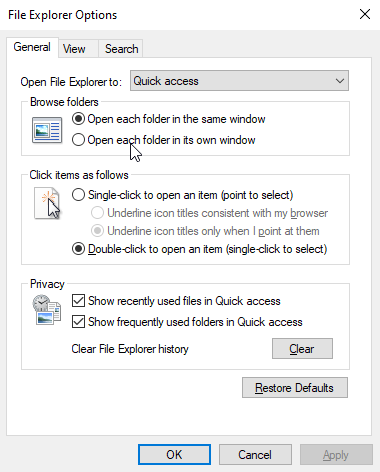
- On the General tab, click Clear next to Clear File Explorer history.
Run a Winsock Reset
The Winsock reset command restores your network socket settings to their defaults. Those settings can get messed up by dodgy downloads or malicious scripts, and because Explorer talks to the network (for things like mapped drives and Quick Access), a reset sometimes fixes the crashes.
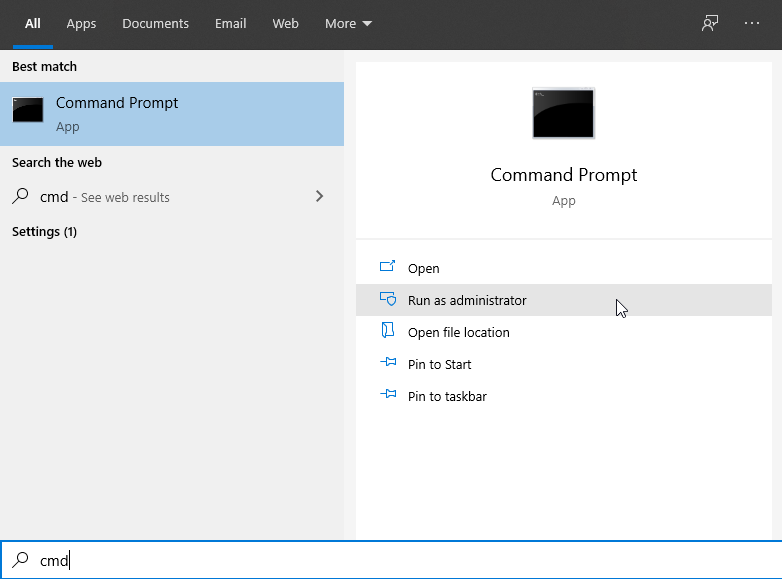
- Click the search box on the taskbar, type Command Prompt, then choose Run as administrator.
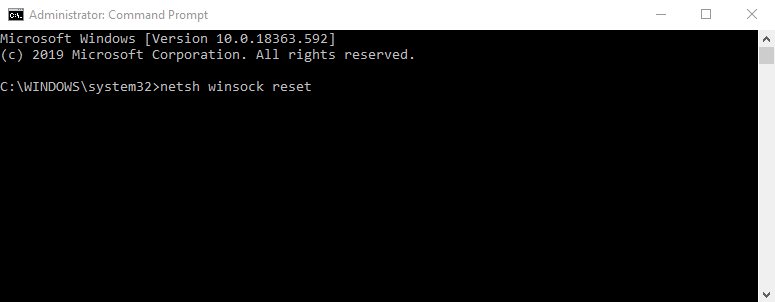
- Type the following command and press Enter: netsh winsock reset
- Restart your computer once the Winsock catalog has been reset.
Run the Chkdsk Command
Disk errors can make Explorer crash when it tries to read a folder. Chkdsk scans the drive and fixes what it finds.
- Press Win + R to open Run.
The Run utility
- Type
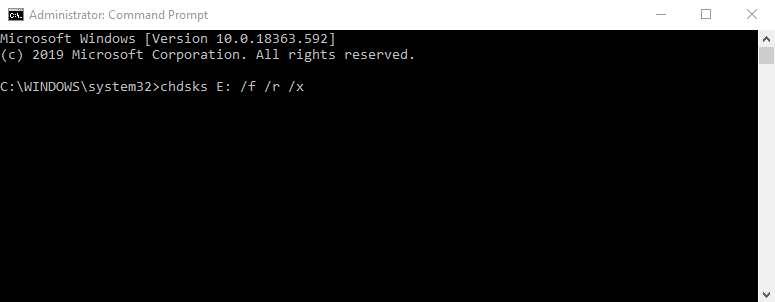
cmdand press Ctrl + Shift + Enter to open Command Prompt as administrator. - Type the following command and press Enter: chkdsk E: /f /r /x
- Wait for the scan to finish.
- Restart your PC.
Note: replace E: with the letter of the drive you want to check.

/f  tells chkdsk to fix any errors it finds.
/r  locates bad sectors and recovers readable information.
/x  dismounts the drive before the scan starts.
Turn Off the Preview Pane and Thumbnails
There's a known issue where the Preview pane crashes File Explorer, especially with certain file types. If you don't rely on it, switch it off and see if the "Windows explorer freezing Windows 10" problem goes away.
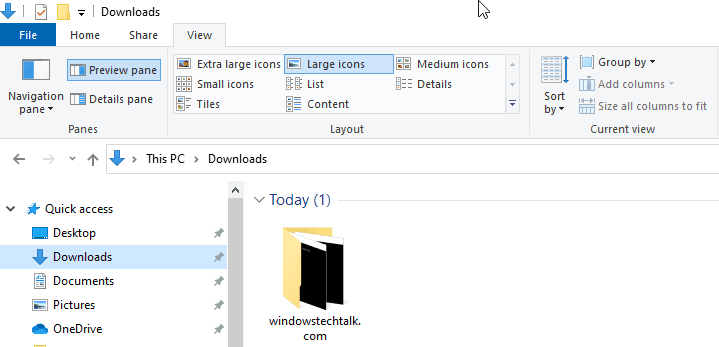
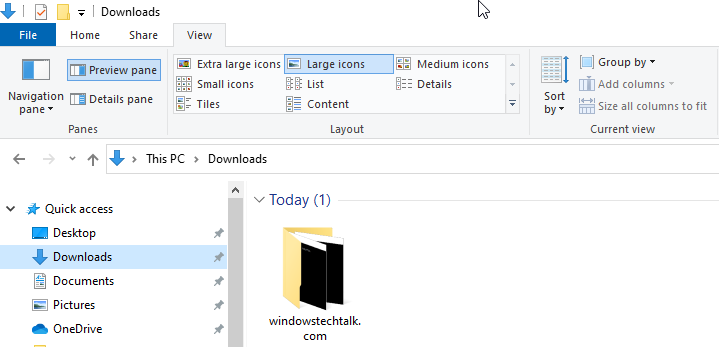
Open File Explorer with Win + E, go to the View tab and click Preview pane to toggle it off. The keyboard shortcut Alt + P does the same.
Thumbnails are another common trigger, particularly in folders full of videos or images. To turn them off, open Folder Options and go to the View tab. Tick Always show icons, never thumbnails and untick Display file icon on thumbnails. Click Apply, then OK.
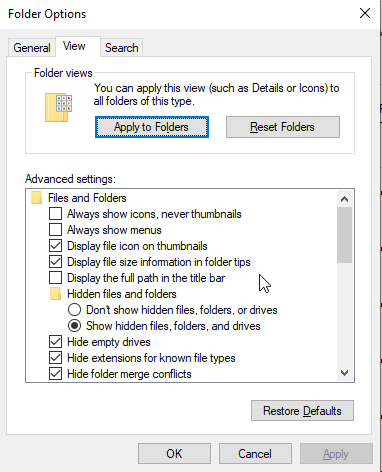
If one of these features was the cause, Explorer should now stay stable.
Run DISM and SFC Scans
System File Checker (SFC) finds and restores damaged Windows files that might be making Explorer crash. On Windows 10 and 8, run the Deployment Image Servicing and Management (DISM) tool first, then SFC.
DISM uses Windows Update to download replacement files. If Windows Update itself is broken, you can use a Windows installation disc or USB as the repair source instead (the command for that is below).
Don't interrupt the scans. They take a while, and stopping them halfway can cause more problems.
- Open an elevated Command Prompt: search for
cmd, right-click it and choose Run as administrator. - Type the following command and press Enter: DISM.exe /Online /Cleanup-image /Restorehealth
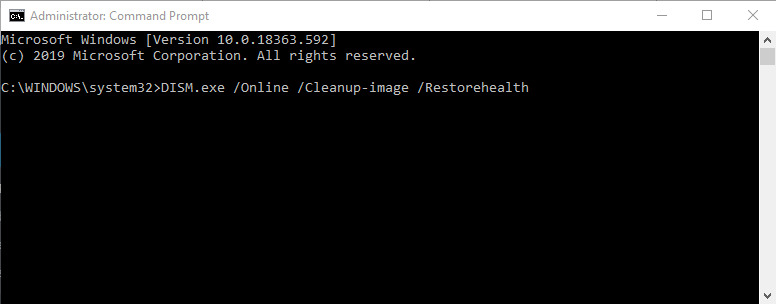
- If you're using a repair disc or other removable media as the source, use this command instead: DISM.exe /Online /Cleanup-Image /RestoreHealth /Source:C:\RepairSource\Windows /LimitAccess
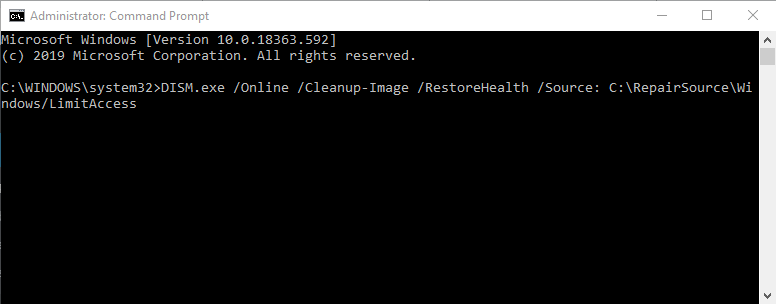
Replace C:\RepairSource\Windows with the actual path to your repair source.
When DISM finishes, run System File Checker in the same window by typing sfc /scannow and pressing Enter.
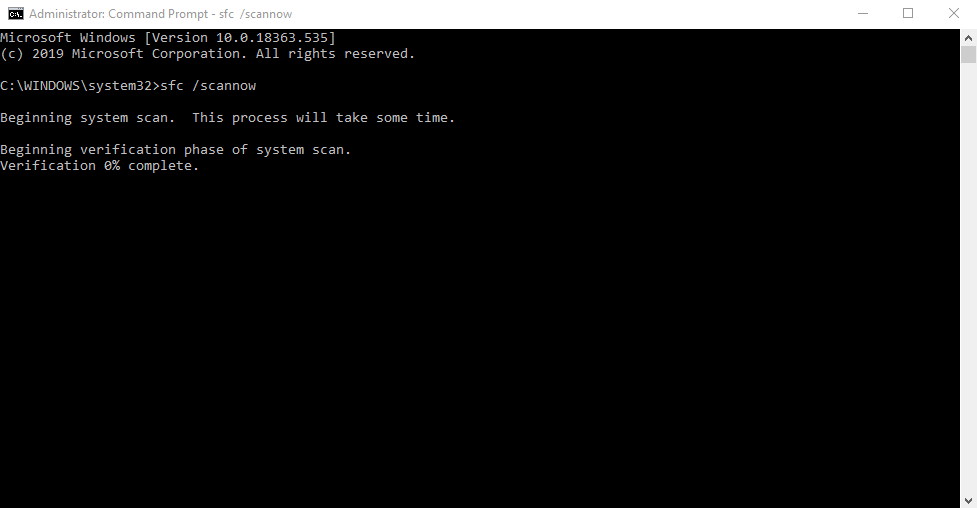
When the scan completes, it tells you whether it found and repaired corrupt files.
Run an Antivirus Scan
If SFC reports "Windows Resource Protection did not find any integrity violations," your system files are fine, so the next suspect is malware.
Run a full scan with Microsoft Defender or your installed antivirus. A second opinion from a free scanner such as Malwarebytes is also worth it. Remove anything it finds, restart, and check whether Explorer still crashes.
References: silicophilic.com, zerodollartips.com