Windows 10 Freezes Randomly? 7 Fixes That Actually Work
Windows 10 freezes at random or lags after an update? Clear temp files, adjust virtual memory, test RAM and your disk, run SFC, disable C-States or use System Restore.
Random freezes and stutters have been a Windows 10 complaint since the very first release, and they often get worse right after a big update. If Windows 10 freezes on you, whether for a few seconds or until you hold down the power button, this guide walks you through the fixes that help most.
Freezing doesn't just slow you down; it can make the whole PC feel unreliable. For some people the system locks up right after startup, for others it stutters at random moments during the day. The good news is that the same handful of fixes solves most of these cases.
You might also like: Windows 2000 Was the Best
What Causes Windows 10 to Freeze?
One well-known cause was the Anniversary Update, which added lots of new features and left some systems freezing for 20–30 seconds at a time, or locking up completely.
Microsoft said the problem mainly affected people who had Windows installed on an SSD and their apps and data on a different drive. But plenty of users who didn't fit that description had the same issue, which suggests there's more than one culprit. Outdated drivers, failing RAM, disk errors, corrupt system files and aggressive power saving can all cause the same symptoms.
How to Fix Windows 10 Freezes
Clear Your Computer's Temp Files
If Windows runs short of room for temporary files, it can slow down or freeze. Clearing them out every so often helps.
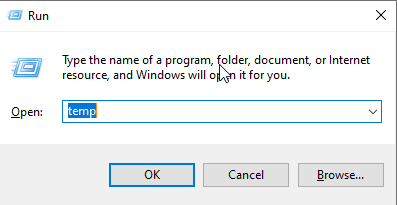
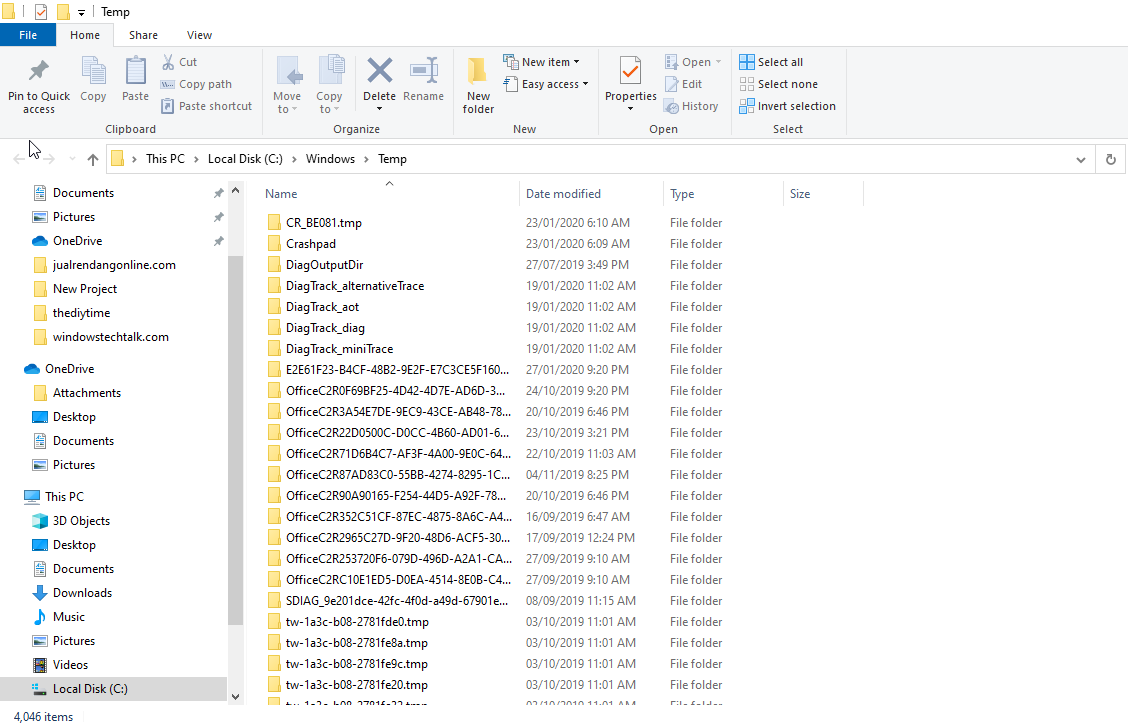
- Press Windows Key + R, type temp and press Enter. File Explorer opens your Temp folder with all the temporary files on your computer.
- Select everything in the Temp folder and delete it. Skip any files Windows says are in use.
If Windows 10 still freezes after that, try the next fix.
Adjust Your Virtual Memory
Virtual memory is extra memory that Windows borrows from your hard drive when the physical RAM runs out. If the paging file is too small, heavy tasks can bring the system to a halt.
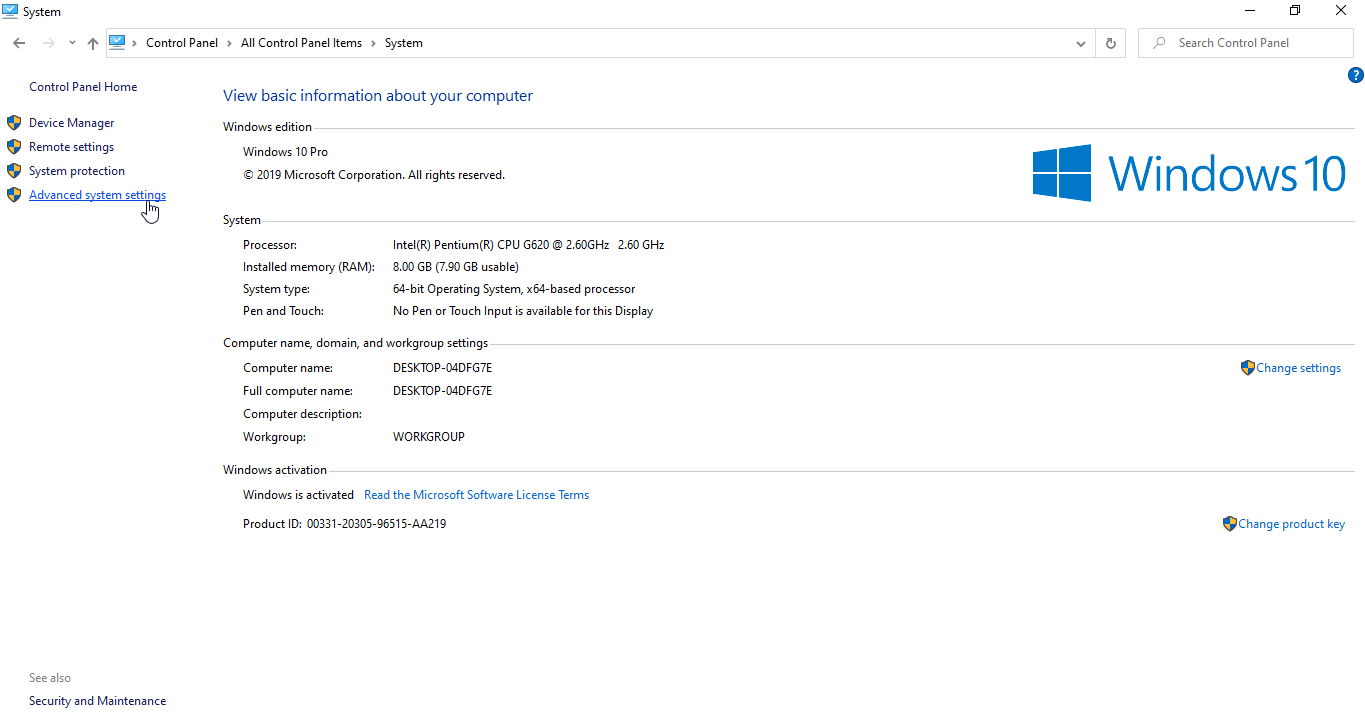
- Press Windows Key + Pause/Break together, then click Advanced system settings in the left panel.
- On the Advanced tab, click Settings under Performance.
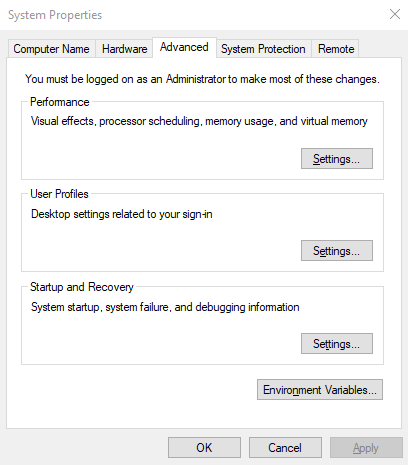
- Open the Advanced tab again and click Change... under Virtual memory.
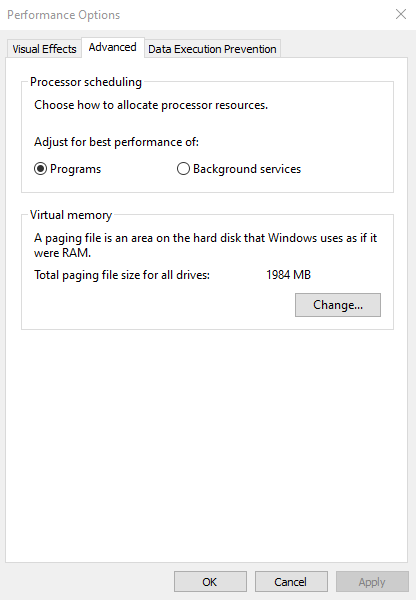
- Untick Automatically manage paging file size for all drives.
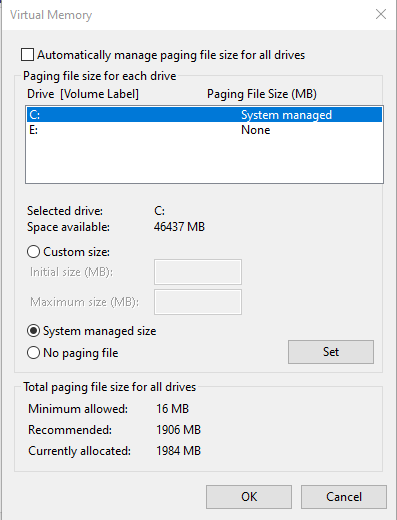
- Select your Windows drive (usually C:) and enter an Initial size and Maximum size for the paging file. A common rule of thumb is 1.5 times your RAM for the initial size and 3 times for the maximum.
Click Set, then OK, and restart when asked.
If Windows 10 still hangs, move on.
Run a Memory Check
Faulty RAM is one of the most common reasons a computer freezes. Before you think about buying a new PC, test your memory with Windows' built-in tool.
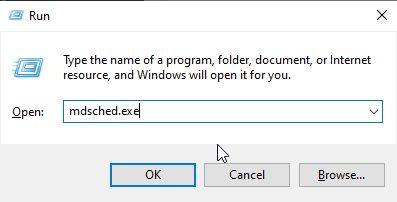
- Press Windows logo key + R, type mdsched.exe and press Enter.
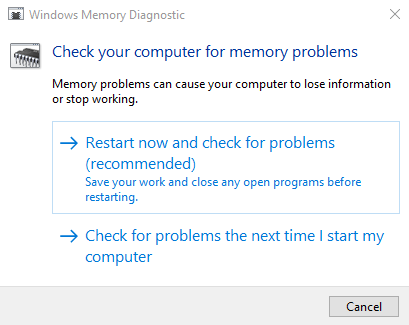
- To test right away, click Restart now and check for problems (recommended). To test later, click Check for problems the next time I start my computer.
- Windows restarts and shows the progress of the test and the number of passes it's running on your memory.
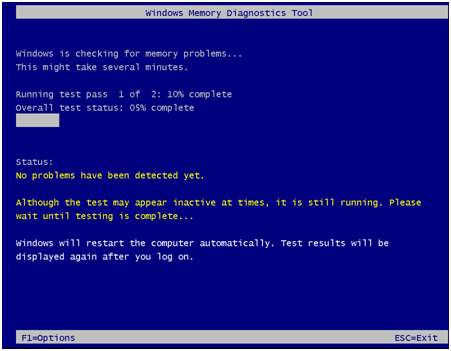
If no errors are reported, your RAM probably isn't the problem. Try the next fix.
Run a Disk Check
Next, check whether your hard drive is to blame. Windows has a built-in tool for this too.
- Close all open programs and files.
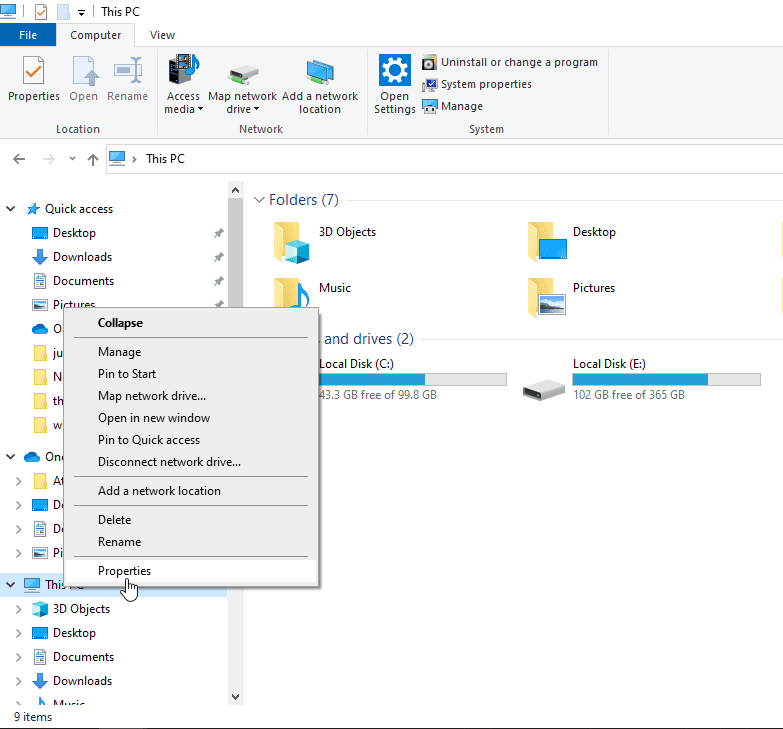
- Press Windows logo key + E to open File Explorer, right-click your system drive (usually C:) and choose Properties.
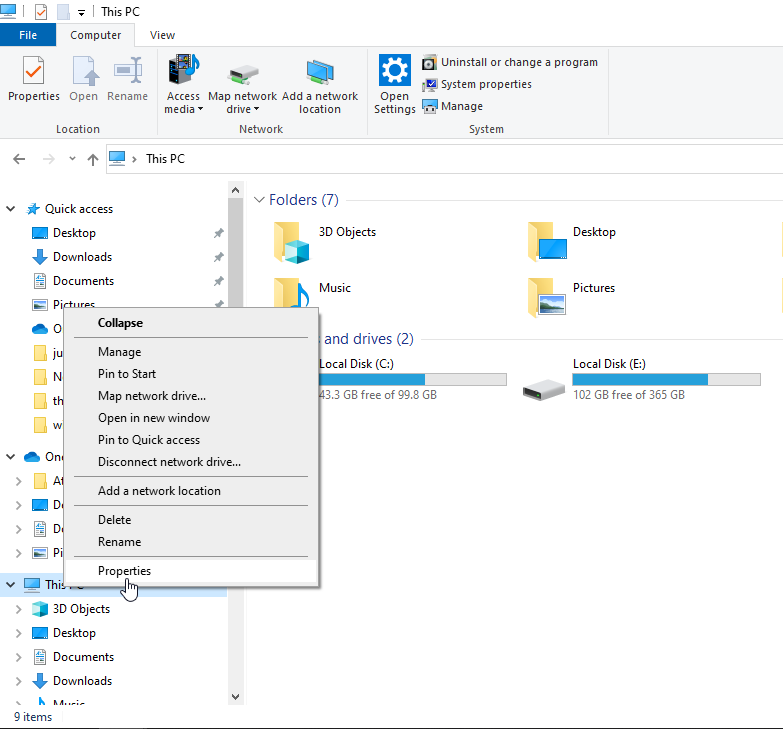
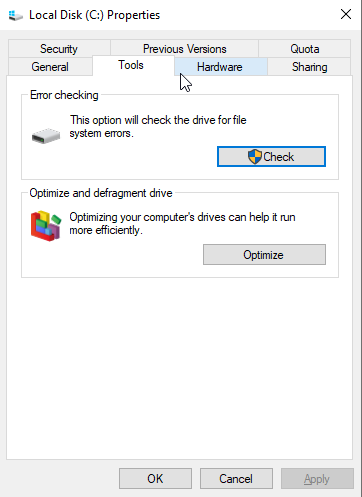
- Go to the Tools tab and click Check.
- If the drive is healthy, you'll see a message like this:
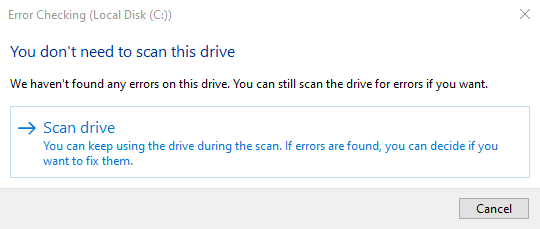
That means the drive isn't the problem and you can carry on to the next fix.
If errors are found, they could well be causing the freezes. Let Windows repair them, and if they keep coming back, consider replacing the drive (ideally with an SSD).
Run System File Checker
Corrupt or missing system files can make Windows freeze at random. System File Checker finds and restores them automatically.
Press the Windows key and type cmd (don't press Enter). Right-click Command Prompt in the results and choose Run as administrator.
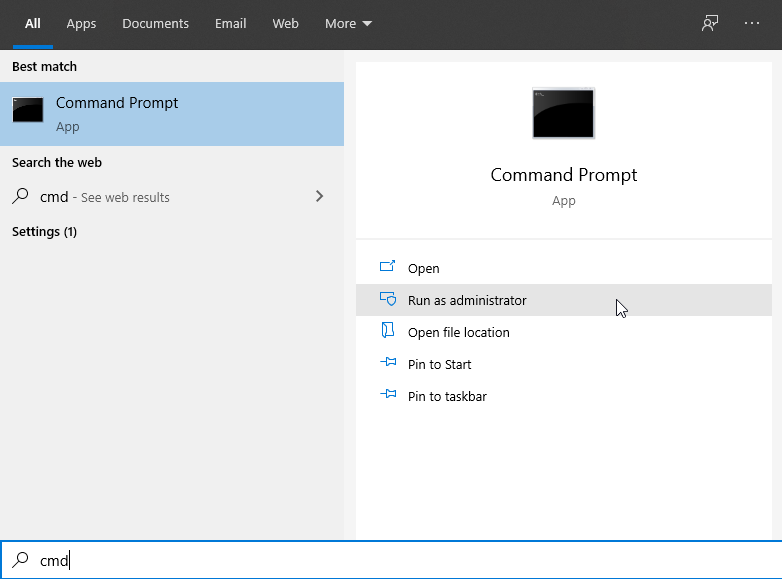
In the Command Prompt window, type:
sfc /scannow
Windows scans your system files and repairs any problems it finds. Leave the window open until it finishes, because the results appear there.
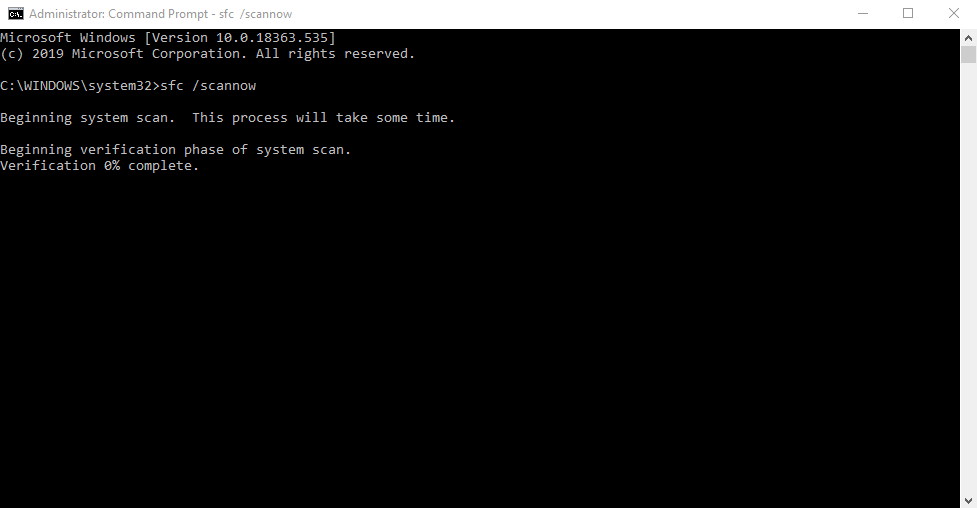
If the scan finds nothing, your system files aren't the cause, so on to the next fix.
Disable C-States in the BIOS
"C-States" (CPU states) are power-saving modes that lower your processor's voltage and clock speed when it's idle. They save energy, but on some systems they cause instability. Turning them off can make the PC more stable and reduce random freezes or restarts.
- Restart your computer and press the setup key shown on the logo screen (often Del, F2 or F10) to enter the BIOS. If you miss it, let Windows load, then restart and try again.
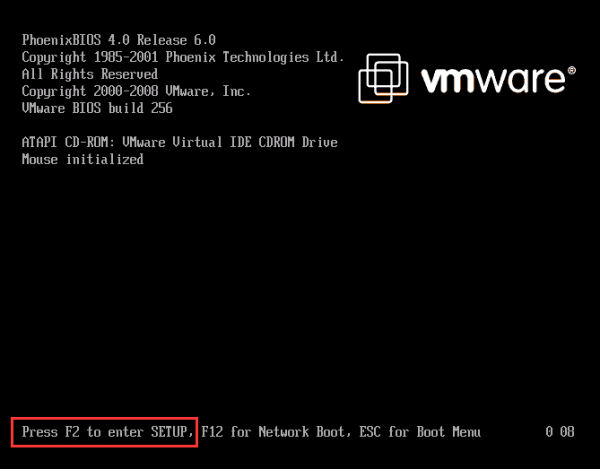 Image: drivereasy.com
- In the BIOS, use the arrow keys to go to the Advanced tab and select CPU Configuration.
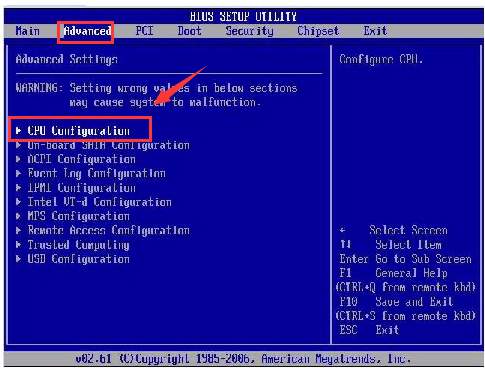 Image: drivereasy.com
- Set both C1E Function and Intel(R) C-STATE tech to Disabled. Highlight each setting, press Enter, then choose Disabled with the arrow keys.
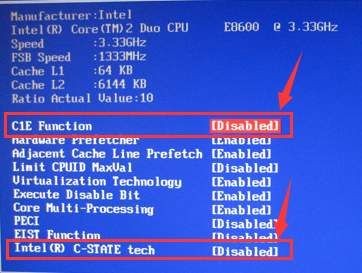 Image: drivereasy.com
Save your changes and exit the BIOS as shown on screen, then let the computer restart.
Menu names vary between manufacturers, so yours may look slightly different.
Restore Your PC to an Earlier Point
If nothing else has worked, roll Windows back to a time when it ran smoothly. Back up important files first.
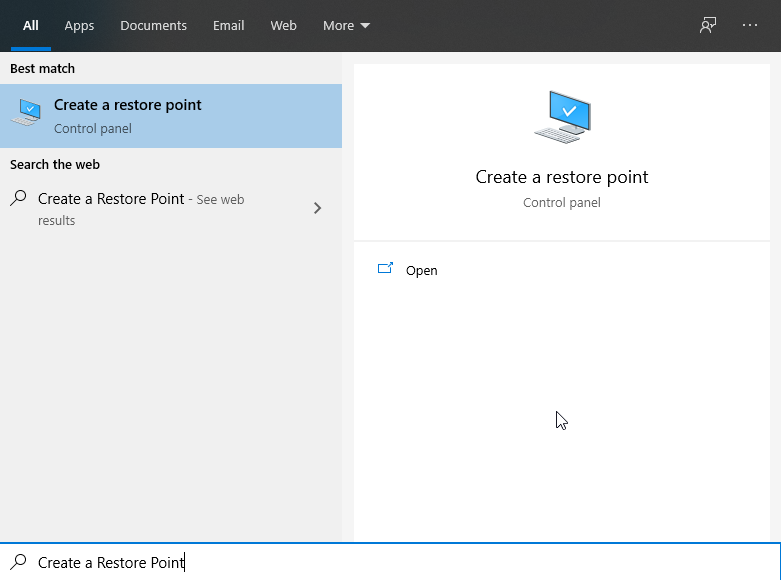
- Press Windows logo key + S.
- Type restore and click Create a restore point.
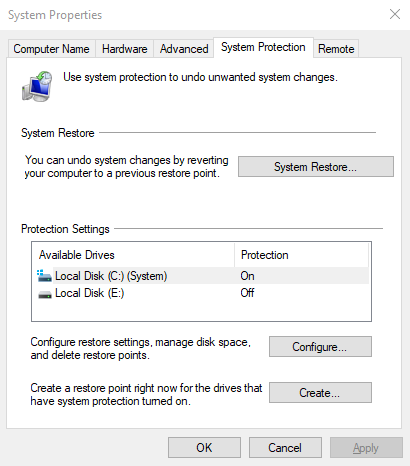
- On the System Protection tab, click System Restore.
- The System Restore wizard opens. Click Next to see a list of restore points and the dates they were created.
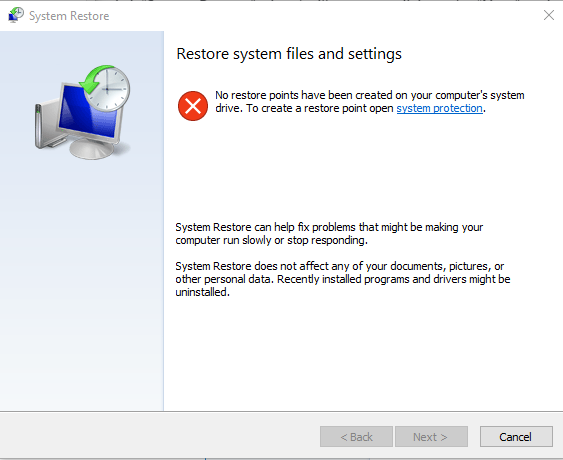
- Choose a restore point from before the freezing started and click Next.
Click Yes to confirm. Windows restores your system files and settings to that date (your personal files aren't touched). When it's done, check whether the freezing has stopped.
References: appuals.com, tecklyfe.com, drivereasy.com, makeuseof.com