Bad System Config Info Windows 10: How to Fix the BSOD
Fix the bad system config info windows 10 blue screen (BAD_SYSTEM_CONFIG_INFO) with driver updates, bcdedit, BCD and registry repair, System Restore and hardware checks.

In this guide
Stuck with the bad system config info windows 10 blue screen? This guide walks you through the fixes that work, from the quick ones to the more involved repairs.
Blue Screen of Death errors, also called STOP errors, are among the most serious problems you can hit on Windows 10. They can be caused by wrong system settings, faulty software or failing hardware.
BAD_SYSTEM_CONFIG_INFO usually points to a problem with the system configuration: the registry, the boot configuration data (BCD) or the settings Windows reads at startup. In some cases it stops Windows from loading at all. Here's how to fix it.
How to Fix Bad System Config Info
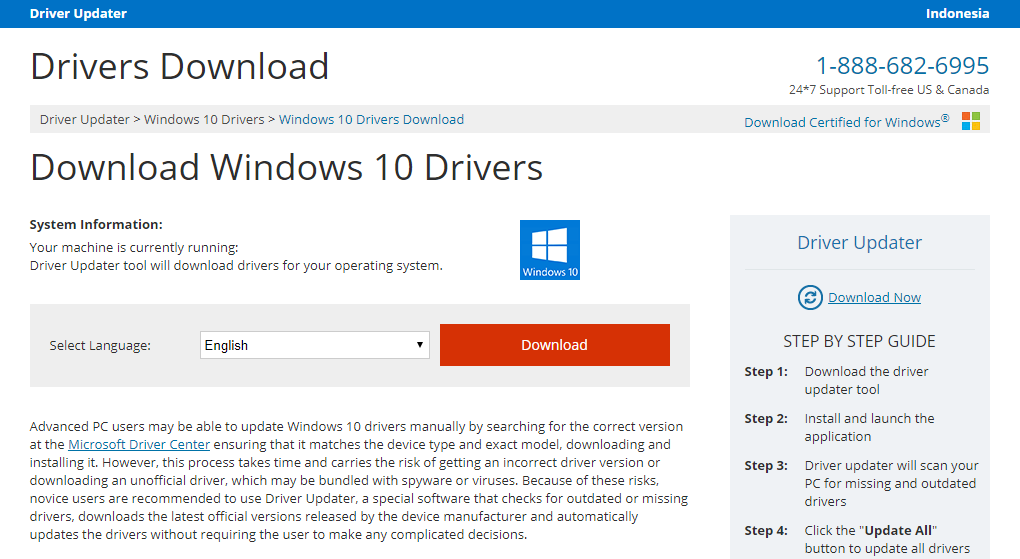
Update Your Drivers
Outdated or incompatible drivers cause all kinds of trouble. At best a piece of hardware stops working; at worst you get a blue screen such as BAD_SYSTEM_CONFIG_INFO.
Because so many Blue Screen of Death errors are caused by drivers, it's worth keeping them up to date, especially for major components like the chipset, graphics card, storage controller and network adapter.
Updating drivers is straightforward: visit your hardware manufacturer's website, find your device, and download the latest driver for your version of Windows. You can also use Device Manager (right-click a device > Update driver) or let Windows Update handle it.
Once the latest drivers are installed, the BSoD errors often stop. Update as many drivers as you can to give this fix the best chance of working.
Use the bcdedit Command
BAD_SYSTEM_CONFIG_INFO often appears when the boot configuration is wrong, for example when the number of processors or the amount of memory recorded in the boot configuration doesn't match your actual hardware. (High CPU usage can be a separate issue; see our guide to the windows modules installer worker.)
This version of the error can stop you getting into Windows 10 at all. It sounds serious, but it's easy to fix:
Restart your computer while it's booting. Repeat until Automatic Repair starts.
Choose Troubleshoot > Advanced options > Command Prompt.
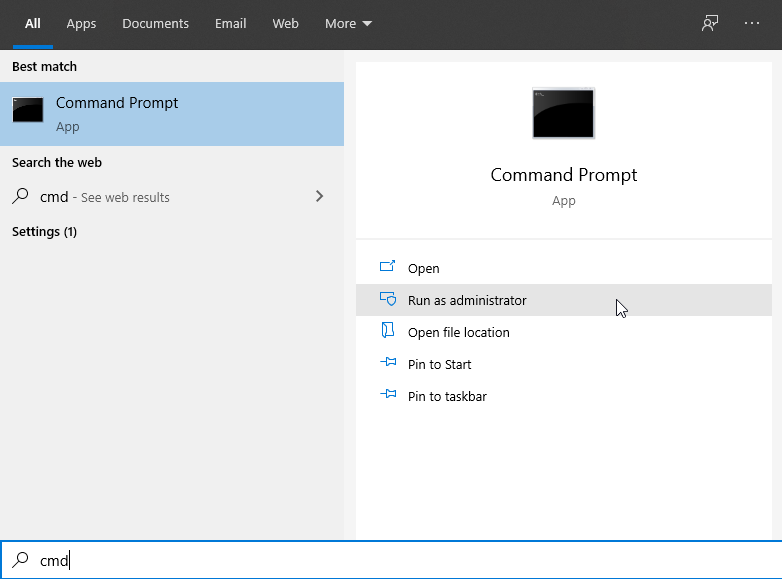
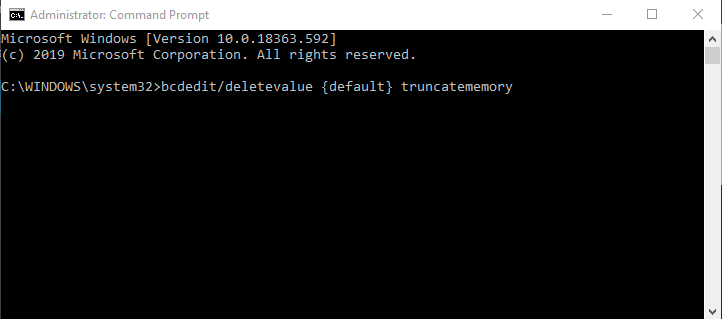
Enter these commands, pressing Enter after each:
bcdedit /deletevalue {default} numproc
bcdedit /deletevalue {default} truncatememory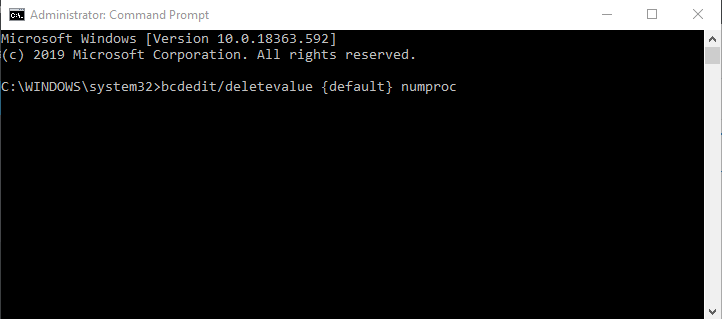
Close Command Prompt and try starting Windows 10 again.
Repair the BCD File
If the BCD (Boot Configuration Data) file is damaged, you'll get BAD_SYSTEM_CONFIG_INFO and may not be able to reach Windows 10 or even Safe Mode.
You'll need a Windows 10 installation DVD or a bootable USB flash drive. If you don't have one, you can make one with Microsoft's Media Creation Tool on another PC.
Insert the DVD or USB drive and boot your PC from it.
When Windows 10 Setup starts, click Next, then Repair your computer.
Choose Troubleshoot > Advanced options > Command Prompt.
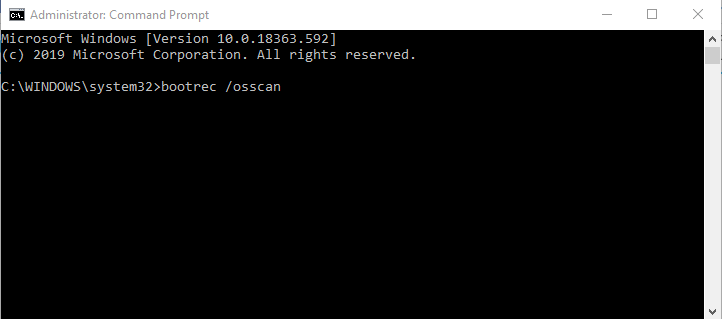
Enter these commands, pressing Enter after each:
bootrec /repairbcd
bootrec /osscan
bootrec /repairmbr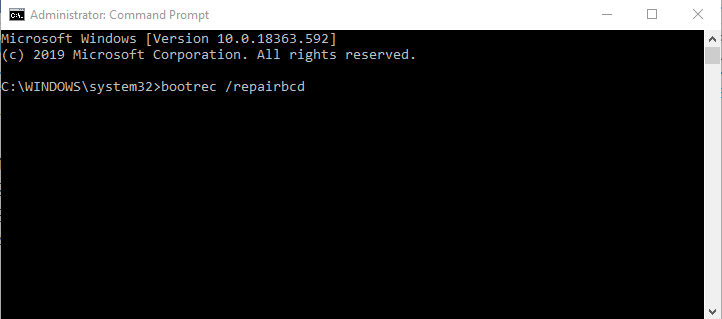
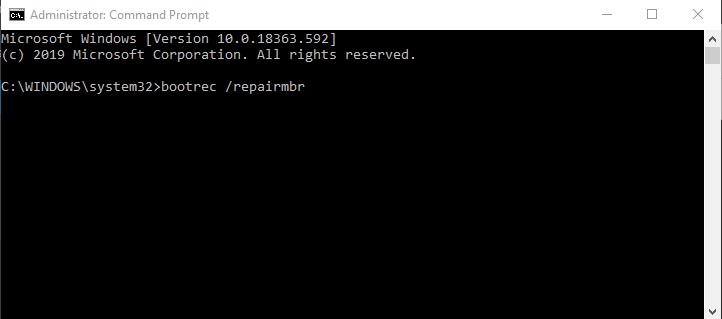
Be careful with the last command: it rewrites the Master Boot Record. When you're done, close Command Prompt and restart your PC.
Repair the Windows Registry
Registry problems can also cause this blue screen. You can restore the registry from Windows' automatic backup:
Boot from your Windows 10 installation media, as in the previous fix.
Choose Troubleshoot > Advanced options > Command Prompt.
Enter these commands one by one, pressing Enter after each:
cd C:\Windows\System32\config
ren C:\Windows\System32\config\DEFAULT DEFAULT.old
ren C:\Windows\System32\config\SAM SAM.old
ren C:\Windows\System32\config\SECURITY SECURITY.old
ren C:\Windows\System32\config\SOFTWARE SOFTWARE.old
ren C:\Windows\System32\config\SYSTEM SYSTEM.old
This renames the current registry files so Windows stops using them. You could delete them instead, but renaming means you can put them back if needed.
Now copy the backup registry files into place:
copy C:\Windows\System32\config\RegBack\DEFAULT C:\Windows\System32\config\
copy C:\Windows\System32\config\RegBack\SAM C:\Windows\System32\config\
copy C:\Windows\System32\config\RegBack\SECURITY C:\Windows\System32\config\
copy C:\Windows\System32\config\RegBack\SYSTEM C:\Windows\System32\config\
copy C:\Windows\System32\config\RegBack\SOFTWARE C:\Windows\System32\config\
This replaces the damaged registry files with the backup copies. Close Command Prompt and restart your computer.
Note: on Windows 10 version 1803 and later, the RegBack folder may be empty unless automatic registry backups were turned on. Check that the files in RegBack aren't 0 KB before you copy them.
Perform a System Restore or Reset Windows 10
If nothing so far has worked, try System Restore:
- Restart your computer a few times while it's booting to start Automatic Repair.
- Choose Troubleshoot > Advanced options > System Restore.
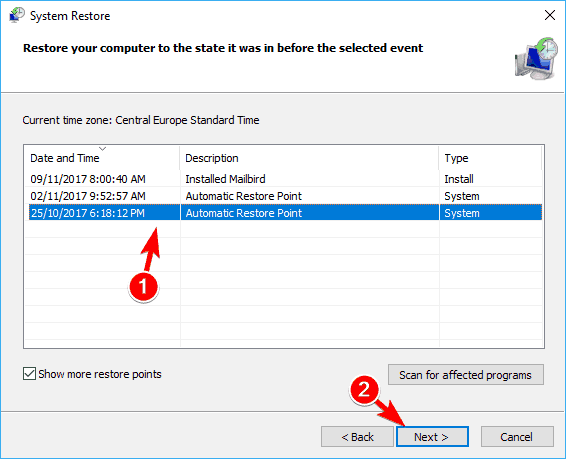 Image: windowsreport.com
- Select your username and follow the instructions.
- Pick a restore point from before the problem started and click Next.
- Wait for System Restore to finish.
If System Restore doesn't fix BAD_SYSTEM_CONFIG_INFO, reset Windows 10. Back up your files first, because this option removes everything from the Windows partition:
- Start Automatic Repair by restarting your computer a few times during boot.
- Choose Troubleshoot > Reset this PC.
- Choose Remove everything > Only the drive where Windows is installed > Just remove my files.
- Click Reset and wait for it to finish.
You may need your Windows 10 installation media to complete the reset. When it's done, you'll have a fresh copy of Windows 10.
If the blue screen was caused by software, the reset will fix it. If it comes back afterwards, the cause is almost certainly hardware.
Check Your Hardware
Faulty RAM is one of the most common causes of blue screens, so test your memory (Windows Memory Diagnostic or MemTest86 both work well).
Users have also reported that a failing hard drive caused BAD_SYSTEM_CONFIG_INFO, and that replacing the drive solved it.
In truth almost any component can trigger this error, so if the software fixes don't help, check your hardware thoroughly.
The good news is that BAD_SYSTEM_CONFIG_INFO is less severe than many other blue screens. Most people fix it with the bcdedit commands or by repairing the registry, so start with those.
Side Note: What Is "Configuration Management"?
Because this error has "config" in its name, people searching for it sometimes land on articles about configuration management, which is something quite different. For the curious, here's a short explanation.
Configuration management is the practice of knowing and tracking every piece of software and hardware an organization owns, and every change made to them. Think of it as a constantly up-to-date inventory of your technology: a single source of truth.
The idea came from fields like the military and was adapted to software. It used to be a manual job for system administrators, documenting the state of every system by hand. DevOps, cloud computing and automation have changed that completely.
Done well, configuration management brings real benefits:
- Disaster recovery: if something breaks, systems can be rebuilt or rolled back to a known good state.
- Reliability and uptime: test environments can mirror production, so fewer bad releases slip through.
- Easier scaling: adding servers becomes as simple as running a script.
Without it, servers get set up by hand, nobody documents the steps, and years later no one dares touch them because nobody knows what they do.
It fits naturally with agile and DevOps practices, software delivery pipelines, infrastructure as code and continuous integration/delivery. Common tools include:
- Configuration management tools: Chef, Ansible and Puppet
- Infrastructure-as-code (provisioning) tools: CloudFormation and Terraform
- Pipeline tools: Jenkins, CircleCI and GitLab CI
- Source control: GitHub, GitLab, Bitbucket and SVN
None of this is related to the Windows blue screen, but now you know the difference.
References: windowsreport.com, plutora.com, itstillworks.com