Driver Power State Failure Windows 10: 10 Proven Fixes
Fix driver power state failure windows 10 (stop code 0x0000009F): remove recent drivers in Safe Mode, run SFC and DISM, change power settings and roll back graphics drivers.
In this guide
- What Is the Driver Power State Failure Error?
- Enter Safe Mode and Remove Recently Installed Drivers
- Run an SFC Scan
- Change Your Power Settings
- Change Your Power Plan Settings
- Disable or Remove Your Antivirus Software
- Roll Back Your Graphics Card Driver
- Change Power Settings in the NVIDIA Control Panel
- Change Your Devices' Power Options
What Is the Driver Power State Failure Error?
If your PC crashed to a blue screen with Driver Power State Failure (or error code 0x0000009F; they're the same thing), you've come to the right place. In plain terms, Windows asked a device to change its power state and the device didn't respond in time. It typically happens when you put the computer to sleep and then wake it up: one of the devices doesn't wake properly, and Windows crashes.
Other things can trigger it too. Sometimes the blue screen also names the file involved, and very often that's ntoskrnl.exe.
Common causes of driver power state failure windows 10 include:
- A faulty NVIDIA graphics card driver
- A failing USB device
- Startup or boot errors
- Conflicts with certain programs, such as Photoshop, AutoCAD, Kaspersky Anti-Virus or McAfee Antivirus
At heart, Driver Power State Failure is a Blue Screen of Death error caused mainly by an incompatible driver. Blue screens look scary, but this one is usually quite fixable, on Windows 10 as well as Windows 8.1.
In the vast majority of cases the error is tied to sleep mode, and many people see it right when they try to sign back in. The underlying problem is either your power settings or a driver that doesn't play nicely with the rest of the system. Work through the fixes below in order.
Enter Safe Mode and Remove Recently Installed Drivers
First, turn on the legacy advanced startup menu so you can reach Safe Mode with F8. On Windows 8.1 and 10 you do this from the installation media:
- Enter the BIOS and set your CD/DVD drive (or USB) as the first boot device.
- Insert your Windows installation DVD or USB stick.
- Restart your computer (this works for Windows 8, Windows 10 and Windows 11).
- When you see "Press any key to boot from CD or DVD," press any key.
- On the first setup screen, click Next.
- Click Repair your computer.
- On the Choose an option screen, click Troubleshoot.
- Click Advanced options.
- Click Command Prompt.
- Type C: and press Enter.
- Type bcdedit /set {default} bootmenupolicy legacy and press Enter.
- Type EXIT and press Enter.
- Remove the installation media and restart your PC.
Now boot into Safe Mode and remove any recently installed drivers:
- As the computer restarts, keep tapping the F8 key.
- Choose Safe Mode from the list of options.
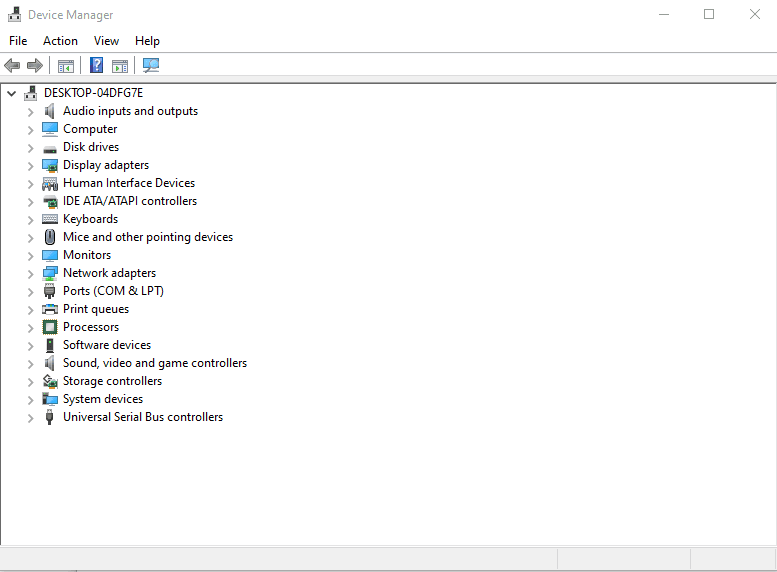
- Once Safe Mode loads, open Device Manager.
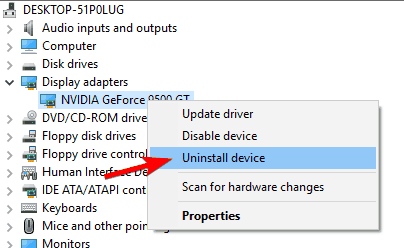 Image: windowsreport.com
- Right-click the driver you installed most recently and choose Uninstall device.
- Restart Windows normally and see if the blue screen comes back. If it does, remove the next most recently installed driver, and repeat until the PC runs normally.
Once you've found the driver responsible, check the manufacturer's website for an updated version that supports your version of Windows, so the Driver Power State Failure doesn't return.
Run an SFC Scan
Corrupted system files can also cause Driver Power State Failure. A System File Checker scan finds and repairs them:
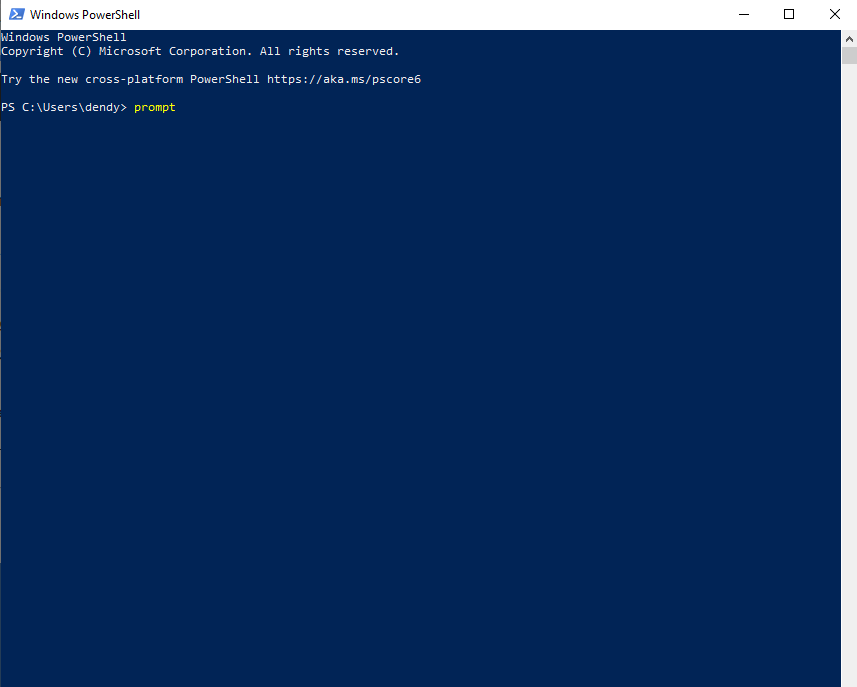
- Press Windows Key + X and choose Command Prompt (Admin). If it isn't listed, choose PowerShell (Admin) instead.
- Type sfc /scannow and press Enter.
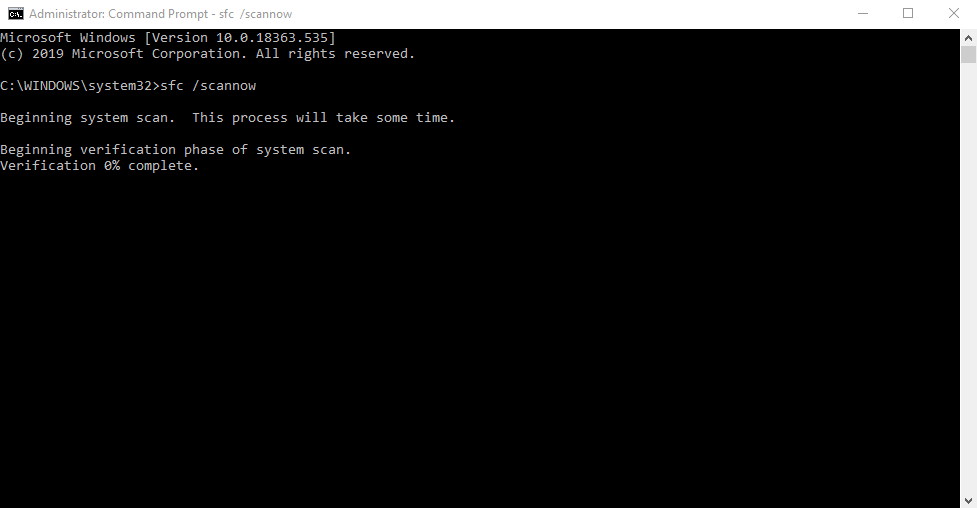
- The scan can take around 10 minutes. Don't interrupt it.
If SFC won't run, or can't fix the problem, try a DISM scan:
Open Command Prompt as administrator.
Run these commands one after another:
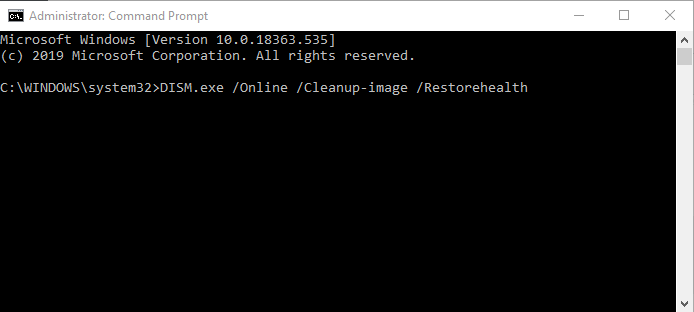
DISM.exe /Online /Cleanup-image /scanhealth
DISM.exe /Online /Cleanup-image /Restorehealth
When both have finished, check whether the problem is gone.
If you couldn't run SFC earlier, run it again now that DISM has finished. Between the two scans, any corrupted files should be repaired.
Change Your Power Settings
Because this error is so closely linked to sleep and power management, turning off a few power features often fixes it:
- Press Windows Key + S, type control panel and open Control Panel.
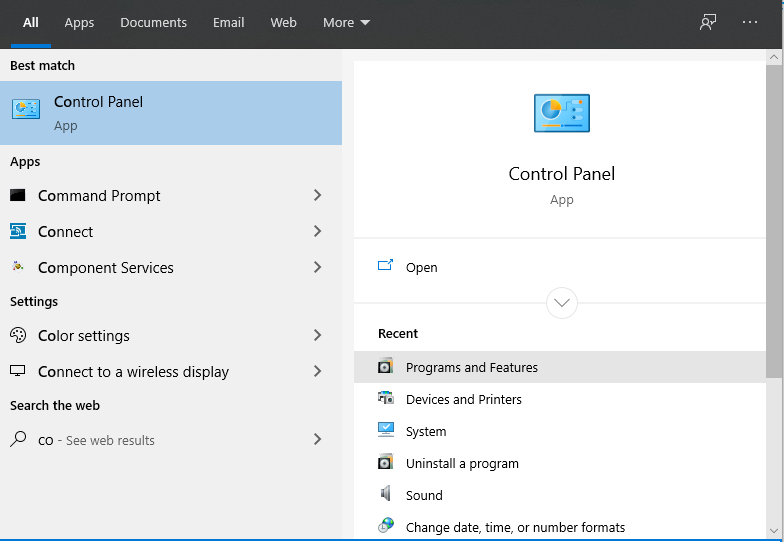
- Click Power Options.
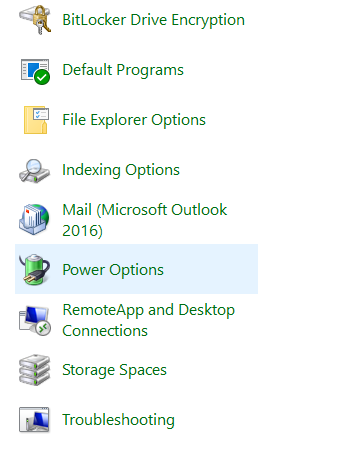
- Click Choose what the power button does.
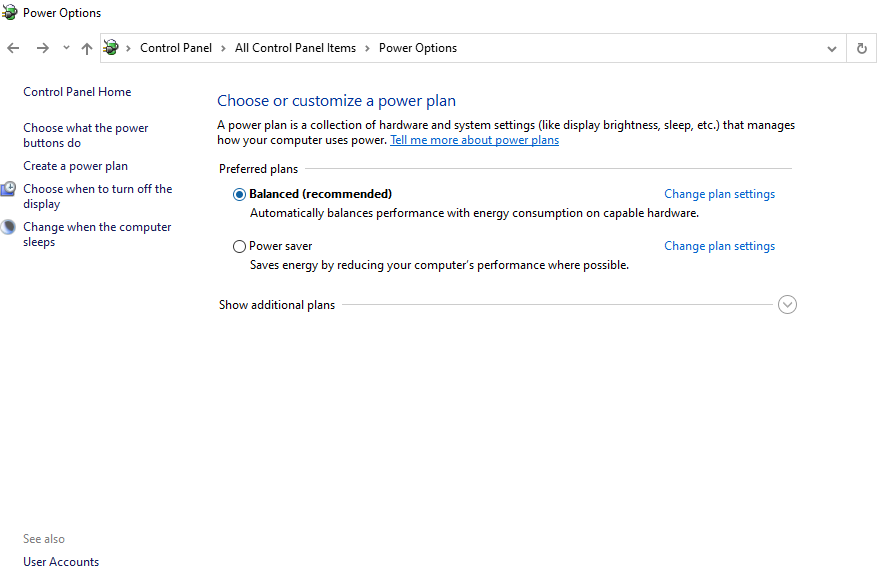
- Click Change settings that are currently unavailable.
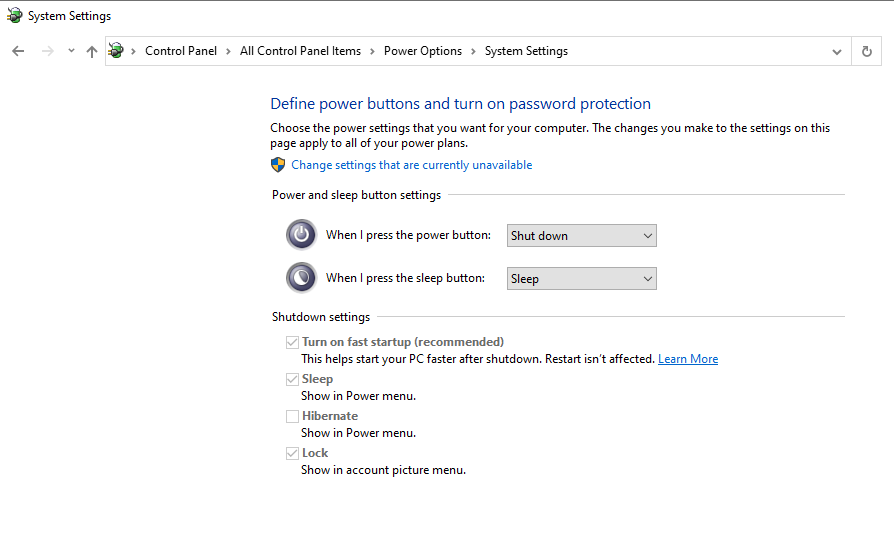
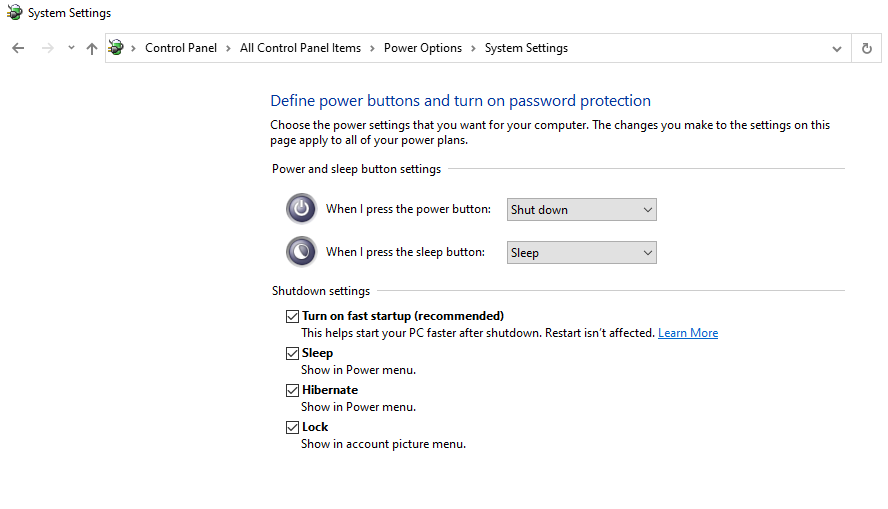
- Untick Turn on fast startup (recommended), Sleep and Hibernate, then click Save changes.
Change Your Power Plan Settings
Adjusting your power plan helps too:
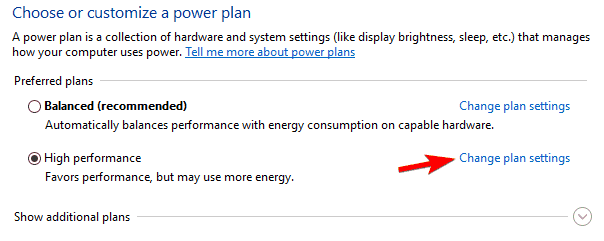
- Go to Power Options, find your current plan and click Change plan settings.
- Click Change advanced power settings.
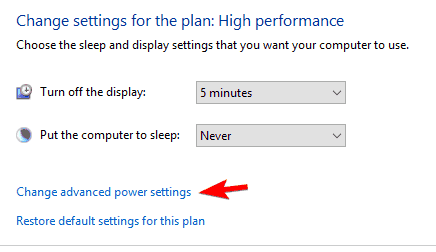
- Expand Sleep and set both Sleep and Hibernate to Never. Under Power buttons and lid, set everything to Do nothing. Click Apply and OK.
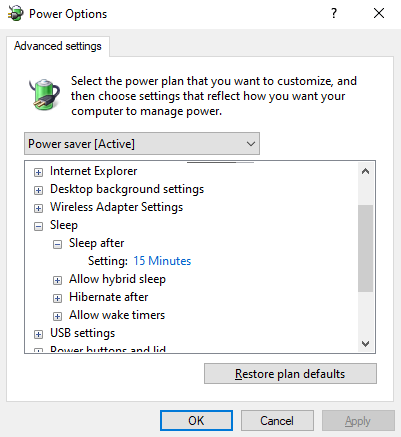
- Optional: set PCI Express > Link State Power Management and any graphics settings to Maximum Performance, and do the same for Wireless Adapter Settings.
Some laptop users found that removing the battery and running on mains power also helped.
With these changes, Sleep and Hibernate are turned off completely, which usually stops the error. If you rely on sleep mode, try the other fixes instead.
Disable or Remove Your Antivirus Software
Antivirus software is important, but some products interfere with Windows power management and trigger Driver Power State Failure.
Temporarily disable your antivirus and see whether the crashes stop. If they do, uninstall it completely.
To remove every trace of it, use the antivirus company's dedicated removal tool (most major vendors offer one).
Once it's gone, check whether the problem persists. If it doesn't, install the latest version of your antivirus, or switch to a different product.
Several users reported this problem with Avast, but other antivirus programs can cause it too.
Roll Back Your Graphics Card Driver
A new graphics driver is a frequent cause. Rolling back to the previous version is quick:
- Open Device Manager.
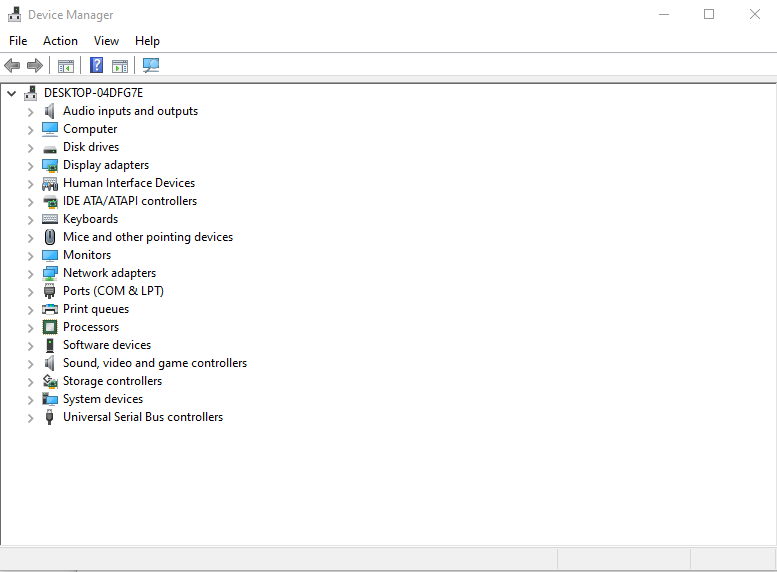
- Expand Display adapters and double-click your graphics card.
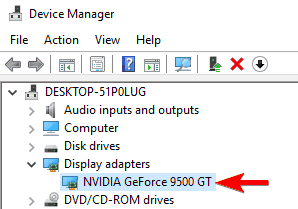 Image: windowsreport.com
- Open the Driver tab and click Roll Back Driver. Wait for it to finish.
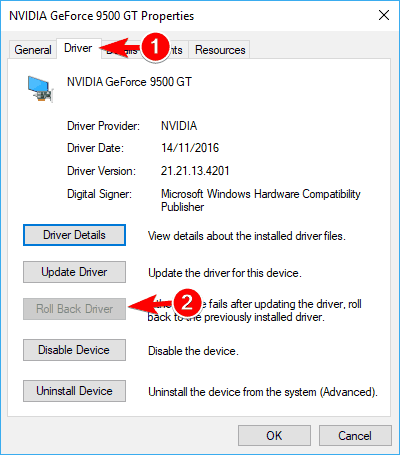 Image: windowsreport.com
If Roll Back Driver is greyed out, uninstall the graphics driver in Device Manager instead. For a completely clean removal you can use Display Driver Uninstaller (DDU).
Then download an older version of the driver from your graphics card manufacturer's website, install it and check whether the problem is fixed.
This mostly affects NVIDIA cards, but it's worth trying with any graphics card.
Change Power Settings in the NVIDIA Control Panel
If you have NVIDIA graphics, its own power settings can cause this error. To change them:
- Open the NVIDIA Control Panel.
- In the left pane, choose Manage 3D settings.
- On the right, set Preferred graphics processor to your dedicated NVIDIA card. Find Power management mode and choose Prefer maximum performance.
- Save the changes and see whether the problem is gone.
Many users say switching to maximum performance fixed it for them. Keep in mind it uses more battery on a laptop. If you have AMD graphics, you'll find similar options in AMD's driver software.
Change Your Devices' Power Options
Windows can switch off some devices to save power, and sometimes they don't come back on properly. Turning that off can fix the error:
- Open Device Manager.
- Find your network adapter and double-click it to open its properties.
Image: windowsreport.com
- Go to the Power Management tab, untick Allow the computer to turn off this device to save power and click OK.
Image: windowsreport.com
Your PC has several devices with this option (USB Root Hubs, Bluetooth and network adapters, for example), so repeat this for any that could be causing trouble.
References: windowsreport.com, thegeekpage.com