Windows 10 Search Not Working? 11 Ways to Fix It
Windows 10 search not working or showing a blank box? Try these 11 fixes: restart SearchUI, rebuild the index, run the troubleshooter, re-register apps and more.
Windows 10 packs a lot of features, and most of the time you get to them through search. So when windows 10 search not working becomes your daily reality, it's maddening. The good news is that getting search back is usually easier than you'd expect.
Why Is Windows 10 Search Not Working?
Search problems often appear after a Windows update. Sometimes Cortana, which powers much of the search experience, gets stuck and drags the whole thing down with it.
The result might be poor search results, or an empty results panel that makes the search box useless.
You might also like: Which is better, Windows 10 or Windows 11?
After each fix below, try searching again. If it still doesn't work, move on to the next one.
How to Fix Windows 10 Search Problems
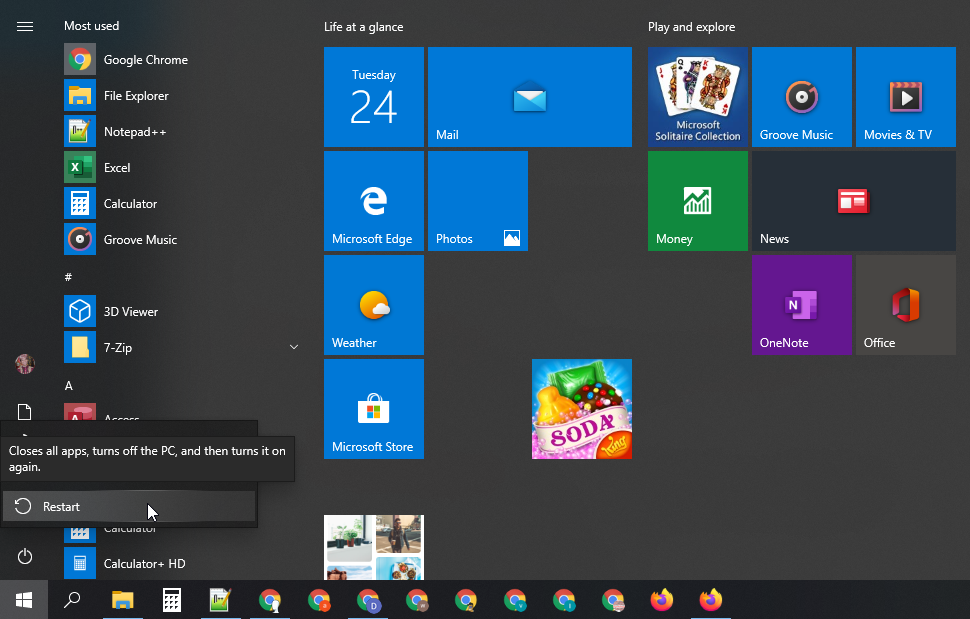
Restart Your Computer
If you haven't restarted yet, do it now before anything else. This matters most if you usually put the PC to sleep or hibernate instead of shutting it down; a proper restart clears a lot of stuck processes.
Restart the Windows 10 Search Processes
The Cortana process SearchUI.exe handles search from the Taskbar. If searching from the Windows 10 Taskbar doesn't work, restart it:
- Open Task Manager (Ctrl + Alt + Del).
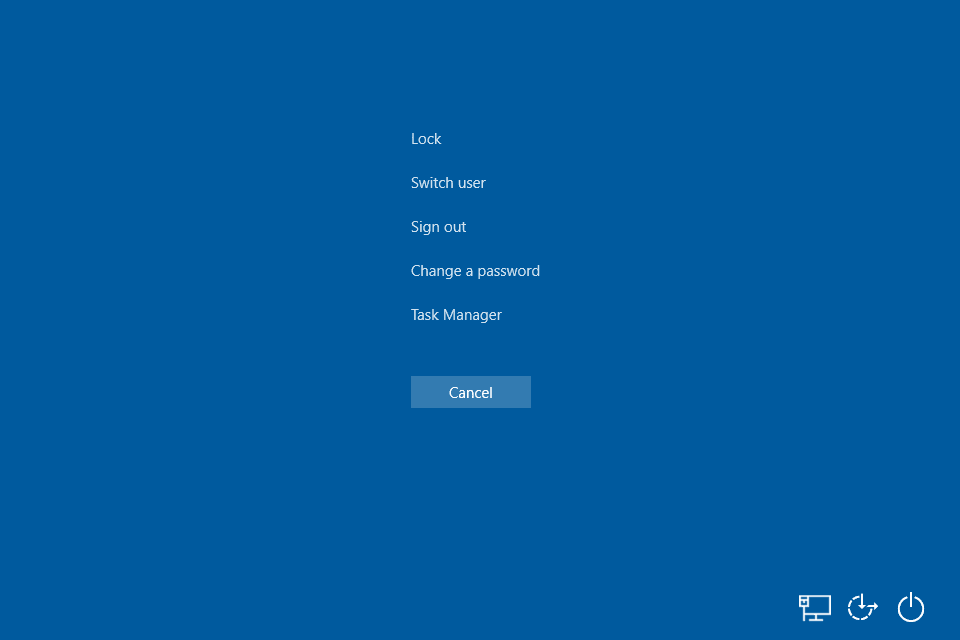 Image: lifewire.com
- Go to the Details tab.
- Find SearchUI.exe in the list, right-click it and choose End task.
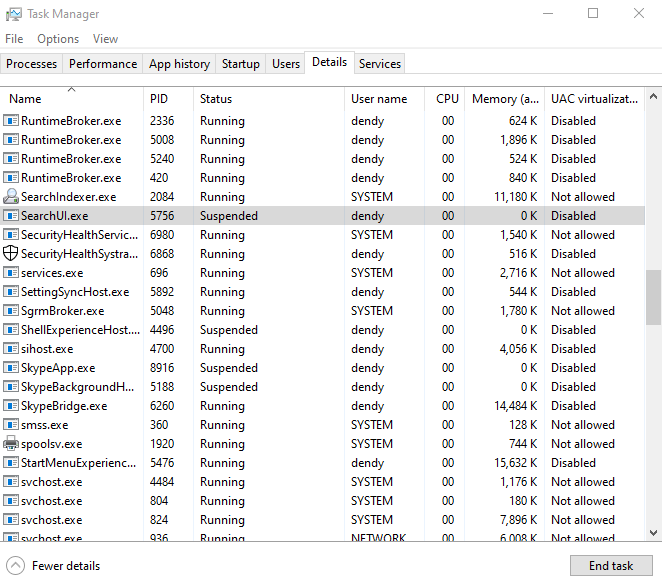
- Do the same for SearchApp.exe.
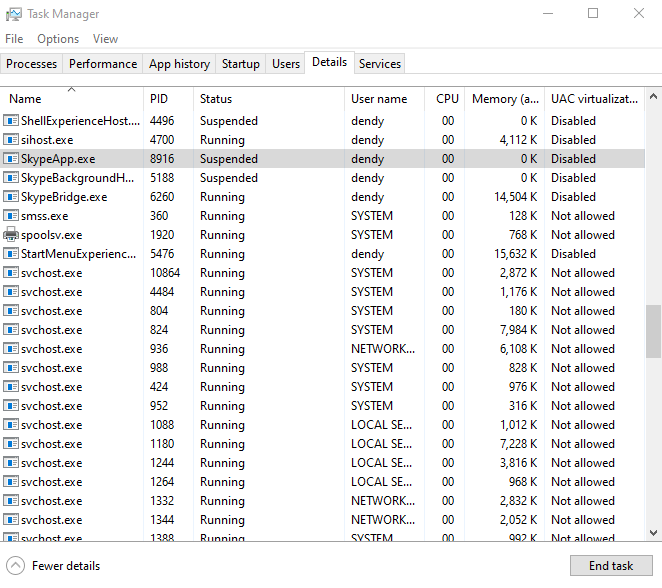
- The processes restart automatically the next time you use Windows 10 search.
Windows 10 Start Menu Search Not Working
If search fails only in the Start menu, try this:
- Close File Explorer (Explorer.exe): hold Ctrl + Shift, right-click an empty part of the taskbar and choose Exit Explorer. You can also end it from Task Manager (Ctrl + Shift + Esc).
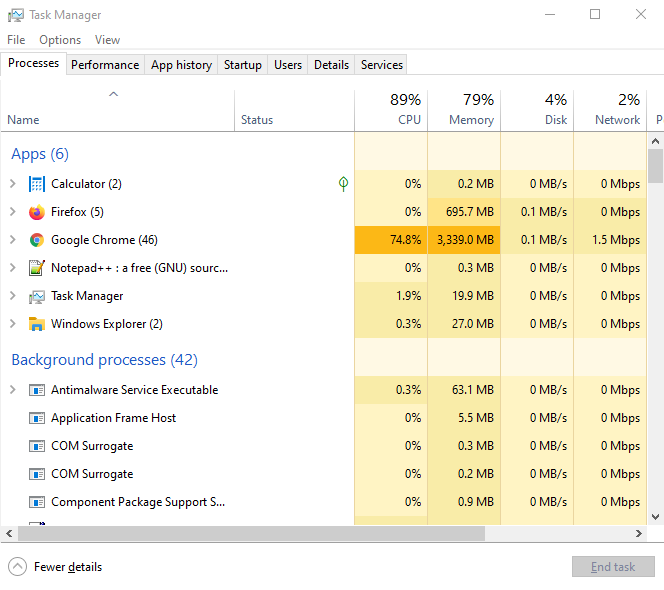
- In Task Manager, go to File > Run new task, type
regedit.exeand press Enter to open the Registry Editor.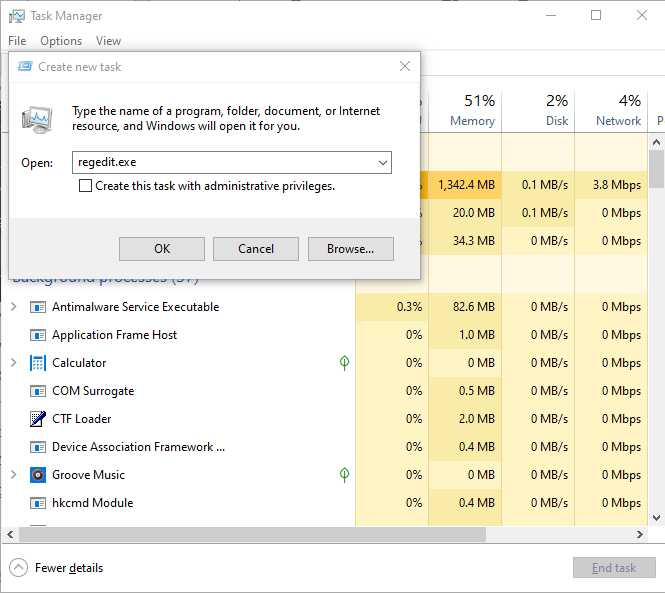
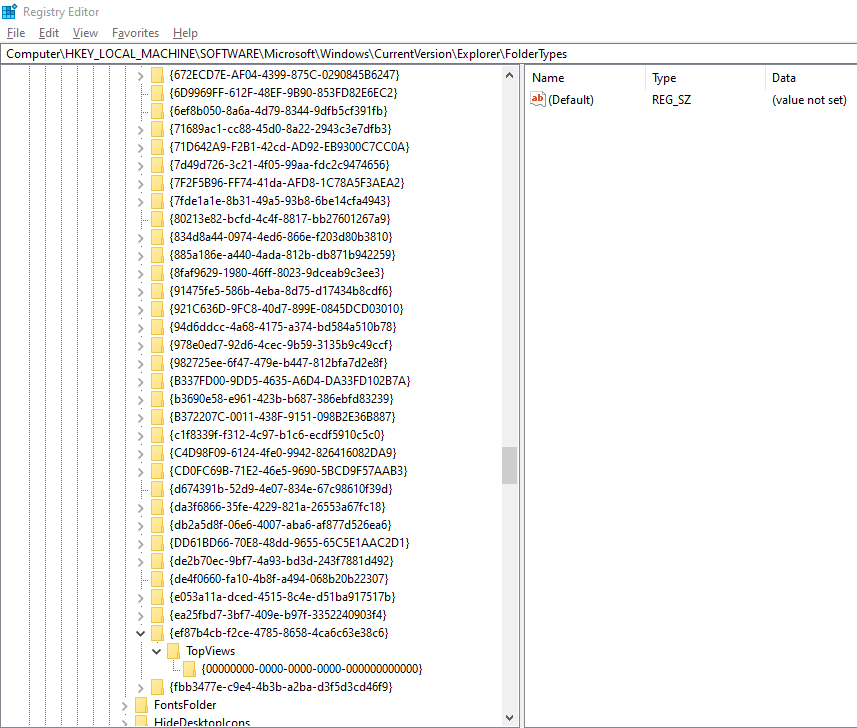
- Delete this registry key: HKLM\SOFTWARE\Microsoft\Windows\CurrentVersion\Explorer\FolderTypes{ef87b4cb-f2ce-4785-8658-4ca6c63e38c6}\TopViews{00000000-0000-0000-0000-000000000000}. On 64-bit Windows 10, also delete HKLM\SOFTWARE\Wow6432Node\Microsoft\Windows\CurrentVersion\Explorer\FolderTypes{ef87b4cb-f2ce-4785-8658-4ca6c63e38c6}\TopViews{00000000-0000-0000-0000-000000000000}.
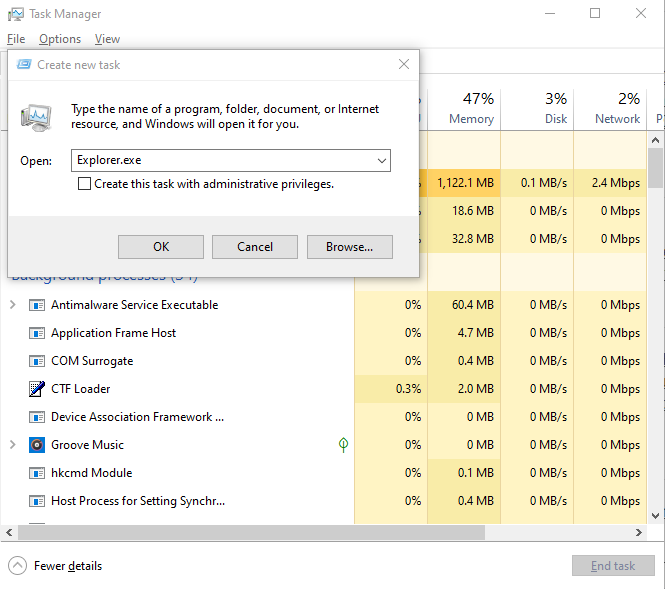
- Start Explorer.exe again from Task Manager: File > Run new task > explorer.exe.
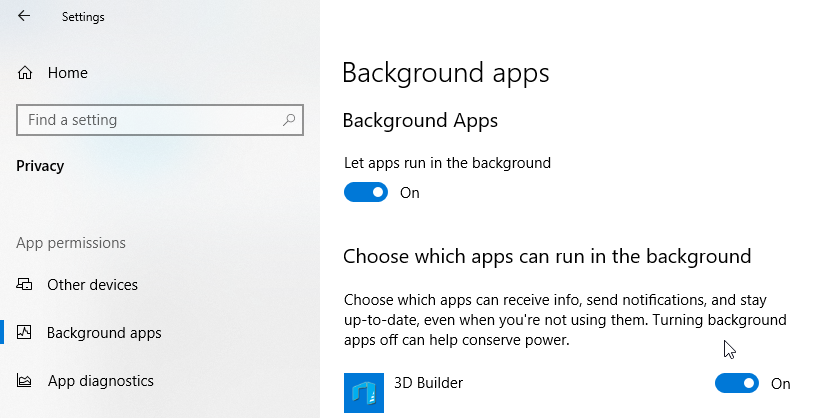
Another common cause after a Windows 10 Update is a background-apps setting. Go to Settings > Privacy > Background apps and turn on Let apps run in the background. With it off, newly installed apps may not show up in search.
If you can't find that option, you can turn it on in the registry:
Go to the key HKEY_CURRENT_USER\Software\Microsoft\Windows\CurrentVersion\BackgroundAccessApplications.
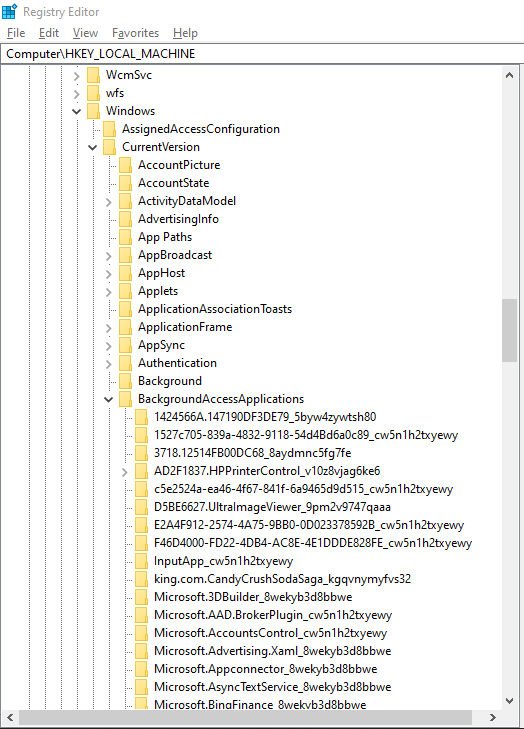
Create a new DWORD (32-bit) value named GlobalUserDisabled and set it to 0.
Set the BackgroundAppGlobalToggle value to 1 under HKCU\Software\Microsoft\Windows\CurrentVersion\Search. Or do both from Command Prompt:
REG ADD HKCU\Software\Microsoft\Windows\CurrentVersion\BackgroundAccessApplications /v GlobalUserDisabled /t REG_DWORD /d 0 /f
REG ADD HKCU\Software\Microsoft\Windows\CurrentVersion\Search /v BackgroundAppGlobalToggle /t REG_DWORD /d 1 /f
Restart your computer.
Check the Windows Search Service and Indexing Settings
Make sure the Windows Search (indexing) service is actually running.
- Press Win + R, type services.msc and press Enter.
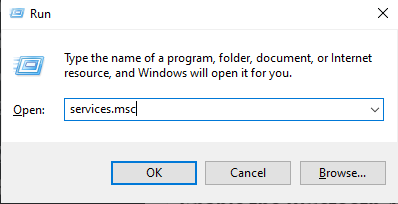
- Find Windows Search in the list of services.
- Check that it's running and that its startup type is Automatic (Delayed Start) or Automatic.
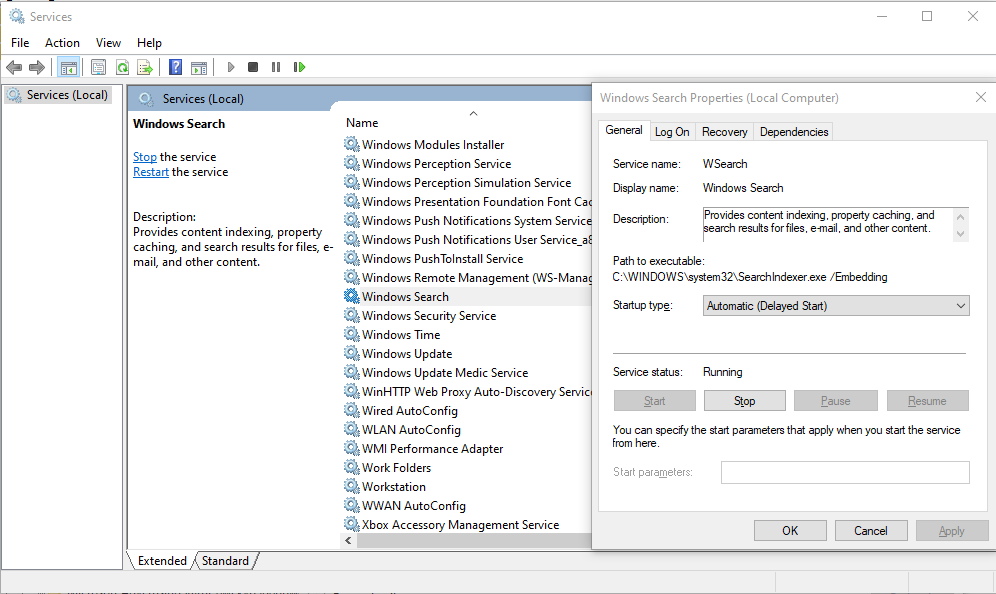
- Start or restart the WSearch service.
- Open the classic Control Panel and go to Indexing Options (Control Panel\All Control Panel Items\Indexing Options).
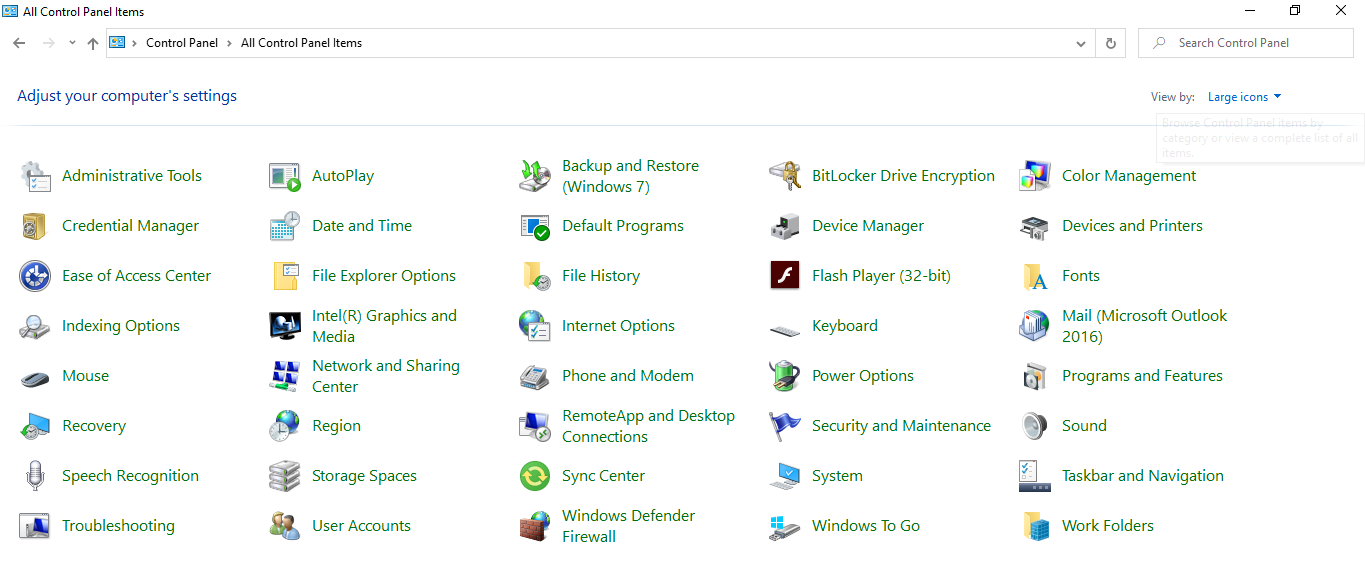
- Make sure all the locations you need are indexed. At minimum, Start Menu and the Users folder should be included. You can add local drives and Outlook too.
- Click Advanced, then click Rebuild under Troubleshooting.
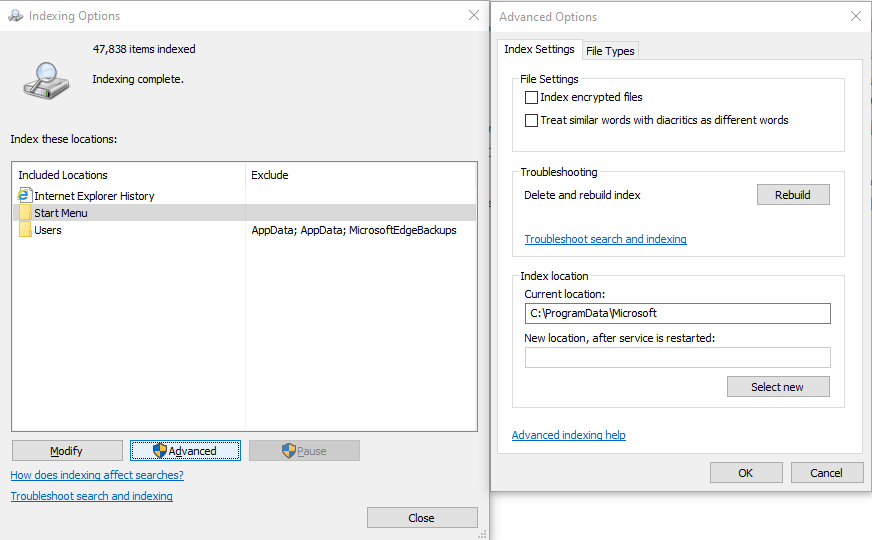
- Re-indexing can take a while, so give it time.
Run the Search and Indexing Troubleshooter
Windows 10 has a built-in Search and Indexing troubleshooter:
Go to Settings > Search > Searching Windows, scroll down and click Run the indexer troubleshooter to resolve common search issues. You can also launch it from Command Prompt:
msdt.exe -ep WindowsHelp id SearchDiagnostic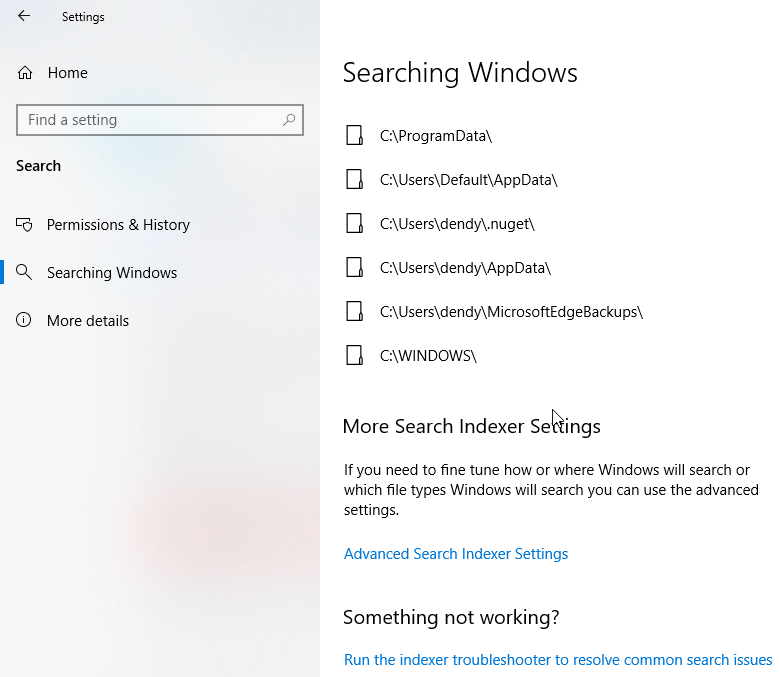
Pick the problem you're seeing (usually Files don't appear in search results) and click Next.
Wait while the troubleshooter checks your computer and tries to fix it. Restart the computer and test search again.
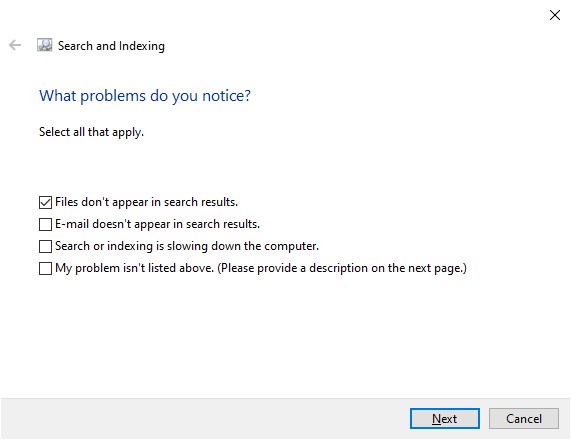 Image: woshub.com
Re-Register Universal Apps in Windows 10
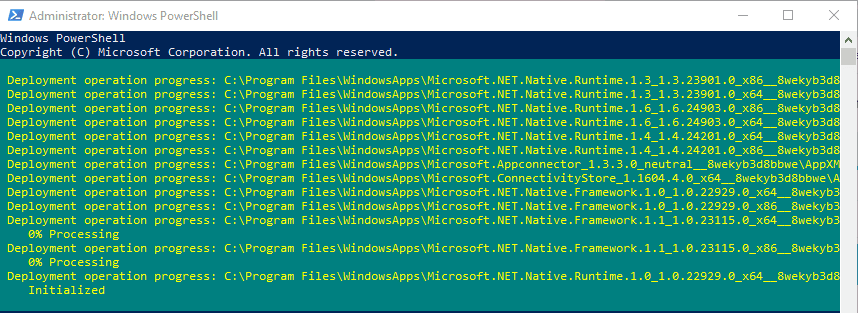
If Cortana is installed, re-registering all Universal Windows Platform (UWP / Microsoft Store) apps can fix search. Open PowerShell as administrator and run:
Get-AppXPackage -AllUsers | Foreach {Add-AppxPackage -DisableDevelopmentMode -Register "$($_.InstallLocation)\AppXManifest.xml"}
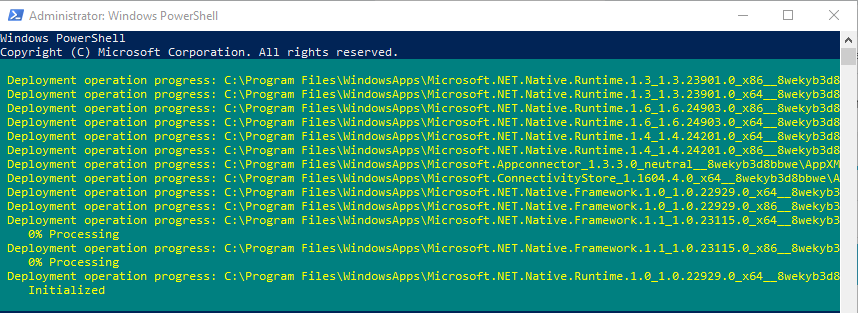
Restart the computer when the command finishes.
Blank Search Results Caused by Bing Integration
If the search panel opens but stays blank, the Bing cloud search service may be unreachable. By default Windows 10 sends what you type in the Start menu to Microsoft's servers, which return web results from Bing.
The easiest fix is to turn off Bing integration in Windows 10 search:
- Press Win + R, type
regedit.exeand press Enter to open the Registry Editor. - Go to *HKEY_CURRENT_USER\SOFTWARE\Microsoft\Windows\CurrentVersion\Search*.
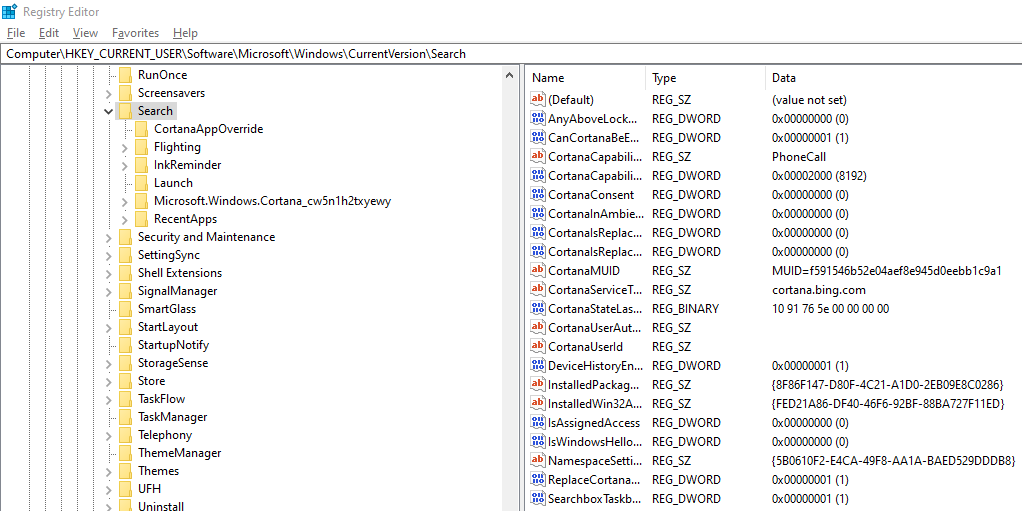
- Set the BingSearchEnabled and CortanaConsent values to 0 (create them as DWORD values if they don't exist).
- Restart your computer.
Windows 10 Settings Search Not Working
The Settings app has its own search box. If that one stops working:
Open File Explorer and go to:
%LocalAppData%\Packages\windows.immersivecontrolpanel_cw5n1h2txyewy\LocalStateRight-click the Indexed folder, choose Properties and click Advanced. Make sure Allow files in this folder to have contents indexed in addition to file properties is ticked.
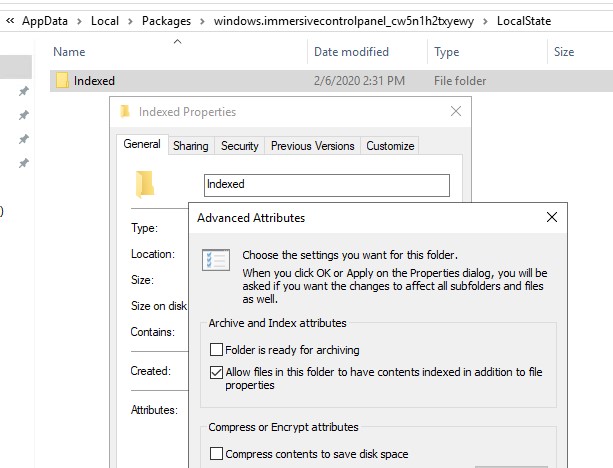
If it's already ticked, untick it, click OK, then tick it again.
Reset Windows Search with the PowerShell Script
If none of that worked, Microsoft offers a PowerShell script that resets all Windows Search settings (for Windows 10 version 1903 and later). Download ResetWindowsSearchBox.ps1, right-click it and choose Run with PowerShell.
Other Ways to Fix Search in Windows 10
Still stuck? A few more things to try:
Create a new user account and check whether search works there. If it does, your old profile is the problem.
Boot from a LiveCD and delete the folder C:\Users\username\AppData\Local\Packages\Microsoft.Windows.Cortana_cw5n1h2txyewy.
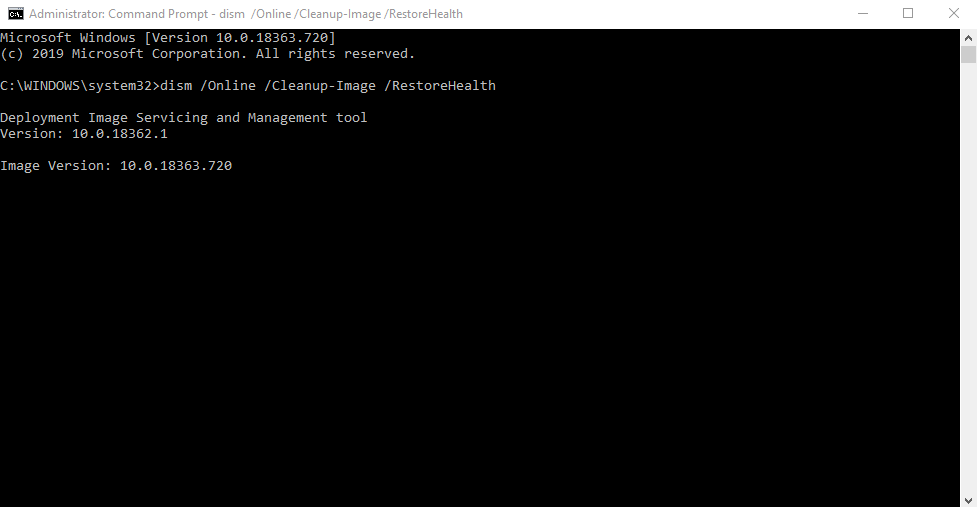
Check the integrity of system files and the Windows image with these commands (run Command Prompt as administrator):
sfc /scannow
dism /Online /Cleanup-Image /RestoreHealth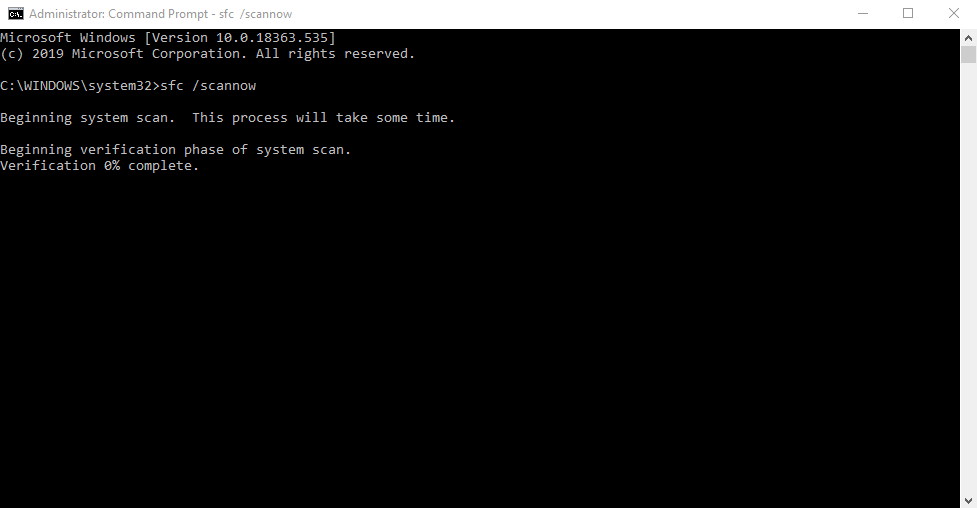
References: drivereasy.com, woshub.com, geeksadvice.com, lifewire.com