How to Fix DNS_PROBE_FINISHED_NXDOMAIN (9 Solutions)
Seeing dns_probe_finished_nxdomain in Chrome? Restart the DNS Client, switch to Google DNS, reset Winsock, clear Chrome's host cache and flush DNS with these 9 fixes.
In this guide
Google Chrome is used by well over a billion people, and most of the time it just works. But one error that keeps catching people out is DNS_PROBE_FINISHED_NXDOMAIN. The page simply won't load, even though your internet seems fine. Here's what the error means and nine ways to fix it.
What Is the DNS_PROBE_FINISHED_NXDOMAIN Error?
dns_probe_finished_nxdomain means Chrome asked a DNS server for a website's address and got back "NXDOMAIN," short for "non-existent domain." In other words, the lookup failed. Sometimes the site really doesn't exist (check for typos), but usually the problem is on your side: a stuck DNS service, a bad cache, VPN or antivirus interference, or broken network settings.
Sometimes it's just a glitch in your Chrome session. Close the browser completely, restart your device, then open Chrome again. If the error is still there, work through the fixes below.
You might also like: Which is better, Windows 10 or Windows 11?
1. Restart the DNS Client Service
The DNS Client service handles name lookups on Windows. Refreshing it often clears the error.
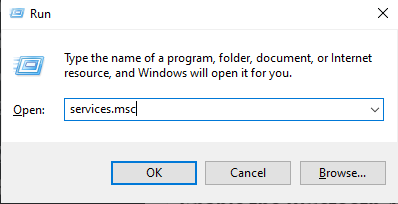
- Press Windows + R, type services.msc and press Enter.
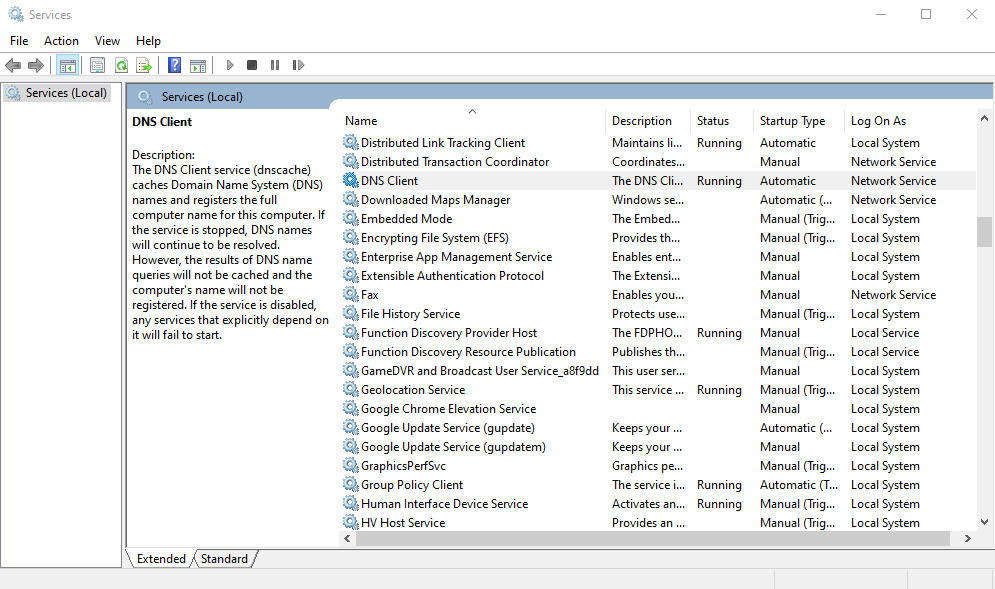
- In the Services window, find DNS Client.
- Right-click DNS Client and click Refresh (or Restart if available). Then try the website again.
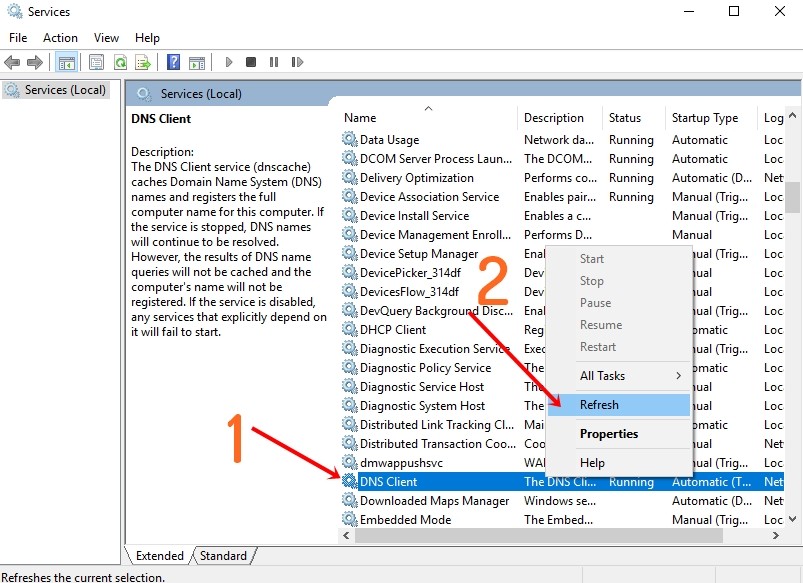 Image: techyvoice.com
2. Switch to Google's DNS
Sometimes the error appears because your PC uses a slow or unreliable DNS server (usually your ISP's). If lookups take too long, Chrome gives up and shows the error. Switching to Google Public DNS often fixes it.
- Search for Settings in the taskbar and open it.
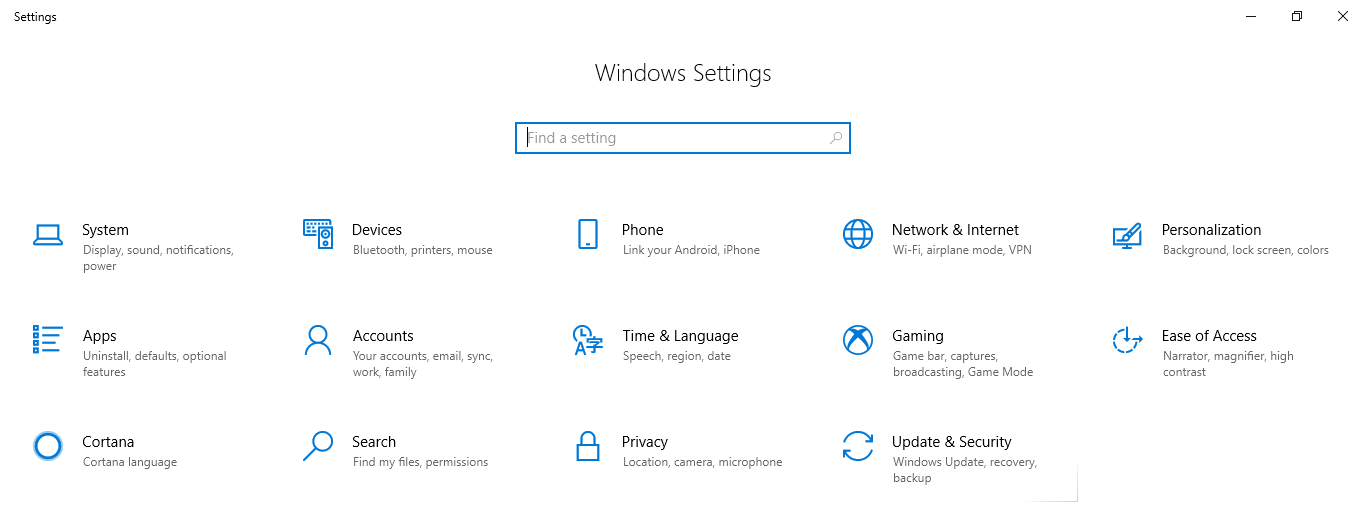
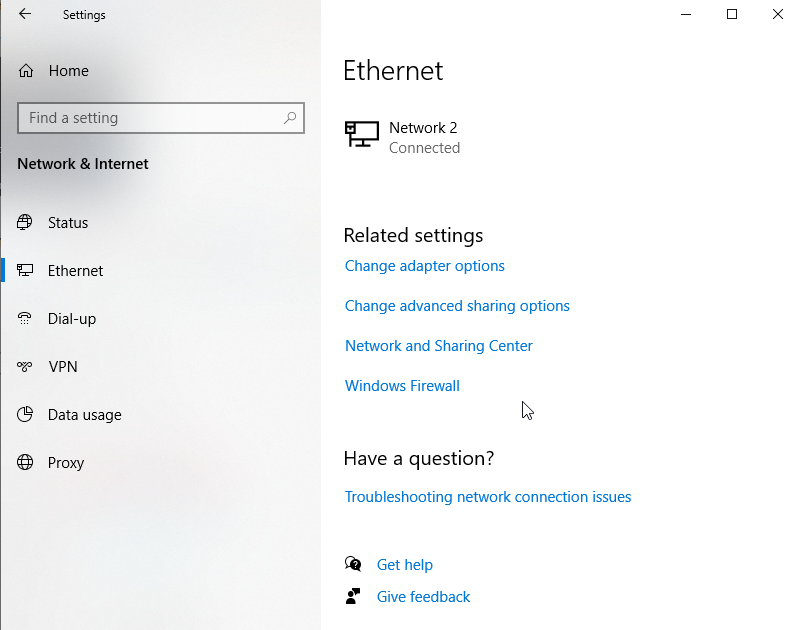
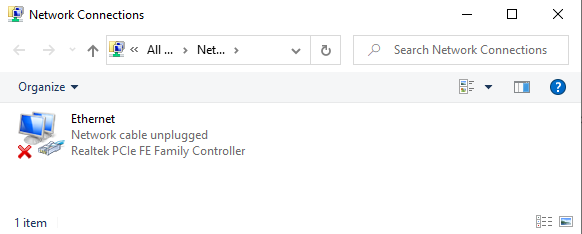
- Click Network & Internet, choose Ethernet (or Wi-Fi), then click Change adapter options on the right.
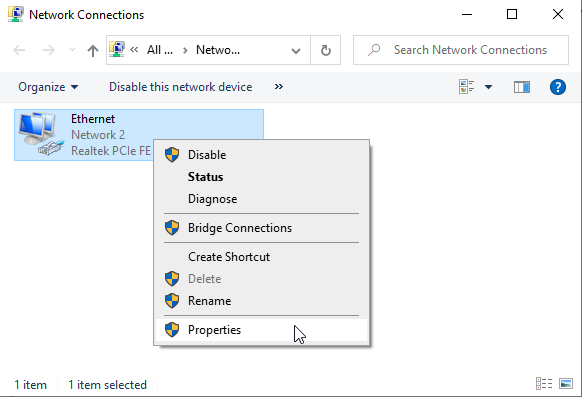
- Right-click your active network connection and choose Properties.
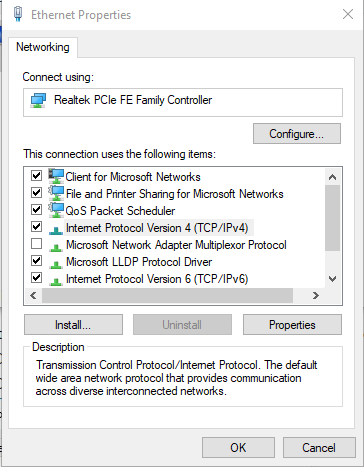
- Select Internet Protocol Version 4 (TCP/IPv4) and click Properties.
- Choose Use the following DNS server addresses and enter: Preferred DNS server: 8.8.8.8, Alternate DNS server: 8.8.4.4.
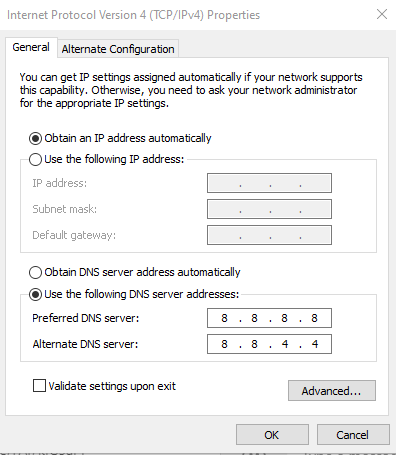
- Click OK.
3. Disconnect From Your VPN
A VPN can interfere with DNS lookups. If you don't use one, skip to the next fix.
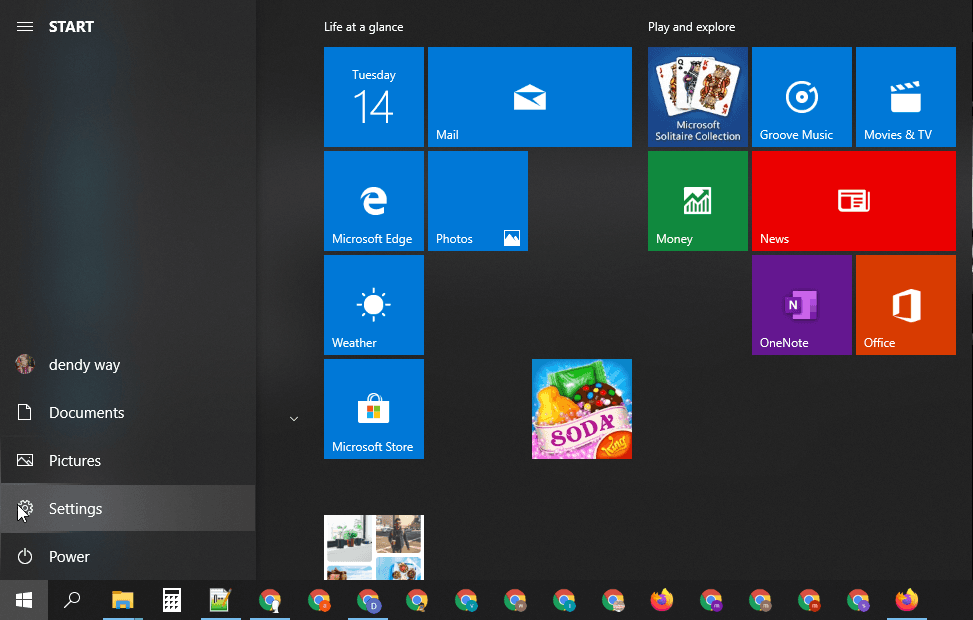
- Click Start and choose Settings.
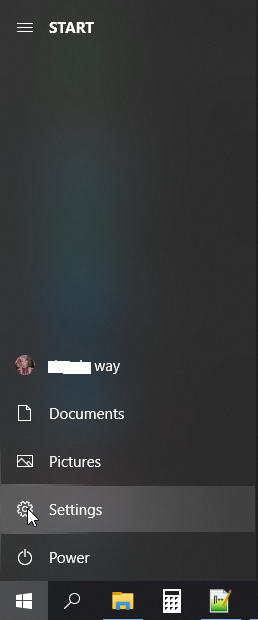
- Click Network & Internet, then VPN in the left panel. Select your VPN and click Disconnect.
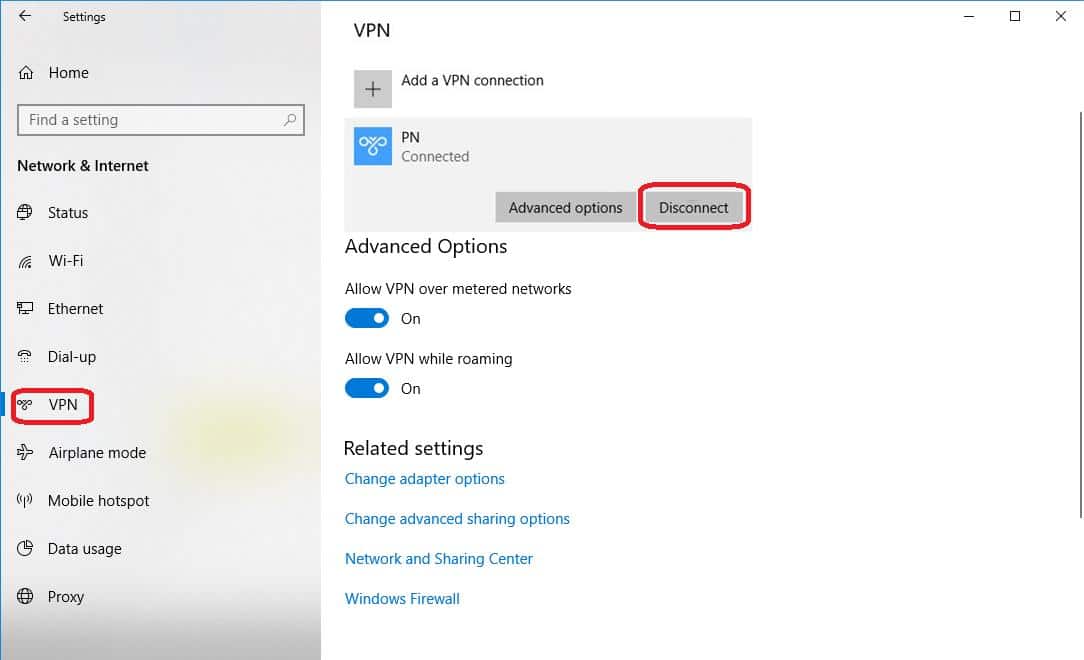 Image: techloris.com
- If the site now loads, the VPN was the problem. Try reconnecting; if the error returns, you may need a different VPN for that site. If the error is still there while disconnected, reconnect and move on.
4. Uninstall Third-Party Antivirus
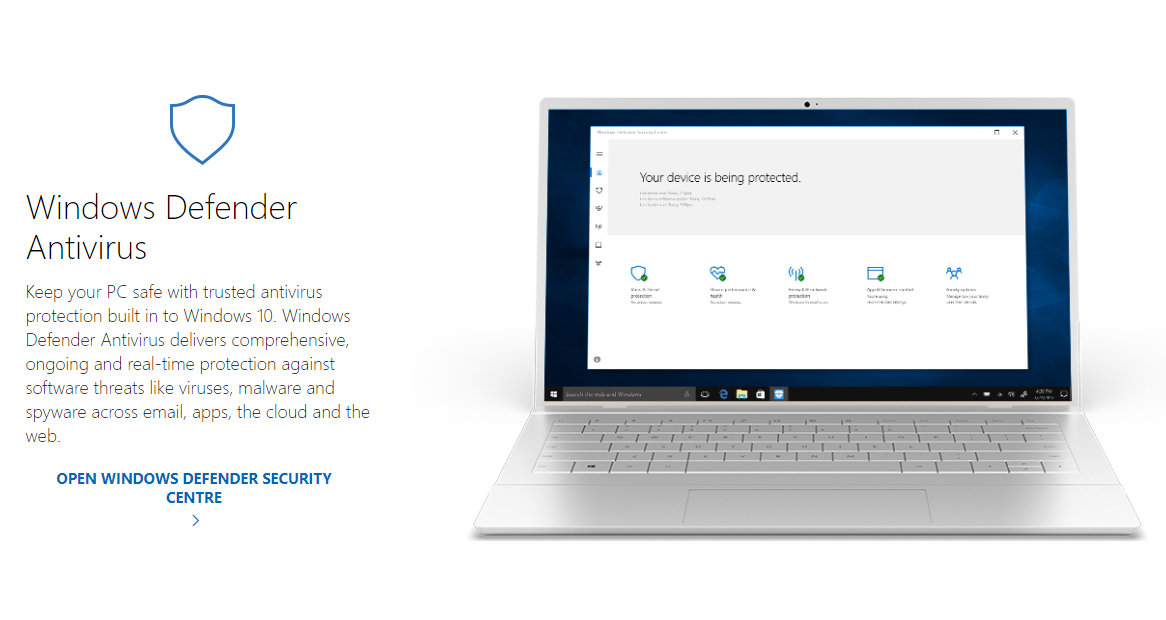
Third-party antivirus software sometimes blocks connections it shouldn't. Running two antivirus programs at once (for example Windows Defender plus another one) can also cause conflicts, so make sure only one is active.
- Temporarily disable your antivirus and check whether the site loads. If it doesn't, try uninstalling it: click Start and choose Settings.
- Click Apps. Under Apps & features, find your antivirus program, click it and click Uninstall.
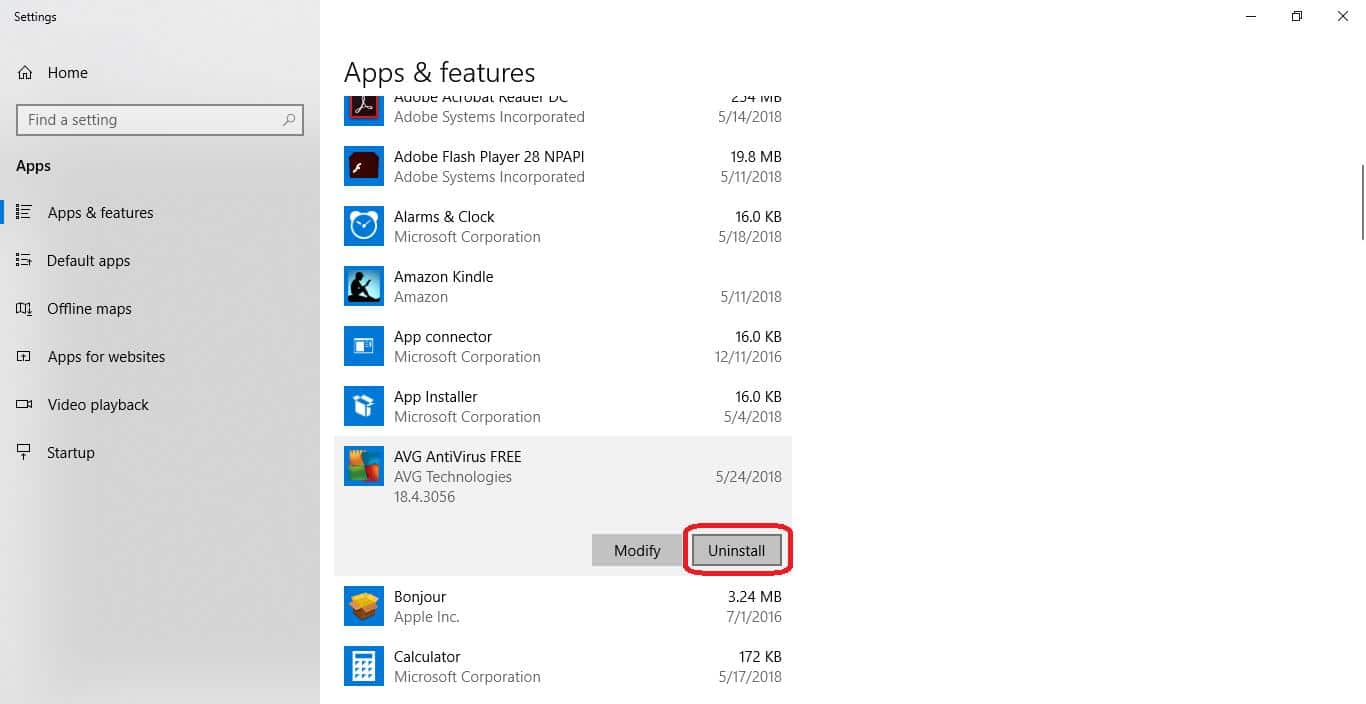 Image: techloris.com
- Click the Power icon in the Start menu and restart your computer.
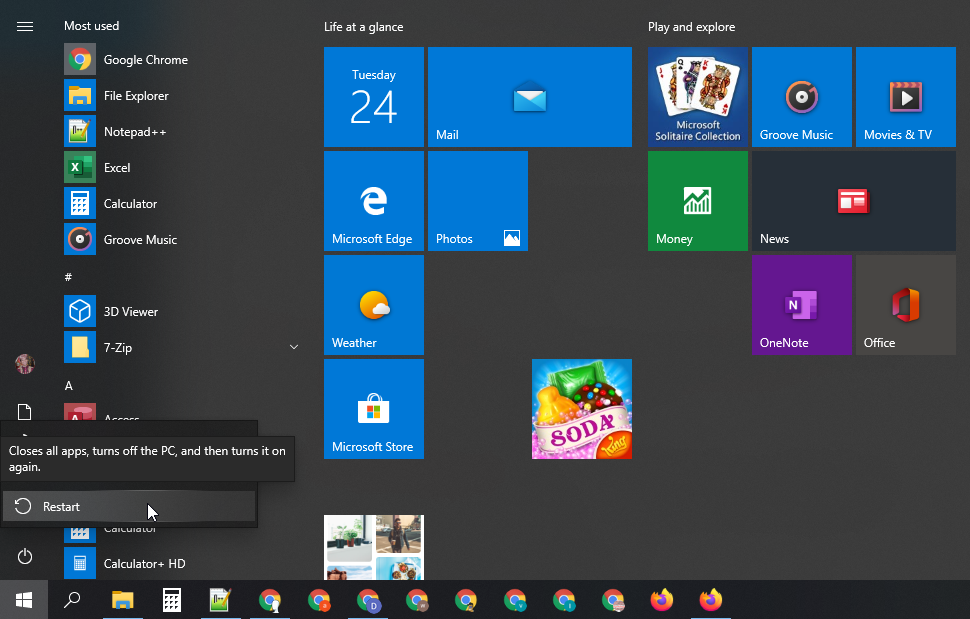
- If the error is gone, the antivirus was to blame. Reinstall a fresh copy (a Windows update may have broken the old one); if the problem comes back, switch to another product or use Windows Defender. If the error is still there, reinstall your antivirus and continue.
5. Reset Windows Sockets (Winsock)
Corrupted or misconfigured IP settings can also trigger DNS_PROBE_FINISHED_NXDOMAIN. Create a system restore point before you do this.
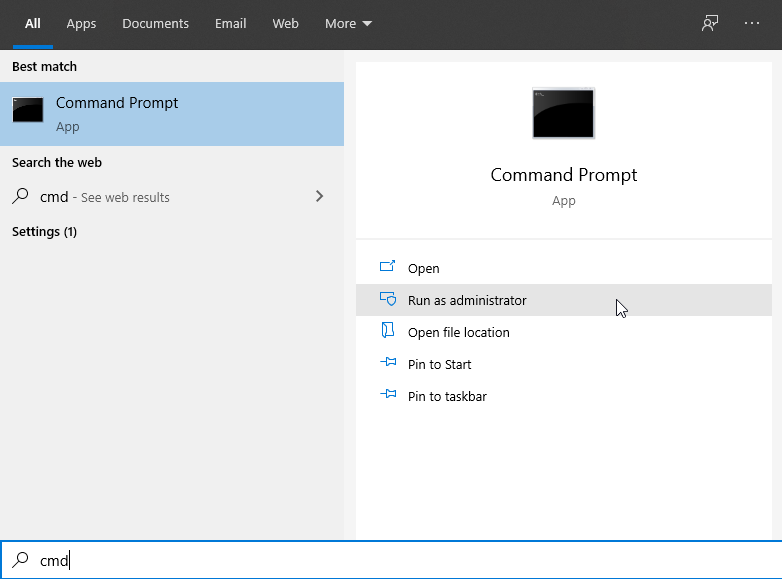
- Type Command Prompt into the Start menu, right-click it and choose Run as administrator. Click Yes to allow changes.
- Type netsh winsock reset catalog and press Enter.
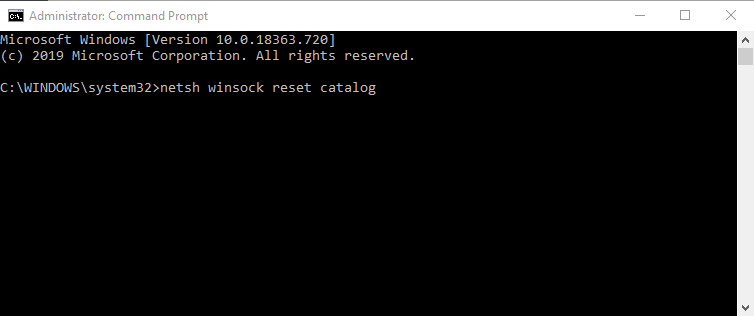
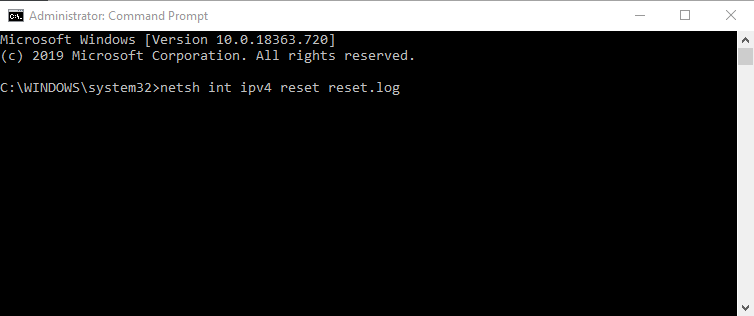
- You'll see a message that the catalog was reset and that you should restart; ignore that for now. Type netsh int ipv4 reset reset.log and press Enter.
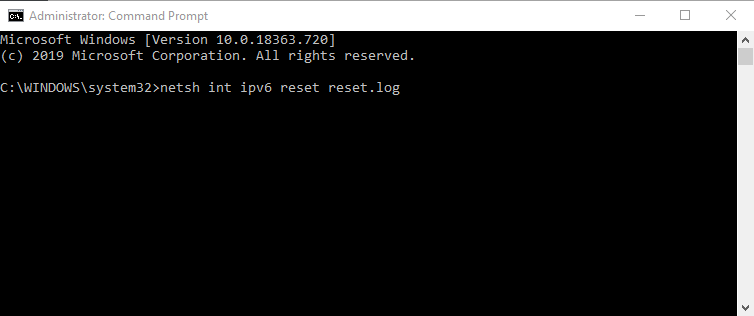
- Type netsh int ipv6 reset reset.log and press Enter. Another list of results appears.
- When it finishes, close Command Prompt and restart your computer from the Start menu.
Check whether the site loads now. If not, keep going.
6. Clear Chrome's DNS Cache
Chrome keeps its own DNS cache, separate from Windows. If it holds a bad entry, sites can fail to load.
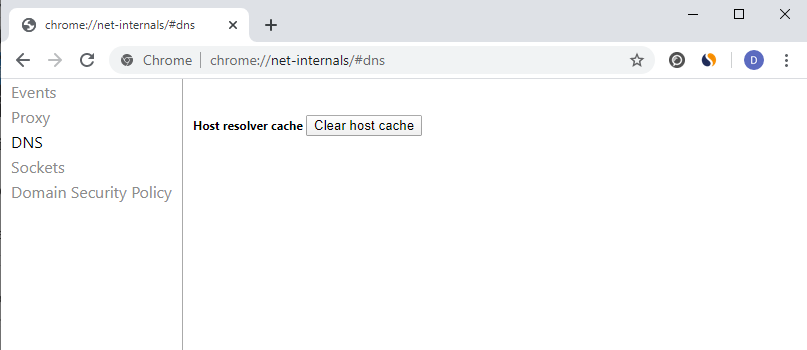
- Type or paste chrome://net-internals/#dns into Chrome's address bar and press Enter. Click Clear host cache.
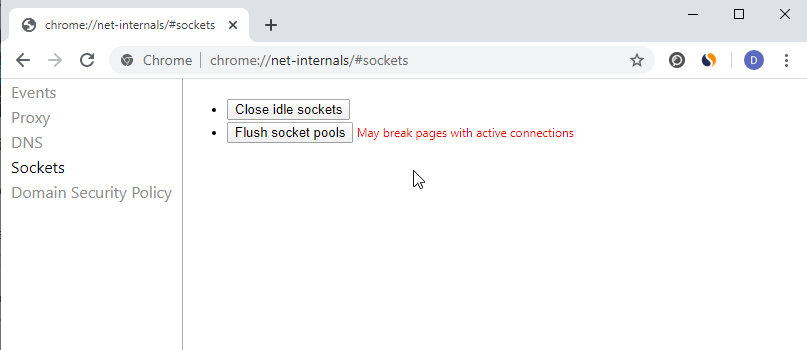
- Then go to chrome://net-internals/#sockets and click Flush socket pools.
7. Clear Chrome's Browsing Cache
A cluttered browser cache can also cause the error.
- Click the three dots in the top-right corner of Chrome.
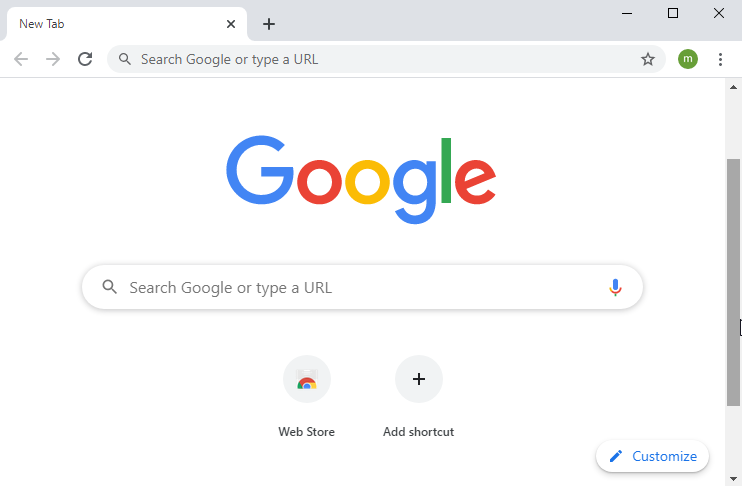
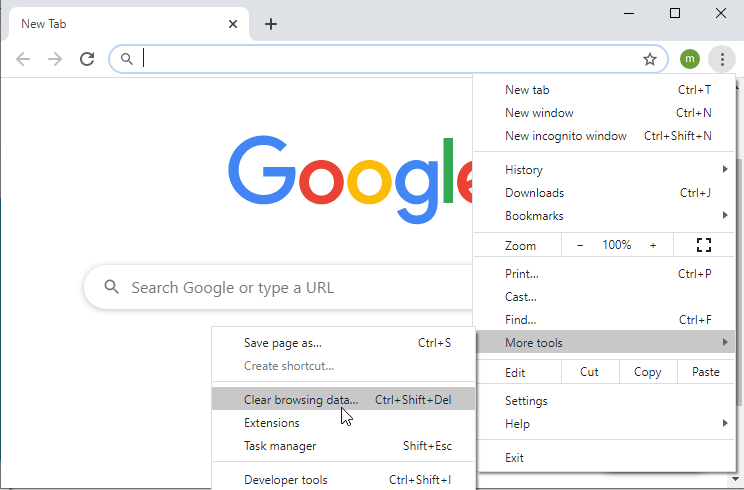
- Hover over More tools and select Clear browsing data.
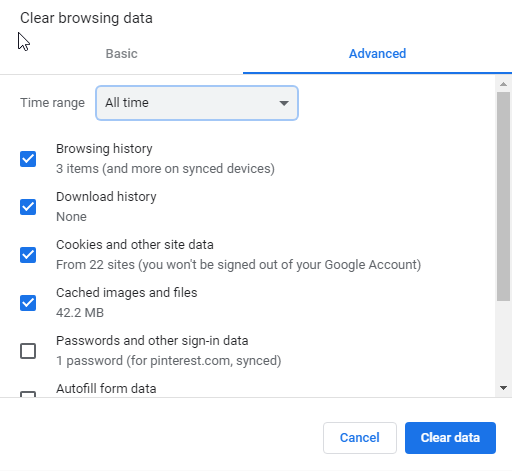
- Open the Advanced tab, make sure Cookies and other site data and Cached images and files are ticked, set the time range to All time and click Clear data.
- Close Chrome, open it again and reload the site.
Still not loading? Try the next fix.
8. Flush the Windows DNS Cache
Windows also stores DNS results, and an outdated entry can send Chrome to the wrong place.
- Type Command Prompt into the Start menu, right-click it and choose Run as administrator. Click Yes.
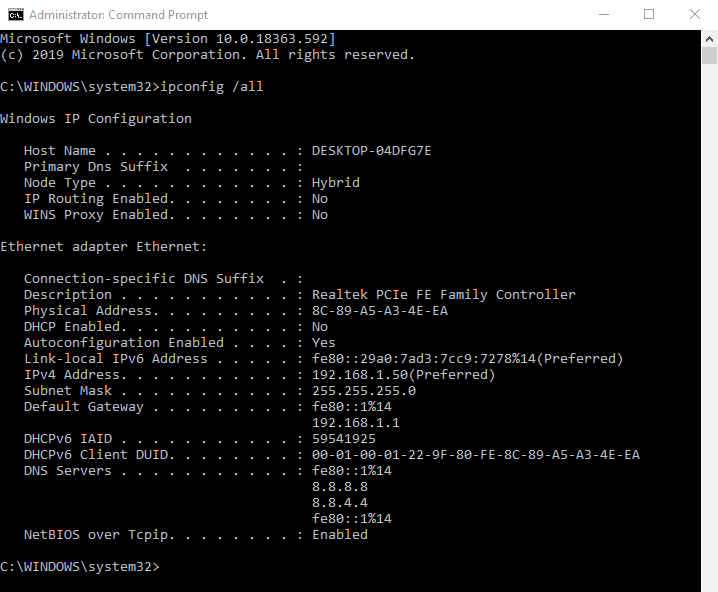
- Type ipconfig /release and press Enter.
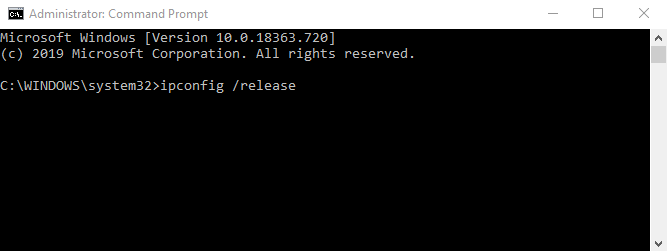
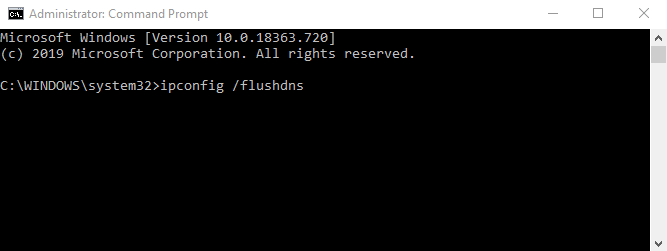
- Type ipconfig /flushdns and press Enter.
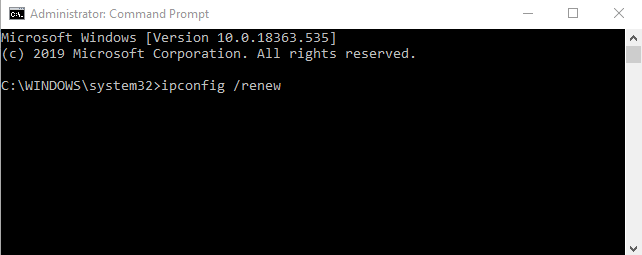
- Type ipconfig /renew and press Enter.
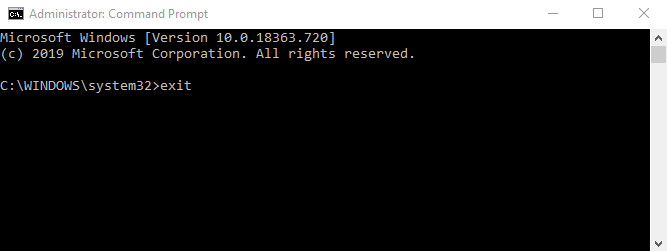
- Type exit and press Enter to close Command Prompt.
Try the website again.
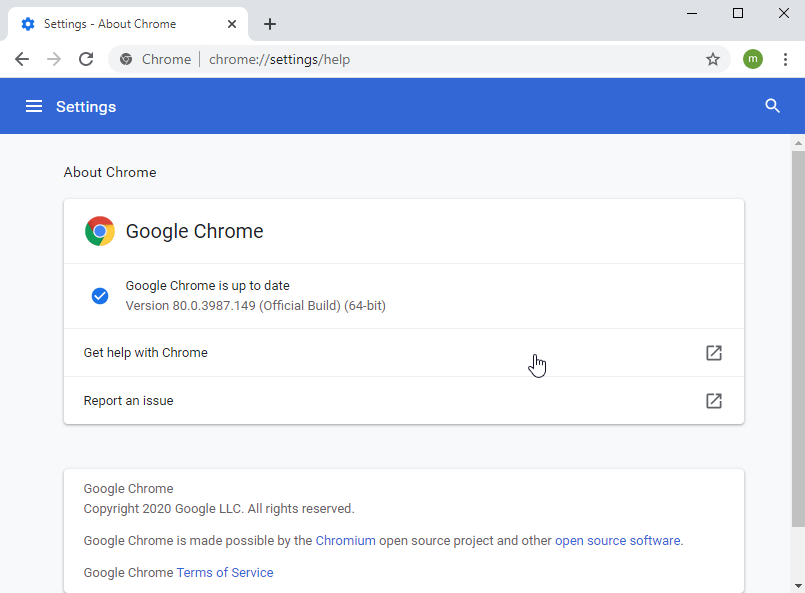
9. Make Sure Chrome Is Up to Date
An outdated Chrome can cause all sorts of problems. It normally updates itself, but it's worth checking manually.
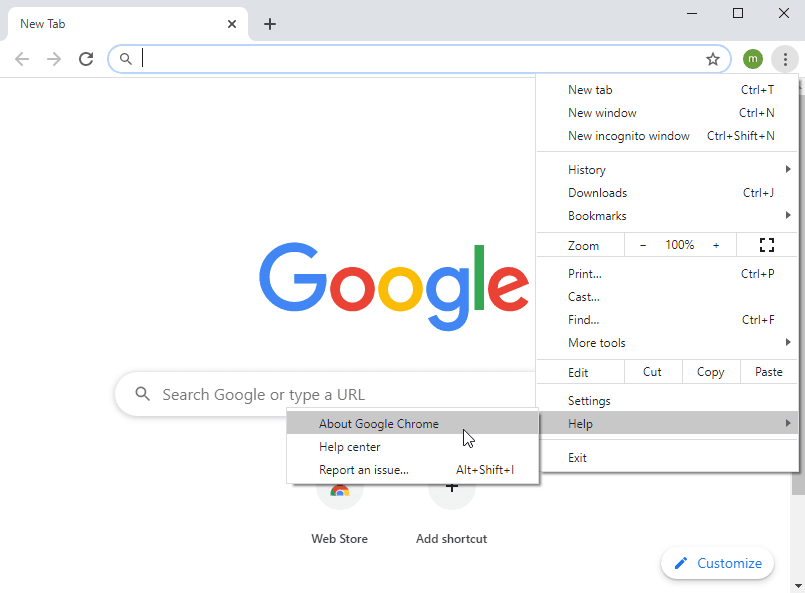
- Click the three dots in the top-right corner to open the Customize and control Google Chrome menu.
- Choose Help, then About Google Chrome.
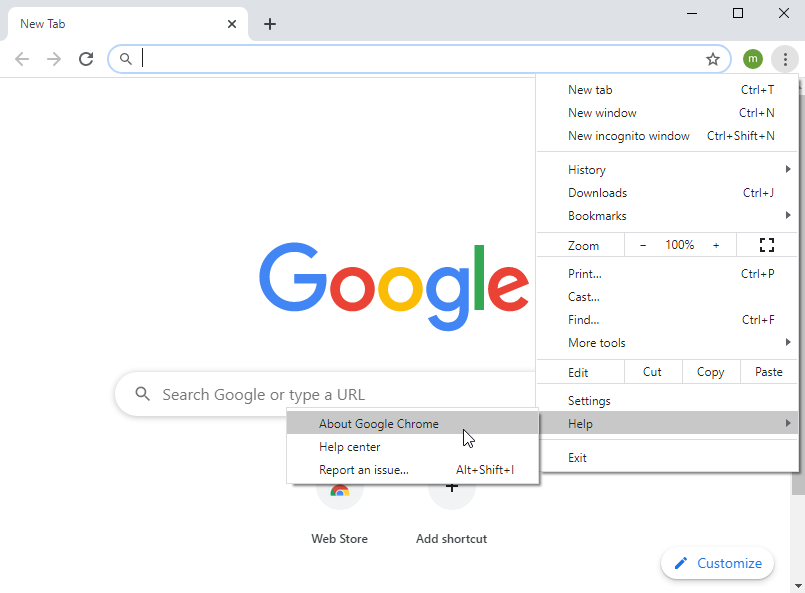
- Chrome checks for updates and installs them. When it's done, click Relaunch and see whether the DNS_PROBE_FINISHED_NXDOMAIN error is gone.
If none of these fixes help, the problem may be with the website itself or your internet provider. Try the site on another network (such as your phone's mobile data) to find out.
References: techyvoice.com, techymax.com, techloris.com