How to Find MAC Address Windows 10 (3 Easy Ways)
Need to find mac address windows 10? Use ipconfig /all, Network Connection Details or Device Manager, and learn how to protect or change your MAC address.
In this guide
Need to find mac address windows 10 for your router, a network filter or a support call? It takes less than a minute. Below we show you where to look, then explain what a MAC address actually is and why it's worth protecting, since it can be used to track your location or impersonate your device.
What Is a MAC Address?
A MAC (short for media access control) address is a string of letters and numbers that identifies a network device.
To get online or send data, your devices need to know the address of everything they talk to. That's what IP and MAC addresses are for. Your IP address identifies your network connection, while a MAC address identifies the hardware itself.
Every connected device has a network interface card (NIC) that lets it join a network, and the manufacturer gives each NIC a unique MAC address. That's why MAC addresses are sometimes called burned-in or hardware addresses.
You might also like: Windows 2000 Was the Best
MAC addresses matter for communication on your local network. When your device finds a router, it sends its MAC address to set up the connection. The router then gives you an IP address so you can reach the internet. The key difference: a MAC address stays the same and is only used on the local network, while your IP address identifies you on the wider internet and changes depending on where you connect.
What Does a MAC Address Look Like?
Most MAC addresses are 12 letters or numbers split into 6 pairs, for example:
1A-2B-3C-4D-5E-6F
11-22-33-44-55-66
How to Find MAC Address Windows 10
Every network device or interface, such as your laptop's Wi-Fi adapter, has its own MAC address. Windows 10 shows it to you in a couple of places.
Why would you need it? If you're setting up your router, you might use MAC address filtering to decide which devices can connect. (That isn't strong security on its own, because MAC addresses are easy to fake.) Or your router might list connected devices by MAC address, and you want to know which one is your PC.
Either way, you can find mac address windows 10 easily with Command Prompt or in your network adapter details.
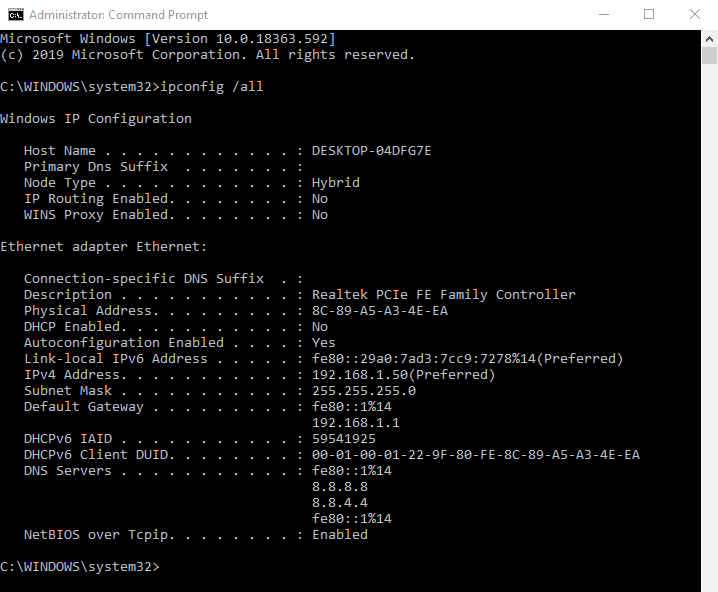
How to Find MAC Address Windows 10 With the Command Prompt
This is the quickest way.
- Open Command Prompt: type "Command Prompt" in the taskbar search box, or right-click the Start button and choose Command Prompt.
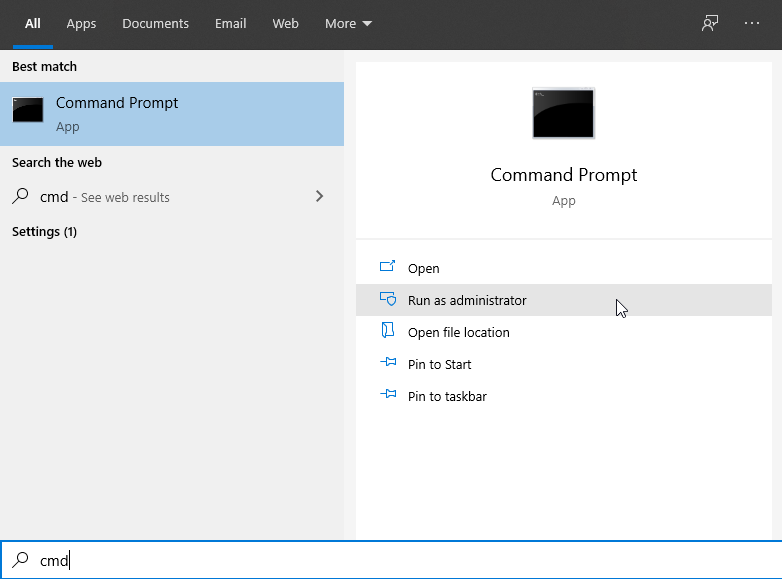
- Type ipconfig /all and press Enter. Your full network configuration appears.
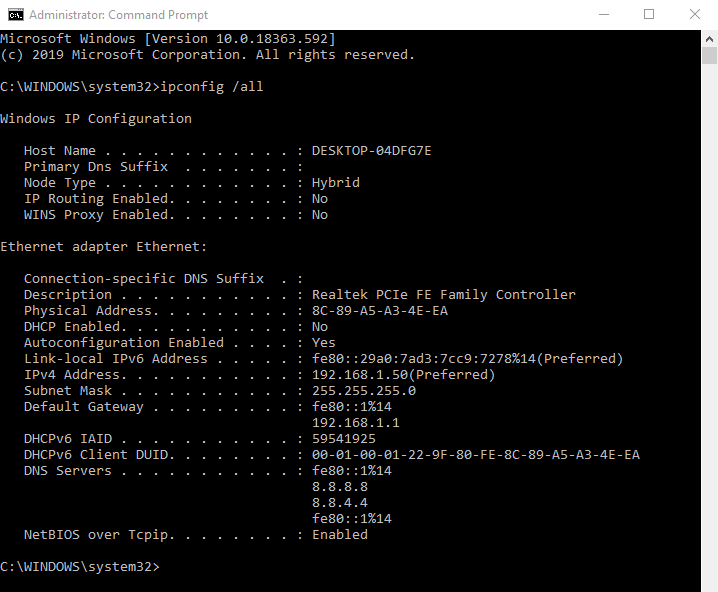
- Scroll to your network adapter and find the value next to Physical Address. That's your MAC address.
How to Find MAC Address Windows 10 in Network Connection Details
You can also find the MAC address in your network adapter's details.
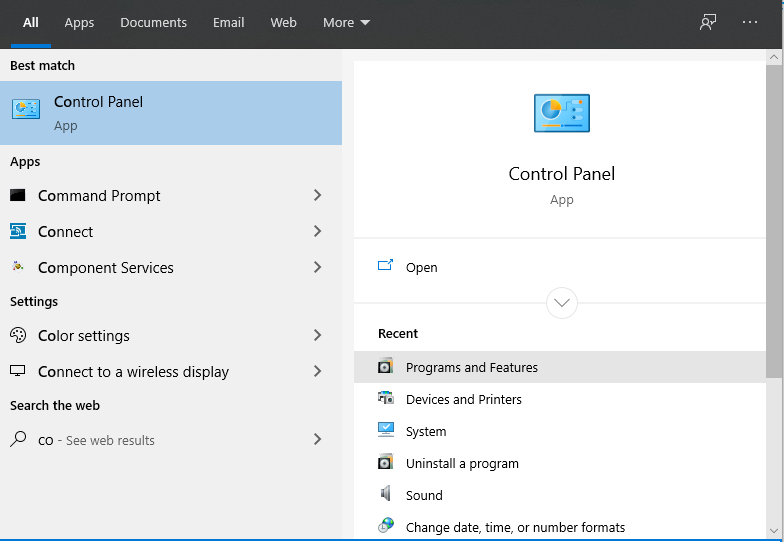
- Search for "Control Panel" in the taskbar and open it.
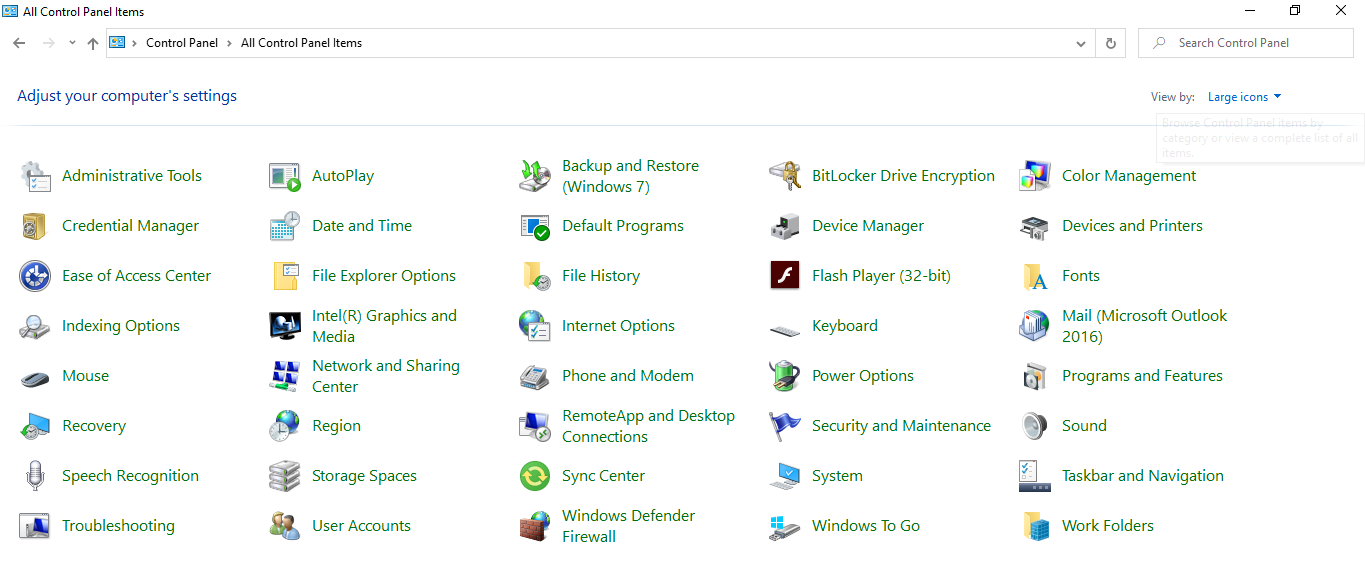
- Open Network and Sharing Center and click your connection.
- Click the Details button.
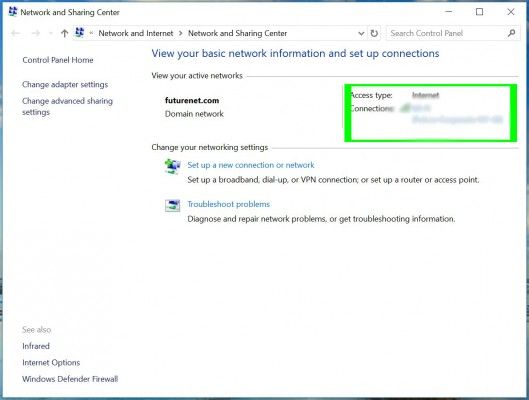 Image: laptopmag.com
- Find Physical Address in the Network Connection Details window. That value is your MAC address.
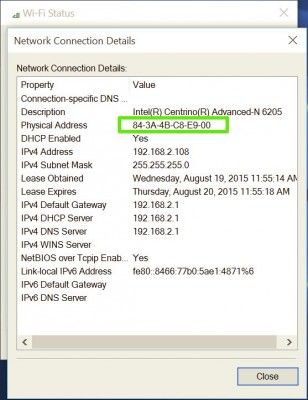 Image: laptopmag.com
How Your MAC Address Can Make You Vulnerable
MAC addresses are fairly safe, because attacks using them are hard to pull off and need real technical skill. Still, a MAC address can be used to follow your location, interrupt your internet access or even help with a man-in-the-middle attack.
Tracking your location
Companies and venues have used MAC addresses to track people. As you move between Wi-Fi hotspots, your device keeps broadcasting its MAC address to find new networks. In a big place like an airport or across a city, a linked Wi-Fi system can follow those signals and build a picture of where people go.
That needs access to a lot of Wi-Fi points, so it's usually only big companies or institutions doing it, and often it's just to measure foot traffic. But it can be abused. In 2013, an advertising company in London used Wi-Fi-equipped rubbish bins to detect MAC addresses and follow people's movements, so it could target ads at them around the city.
Intercepting or spoofing your connection
A hacker who knows your MAC address can pretend to be your device. If your home router isn't set up securely, they can use special software to discover your MAC address and connect to the same Wi-Fi as you.
Some routers use MAC filtering to control access. That helps when combined with other measures, but on its own it's very easy to beat with MAC spoofing, since all an attacker needs is the MAC address your device broadcasts anyway.
How to protect your MAC address
In practice it's hard to attack someone through their MAC address, and it rarely travels beyond the first network device it connects to, so it's difficult to link to your identity.
Still, in the wrong situation it can become a weak spot, and some networks (at work or school, for example) use MAC filtering to block certain content. You can't simply hide your MAC address, because without it you can't connect to anything. But there are a couple of sensible precautions.
1. Turn off Wi-Fi when you're on the move
As you go about your day, your phone or laptop announces its MAC address to every network it scans, even ones you never join.
If you only connect to networks you trust (and use a VPN on the rest), you lose very little by switching Wi-Fi off when you're not using it. You'll be harder to track, and your battery will last longer too, since constant scanning drains it.
2. MAC spoofing
Spoofing means giving your network card a made-up MAC address. The steps differ from device to device, but it's one of the more effective ways to stay private.
Be aware that it can break things that depend on a fixed MAC address. If your router has whitelisted your MAC, or your broadband connection only allows certain devices, changing it may cut you off.
MAC spoofing is also a hacker's tool, so network administrators may not be pleased to see it on their network. Use it with care.
Always write down your real MAC address before you change it. Some devices restore the original automatically when you stop spoofing; others don't, and you'll need to set it back yourself using the same steps.
How to change (spoof) your MAC address on Windows 10
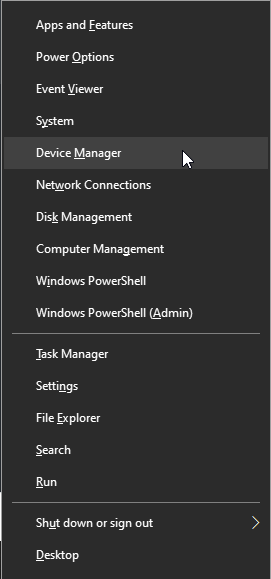
- Press Windows Key + X and click Device Manager.
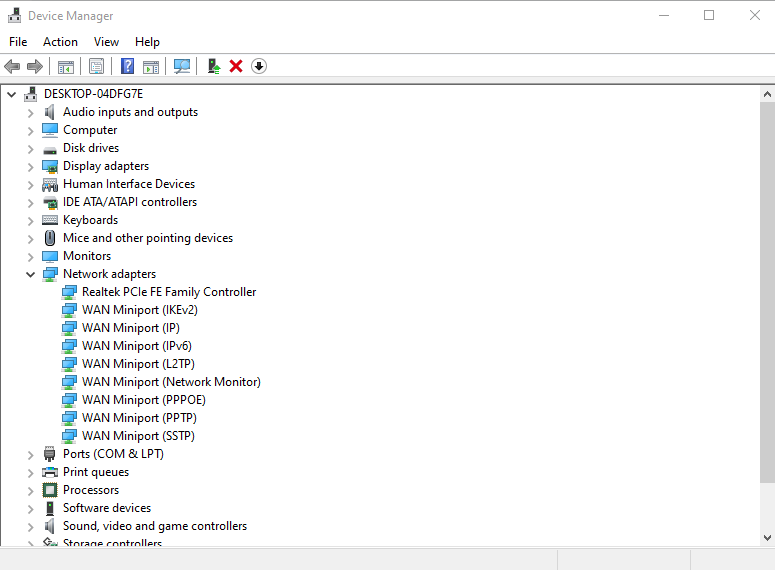
- Expand Network adapters, right-click your Ethernet or Wireless adapter and choose Properties.
- On the Advanced tab, scroll through the Property list and click Locally Administered Address (on some adapters it's called Network Address).
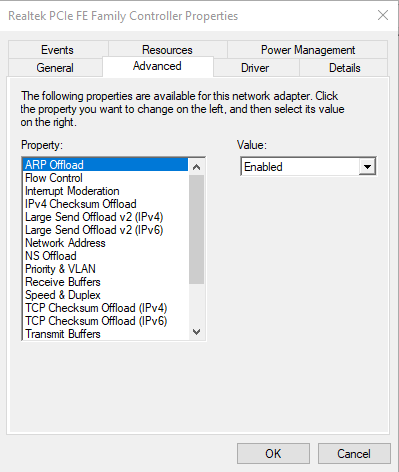
- Select Value and type the new MAC address (12 characters, no dashes).
- Restart your computer. Your MAC address is now changed.
References: nordvpn.com, laptopmag.com