The Drive Where Windows Is Installed Is Locked: 9 Fixes
Getting "the drive where windows is installed is locked" when you reset or repair your PC? Try UEFI, chkdsk, SFC, bootrec, BIOS checks and diskpart to unlock it.
In this guide
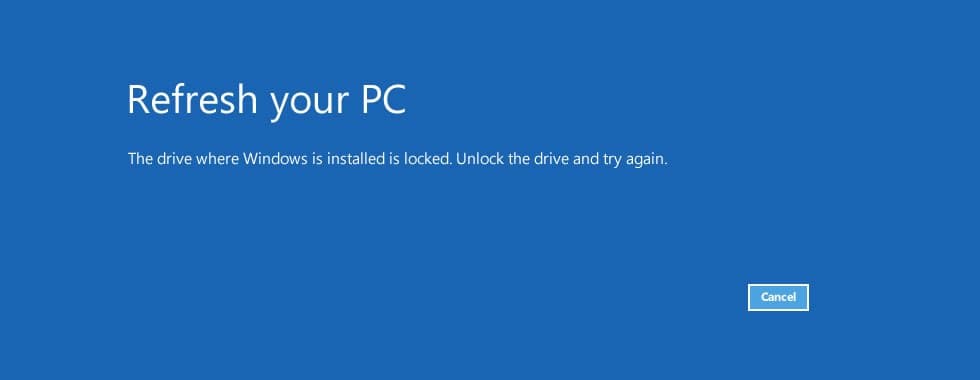
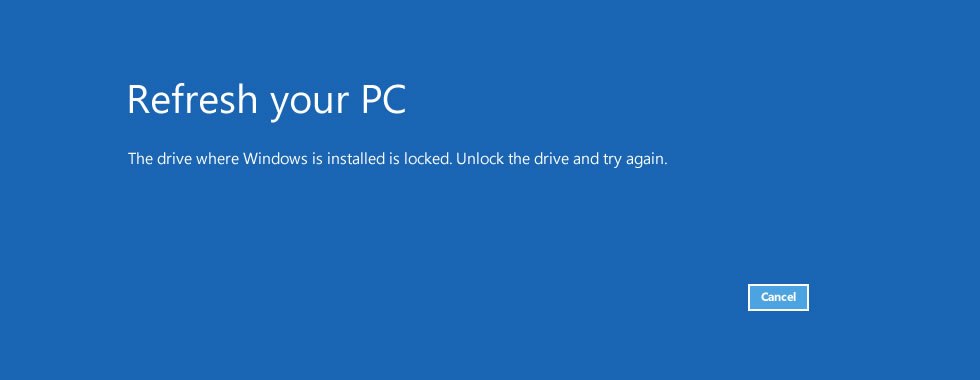
You're trying to reset or repair Windows from a USB stick or DVD, and instead you get the message "The drive where Windows is installed is locked. Unlock the drive and try again." It's a frustrating dead end, but it can be fixed. Below are the steps that work on both Windows 10 and Windows 8.1.
The error usually appears when you start a repair or refresh from installation media. Most of the time it's caused by damaged boot files, a changed BIOS setting or a problem with the drive itself, such as the SSD or hard disk Windows lives on.
How Do I Unlock the Drive in Windows 10?
Make Sure You're Using UEFI
Users often see this error when their PC is set to legacy BIOS mode instead of UEFI. UEFI is the modern replacement for BIOS, and most newer motherboards support it.
You might also like: Windows 2000 Was the Best
Check your motherboard manual for the exact steps to switch to UEFI. It's usually a single setting in the firmware menu. Plenty of people report that this alone fixed the problem, so it's worth trying first.
Run the chkdsk Command
File system corruption can lock the drive, and a chkdsk scan can repair it:
- Insert your Windows 10 or Windows 8.1 installation media and boot from it.
- On the Windows Setup screen, click Next.
- Click Repair your computer.
- In the advanced startup options, go to Troubleshoot > Advanced options > Command Prompt.
- Type chkdsk /f C: and press Enter. If Windows is installed on a different partition, use that drive letter instead of C:. (In the recovery environment, drive letters can differ; use
dir D:and so on to find the one with the Windows folder.)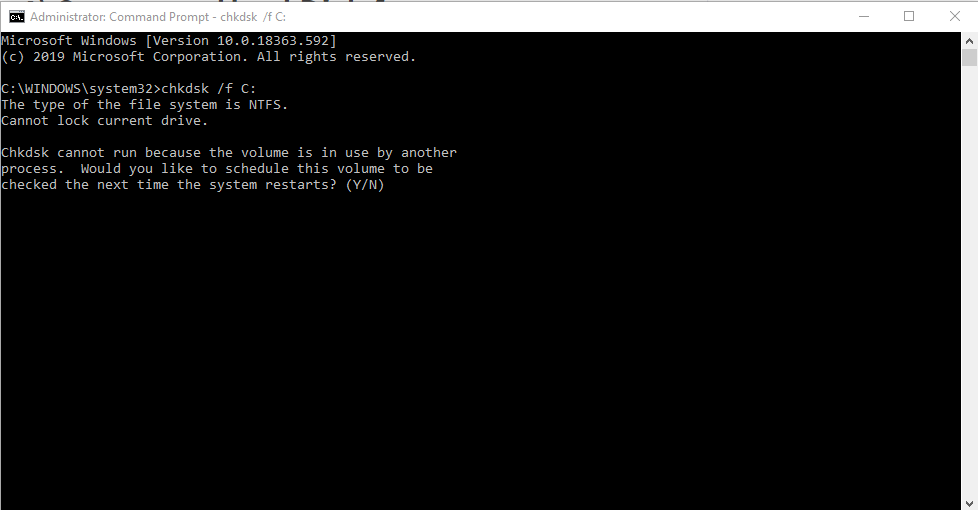
- Let the check finish.
- Restart your PC and see whether the error is gone.
Check Your BIOS Settings
Several users started getting this error right after a BIOS update. Updating firmware can reset settings, and in these cases the update changed how the hard drive was configured.
Specifically, the storage mode had switched from RAID to AHCI. Changing it back to RAID fixed the problem completely. If your system originally used AHCI or IDE, set it back to that instead.
Your motherboard manual explains how to enter the BIOS and change this setting. Some people also found that a dead CMOS battery on the motherboard was resetting their settings. If that's the case, replace the battery and put the settings back to their original values.
Run SFC Scannow
If chkdsk doesn't help, try System File Checker:
- Open Command Prompt from the recovery options, as in the previous step.
- Type sfc /scannow /offbootdir=C:\ /offwindir=C:\Windows (adjust the drive letter if needed).
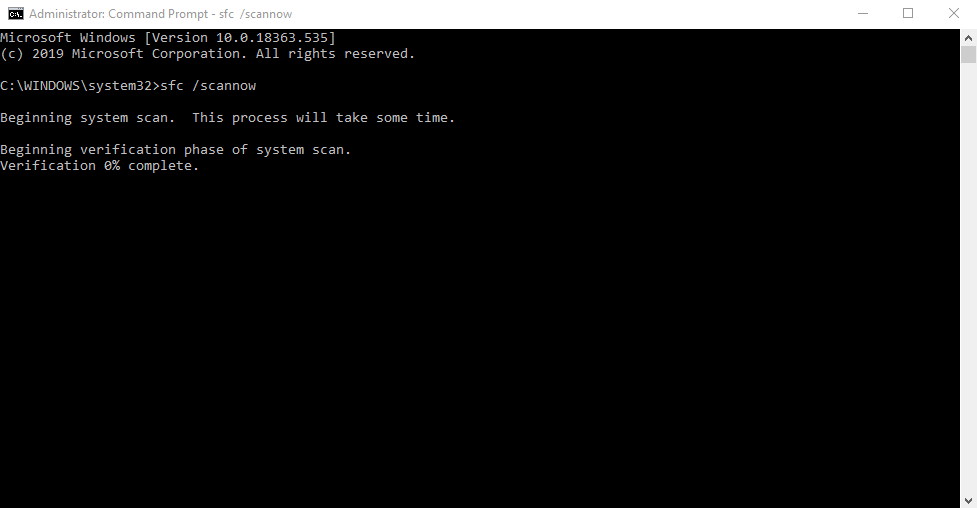
- Press Enter.
- Wait for the scan to finish and repair any problems.
- Restart your PC and check whether the error is still there.
Repair the Boot Records
Damaged boot files are one of the most common causes of this error. You can rebuild them from Command Prompt:
Open Command Prompt from the recovery options, as described in the chkdsk step.
Enter these commands one at a time, pressing Enter after each:
bootrec /RebuildBcd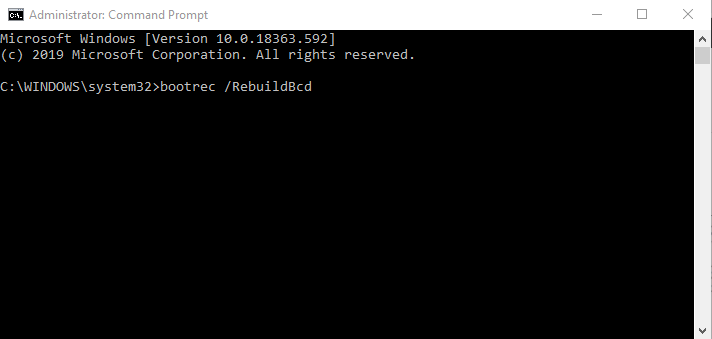
bootrec /fixMbr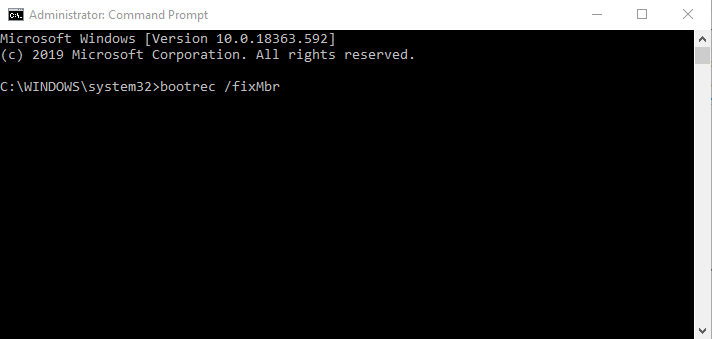
bootrec /fixboot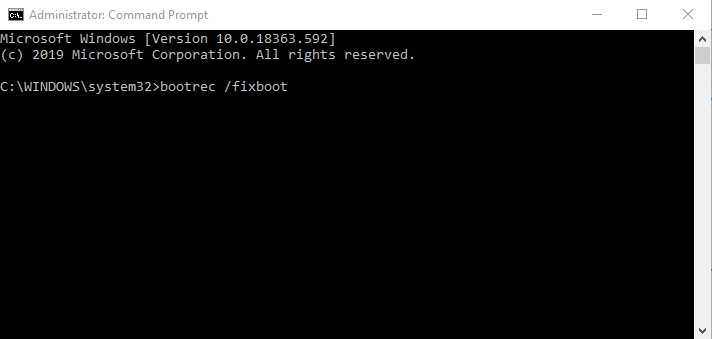
Restart your PC.
Check whether the error message still appears.
Disconnect Extra Hard Drives
If you have more than one drive in your PC, the extra drives can confuse the repair process. Shut down the PC, unplug it from the wall and disconnect every drive that doesn't have Windows on it. Then start the PC again.
If the PC boots fine without the extra drives, shut it down, reconnect them one at a time and see if the problem returns. This means opening the case, so only do it if you're comfortable with that and it won't void your warranty.
Check That the Drive Is Connected Properly
A loose cable can also cause this error. Several users found their drive simply wasn't seated properly.
Open the case, find your drive and make sure both the power and data cables are firmly connected, at the drive end and on the motherboard.
Make Sure the Windows Drive Is the Boot Device
If you have two or more drives, the wrong one may be set as the first boot device. That can trigger the same error.
It's an easy fix: enter the BIOS and change the boot order so the drive with Windows comes first. Your motherboard manual has the details.
Use Diskpart to Repair the EFI Partition
Diskpart can fix this error by rebuilding the boot files on the EFI partition. Diskpart is a powerful tool, so be careful: selecting the wrong disk or volume can cause data loss. Use it at your own risk.
- Open Command Prompt from the advanced startup options as in the chkdsk step.
- Type diskpart and press Enter.
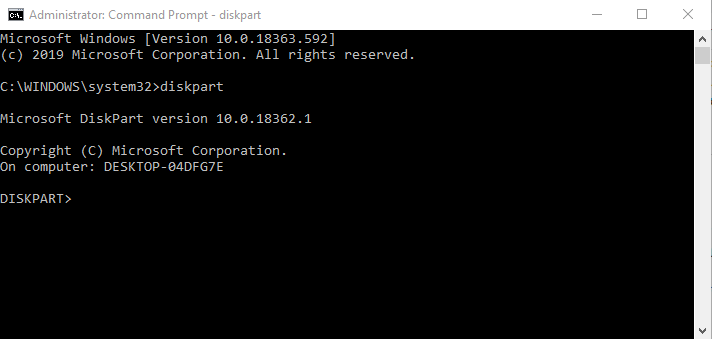
- Select the disk that has Windows on it. If you only have one drive, type
sel disk 0. With several drives, you may need a different number (list diskshows them all). - Type list vol.
- Look for a FAT32 partition in the list (this is the EFI system partition, usually around 100–500 MB). If there isn't one, this fix won't apply to you. If there is, select it with
sel vol X, replacing X with its number. - Type assign letter=z:
- Type exit and press Enter to leave diskpart.
- Type *cd /d z:\EFI\Microsoft\Boot* and press Enter.
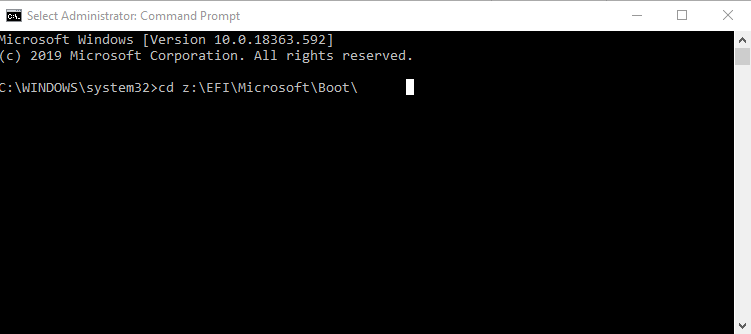
- Run bootrec /fixboot.
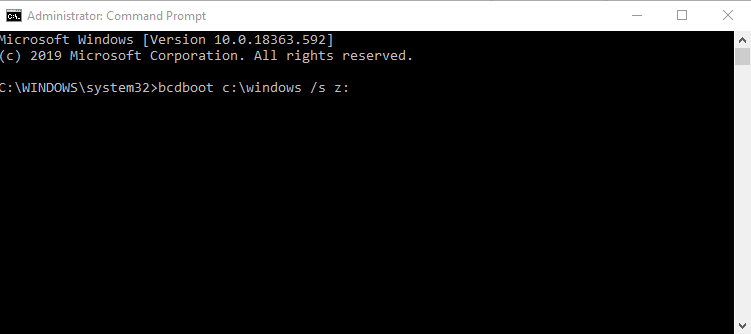
- Finally, run
bcdboot c:\Windows /s z: /f UEFIand restart.
Understanding the Error
When we first ran into this on a Windows 8 machine, the error appeared very early in startup, before the spinning loading circle. That pointed to a problem in the boot environment files: winload.exe or one of the first system files it loads. (Winload.exe is the Windows loader for Vista and later. Windows Boot Manager runs it right after you choose your operating system.)
After digging through several forums, it turned out the message was linked to error code 0xC0000098, which means: "The volume for a file has been externally altered so that the opened file is no longer valid."
In our case, attaching the Windows 8 VHD to VirtualBox and starting it there had modified some startup files and left them in an inconsistent state. Rebuilding the boot files, as shown above, fixed it.
References: boyans.net, windowsreport.com, neosmart.net