Windows Modules Installer Worker High CPU: What It Is and Fixes
Is windows modules installer worker (TiWorker.exe) using high CPU or disk? Learn what it does, whether you can disable it, and 6 fixes for Windows 10.
In this guide
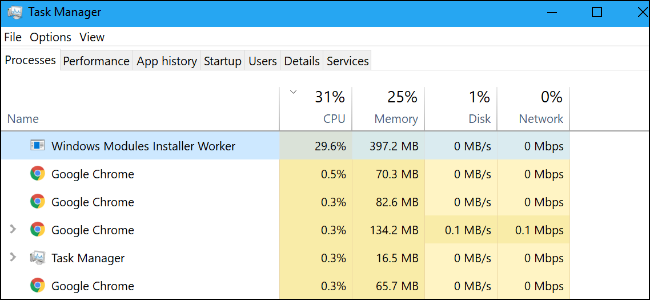
Your PC's fans suddenly spin up, the laptop gets warm, and you haven't opened anything heavy. Open Task Manager and there's a good chance you'll find "windows modules installer worker" chewing through CPU and disk. Also known as TiWorker.exe, it's a genuine part of Windows, and in most cases it's just doing its job. Here's what it is and what to do if it never seems to stop.
This is one of our explainers on processes you'll find in Task Manager, alongside things like Runtime Broker, svchost.exe, dwm.exe, ctfmon.exe and rundll32.exe.
What Is Windows Modules Installer Worker?
According to its official service description, this system process "enables installation, modification, and removal of Windows updates and optional components."
Windows 10 installs updates automatically through Windows Update, so most of the time this process is simply installing updates in the background. It also kicks in when you uninstall an update or add or remove an optional Windows feature.
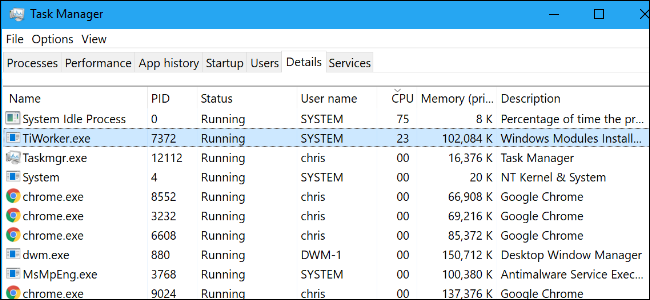
On the Processes tab of Task Manager it's called Windows Modules Installer Worker. On the Details tab you'll see its file name, TiWorker.exe.
Microsoft releases most updates on "Patch Tuesday," the second Tuesday of each month, plus extra updates when needed. If you notice the process working hard around then, your PC has most likely just downloaded new updates.
You may or may not need to restart to finish installing them, but Windows does most of the work in the background so you can keep using your PC.
Why Is It Using So Much CPU?
As far as we can tell, occasional high CPU usage from the Windows Modules Installer Worker on Windows 10 is completely normal.
The good news is that if you let it run, it will finish, stop using CPU and disk, and disappear from Task Manager. How long that takes depends on how fast your processor and drive are, and how many updates it has to install. On an older PC with a hard drive, it can take quite a while.
Can I Disable It?
You'll find advice online telling you to disable the Windows Modules Installer service to stop this. Don't. It stops Windows from installing updates properly.
Others suggest setting your connection to "metered" so Windows 10 doesn't download updates automatically. That does keep the process quiet, but it also means you miss important security updates. The WannaCry ransomware, for example, exploited a bug Microsoft had patched two months earlier. Skipping updates is risky, and we don't recommend it.
You could install updates manually, but the Windows Modules Installer Worker still runs when you do. It's best to let TiWorker.exe do its thing now and then; it's simply how Windows installs updates.
Is It a Virus?
No. It's part of Windows itself, and we haven't seen reports of malware disguising itself as Windows Modules Installer Worker or TiWorker.exe. The genuine file lives in a subfolder of C:\Windows\WinSxS. If you're worried, run a scan with your antivirus anyway; it never hurts.
If You Think Something Is Wrong
If the process has been running for hours, or seems to run far too often, something may be wrong with Windows Update. The steps below won't help if it's just doing normal work, but they can fix the underlying problems that keep it busy.
The Windows Update troubleshooter is the easiest place to start. Go to Settings > Update & Security > Troubleshoot > Windows Update > Run the troubleshooter, and apply any fixes it suggests.
If that doesn't help, use the SFC or DISM tools (covered below) to check for damaged or missing system files.
Read more: How to Fix Kernel Security Check Failure Windows 10 · Bad System Config Info Windows 10
What Is TiWorker.exe?
TiWorker.exe is the actual program file behind the Windows Modules Installer service, made by Microsoft Corporation. It applies Windows Update packages to the component store in C:\Windows\WinSxS, updating Windows components as a whole rather than individual files. It also updates the hard links from the component store into C:\Windows\System32 and other Windows folders, so Windows uses the updated versions.
TiWorker Stands for Windows Update Trusted Installer Worker
Because it's an .exe file, it's fair to ask whether the copy on your computer is genuine. The real TiWorker.exe sits in a servicing-stack folder under C:\Windows\WinSxS, for example:
C:\Windows\WinSxS\amd64_microsoft-windows-servicingstack_31bf3856ad364e35_6.3.9600.17709_none_fa7932f59afc2e40\
C:\Windows\WinSxS\amd64_microsoft-windows-servicingstack_31bf3856ad364e35_6.3.9600.17477_none_fa2b7d3b9b36c7b4\
The folder name varies with your Windows build. Right-click the process in Task Manager and choose Open file location to check. If TiWorker.exe is running from anywhere else, such as your user folder, treat it as suspicious and run a full antivirus scan.
How to Fix TiWorker.exe High CPU and Disk Usage in Windows 10
If the windows modules installer worker never seems to settle down, try these fixes.
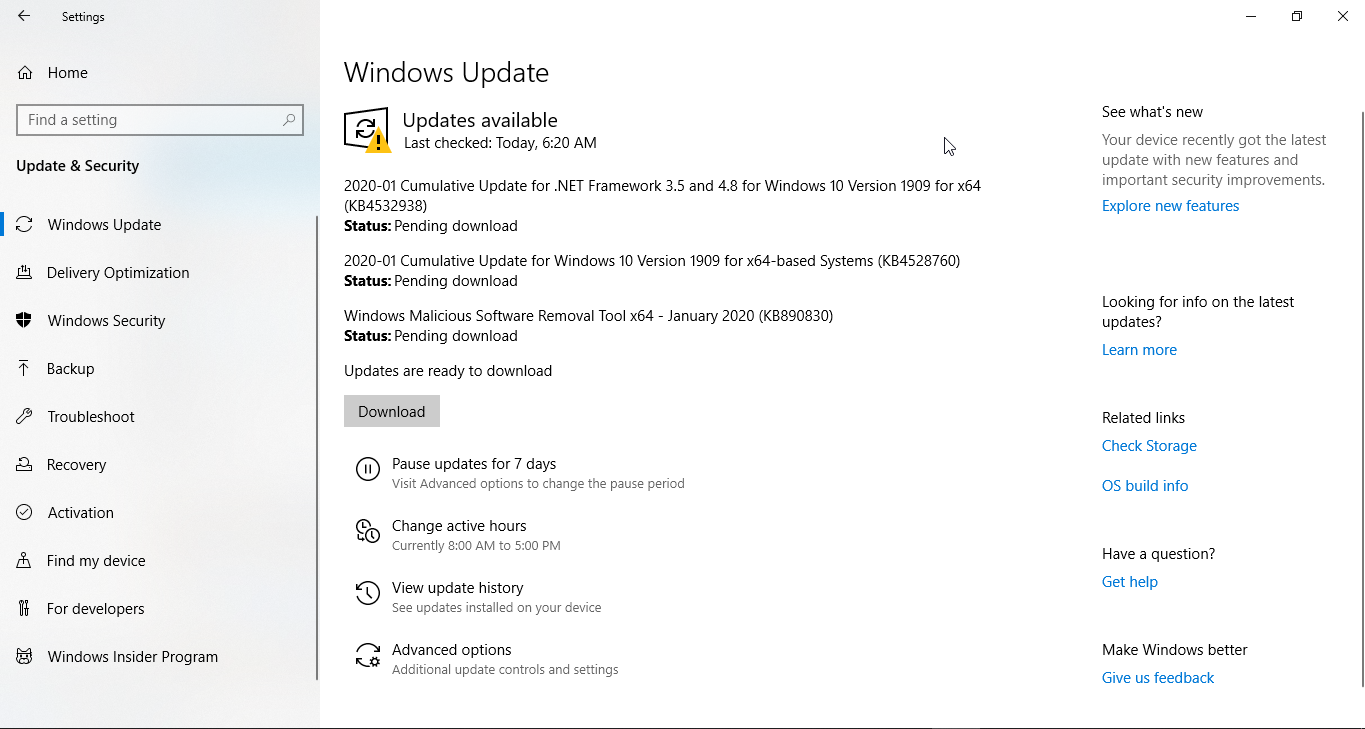
Install All Available Updates
Often the process is busy because updates are half-installed. Letting them finish usually calms it down.
- Open the Start menu and click Settings.

- Click Update & Security.
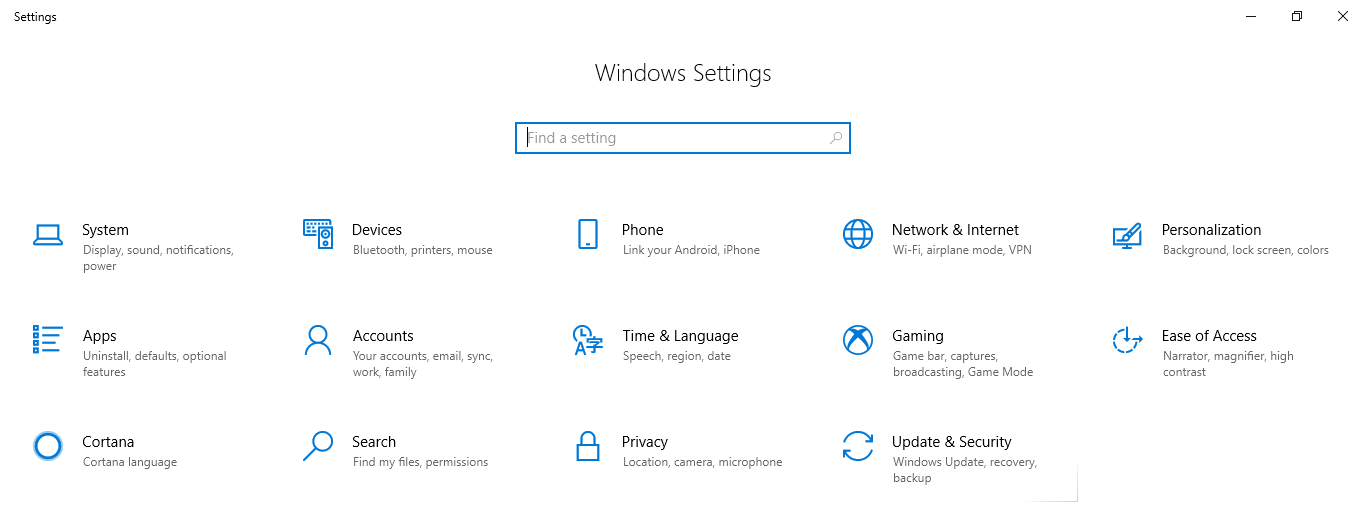
- Click Check for updates and install everything available.
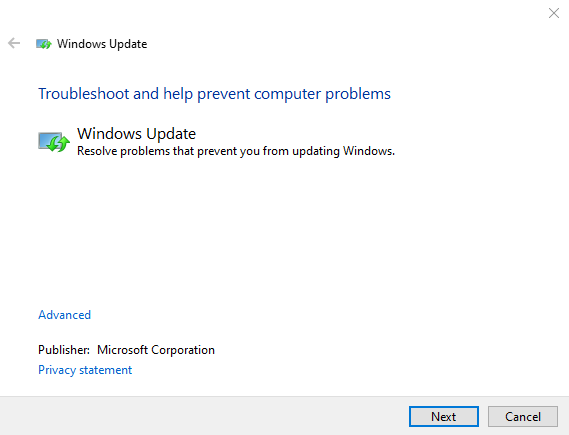
Run the Windows Update Troubleshooter
Whenever Windows Update misbehaves, the troubleshooter is worth a try.
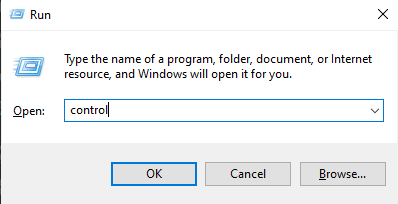
- Press Windows logo key + R, type control and click OK.
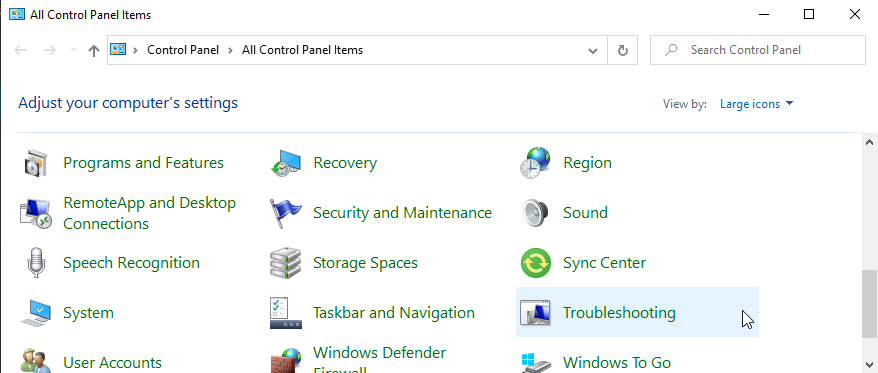
- In Control Panel, select Troubleshooting.
- Under System and Security, click Fix problems with Windows Update.
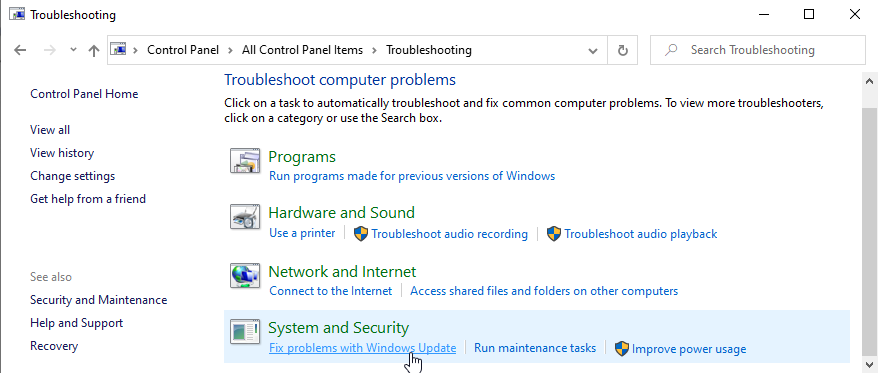
- Follow the on-screen instructions.
Restart the Windows Update Service
Restarting the service resets Windows Update and often gets it back on track.
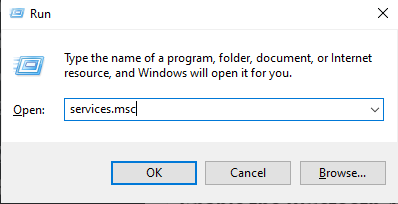
- Press Win + R, type services.msc and click OK.
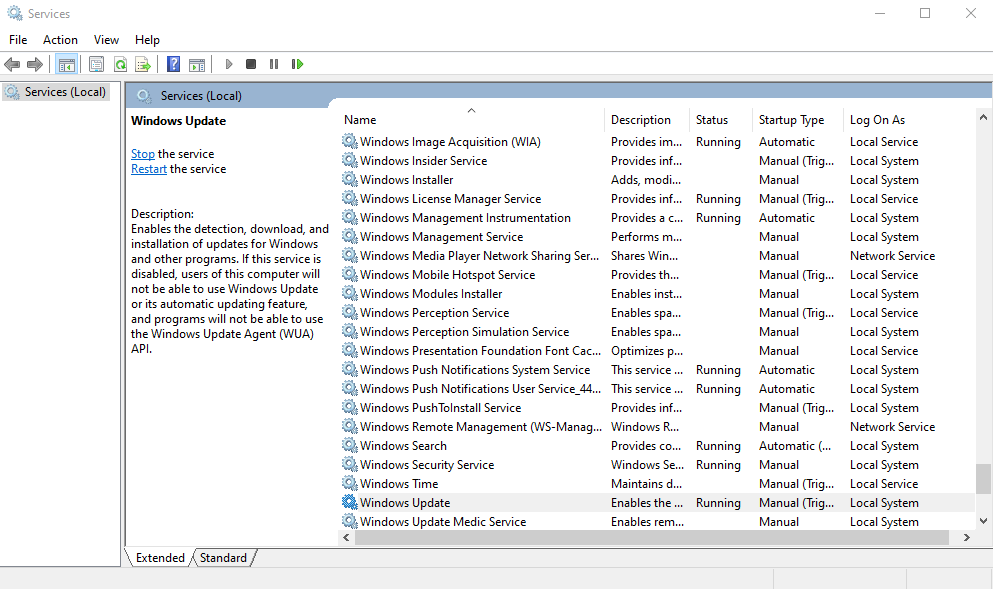
- Find Windows Update in the list, select it and click Restart on the left.
Clear the Windows Update Files
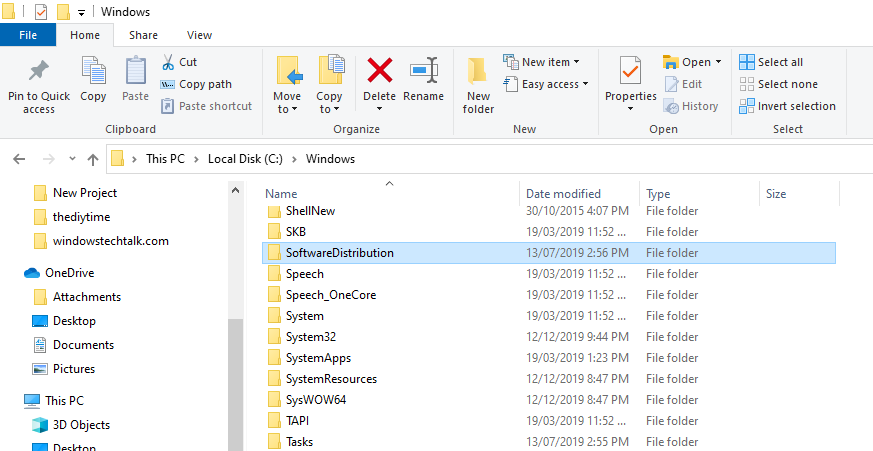
Windows Update stores its downloads in a folder called SoftwareDistribution. If some of those files are damaged, Windows Update can get stuck, and TiWorker.exe may use lots of CPU and disk. Clearing the folder usually fixes it.
Press Win + R, type services.msc and click OK.
Select Windows Update and click Stop.
Open File Explorer, go to C:\Windows and delete (or rename) the SoftwareDistribution folder.
Once the service is stopped, TiWorker.exe should quiet down.
Restart your computer.
After the restart, the Windows Update service starts again automatically and creates a fresh SoftwareDistribution folder the next time it checks for updates.
Run an SFC Scan
Damaged system files can make TiWorker.exe work far harder than it should. An SFC (System File Checker) scan finds and repairs them.
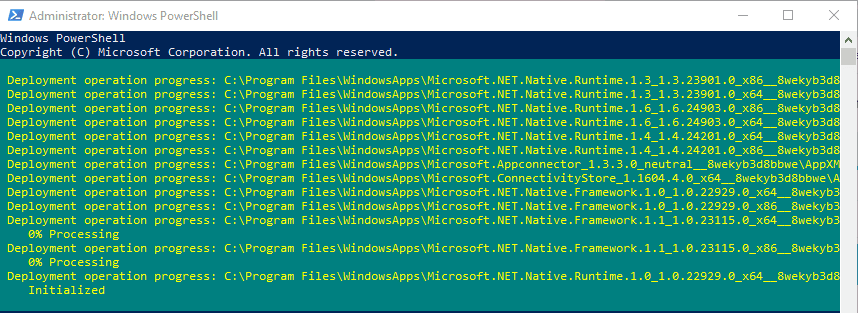
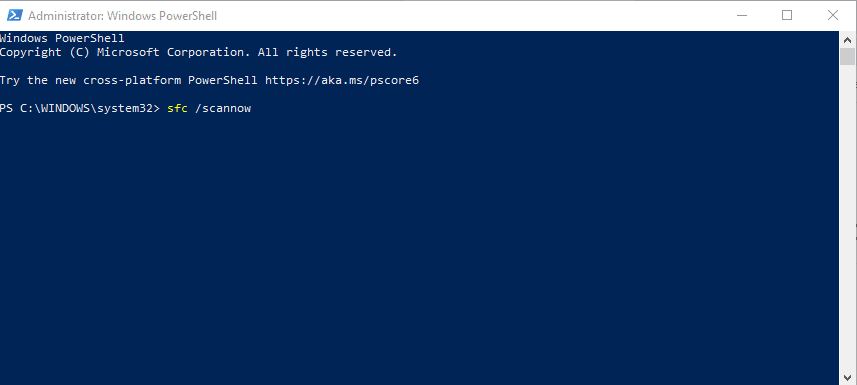
- Right-click the Start button and choose Command Prompt (Admin) or Windows PowerShell (Admin) on newer versions of Windows 10.
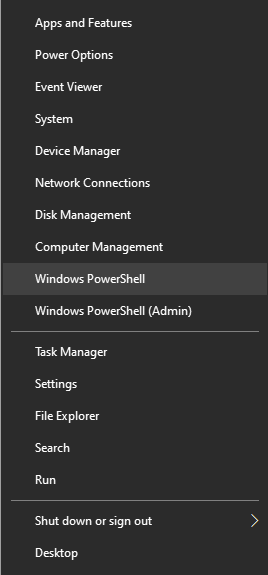 Windows PowerShell
- Type sfc /scannow and press Enter.
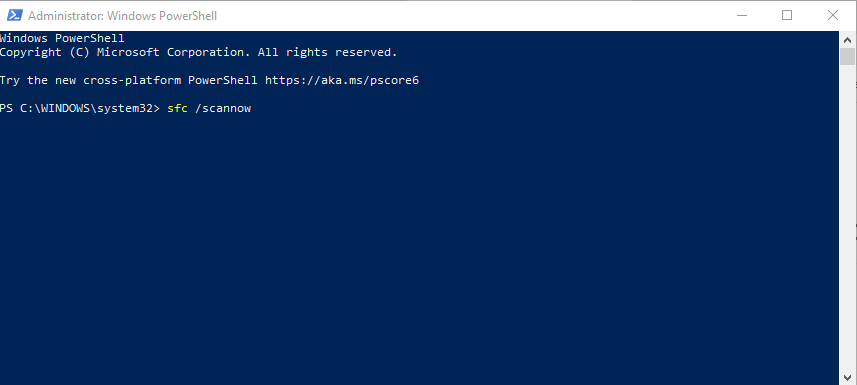
- Wait for the scan to finish.
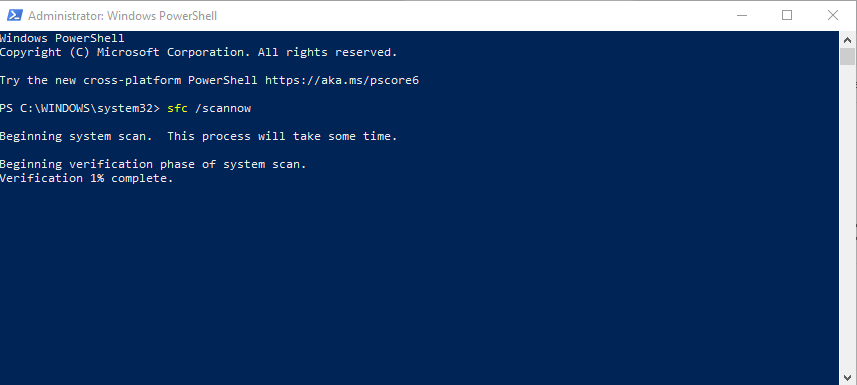
- Restart your computer and check whether the problem is gone.
Use the DISM Tool
DISM (Deployment Image Servicing and Management) can repair the Windows image that Windows Update relies on, which often fixes high CPU and disk usage.
- Right-click the Start button and choose Command Prompt (Admin) or Windows PowerShell (Admin).
Windows PowerShell
- Type dism.exe /online /cleanup-image /restorehealth and press Enter.
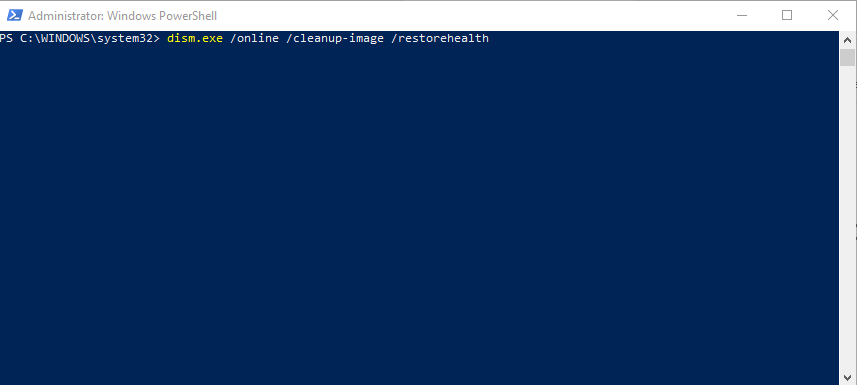
- Wait for it to finish, then restart your computer.
References: howtogeek.com, file.net, drivereasy.com