Kernel Security Check Failure Windows 10: 9 Fixes That Work
Getting a kernel security check failure windows 10 blue screen? Here's what causes it and nine fixes, from a malware scan and driver updates to chkdsk, SFC and a RAM test.
In this guide
- Can a BSOD Error Permanently Damage My Computer?
- Scan Your Device for Viruses and Malware
- Update Windows and Your Drivers
- Look for Corrupt Drivers in Safe Mode
- Scan Your Hard Disk for Errors
- Run the Windows Memory Diagnostic Tool
- Roll Back the Display Driver in Device Manager
- Use System File Checker to Repair Corrupted Files
- Enable the Legacy Advanced Boot Menu
- Undo Recent Changes
- Update the BIOS
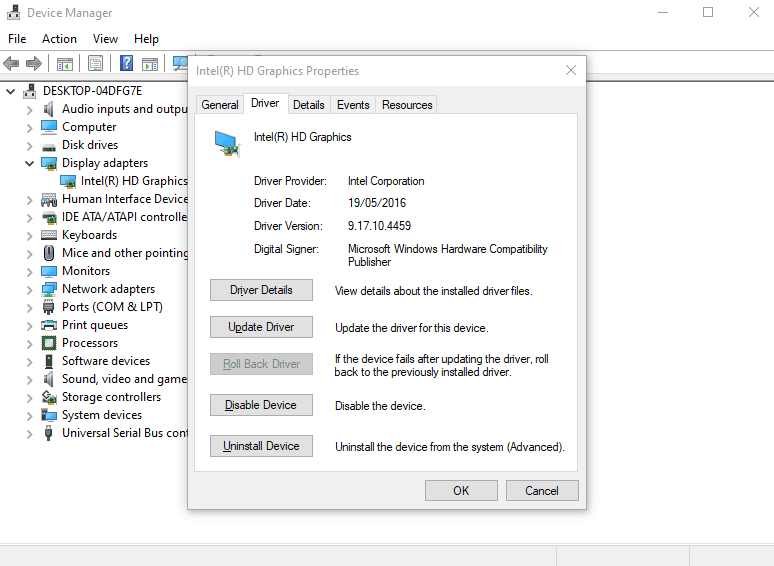
If your PC keeps crashing with a kernel security check failure windows 10 blue screen, you're not alone. It's one of the more common stop codes on Windows 10, and the good news is that it's usually caused by something you can fix yourself.
In our experience, the error almost always comes down to one of these:
- Memory (RAM) that is faulty or incompatible.
- Corrupted or incompatible drivers.
- Errors on the hard drive.
- Damaged system files.
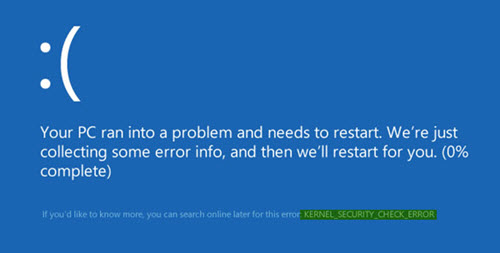
A quick refresher: BSOD stands for Blue Screen of Death. Windows shows it when it hits a problem it can't safely recover from, so it stops everything to protect your data. If you're also fighting high disk or CPU usage, our guide to the windows modules installer worker may help.
Can a BSOD Error Permanently Damage My Computer?
Usually not. It depends on what triggered the crash. If a bad driver is to blame, that's a software problem and it won't shorten the life of your hardware. Overheating is the exception: if the blue screens happen because the PC is running too hot, the heat itself can damage components over time, so it's worth checking your fans and airflow.
The rest of this guide walks through the fixes we'd try, roughly in order from quickest to most involved. You don't need to do all of them; test your PC after each one.
Scan Your Device for Viruses and Malware
Start here, because it's quick and rules out a nasty cause. Malware can damage Windows system files, and damaged system files can trigger a BSOD.
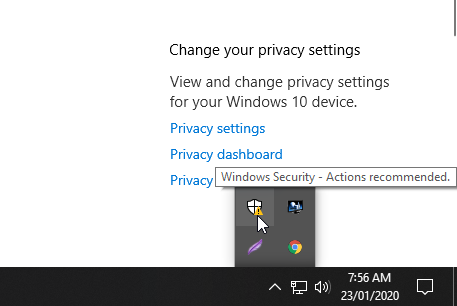
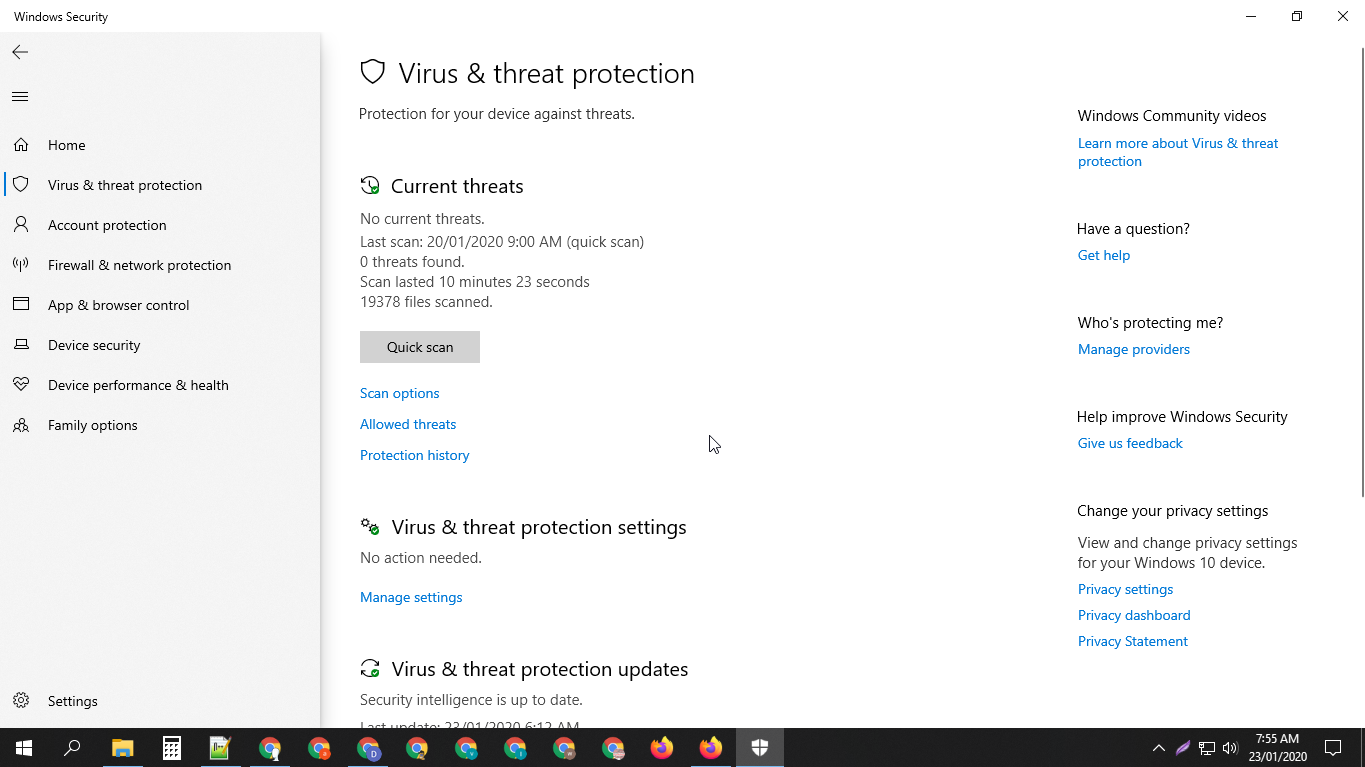
Click the Windows Security icon in the taskbar, then open Virus & threat protection.
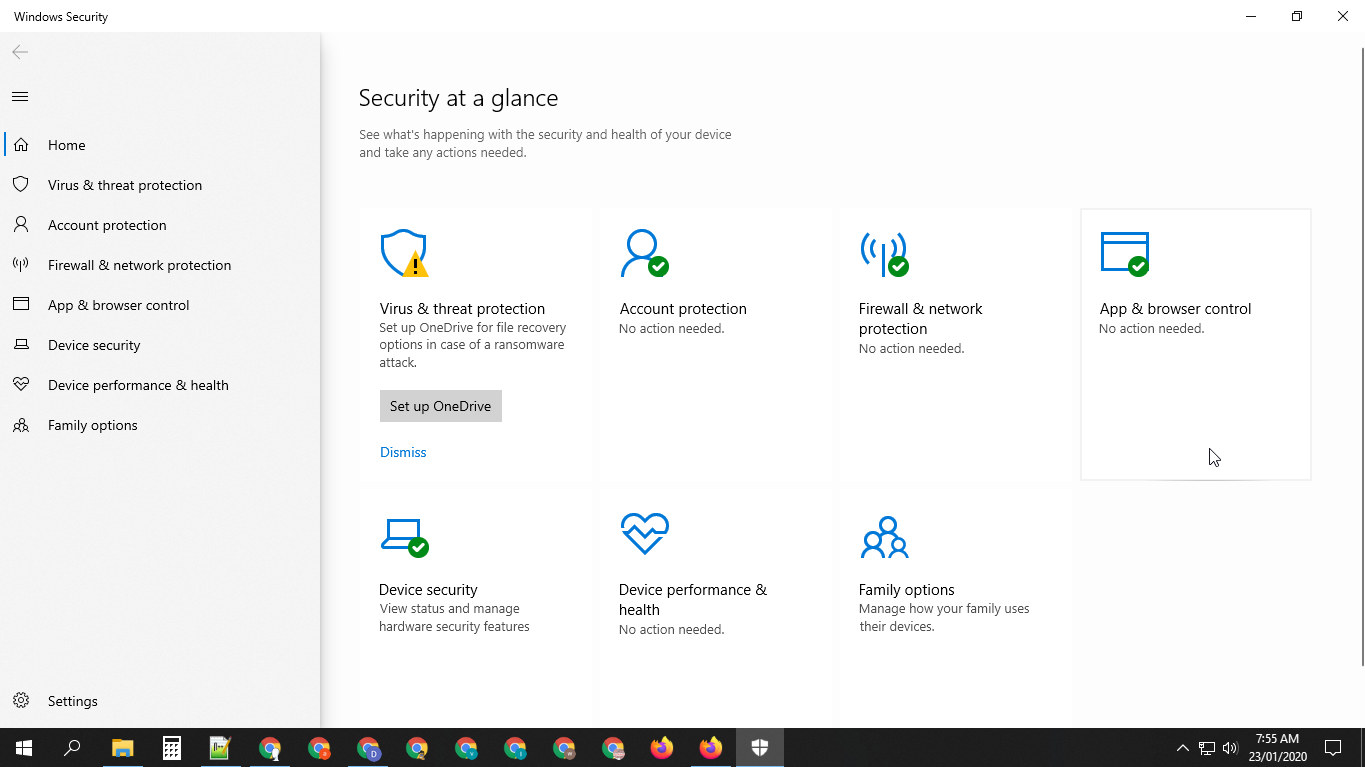
Click Quick Scan and let it finish.
Update Windows and Your Drivers
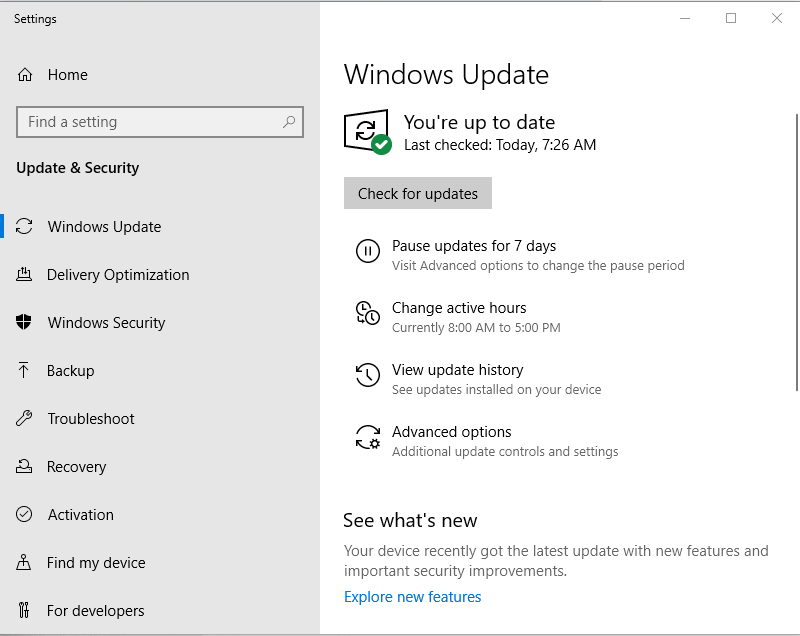
Windows Update fixes bugs and keeps the system stable, so install anything that's waiting. After that, look at your drivers. An incompatible driver is the most likely cause of this blue screen of death, so make sure every device has the right one.
Updating drivers manually: go to the manufacturer's website for each piece of hardware (graphics card, chipset, network adapter and so on), download the latest driver for your model and install it. Only pick drivers that are made for your version of Windows 10.
Look for Corrupt Drivers in Safe Mode
Boot into Safe Mode or a Clean Boot State. If the crashes stop there, a driver or third-party program is almost certainly the culprit. You can then run Driver Verifier Manager to find the faulty driver, uninstall it and reinstall a fresh copy. In many cases simply updating the driver is enough.
To boot into safe mode:
- Press Windows + R to open the Run dialog box.
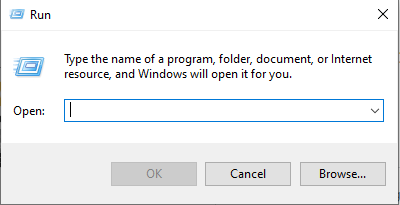 The Run utility
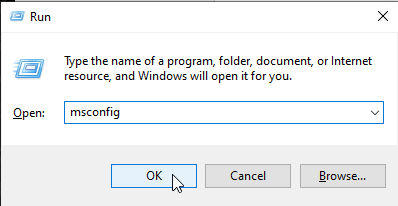
- Type msconfig and press Enter.
- Go to the Boot tab.
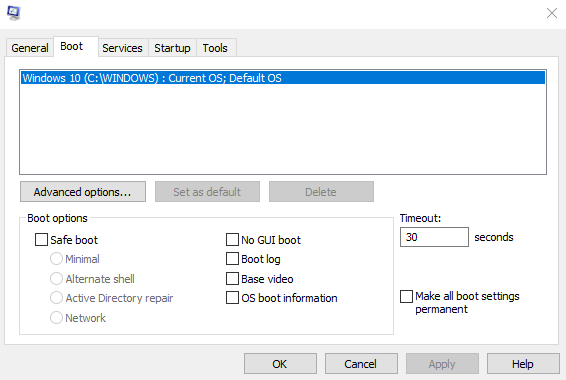
- Tick Safe boot.
- Restart your device.
Remember to untick Safe boot again when you're done, or Windows will keep starting in safe mode.
Scan Your Hard Disk for Errors
Bad sectors and file system errors can also cause this crash. Windows has a built-in tool for that, and you run it with this command: chkdsk /f C:
- Right-click Start and select Command Prompt (Admin).
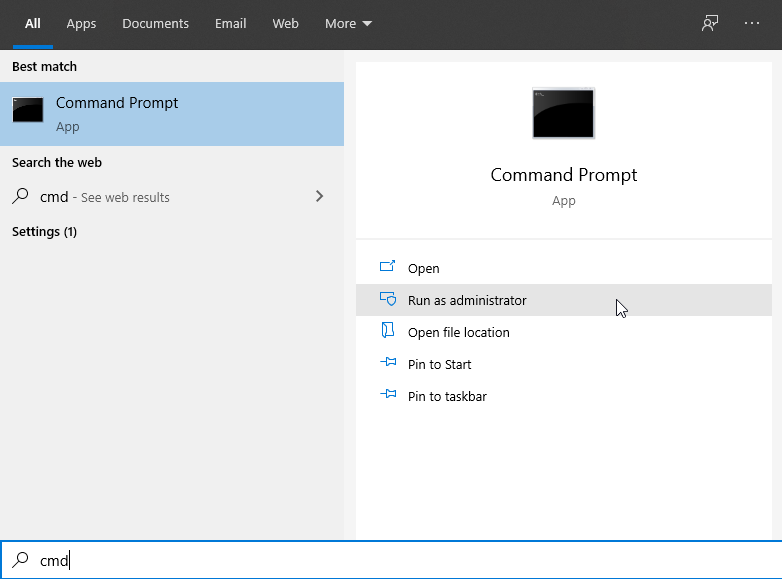
- Type the command and press Enter. You'll see the screen above.
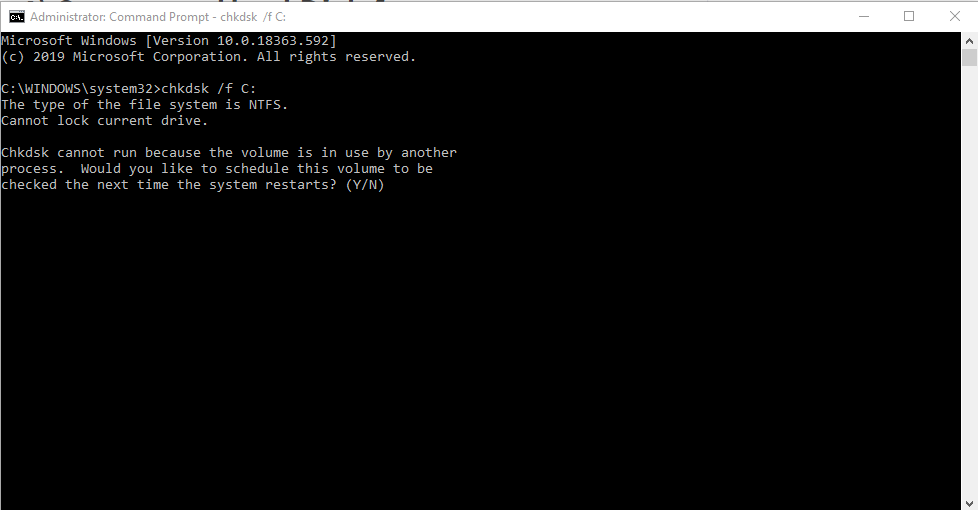
- Type Y and press Enter to schedule the scan.
- Restart your device and let the check run.
Run the Windows Memory Diagnostic Tool
If nothing so far has helped, test your RAM.
- Press the Windows logo key + R to open Run, type
mdsched.exeand press Enter.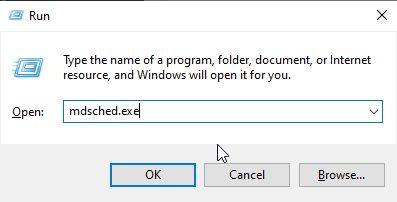
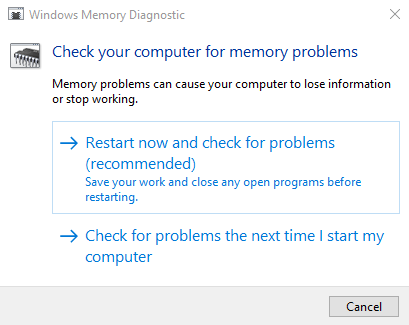
- Choose Restart now and check for problems (recommended) to test right away, or pick the option to check the next time you start the computer if you're in the middle of something.
- Windows restarts and shows the progress of the test and how many passes it's running on your memory.
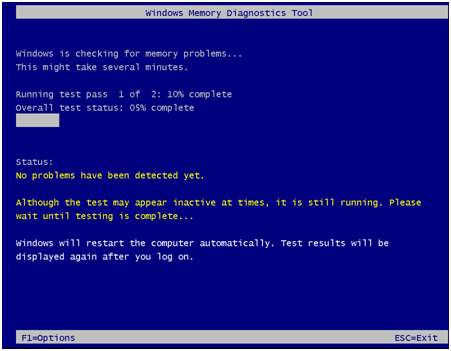
If no errors show up, your RAM is probably fine. If errors are found, the memory module should be replaced.
Roll Back the Display Driver in Device Manager
A recent graphics driver update is a frequent trigger, and rolling it back is quick.
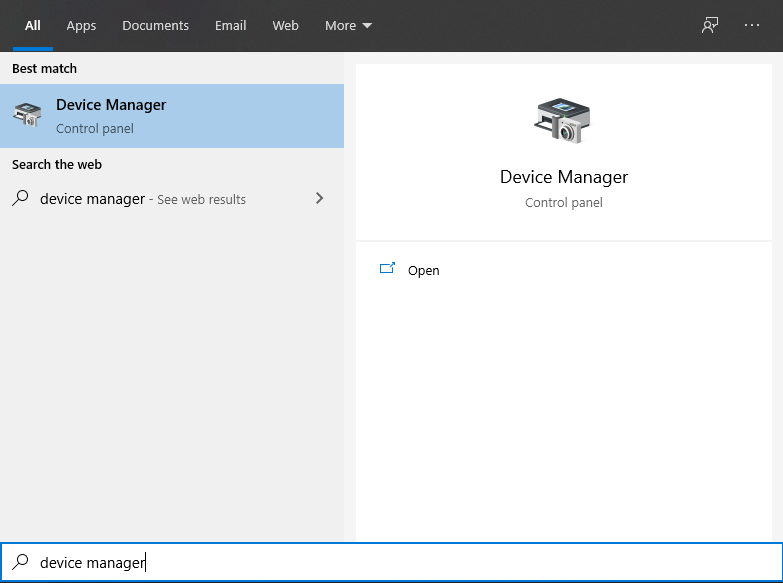
Click the search box, type Device Manager and open it.
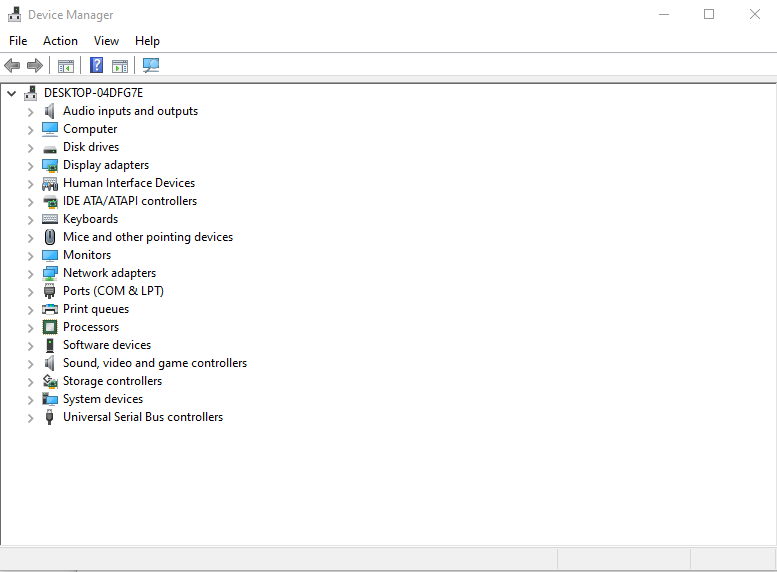
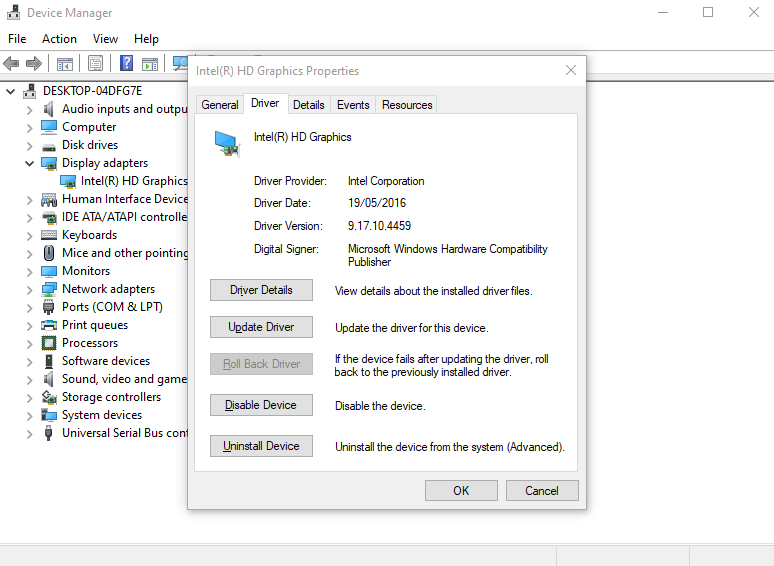
Expand Display adapters and double-click your graphics card.
Open the Driver tab and click Roll Back Driver. Restart the computer and see if the crashes stop.
Use System File Checker to Repair Corrupted Files
The System File Checker (SFC) is built into every version of Windows. It scans for corrupted or missing system files and replaces them, and those files are a common cause of the Kernel Security Check Failure BSOD.
Press Windows + X and choose Command Prompt (Admin) so it runs as administrator.
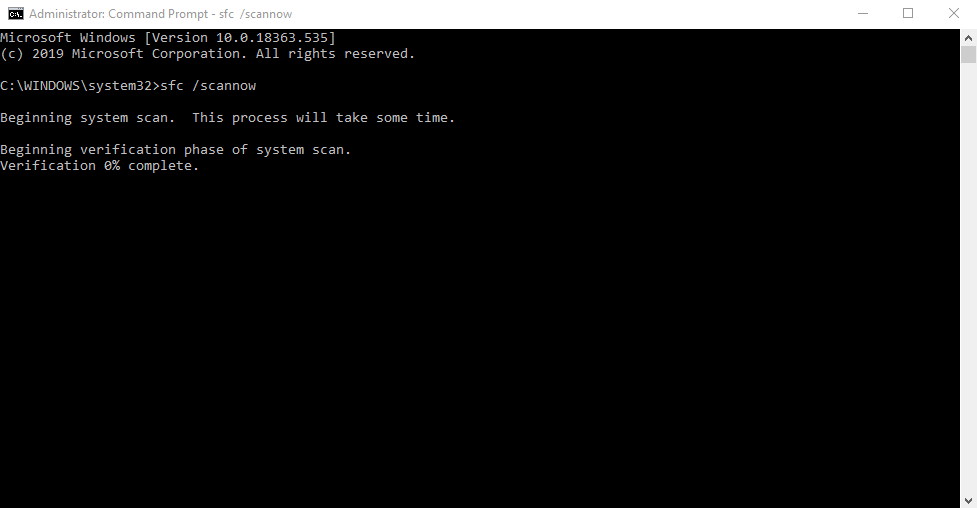
Type sfc /scannow and press Enter. The scan can take a while, so be patient. If SFC finds damaged files it repairs them automatically. Restart the PC when it's done.
Enable the Legacy Advanced Boot Menu
If the blue screen stops you from logging in at all, turning on the legacy boot menu gives you back the F8 options:
Start (or restart) your computer.
Press F8 to open the Advanced Boot Options menu.
Click Repair your computer.
On the Choose an option screen, click Troubleshoot.
Click Advanced options.
Choose Command Prompt.
In the Command Prompt window, type
C:and press Enter.Type the following command and press Enter to enable the legacy advanced boot menu:
BCDEDIT /SET {DEFAULT} BOOTMENUPOLICY LEGACY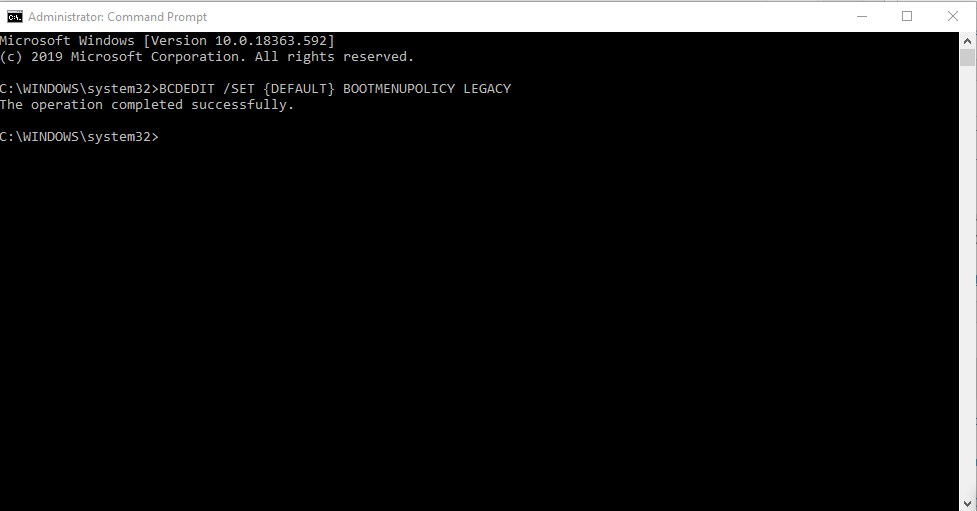
Once the command completes successfully, type
EXITto close Command Prompt.Back on the Choose an option screen, click Continue to start Windows normally.
Undo Recent Changes
Think about what changed just before the crashes started. If you recently added new hardware or installed new software, remove it and see whether the error goes away. System Restore is handy here if you have a restore point from before the problem.
Update the BIOS
As a last step, check your firmware. Restart the computer, open the BIOS/UEFI settings and note the current version. Then visit your motherboard manufacturer's website to see if there's a newer one. If there is, download and install the firmware exactly as the manufacturer instructs. Don't turn the PC off during a BIOS update.
References: techxilla.com, drivereasy.com, theitbros.com