How to Turn On Bluetooth on Windows 10 (and Fix It)
Learn how to turn on bluetooth on windows 10 from Action Center or Settings, pair and remove devices, and fix a missing Bluetooth toggle or driver problem.
In this guide
- How to Turn On Bluetooth on Windows 10
- How to Pair a Bluetooth Device on Windows 10
- How to Remove a Bluetooth Device on Windows 10
- Bluetooth Not Working on Windows 10: Troubleshooting
- Advanced Bluetooth Settings in Windows 10
- Can't Find Bluetooth on Windows 10?
- Bluetooth Drivers for Windows 10 (Intel)
- Fix Connections to Bluetooth Audio Devices and Wireless Displays
These days it's hard to find a gadget that doesn't use Bluetooth: speakers, headphones, streaming boxes, phones, even cars. That makes Bluetooth on your Windows PC more useful than ever, because it ties your computer into everything else you own.
Below we show you how to turn on bluetooth on windows 10, how to pair and remove devices, and what to do if Bluetooth isn't working or seems to have disappeared.
How to Turn On Bluetooth on Windows 10
Your Windows 10 PC works like any other Bluetooth device: before it can pair with something, Bluetooth needs to be switched on so the two can find each other.
There are two ways to turn it on.
1. Turn On Bluetooth From the Action Center
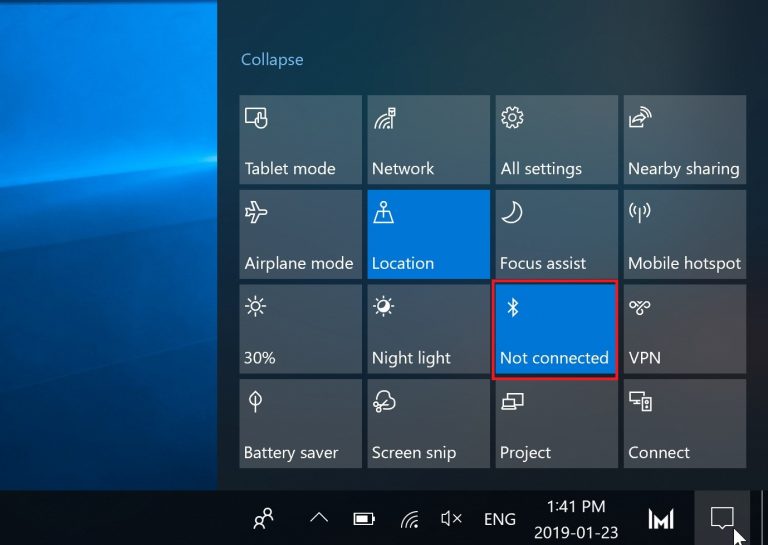
The quickest way is the Bluetooth tile in the Windows Action Center. Click the speech-bubble icon at the far right of the taskbar to open it. If you don't see the Bluetooth tile straight away, click Expand to show all the tiles.
Click the Bluetooth tile. It turns blue to show Bluetooth is on, and displays either Not connected or the name of the device your PC is connected to.
2. Turn On Bluetooth From Settings
You can also switch Bluetooth on in Settings:
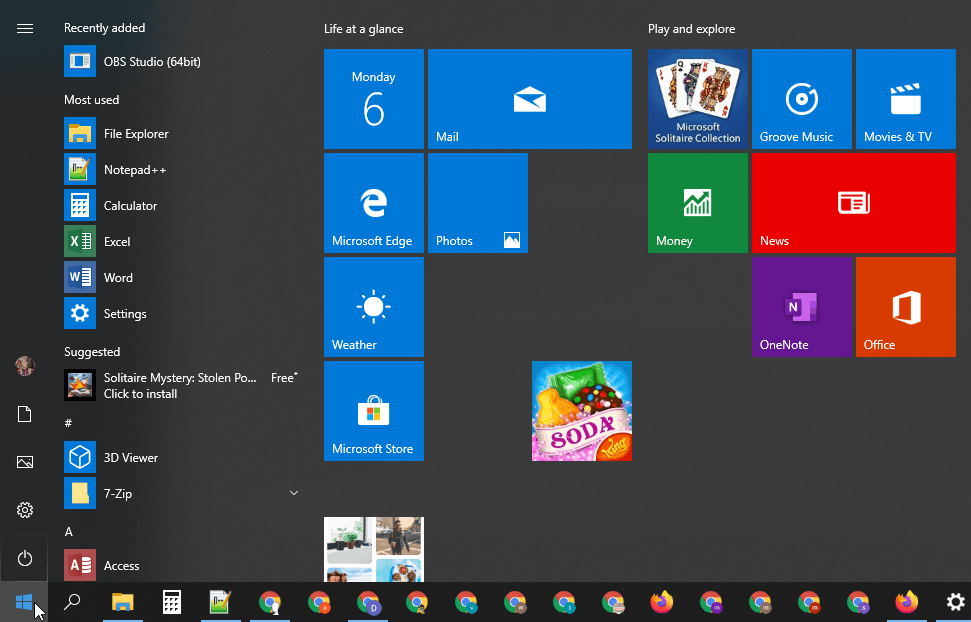
- Open the Start menu.
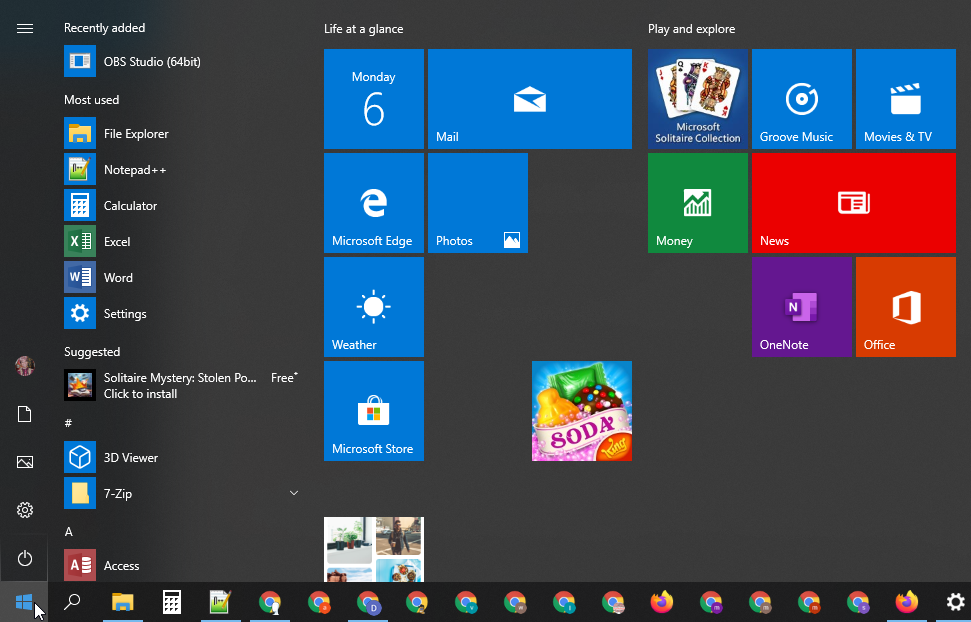
- Click the Settings (gear) icon.
- Go to Devices > Bluetooth & other devices.
- Find the Bluetooth toggle.
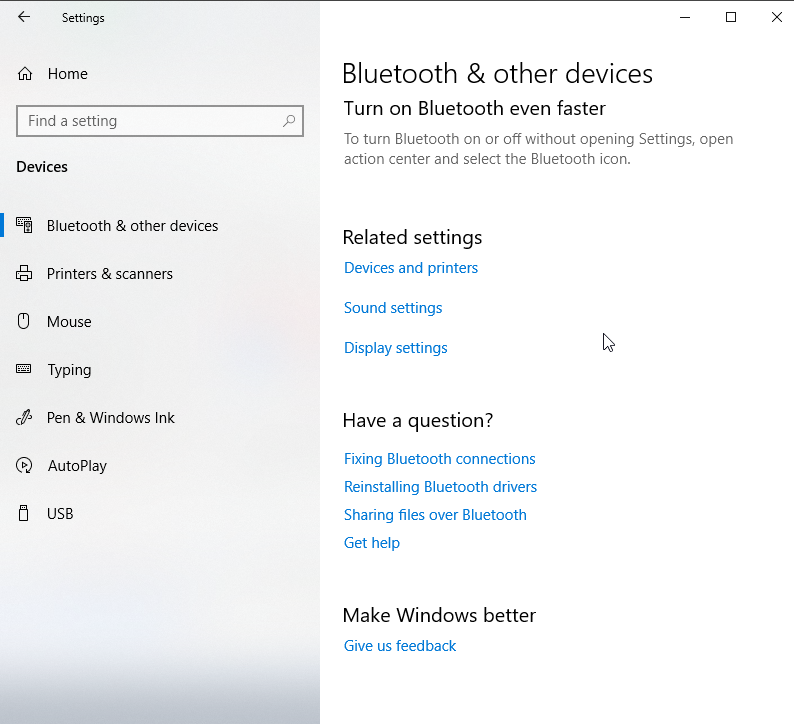 Image: itworldcanada.com
- Switch it On.
Whichever method you use, a Bluetooth icon appears in the taskbar once it's on. You can use it to open Bluetooth settings, send files and pair new devices quickly.
If you'd like that icon on the main taskbar instead of hidden in the overflow area, go to Settings > Personalization > Taskbar, scroll to Notification area and click Select which icons appear on the taskbar.
Remember that the other device needs Bluetooth turned on too. How you do that depends on the gadget, so check its manual if you're unsure.
How to Pair a Bluetooth Device on Windows 10
Once Bluetooth is on for both your PC and the other device, you can pair them. You only need to start pairing from one side; here we'll do it from Windows.
- Open Settings.
- Go to Devices > Bluetooth & other devices.
- Click Add Bluetooth or other device at the top.
A new window opens. Choose the first option, Bluetooth. Windows 10 starts searching for nearby devices; give it up to 30 seconds to find everything.
Click the name of the device you want to connect. The first time you connect, you may need to confirm that the PIN shown on your PC matches the one on the other device.
If the PIN codes match, click Connect. If you wait too long, the code expires and you'll need to start again. You may also need to press a pair button on the device itself.
Tip: you can also right-click the Bluetooth icon in the taskbar and choose Add a Bluetooth Device. It opens the same screen.
How to Remove a Bluetooth Device on Windows 10
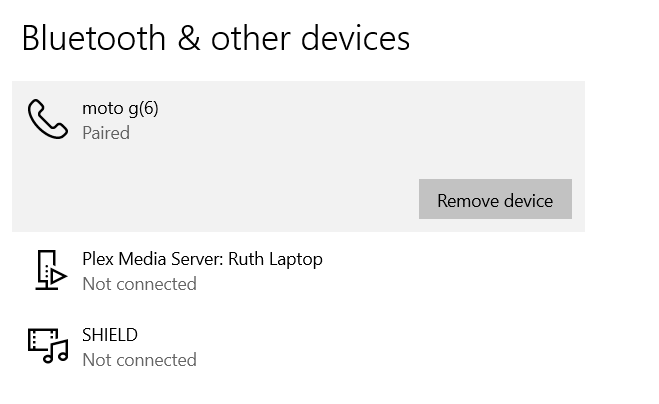
It's just as useful to know how to remove a paired device. Keeping your list tidy helps you keep track of what's connected and reduces the risk of Bluetooth-based security vulnerabilities.
- Open the Settings app (Windows + I).
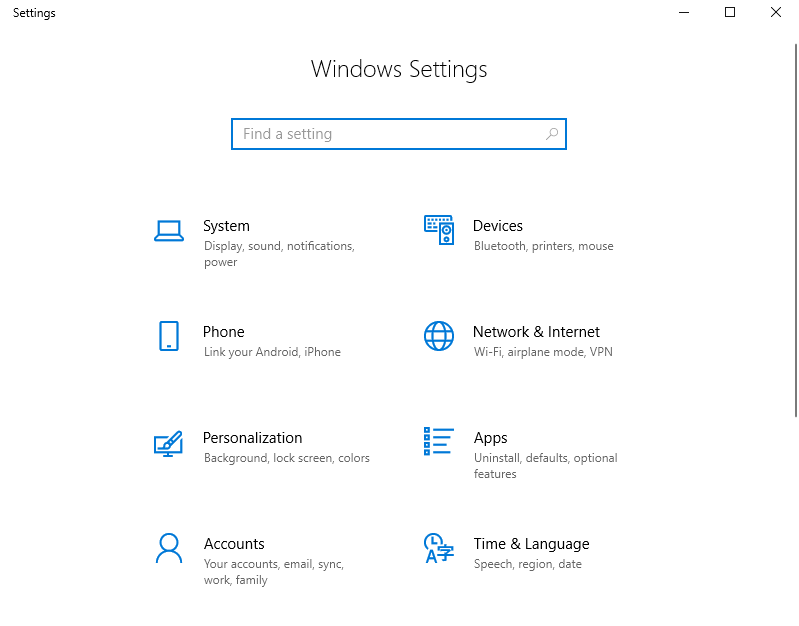 Press Windows + I
- Go to Devices > Bluetooth & other devices.
- Scroll through the list of Bluetooth devices on the right until you find the one you want to remove.
- Click its name.
- Click Remove device.
Image: makeuseof.com
- Confirm when asked.
If you want to use that device again later, you'll need to pair it from scratch.
Bluetooth Not Working on Windows 10: Troubleshooting
If Bluetooth isn't working, there are a few usual suspects: the Bluetooth driver may need updating or reinstalling, the Bluetooth service may not be running, or the other device may simply be out of range.
We go through the most effective fixes below.
Advanced Bluetooth Settings in Windows 10
Windows 10 has a few advanced Bluetooth settings worth knowing about. Go to Start > Settings > Devices > Bluetooth & other devices, scroll down and click More Bluetooth options. A new window opens.
On the Options tab you can change:
- Allow Bluetooth devices to find this PC: untick this if you want Bluetooth on but don't want new devices to see your PC, for example in a public place.
- Alert me when a new Bluetooth device wants to connect: leave this ticked if you pair devices from the other device's side.
- Show the Bluetooth icon in the notification area: if you always leave Bluetooth on, you can untick this to declutter the taskbar.
Can't Find Bluetooth on Windows 10?
Run the Hardware and Devices Troubleshooter
Windows' built-in troubleshooter checks your hardware for problems and makes sure new devices are installed correctly.
- Type control panel in the search box and open it.
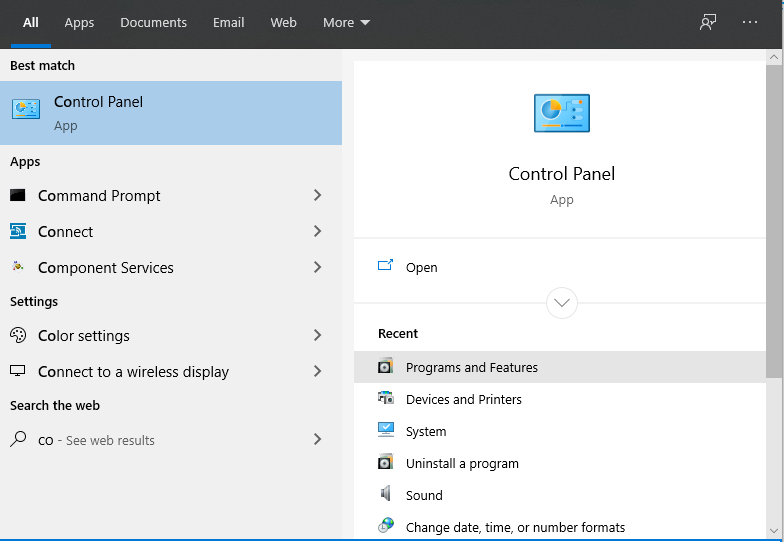
- Type troubleshooting in the Control Panel search box and press Enter.
- Click Hardware and Sound and run the Hardware and Devices troubleshooter.
- Wait for it to finish, then check whether Bluetooth is back.
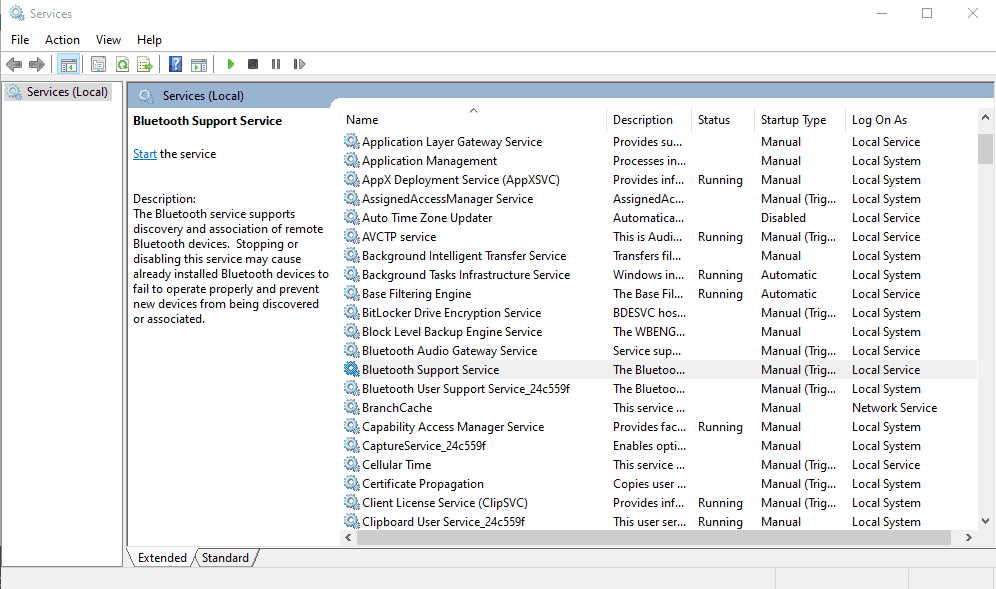
Restart the Bluetooth Support Service
If the Bluetooth option has vanished, check that the Bluetooth service is running:
- Press Windows + R to open Run.
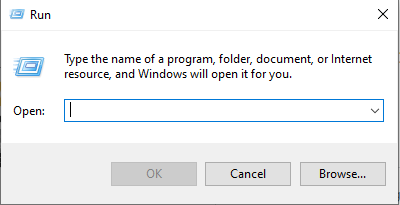 The Run utility
- Type services.msc and press Enter.
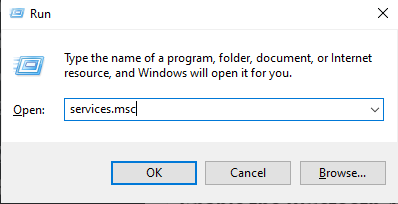
- Find Bluetooth Support Service, right-click it and choose Restart.
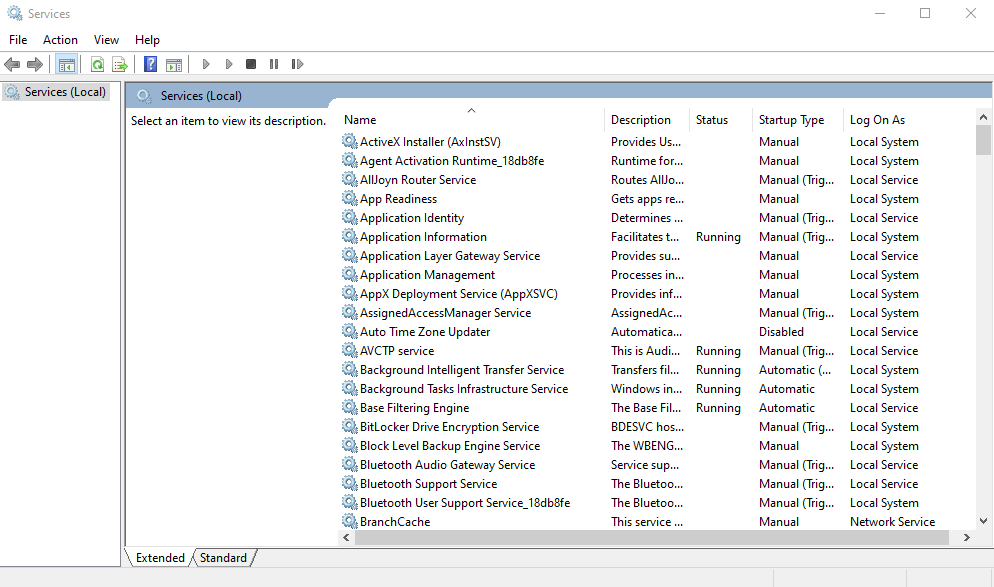
- Right-click it again, choose Properties, and set Startup type to Automatic.
Enable the Bluetooth Audio Service
If a Bluetooth speaker or headset connects but plays no sound, make sure its audio services are enabled:
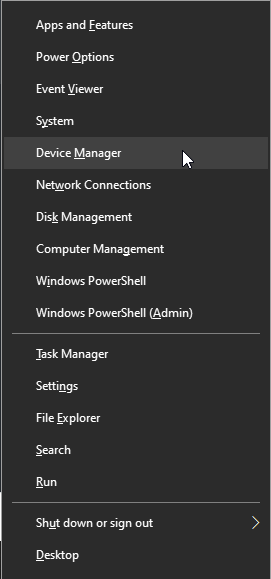
- Press Windows + X and choose Control Panel.
- Open Devices and Printers.
- Find your Bluetooth speaker or headset and right-click it.
- Choose Properties and open the Services tab.
- Tick Audio Sink, Handsfree Telephony and Remote Control, then click Apply.
- Restart your PC.
Update the Bluetooth Driver
- Press Windows + R to open Run.
The Run utility
- Type devmgmt.msc and press Enter to open Device Manager.
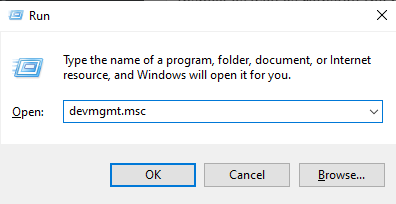
- Expand Bluetooth.
Image: itworldcanada.com
- Right-click your Bluetooth adapter.
- Choose Properties and open the Driver tab.
- Click Update Driver and follow the prompts, then click OK.
Check That Your Bluetooth Device Is Compatible
Some older Bluetooth devices were built for earlier versions of Windows and may not work properly with Windows 10. Check the manufacturer's website for a Windows 10 driver or firmware update. If there isn't one, the device may simply not be supported.
Bluetooth Drivers for Windows 10 (Intel)
If your PC uses an Intel wireless card, you can download the latest Windows 10 Bluetooth driver for it from Intel:
- Intel® Dual Band Wireless-AC 3165
- Intel® Dual Band Wireless-AC 3168
- Intel® Dual Band Wireless-AC 7265
- Intel® Dual Band Wireless-AC 8260
- Intel® Dual Band Wireless-AC 8265
- Intel® Dual Band Wireless-AC 8265 Desktop Kit
- Intel® Dual Band Wireless-N 7265
- Intel® PROSet/Wireless Software
- Intel® Tri-Band Wireless-AC 17265
- Intel® Tri-Band Wireless-AC 18260
- Intel® Tri-Band Wireless-AC 18265
- Intel® Wi-Fi 6 AX200
- Intel® Wi-Fi 6 AX201
- Intel® Wireless-AC 9260
- Intel® Wireless-AC 9461
- Intel® Wireless-AC 9462
- Intel® Wireless-AC 9560
- Intel® Wireless-N 7265
Documentation
Fix Connections to Bluetooth Audio Devices and Wireless Displays
Windows 10 updates have added lots of new features over the years, but they've also caused connection problems with Bluetooth audio devices and wireless displays now and then. Here's how to work through the most common ones.
How to Fix Bluetooth Audio Devices
Start by finding your connected devices. Open the Bluetooth icon in the taskbar to see your paired devices:
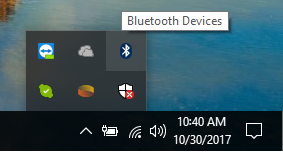
The Bluetooth icon only appears when Bluetooth is on. Clicking it shows the devices you've connected to and paired with before.
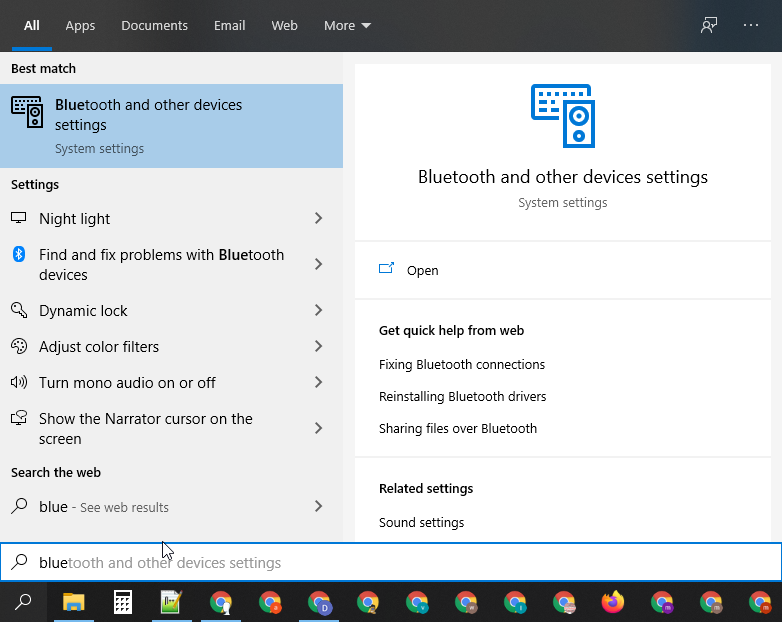
If you can't see the icon, just type Bluetooth in the search box:
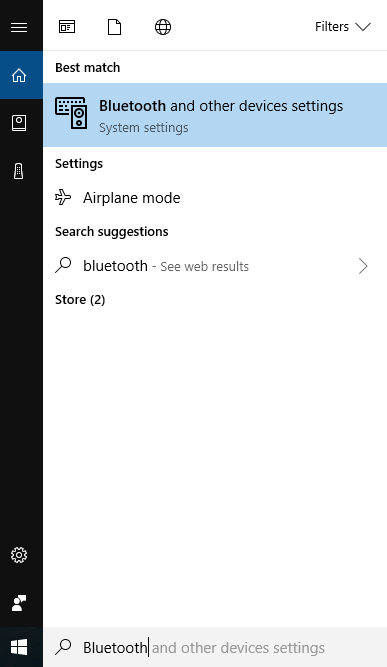
This takes you to the Bluetooth settings page (you can also check the adapter in Device Manager > Bluetooth), where you can see whether your device is paired. If it isn't, add it and pair it first.
View your Bluetooth device settings:
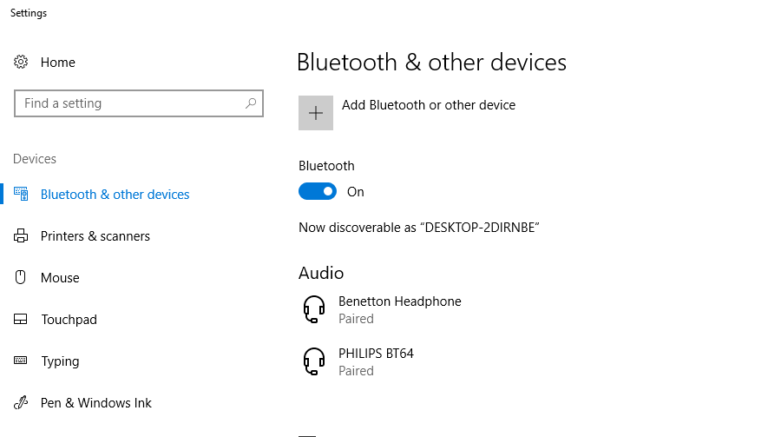
Here you'll see all the Bluetooth and audio devices you've connected before. If your device is listed but won't connect, move on to the next step. If it isn't listed, add your Bluetooth audio device and pair it.
If your Bluetooth device won't pair:
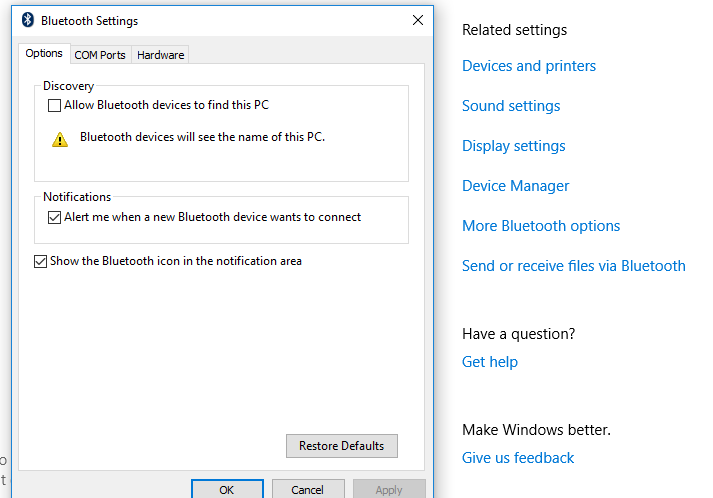
Open More Bluetooth options and make sure Allow Bluetooth devices to find this PC is ticked, as shown above. This lets the device see your PC so the two can pair.
If a paired device won't reconnect:
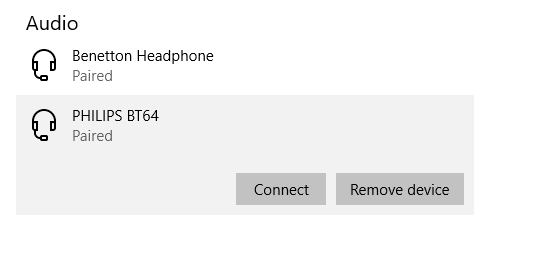
If a device you've paired before won't connect, remove it and pair it again from scratch. The saved connection may have gone bad, and re-pairing usually fixes it.
If you're still having problems:
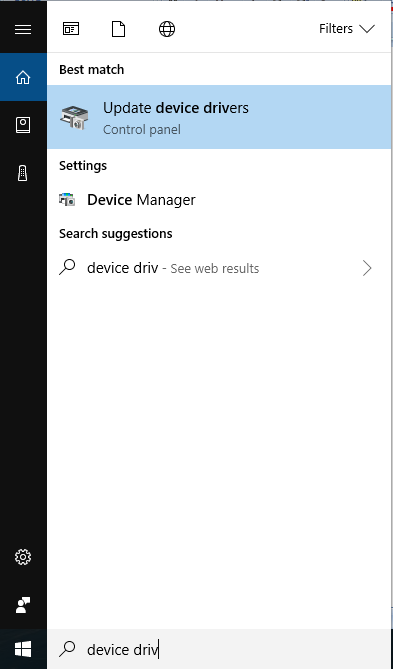
The device driver may be at fault. Type Device Manager in the search box to open it (shown above), find your Bluetooth adapter and update its driver.
That fixes most Bluetooth audio connection problems. As a last resort, restart both your PC and the Bluetooth device and pair them again.
References: fixwindows10connections.com, downloadcenter.intel.com, windowspcsecrets.com, itworldcanada.com, makeuseof.com