How to Defrag Windows 10: Step-by-Step Guide and Best Tools
Learn how to defrag windows 10 with the built-in Optimize Drives tool, why you shouldn't defrag an SSD, and which free defrag software works best.
What Is Defrag?
Defragmentation is like tidying up your PC's hard drive. It gathers the pieces of files that have been scattered across the disk and puts them back together. Every computer with a traditional hard drive gets more fragmented over time, and if you never tidy up, performance suffers.
Fragmentation happens when a file is split into pieces to fit into the free gaps on a disk. Because files are constantly being written, deleted and resized, it's completely natural. But a file spread over many locations takes longer to read and write, and the effects add up: a slow PC, long boot times, random crashes and freezes, and in extreme cases a computer that won't boot at all. Many people blame Windows or assume their computer is just "getting old," when fragmentation is often the real culprit.
(Fixing other things on your PC? See how to turn on bluetooth on windows 10.)
How to Defrag Windows 10
Defragmenting ("defragging") a drive in Windows 10 is simple. If you've been using a hard drive for a long time without defragging it, you may have noticed things slowly getting sluggish. That's a good sign it's time.
First, make sure the drive is a hard disk drive (HDD), not a solid state drive (SSD). Windows 10's defrag tool tells you which type each drive is. Don't defrag an SSD; we explain why after the steps.
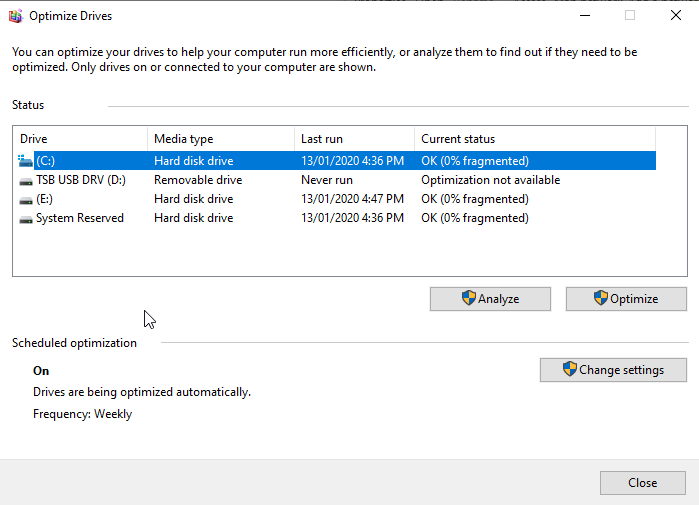
- Press the Windows key, type defrag and choose Defragment and Optimize Drives from the results. If search isn't cooperating, open Control Panel, go to System and Security, and click Defragment and optimize your drives under Administrative Tools.
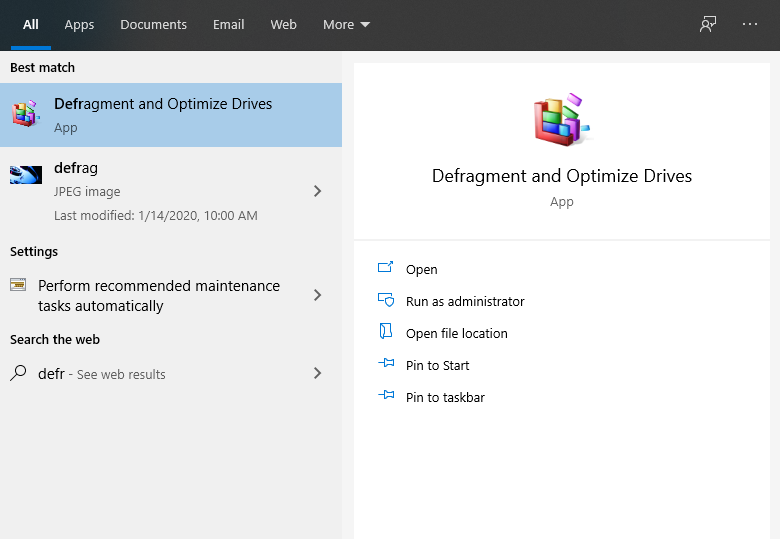 Defragment and Optimize Drives
- In the Optimize Drives window, find the hard disk drive you want to defrag.
- Check the Media type column and make sure it doesn't say Solid state drive. Only defragment hard disk drives.
- Select the drive and click Optimize. Windows may ask you to confirm.
- Sit back and let the defrag tool work. Depending on the size of the drive and how fragmented it is, it can take quite a while.
- To have Windows 10 defrag the drive automatically, click Turn on (or Change settings) under Scheduled optimization, choose how often it should run, and click Choose to pick which drives to include.
Why You Might Not Want to Defrag
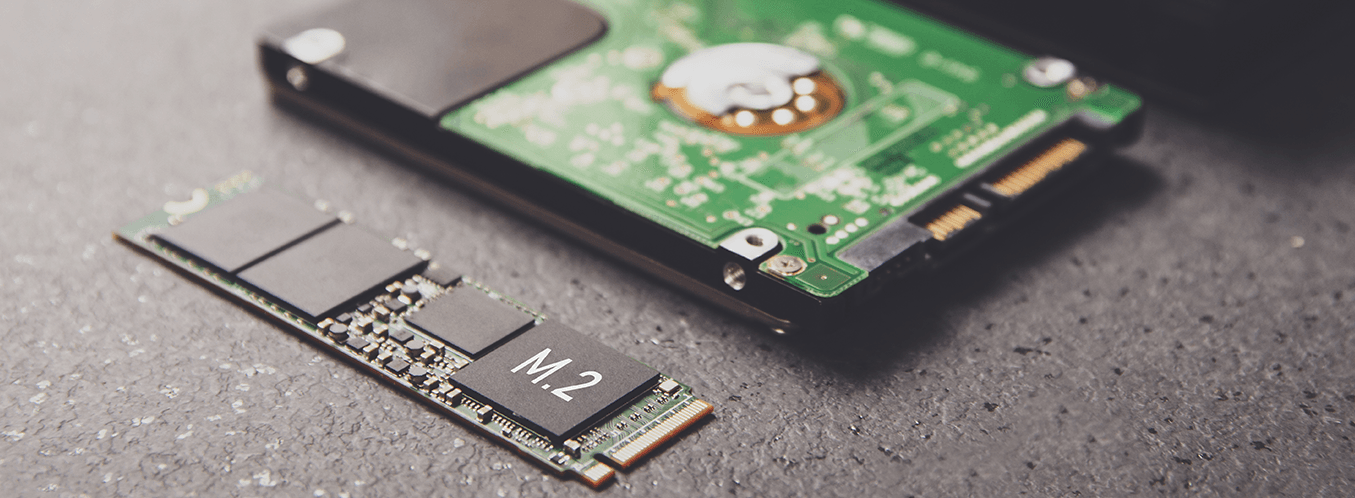
Many modern computers, especially the ones running Windows 10, use solid state drives (SSDs) instead of hard drives. For SSDs, defragging is unnecessary and can actually shorten the drive's life.
Disk defragmentation moves pieces of data so that related information sits physically close together on the disk. On a spinning hard drive that speeds things up, because the read/write head doesn't have to jump around as much, and newly written data can be placed in order.
An SSD has no moving head and no spinning disk, so where data sits in its flash memory makes no real difference to speed. Defragging just adds unnecessary wear. In fact, Windows 10's built-in tool won't defragment an SSD; it runs a TRIM operation instead, which tells the drive which blocks of data are no longer in use so it can clear them.
The Best Defrag Software
Defrag software rearranges the pieces of files on your hard drive into continuous blocks. In theory that speeds up boot and program loading times.
In practice, if you pick a good tool and schedule it to run weekly when you're not using the PC, it does help. In our tests we shaved 40 seconds off the boot time.
Windows Disk Defragmenter (Optimize Drives)
Windows' own defragmenter isn't bad at all. It doesn't show you a visual map of what it's doing, which makes it hard to tell what's going on, but it gets the job done.
In Windows 10 (and Vista onwards) you can schedule it to run daily, weekly or monthly. Speed-wise it was one of the better options in our tests, finishing in just under an hour and leaving 0 percent fragmentation.
The old Windows XP defragmenter was slow and awkward to schedule, but the Windows 10 version is a different story. It isn't pretty and it doesn't let you tweak advanced settings, but it works, and it's free and already installed.
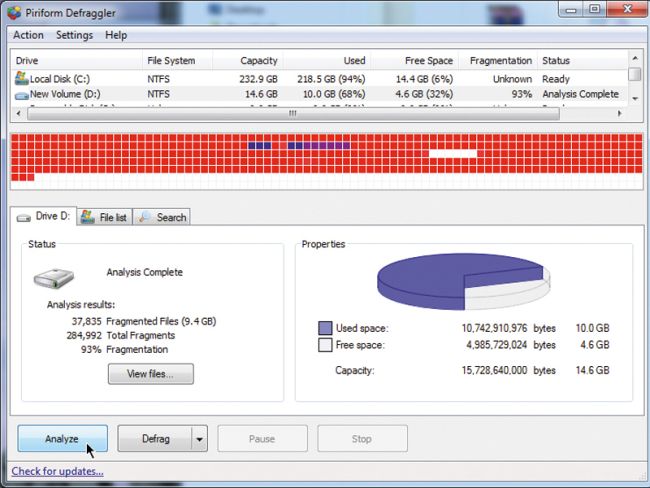
Piriform Defraggler
Price: Free · Web: www.piriform.com/defraggler
Piriform's Defraggler is a very easy-to-use defragmentation program, and it lets you defragment individual files and folders, not just whole drives.
So if you have a huge Steam games library, you can defrag just that folder (Steam has its own defrag option, but you have to run it manually) while skipping rarely used programs like Microsoft Office.
Like Windows' Disk Defragmenter, you can schedule Defraggler daily, weekly or monthly. It also shows a clear visual map of your drive.
The downside: at over 90 minutes, Defraggler was the slowest in our tests, which was disappointing for one of the most promising tools.
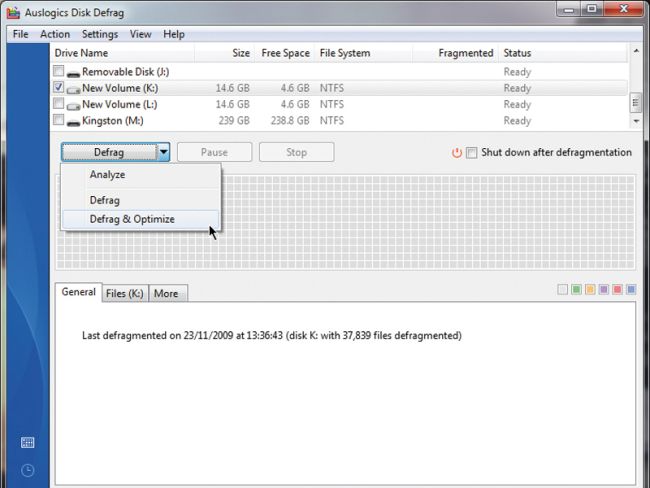
Auslogics Disk Defrag
Price: Free · Web: www.auslogics.com
This free tool from Australian developer Auslogics does more than defragment files. It also consolidates free space on your drive.
It can move system files to the fastest part of the disk, so it's worth running at least once to get everything in the best place.
Disk Defrag can work on several drives at once, which is handy if you have a lot of them.
It's also quick: it defragmented our hard drive in just 38 minutes. The catch is that it only got fragmentation down to 21 percent, while the others reached 0 percent. Fast, but not thorough. If you're going to defrag, you might as well do the whole job.
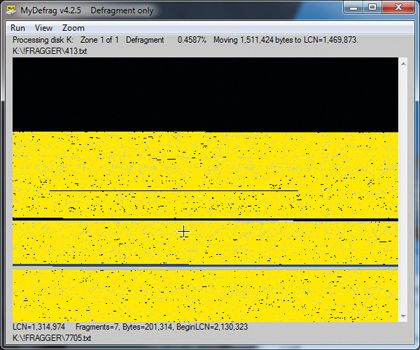
MyDefrag
Price: Free · Web: www.mydefrag.com
MyDefrag is based on JKDefrag, a lightweight command-line defragger that was very easy on system resources. Unlike its predecessor, MyDefrag is closed source.
It has a special mode for SSDs, though, as explained above, we don't recommend defragging solid state drives.
A fun feature carried over from JKDefrag is that it can run as a screensaver, so you can watch it rearrange your drive bit by bit. It's oddly satisfying to see everything fall into place.
At 54 minutes, MyDefrag was the fastest of the tools that fully defragmented our drive, and it did a thorough job.
It's not the prettiest defragmentation software, but it works flawlessly and has plenty of extra settings. Highly recommended.
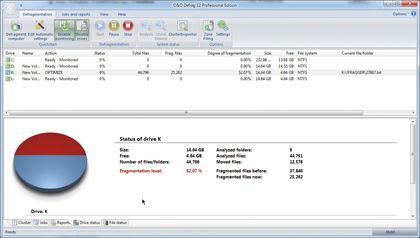
O&O Defrag Professional
Price: £30 · Web: oo-software.com
O&O's defragger is the most polished option here. Like MyDefrag, it can run as a screensaver.
It's a full-featured package with lots of settings, including eight different defragmentation methods, and it can monitor fragmentation in the background. It's easily the best-looking and most user-friendly of the bunch, but at over an hour it didn't score especially well in our speed tests.
If we judged on looks alone it would win. We don't, and at £30 it's hard to justify when free tools do the core job just as well.
PerfectDisk 10
Price: £18 · Web: www.perfectdisk.com
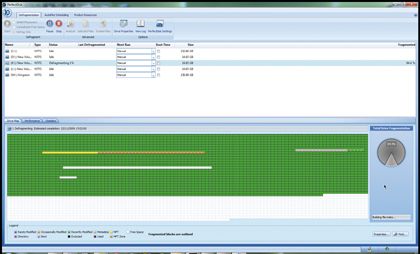
PerfectDisk 10 was the first defragger certified by Microsoft for Windows 7, and we didn't run into any compatibility problems with other software.
It's slick and easy to use, if a little similar to O&O Defrag Professional. Like Defraggler, it lets you pick specific folders and files to defrag, and its "SMARTPlacement" technology arranges data on the disk according to how often you use it.
In our tests it finished just a minute behind O&O Defrag Professional. Overall, PerfectDisk is the more complete package, and it's cheaper. If you insist on paying for something you can get free, this is the one to pick.
References: condusiv.com, techradar.com