How to Delete Backup Files in Windows 10 (and Free Up Space)
Learn how to delete backup files in windows 10: clean up File History versions, use FhManagew.exe, remove system image backups and Windows.old, plus the best free backup tools.
In this guide
Why Delete Old Backup Files?
Backups are great, until they quietly eat your disk. The longer you use a PC, the more backup files and old versions pile up. Upgrading to Windows 10 also leaves a full copy of your previous system behind, which can take up gigabytes.
When the backup drive fills up, Windows can't create new backups, and that's exactly when you might need one to recover files or repair the system. Clearing out old backups regularly keeps space free and helps the system run smoothly. Here's how to delete backup files in windows 10 safely.
How to Delete Backup Files in Windows 10
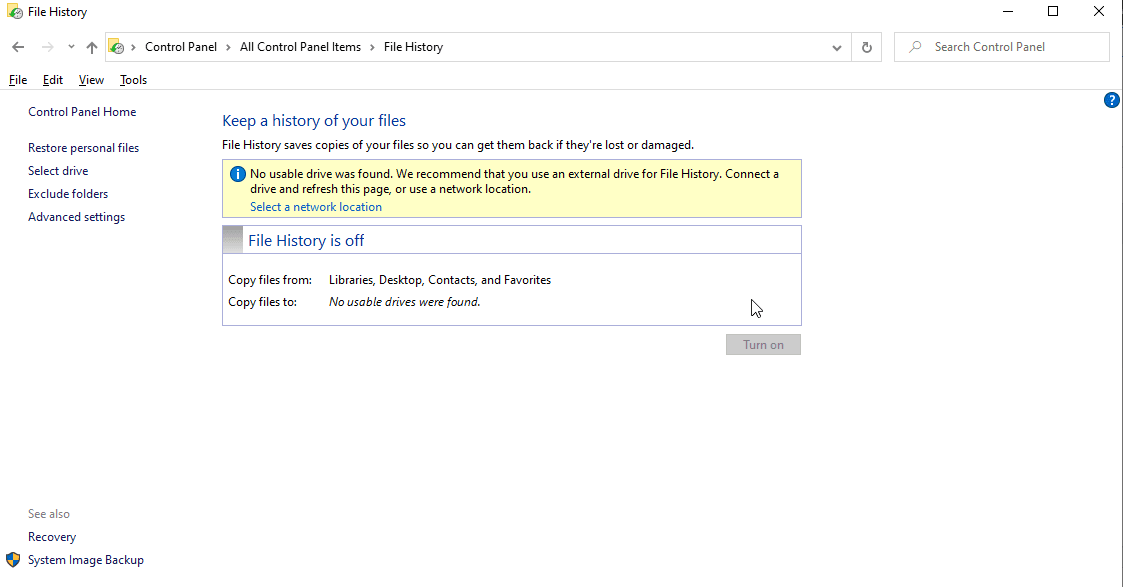
Windows 10's File History keeps copies of your documents, music, pictures, videos and desktop folders, so you can restore them if the originals are lost, damaged or deleted. Over time those copies add up, but you can clean them out from File History itself.
Clean Up Old File History Versions
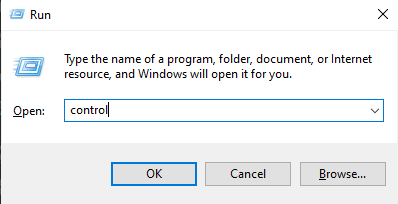
Step 1: Press Win + R to open the Run box, type control and press Enter.
Step 2: In Control Panel, click File History.
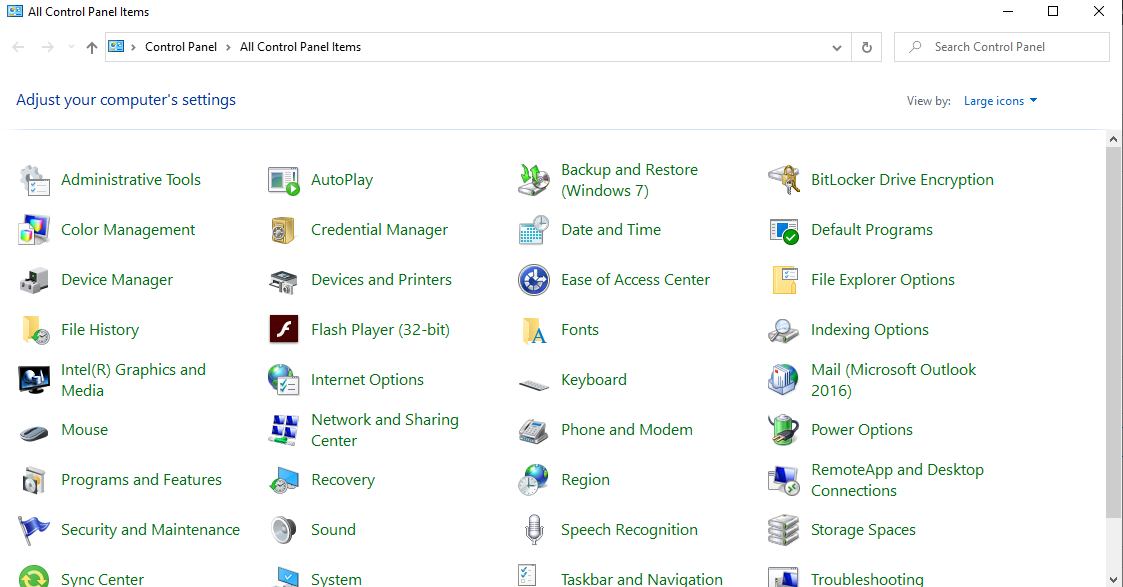
Step 3: In the File History window, click Advanced settings on the left.
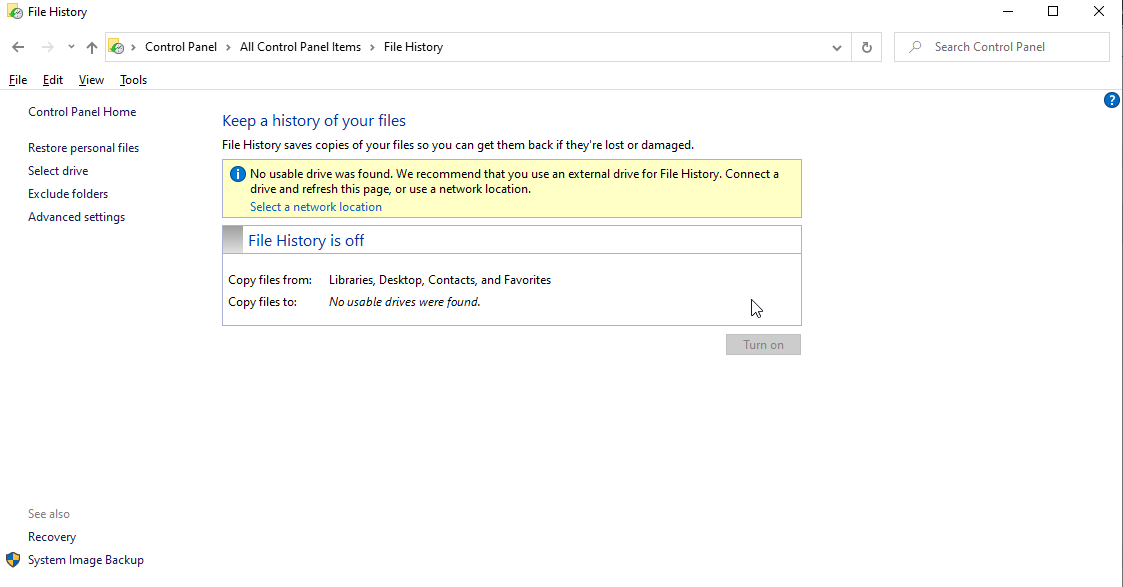
Step 4: Click Clean up versions. In the File History Cleanup box, choose which versions to delete (for example, older than one year) and click Clean up.
Step 5: When the cleanup is finished, click OK.
Delete Backup Files Using Command Prompt
FhManagew.exe is the File History management tool. Running it from Command Prompt deletes all file versions older than the number of days you specify.
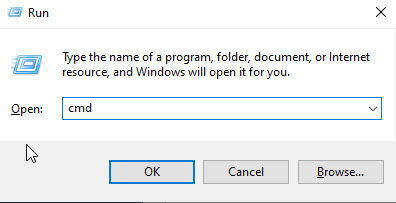
Step 1: Press Win + R, type cmd and press Enter.
Step 2: In Command Prompt, type one of these commands depending on how old the versions you want to remove are, then press Enter:
- Older than 1 month: FhManagew.exe -cleanup 30
- Older than 3 months: FhManagew.exe -cleanup 90
- Older than 6 months: FhManagew.exe -cleanup 180
- Older than 1 year (the default): FhManagew.exe -cleanup 365
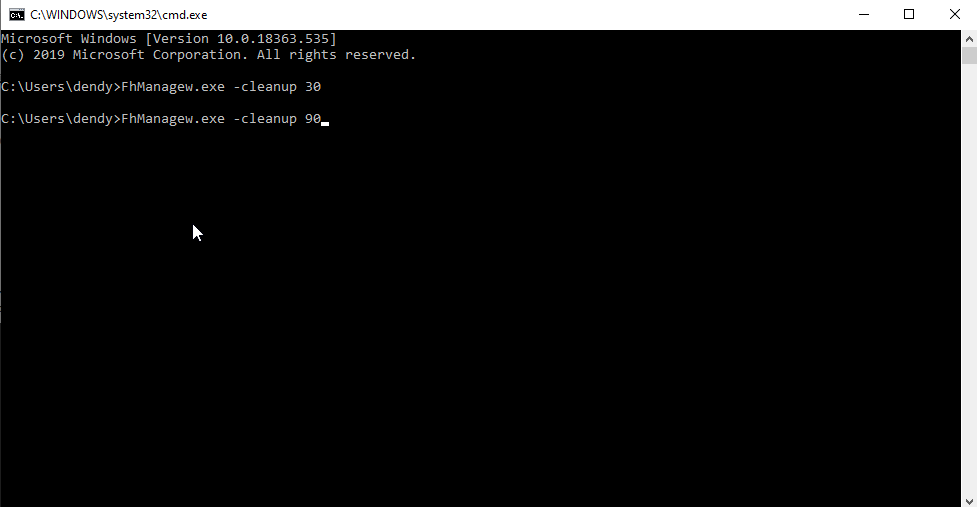
Step 3: If Windows says no older versions were found, try a shorter period, such as FhManagew.exe -cleanup 30.
Delete System Image Backups in Windows Backup
If you've set up Windows Backup, it can save copies of your desktop and library folders, plus full system images. As those grow, you'll run short of space, so it's worth deleting older ones.
Step 1: Press Win + R, type control and press Enter.
Step 2: In Control Panel, click Backup and Restore (Windows 7) under System and Security, then click Manage space.
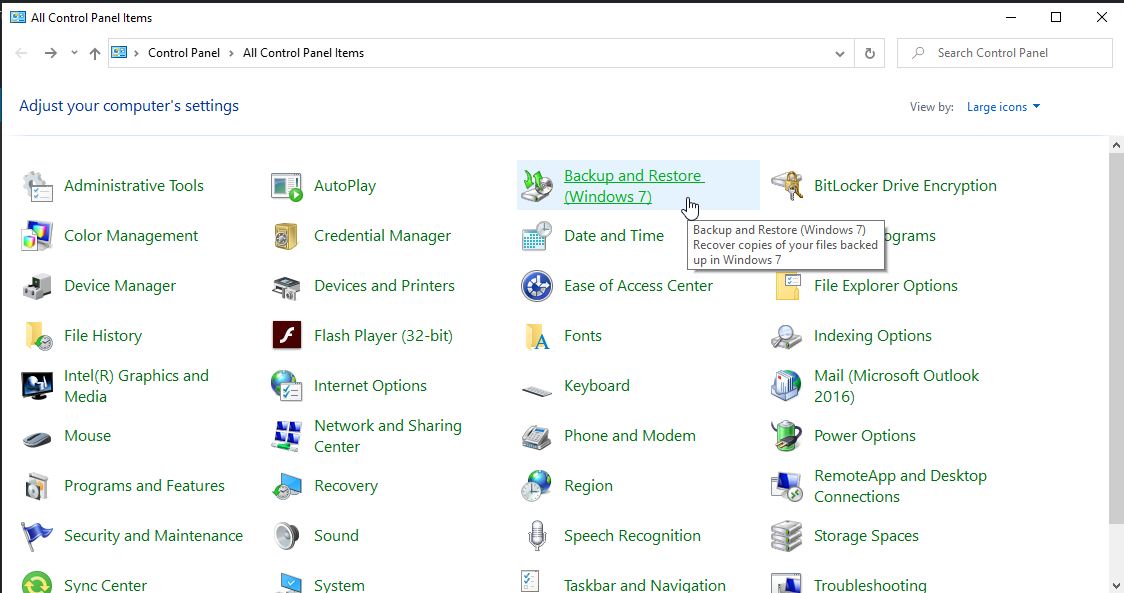
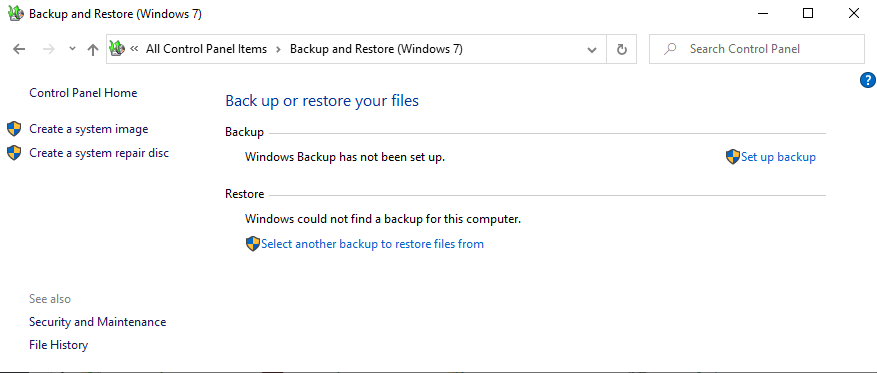
Step 3: The Manage Windows Backup disk space window gives you two options, View backups and Change settings:
- View backups: choose the backup period you want to delete and click Delete.
- Change settings: choose to keep only the latest system image to free up space.
Remove the Windows.old Folder With Disk Cleanup
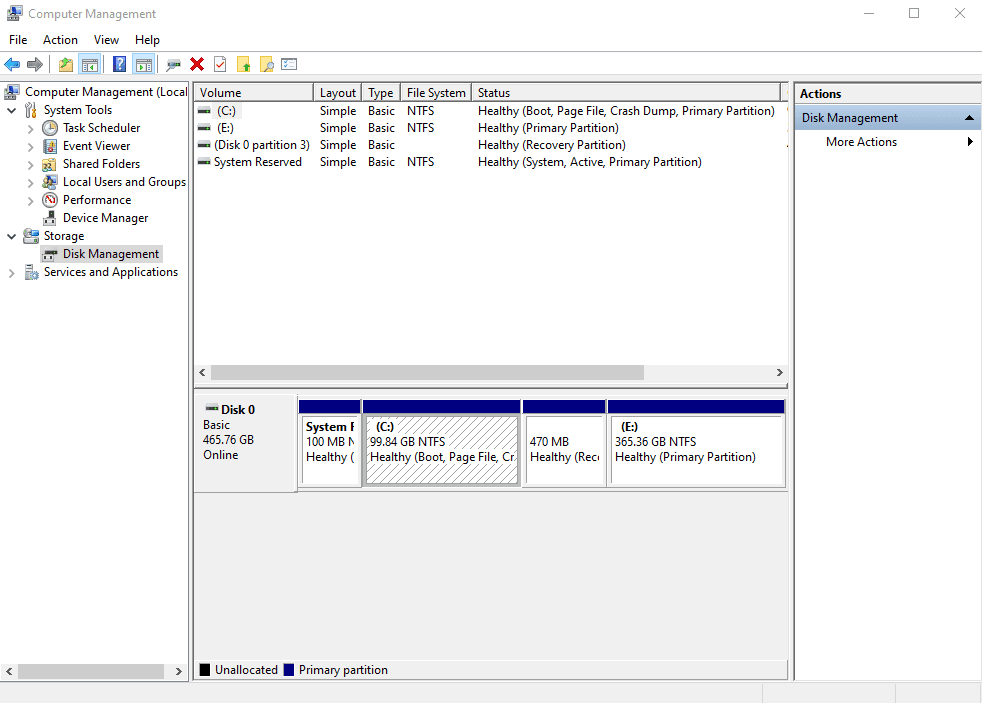
After upgrading to Windows 10, you'll find a folder called Windows.old on your system drive. It holds the system files and program files from your previous version of Windows. Once you're sure you don't want to go back, you can delete it. (Having trouble with wireless devices after the upgrade? See how to turn on bluetooth on windows 10.)
Step 1: Right-click your system drive (usually C:) and choose Properties.
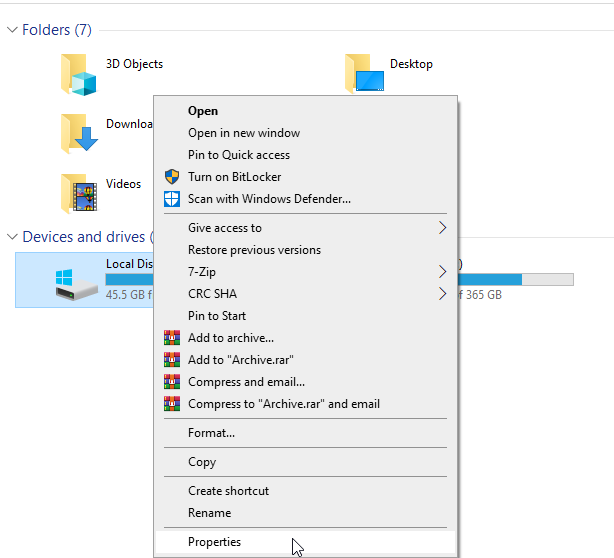
Step 2: Click Disk Cleanup, then Clean up system files.
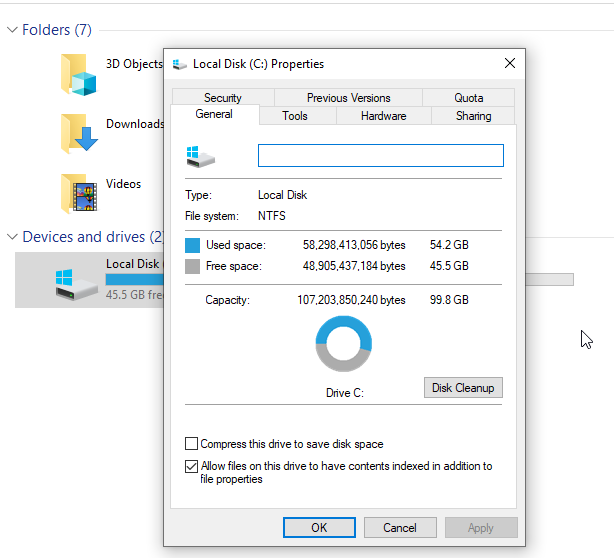
Step 3: In the Files to delete list, tick Previous Windows installation(s) and click OK.
Best Free Backup Software
We can't stress this enough: you need backups. Accidents, theft and hardware failures happen, and losing years of photos, music and documents is painful.
There are many ways to back up: copying files to a USB drive or external hard drive, burning them to disc, or using a cloud service that syncs your files between devices.
Using one method is good; using two or more gives you real protection against losing everything. The catch is that multiple backups are harder to manage, which is where backup software helps. It automates the work and runs quietly in the background while you get on with things.
Here are the free tools we like.
EaseUS Todo Backup Free
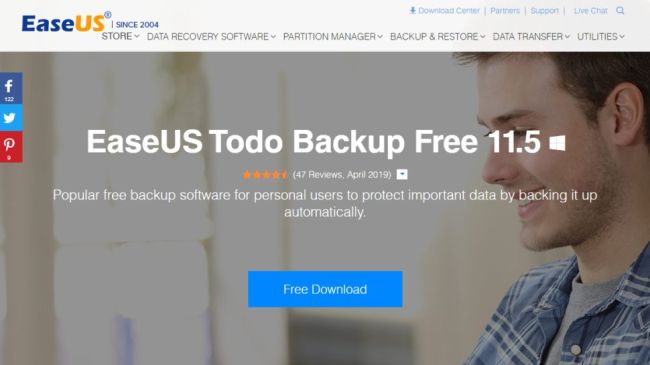
A good balance of automatic protection and manual control:
- Supports every common backup type
- Easy scheduling
- Automatic "smart" backups
EaseUS Todo Backup Free covers a lot of ground: individual files and folders, whole drives or partitions, or a full system backup. Its "smart" option automatically backs up the places you use most, and you can send backups to cloud storage.
You can schedule backups as incremental, differential or full, depending on what you need.
The free version has almost all the features of the paid edition. You can still schedule backups, but you can't trigger them from events, run them from the command line, transfer data PC to PC or back up Outlook. Most people won't miss those.
During installation you may be offered extra software such as a browser or a search plugin. If you don't want them, untick the boxes before clicking Next.
Cobian Backup
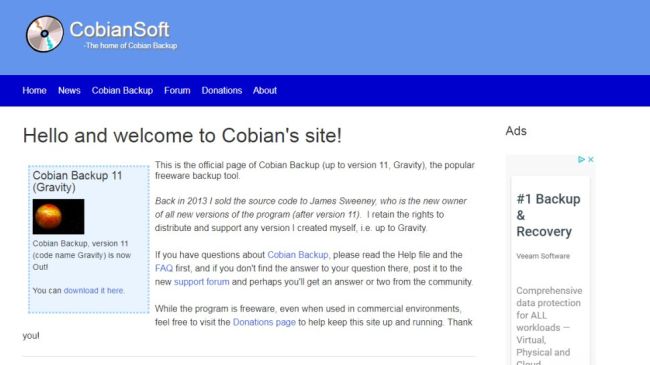
Advanced backup software for experienced users:
- Highly customizable
- Optional encryption
- No wizard for beginners
Cobian Backup is one of the most powerful free backup tools around. It might be overkill for beginners, but if you know exactly how you want your backups set up, it gives you all the flexibility you need.
You can create and schedule multiple backup jobs, saving files to another local drive, a network location or an FTP server. It can back up to several places at once.
Backups can be compressed to save space, and optional encryption keeps your data secure.
Where Cobian falls down is restoring. There's no wizard, so you'll need to copy files back yourself, decompressing and decrypting them first if necessary. Still, for protecting your most important files, it's one of the most thorough tools available.
Paragon Backup & Recovery
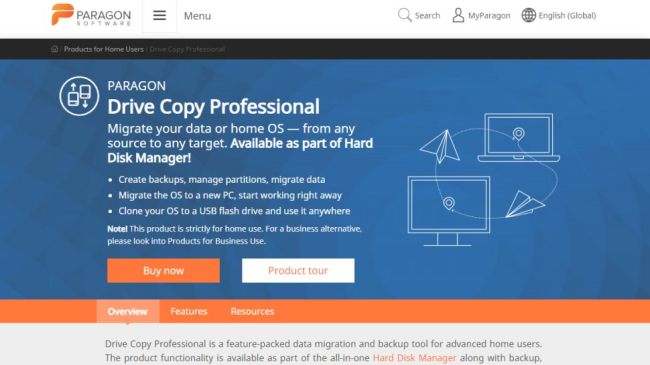
The easiest way to back up your system: set it and forget it. Wizard-based setup, lots of options, and strong recovery tools.
Paragon Backup & Recovery makes backing up as painless as possible with a step-by-step wizard. You can back up the whole computer, specific partitions, chosen folders, or files of a particular type.
Set a schedule, pick the type of backup, and let the software take care of the rest.
As the name suggests, it's more than a backup tool. It includes a bootable CD or USB recovery system, so you can get your data back even if Windows won't start. You'll need to register a free account to use it, but it's well worth it.
FBackup
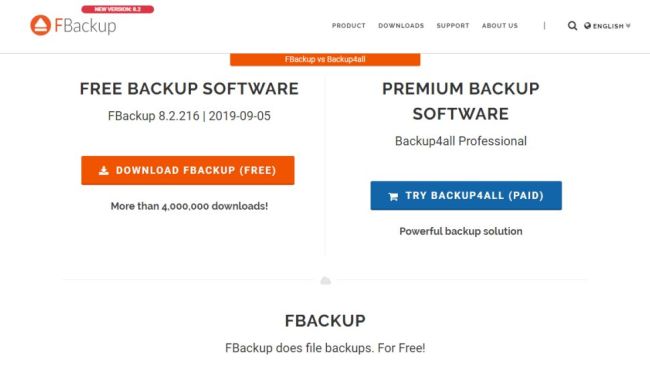
Simple and advanced modes with easy scheduling:
- Automatic scheduling
- Wizard-based setup
- No encryption
- No incremental backups
FBackup has a slightly dated, Office-style interface, but don't let that put you off. Underneath is a capable backup tool, though it isn't as feature-packed as Paragon Backup & Recovery.
Choose between a wizard and an advanced mode. Either way it's easy to create backup jobs for files and folders and save them to local or network drives, removable disks or Google Drive. Scheduling keeps everything up to date.
There are some in-app prompts to upgrade to the paid Backup4all, but they're fairly unobtrusive. If you can live without encryption, FTP backups, email alerts and incremental backups, FBackup is worth a look.
Google Backup and Sync
A simple tool that backs up your files to Google Drive:
- Easy setup
- Not suitable for full system backups
- Limited customization
Google Backup and Sync (now part of Google Drive for desktop) isn't a traditional backup tool. It's cloud-based, so how much you can back up depends on how much Google storage you have.
You get some space free, and you can buy more, but realistically it's best for backing up individual folders rather than your whole system.
For key files and folders, though, it's excellent. Choose the folders you want it to watch, and any changes, additions or deletions are synced almost instantly. You can also use it to keep files in sync between computers and reach them from any device through Google Drive.
References: reneelab.com, techradar.com