How to Fix "Windows Has Detected an IP Address Conflict"
Getting the Windows has detected an IP Address conflict error? Restart your router, release and renew your IP, remove a static IP, update drivers or disable IPv6 to fix it.
In this guide
- How to Fix the "Windows Has Detected an IP Address Conflict" Error
- Restart Your Router
- Disable and Re-enable Your Network Adapter
- Release and Renew Your IP Address
- Remove a Static IP Address
- Update Your Network Card Driver
- Update the Driver Through Windows
- Update Your Drivers With a Third-Party App
- How to Disable IPv6
- What Is an IP Address Conflict?
- What Is a Static IP Address?
We've had quite a few readers message us lately about the "Windows has detected an IP Address conflict" error, so here's everything you need to know about it and how to fix it.
Every device on a network gets its own IP address. When you connect your phone, tablet or laptop to your home Wi-Fi, each one is given a unique address so the network can tell them apart. This works the same on Windows 7, 8, 10 and windows 11.
If five computers are connected to the same network, all five should have different IP addresses. When two devices end up with the same one, Windows shows the "Windows Has Detected An IP Address Conflict" message, and usually you lose internet access until it's sorted out.
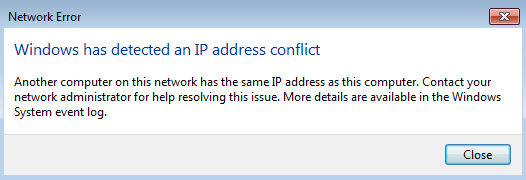
How to Fix the "Windows Has Detected an IP Address Conflict" Error
There are several ways to fix this. We've ordered them from the simplest to the most advanced, so work from the top down. If the easy fixes don't help, the later steps will make sure every device gets its own IP address again.
Restart Your Router
Your router hands out IP addresses to every device on the network. If it slipped up and gave two devices the same address, a restart usually sorts it out.
- Switch your router off with its power button. You'll lose internet access while it's off.
- Wait about 5 minutes so the router and network fully shut down.
- Switch the router back on. Once it has finished starting up, check whether the error is still there. You may need to reconnect your devices.
Disable and Re-enable Your Network Adapter
Your network adapter (wired, wireless or USB) connects your PC to the network. Turning it off and on again in Windows often fixes connection problems.
You'll need to be signed in with an administrator account.
- Hold the Windows key and press R to open Run.
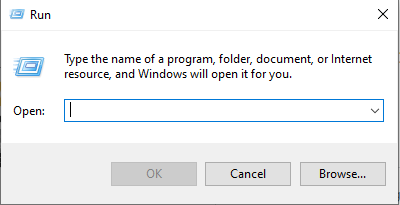 The Run utility
- Type ncpa.cpl and click OK. The Network Connections window opens.
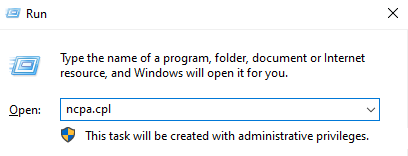 Image: softwarekeep.com
- Right-click the adapter you're using and choose Disable.
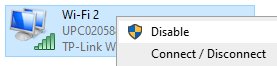 Image: softwarekeep.com
- Once it's disabled, right-click it again and choose Enable.
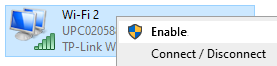 Image: softwarekeep.com
- Restart your PC and check whether the IP conflict is gone.
Release and Renew Your IP Address
This is one of the most reliable fixes for IP problems. A few commands release your current IP address and ask the router for a fresh one.
You'll need administrator rights.
Search for Command Prompt, right-click the top result and choose Run as administrator. You may need to enter your password.
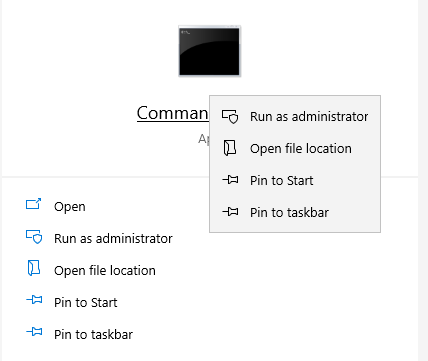
Type these three commands, pressing Enter after each one:
netsh int ip reset c:\resetlog.txt
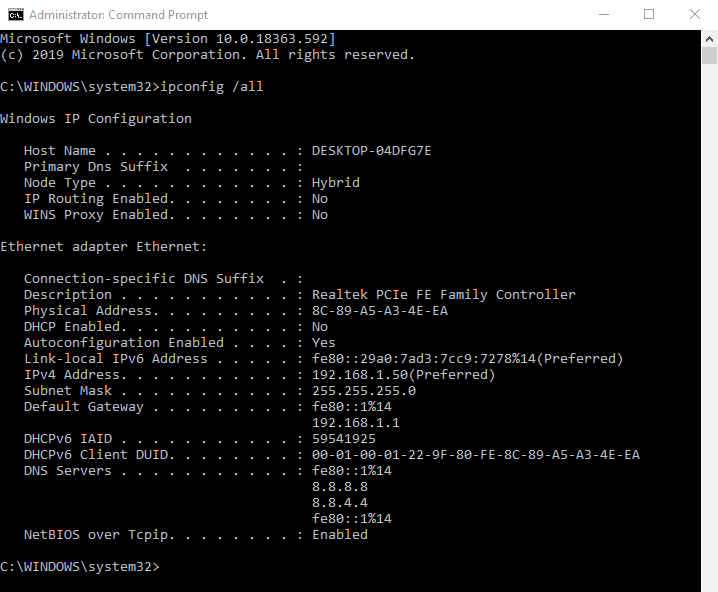
ipconfig /release
ipconfig /renew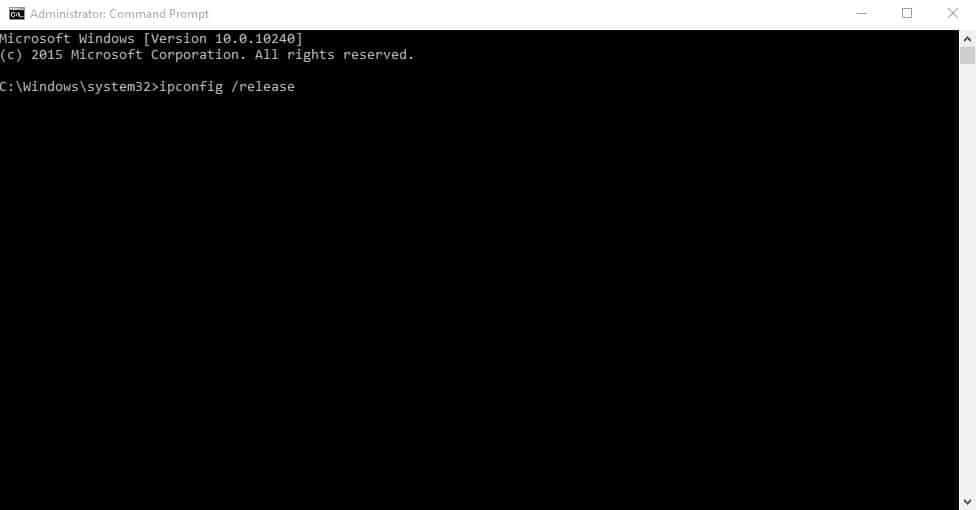
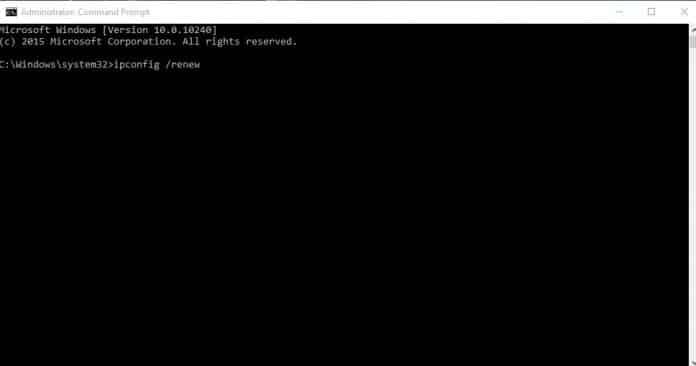
Check whether Windows still reports an IP address conflict. If it does, there are more fixes below.
Remove a Static IP Address
A static IP means the address was typed in manually instead of being assigned by the router. If another device gets that same address, you'll get a conflict.
It's usually better to let your router assign addresses automatically. If you're seeing "Windows has detected an IP address conflict," switch to an automatic IP:
- Hold the Windows key and press R to open Run.
The Run utility
- Type ncpa.cpl and click OK.
Image: softwarekeep.com
- Right-click the adapter you're using and choose Properties.
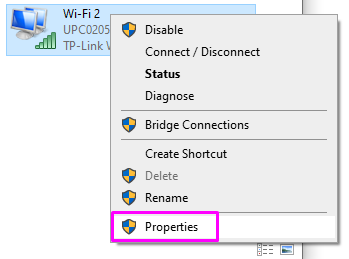 Image: softwarekeep.com
- Double-click Internet Protocol Version 4 (TCP/IPv4).
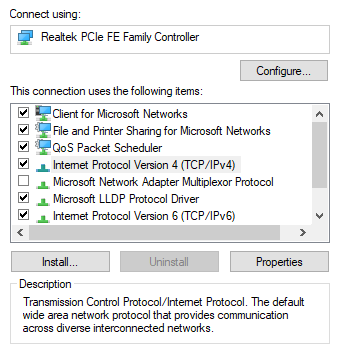
- On the General tab, select Obtain an IP address automatically and Obtain DNS server address automatically.
- Click OK in both windows and restart your computer.
Update Your Network Card Driver
Keeping drivers up to date is always a good idea, and an outdated network driver can cause more trouble than you'd think. You can update it through Windows or with a dedicated tool.
Update the Driver Through Windows
This method uses Device Manager to find a newer driver.
- Hold the Windows key and press R to open Run.
The Run utility
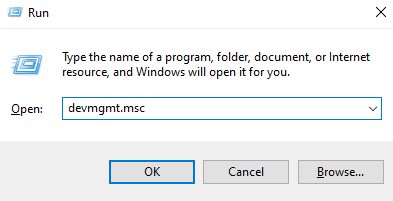
- Type devmgmt.msc and click OK to open Device Manager.
- Expand Network adapters by clicking the arrow.
- Right-click your network adapter and choose Update driver.
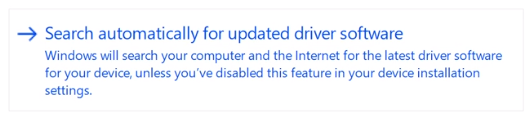
- Click Search automatically for updated driver software.
- If Windows finds a newer driver, it downloads and installs it automatically.
- Restart your PC and check whether the problem is solved.
Update Your Drivers With a Third-Party App
Free tools such as Driver Booster, DriverHub or DriverPack Solution can find and install driver updates for you.
Be careful, though: always check that the app is trustworthy. Many programs that promise to fix or update drivers come bundled with malware, adware or spyware. Search for the product name and read reviews from real users before installing anything. Downloading drivers directly from your PC or network card manufacturer is the safest option.
How to Disable IPv6
IPv6 is still relatively new, and on some networks it can trigger the "Windows has detected an IP address conflict" error. As a last resort, try turning IPv6 off.
- Hold the Windows key and press R to open Run.
The Run utility
- Type ncpa.cpl and click OK.
Image: softwarekeep.com
- Right-click the adapter you're using and choose Properties.
Image: softwarekeep.com
- Untick Internet Protocol Version 6 (TCP/IPv6) to disable IPv6 on this adapter.
- Restart your computer and see if the problem is fixed.
Hopefully one of these fixes has cleared the "Windows has detected an IP address conflict" error on your PC. If you're curious about why it happens, read on.
What Is an IP Address Conflict?
An IP address conflict happens when two endpoints on a network are given the same IP address. An endpoint can be a computer, a phone or any other network adapter. When it happens, one or both devices usually can't use the network properly.
How IP Address Conflicts Happen
Two devices can end up with the same IP address in several ways:
- A network administrator gives two computers the same static IP address.
- A computer is given a static IP address inside the range the local DHCP server hands out, and the DHCP server then assigns that same address to another device.
- A fault in the network's DHCP server gives the same dynamic address to more than one device. This can happen, for example, when a laptop wakes up from hibernation.
- An internet provider accidentally assigns two customers the same IP address.
Other kinds of conflicts are possible too. A computer with several network adapters can even conflict with itself, and connecting two ports of a network switch or router to each other can also cause problems.
How to Spot an IP Address Conflict
The exact message depends on your device and operating system.
On many Windows computers, if you try to set a static IP address that's already in use, you'll see this pop-up:
"The static IP address that was just configured is already in use on the network. Please reconfigure a different IP address."
On newer Windows versions with dynamic addresses, a notification appears in the taskbar when the conflict is detected:
"There is an IP address conflict with another system on the network."
Older versions of Windows may show a pop-up like this instead:
"The system has detected a conflict for IP address..."
How to Resolve IP Address Conflicts
- On networks with static addresses, make sure every device is configured with a unique IP address.
- If your computer gets its address automatically, release and renew it to get a new one.
- If you think your router's DHCP server is faulty and causing conflicts, update the router's firmware.
What Is a Static IP Address?
A static IP address is a permanent address assigned to a device, often by your internet service provider (ISP). Static IPs are useful for gaming, hosting websites or Voice over IP (VoIP) services, where speed and reliability matter. Because the address never changes, though, it's an easier target for data collection and security threats.
A static IP is also called a fixed address: the computer uses the same IP address every time it connects to the internet.
An ISP is given a range of IP addresses and hands them out to its customers using a Dynamic Host Configuration Protocol (DHCP) server, which can be set to assign specific static addresses to specific computers. How addresses are allocated varies by platform.
Nobody expected the internet to need unlimited addresses when it was first designed. IPv4, which uses 32-bit addresses, allows about 4.3 billion unique addresses. Even then, ISPs were careful with static addresses and mostly relied on temporary dynamic addresses handed out by DHCP servers.
As the number of internet-connected devices exploded, the limits of IPv4 became obvious. Its successor, IPv6, uses 128-bit addresses, which allows a practically unlimited number of them.
Advantages of a static IP address include:
- Lower costs for some services
- The ability to host an email server
- Easier maintenance
- A good fit for online gaming
References: techopedia.com, lifewire.com, techviral.net, softwarekeep.com