Windows Was Unable to Complete the Format: How to Fix It
Getting windows was unable to complete the format on a USB drive, SD card or CD-RW? Fix it with Disk Management, DiskPart or the Erase this disc option.
In this guide
You try to format a USB flash drive or SD card and Windows says "Windows was unable to complete the format." Before you throw the drive in the bin, try the tricks below. They've rescued more than a few "dead" drives for us.
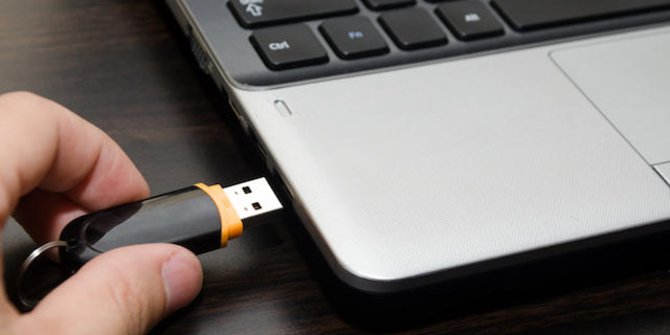
Windows Was Unable to Complete the Format on a USB Flash Drive
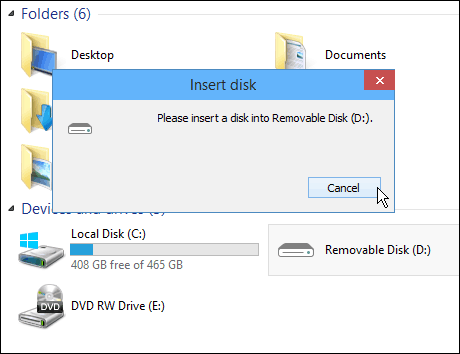
"Please insert a disk into Removable Disk"
Not long ago I was installing Windows 10 with Microsoft's Media Creation Tool, and the process failed on a brand-new 64 GB flash drive. After that, every Windows PC I plugged it into showed errors suggesting the drive wasn't being recognized properly.
Note: the drive in this example had no data on it. The fixes below erase everything on the drive, so if yours has files you need, try a data recovery tool first.
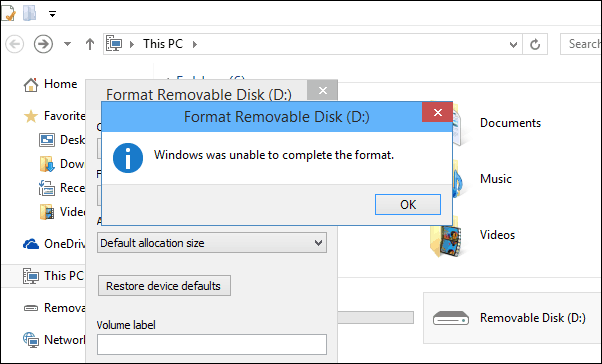
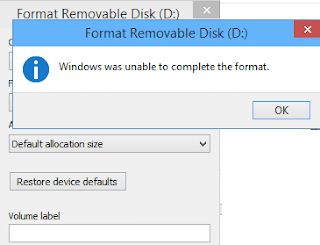
"Windows was unable to complete the format"
When I then tried to format the drive, I got the "Windows was unable to complete the format" error.
Fix your USB flash drive with Disk Management
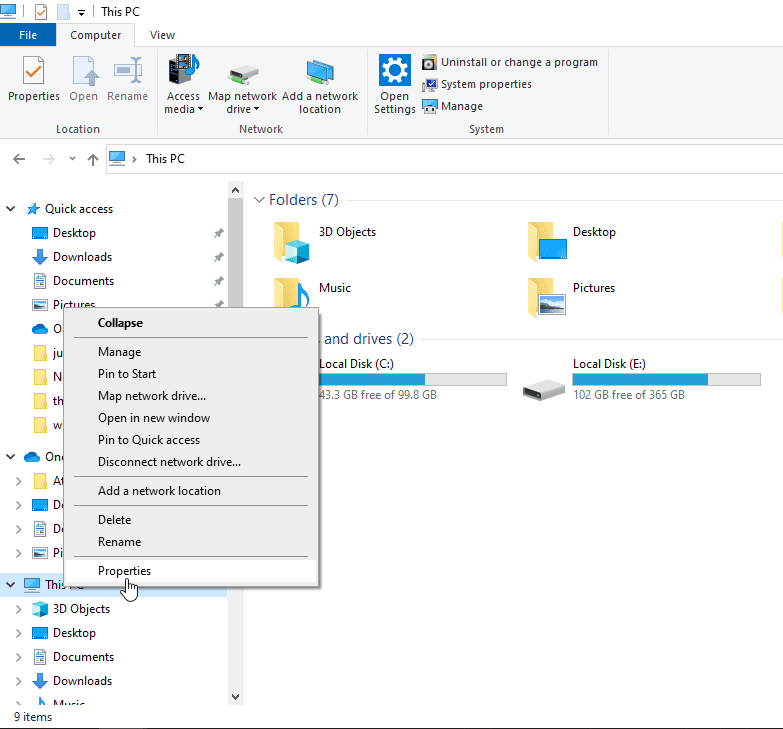
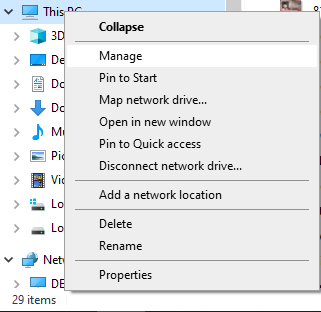
Right-click This PC in Windows 10 (or windows 11 and Windows 8.x), or the Computer icon in Windows 7, and choose Manage.
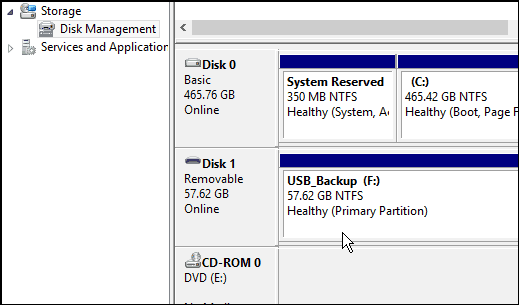
The Computer Management tool opens. In the left pane, go to Storage > Disk Management. Find your flash drive in the middle section; you'll recognize it by its size, and Windows will probably show it as Unallocated space.
Right-click it and choose New Simple Volume.
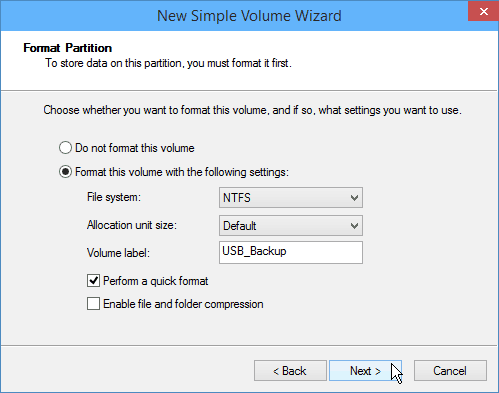
The New Simple Volume Wizard starts. Just follow the on-screen steps. The defaults are fine, but when you reach the screen below you may want to give the drive a name.
When you reach the end of the wizard, click Finish and wait a few moments.
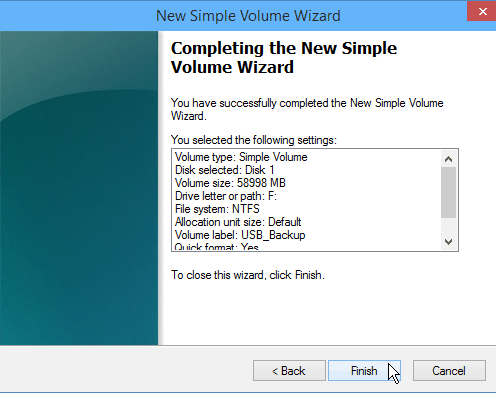
The drive should now be formatted and properly recognized by Windows.
It will also show up in This PC (or Computer), ready to use.
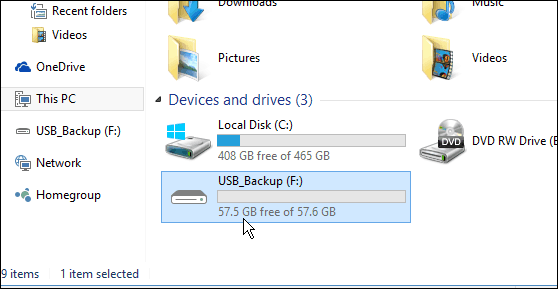
If that doesn't work you'll need to try the DiskPart method below, but in my experience this overlooked approach works most of the time.
Windows Was Unable to Complete the Format on an SD Card
When nothing else works on a corrupted USB drive or SD card, a full clean with DiskPart is the last resort. It wipes all data on the card, but it often brings the drive back to life and clears out any malware too. If right-clicking and choosing Format just gives you this message:
Open the Run box (press Windows + R or search for it).
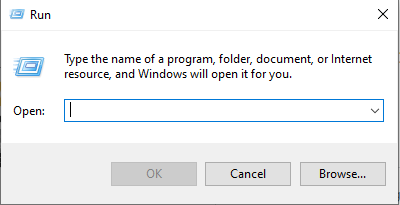 The Run utility
Type diskpart and press Enter.
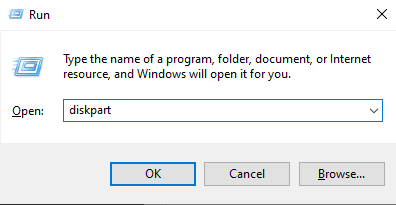
In DiskPart, type the following command and press Enter:
list disk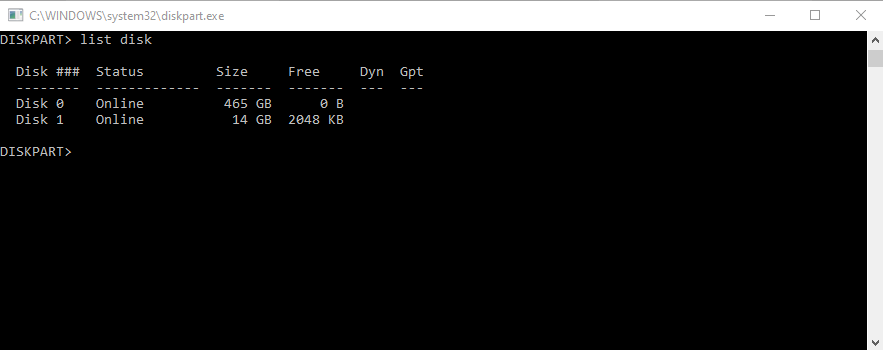
You'll see a list of disks, such as Disk 0 and Disk 1. Disk 0 is usually your hard drive, and in this example Disk 1 is the USB flash drive. Check the sizes carefully: selecting the wrong disk will wipe it.
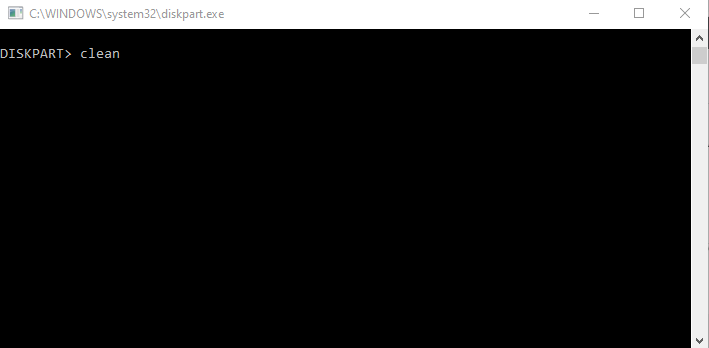
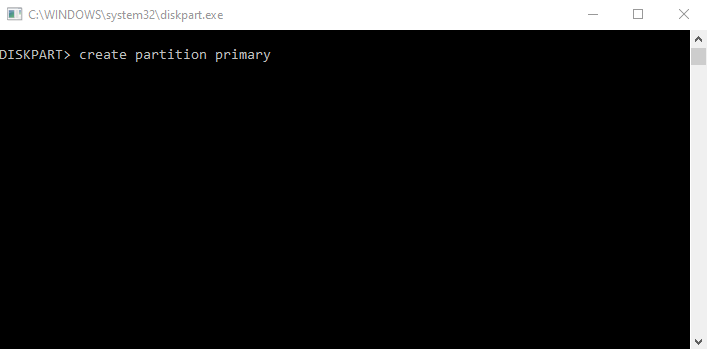
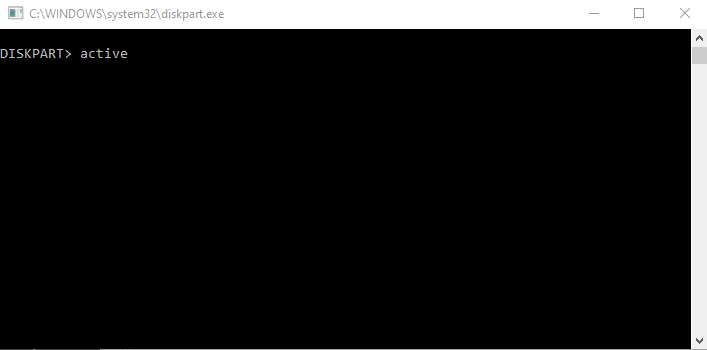
Now enter these commands one at a time:
select disk 1
clean
create partition primary
active
select partition 1
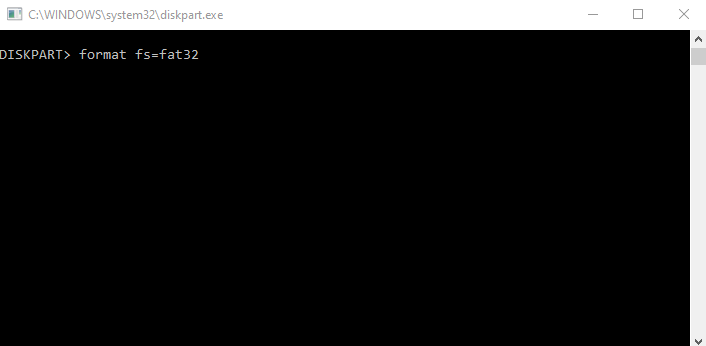
Then format the partition and give it a drive letter:
format fs=fat32 quick
assign
We used FAT32 here; you can use fs=ntfs or fs=exfat instead (exFAT is best for cards larger than 32 GB). Formatting can take a while, so don't close the window until it's finished.
How to Fix "Windows Was Unable to Complete the Format" on a CD or DVD-RW
The same error can appear when you format a rewritable CD or DVD. There can be several reasons, but first make sure you're formatting the disc the right way.
1. Format the DVD or CD-RW
Follow these steps to fully format a damaged, corrupted or full CD-RW. Make sure your drive supports rewritable discs.
- Put the CD-RW or DVD-RW in your PC's CD/DVD drive.
- Press Windows key + E to open File Explorer.
- Open This PC.
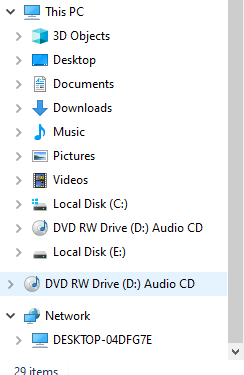
- Click your DVD/CD-RW drive.
- Open the Manage tab on the toolbar.
- Click Format to open the Format window.
- Click the File system drop-down.
- Choose a disc format, ideally UDF 2.01, UDF 2.50 or UDF 2.60 (for Windows 7, 8, 10 and windows 11).
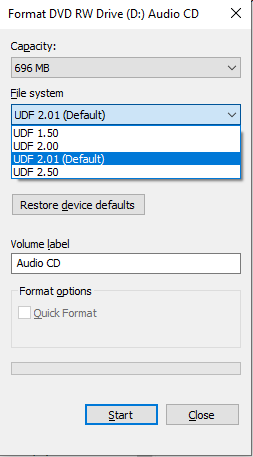
- Click Start.
- Click OK in the pop-up to finish formatting.
As long as there's no deeper system problem, this should format the disc without a hitch. If you still get the error, try the next method.
2. Format the CD-RW With Disk Management
- Put the CD-RW in your PC's DVD/CD drive.
- Open Control Panel.
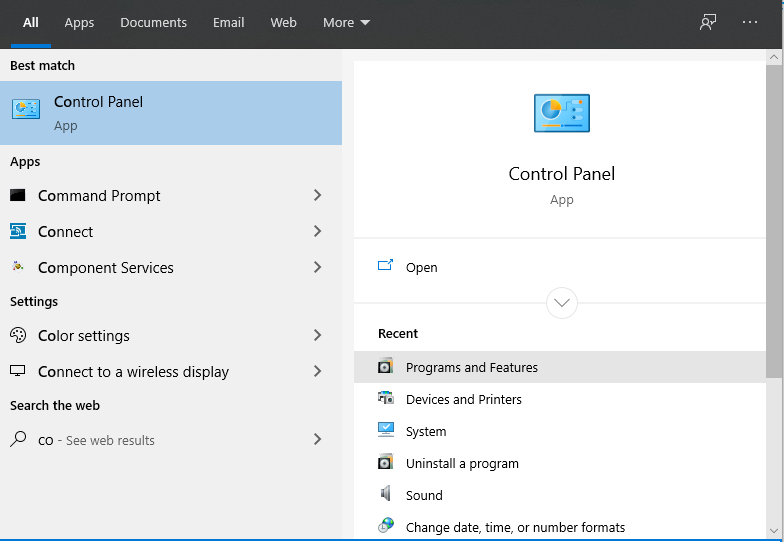
- Select Administrative Tools.
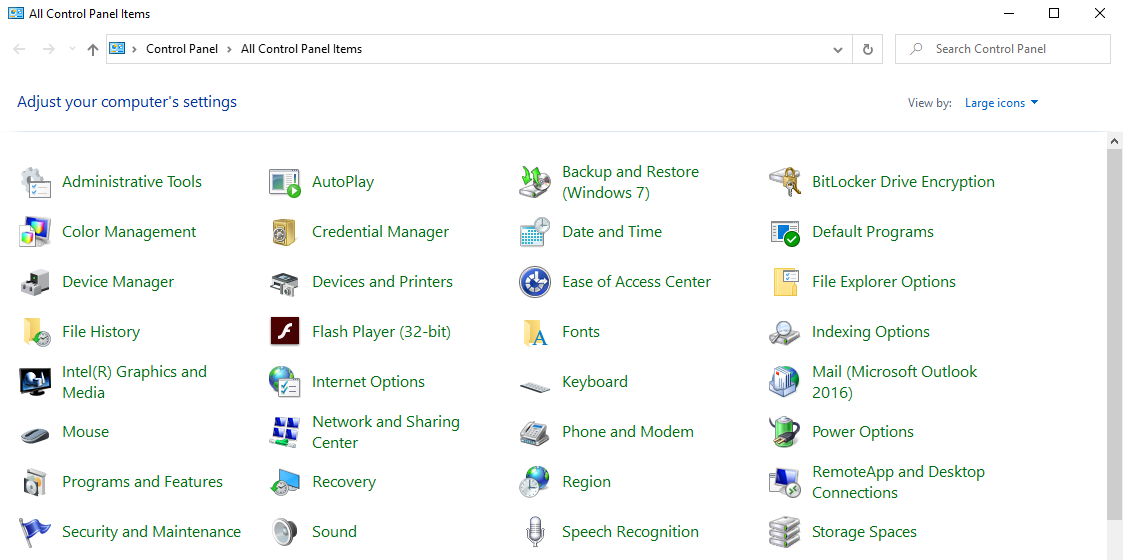
- Click Computer Management.
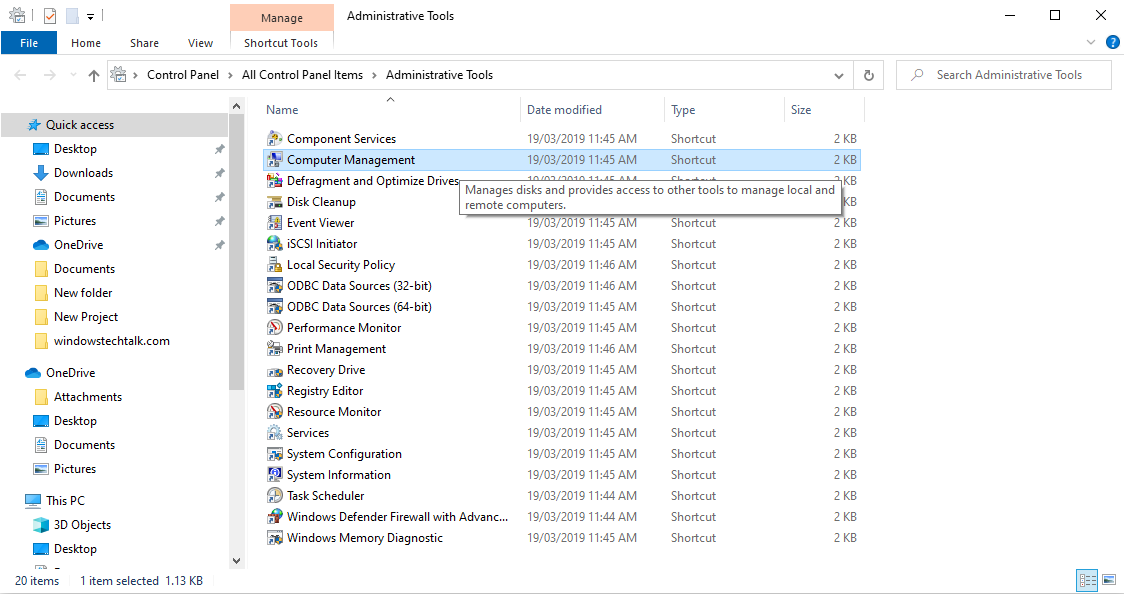
- Select Disk Management to open the tool.
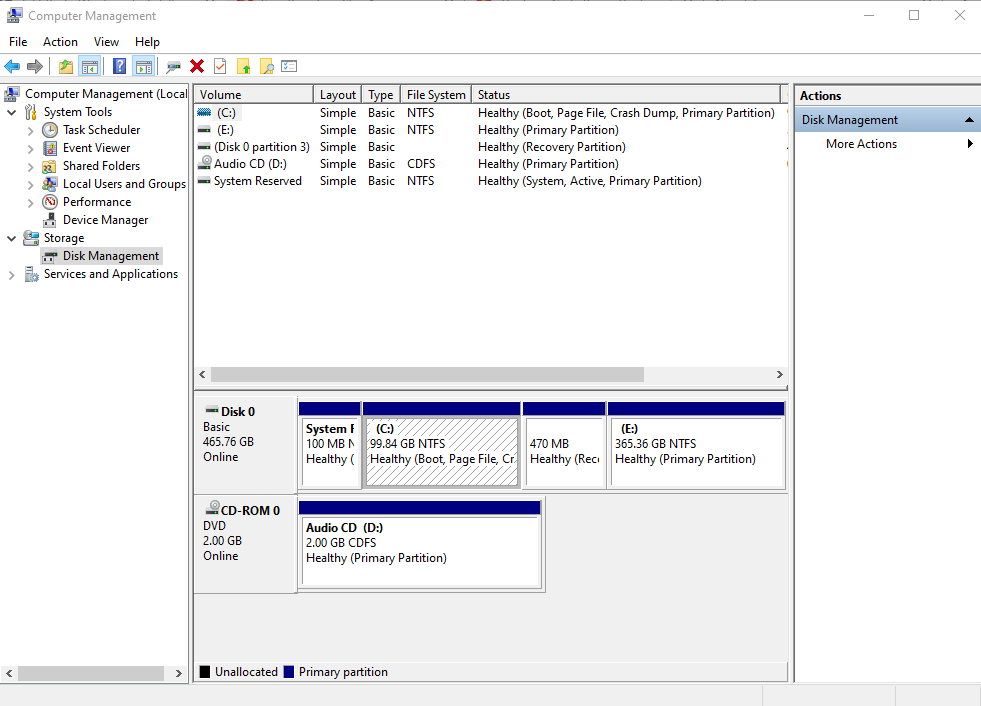
- Find the CD-RW drive you want to format.
- Right-click it and choose Format.
- Follow the prompts to finish.
If the error persists, try the next fix.
3. Erase the CD-RW
If you still see the error, use the Erase this disc option, which wipes the CD-RW completely:
- Put the CD-RW (rewritable) disc in your drive.
- Open File Explorer with Windows key + E.
- Click the CD-RW drive icon.
- On the toolbar, find Erase this disc.
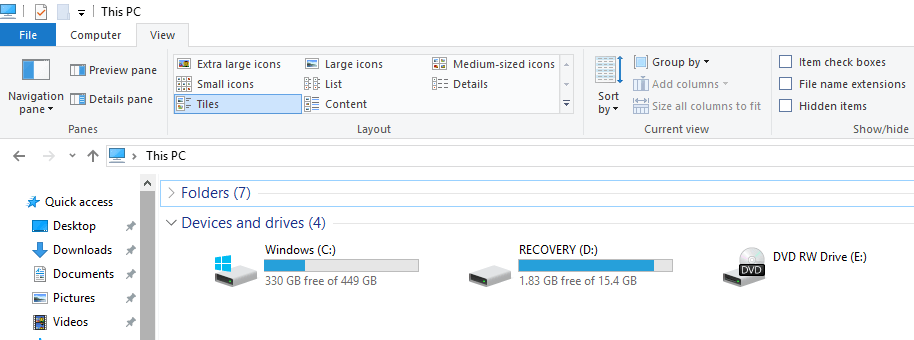 Image: windowsreport.com
- Follow the on-screen instructions to finish.
This deletes everything on the disc and leaves you with a clean, blank rewritable disc. Back up anything important on it first.
Pro Tips
The easiest way to avoid DVD formatting headaches is to stop using DVDs for storage altogether. Discs are pretty outdated now, and there are far more reliable ways to store and move files between computers.
USB drives
USB flash drives do the same job as rewritable DVDs, only faster and more conveniently. They're small enough to carry anywhere, and modern ones hold far more than a DVD.
Cloud storage
Another option is to put your files in the cloud. Instead of sitting on a physical disc, your data is stored on servers run by the service you choose, such as Dropbox, Google Drive or OneDrive.
It's especially handy if you need to share files with several people. You avoid the frustration of discs that won't burn or format, and your data is looked after by professionals.
External burners
If you still need DVDs and the problem is your computer's built-in drive, an external USB DVD burner is an inexpensive fix that saves you a trip to a repair shop.
The bottom line
Formatting errors with discs can eat up hours, only for the fix to turn out to be simple: a scratched or cracked disc, or burning software that needs updating. Once you've solved it, it's worth considering whether a USB drive or cloud storage would save you the trouble next time.
References: groovypost.com, sengumsc.blogspot.com, errorcodespro.com, windowsreport.com