Windows 10 Taskbar Not Working? 7 Ways to Fix It
Windows 10 taskbar not working, frozen or not responding? Restart Explorer, re-register apps with PowerShell, run SFC and DISM, update drivers or create a new user account.
In this guide
Microsoft put a lot of work into the Windows 10 taskbar, and it shows: it's packed with handy features. Unfortunately, those new features brought new bugs too, and a lot of people find the taskbar freezing, ignoring clicks or not working at all.
Has Your Windows 10 Taskbar Stopped Responding?
You're not alone. Reports of a broken taskbar have popped up again and again on the Microsoft forums and on Reddit. If your windows 10 taskbar not working problem looks familiar, the fixes below should get it running again. Try them in order.
1. Update Your Windows 10 Drivers
Outdated or incompatible drivers, especially graphics drivers, can make the taskbar unresponsive. Updating them is a good first step. (And if you're waiting on Windows 11, current drivers will make that upgrade smoother too.)
Step 1: Find outdated drivers. Open Device Manager (right-click Start > Device Manager) and look for devices with a yellow warning icon. Pay special attention to Display adapters.
Step 2: Download and install updates. Right-click a device and choose Update driver, or download the latest driver from your PC or graphics card manufacturer's website.
Step 3: Restart your computer. Reboot so all driver updates take effect.
2. Restart Windows Explorer
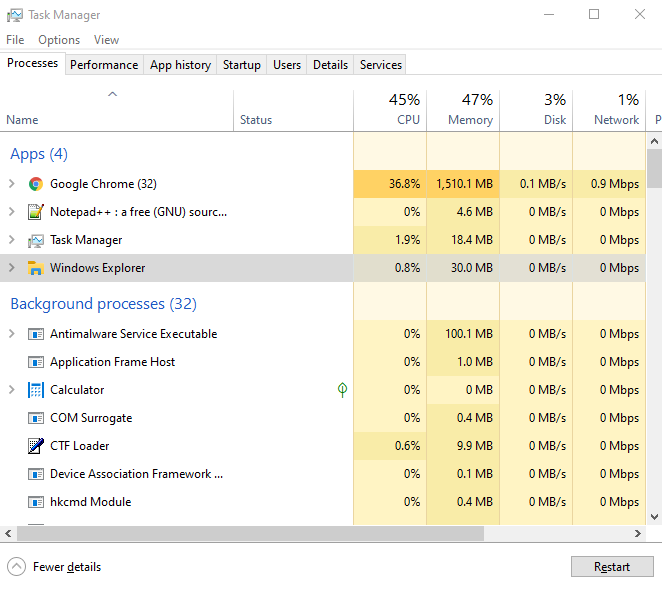
The taskbar is part of Windows Explorer, so restarting Explorer often brings it straight back. It's the simplest fix here and needs no technical skill.
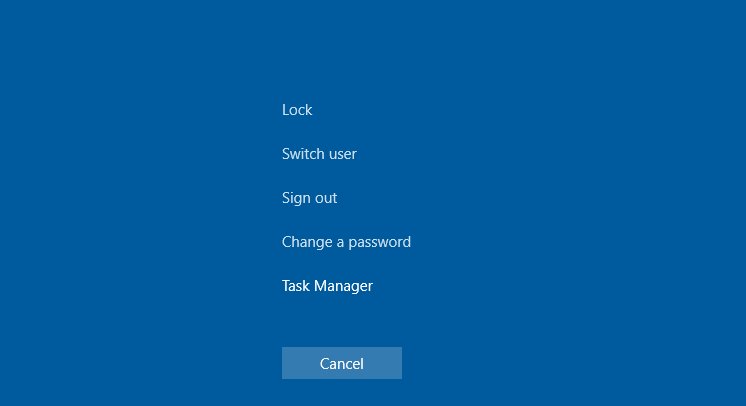
- Press Ctrl + Shift + Esc (or Ctrl + Alt + Delete and choose Task Manager).
- On the Processes tab, select Windows Explorer.
- Click Restart.
3. Use Windows PowerShell
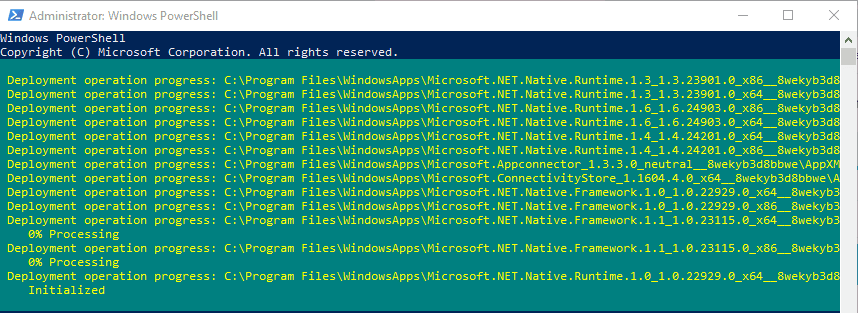
If Explorer restarts but the taskbar is still stuck, re-register Windows' built-in apps with PowerShell:
- Right-click the Start button and choose Windows PowerShell (Admin), or Command Prompt (Admin) and then type
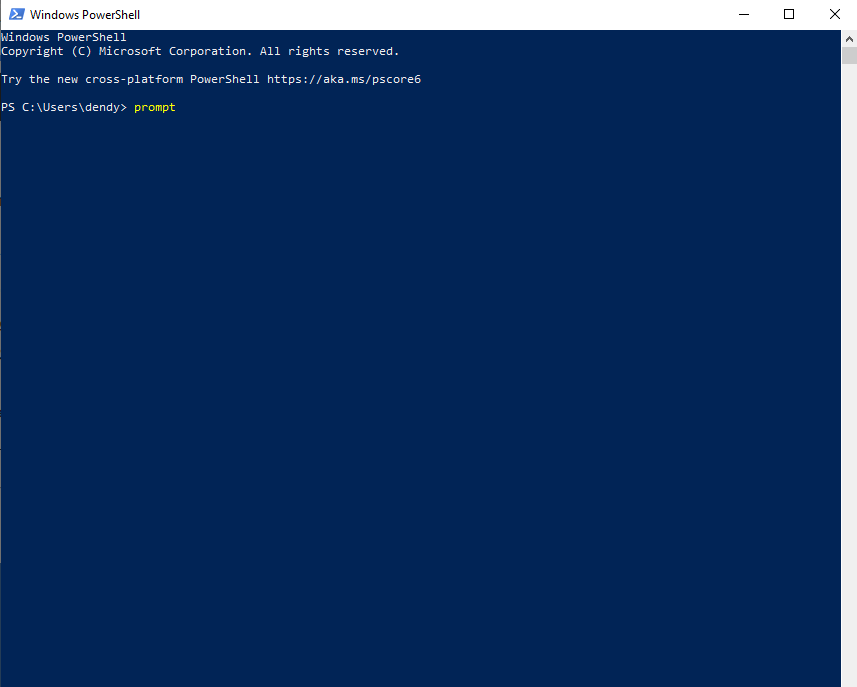
powershell.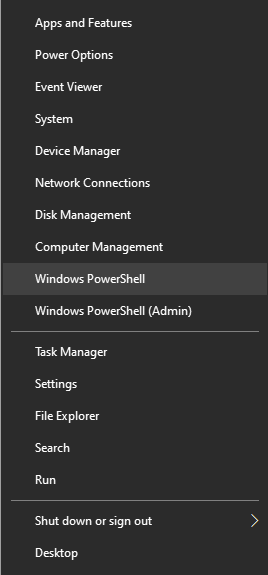 Windows PowerShell
- Type or copy and paste this command into the PowerShell window:
Get-AppXPackage -AllUsers | Foreach {Add-AppxPackage -DisableDevelopmentMode -Register "$($_.InstallLocation)\AppXManifest.xml"}
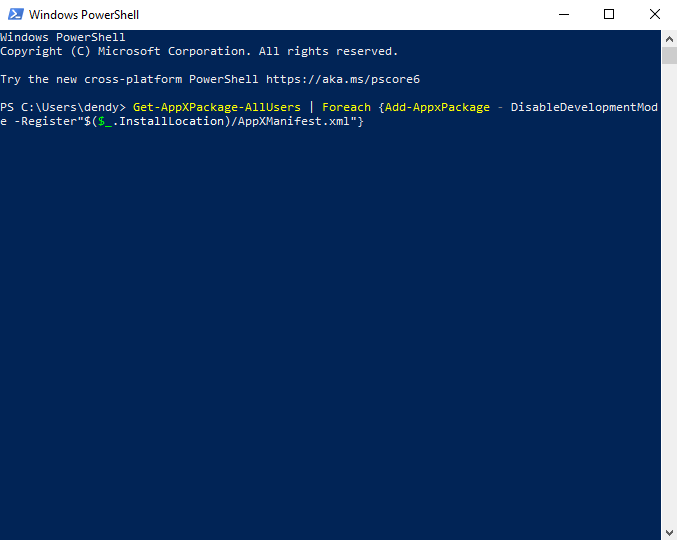
- Press Enter and wait for it to finish (ignore any red text).
- Close PowerShell and go to C:\Users\username\AppData\Local in File Explorer.
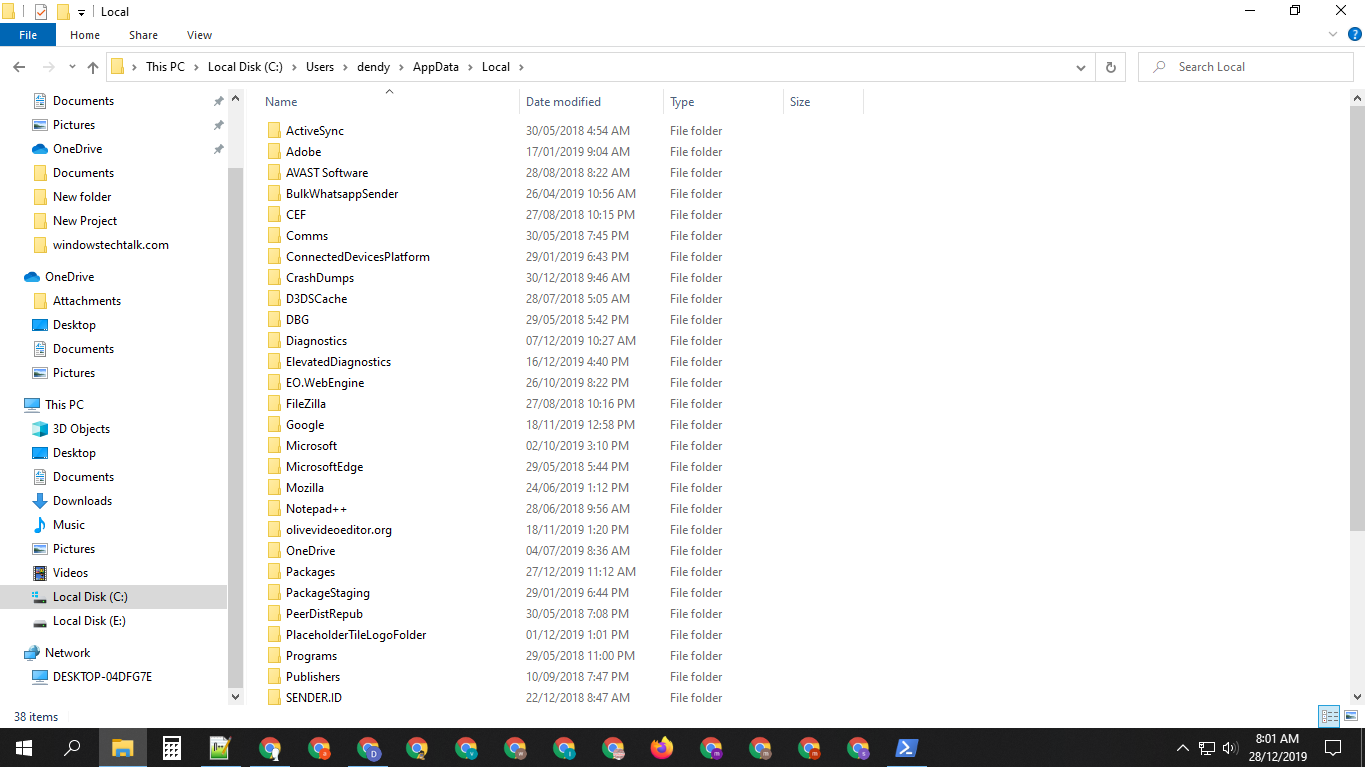
- Delete the TileDataLayer folder. Restart the PC; the taskbar should work again.
4. Create a New User Account
If nothing so far has worked, your user profile may be the problem. Creating a new account is a good test, and often a fix.
- Press Windows + I to open Settings.
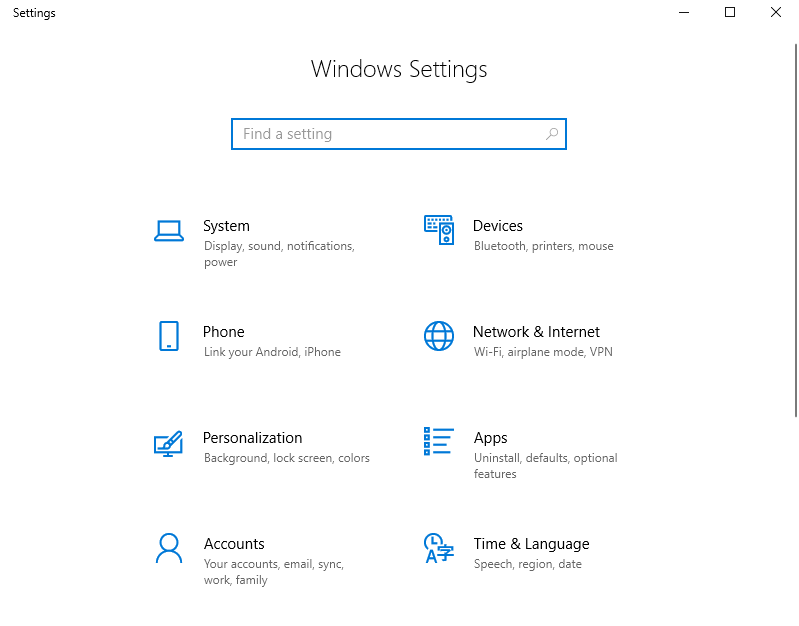 Press Windows + I
- Go to Accounts and choose Family & other users.
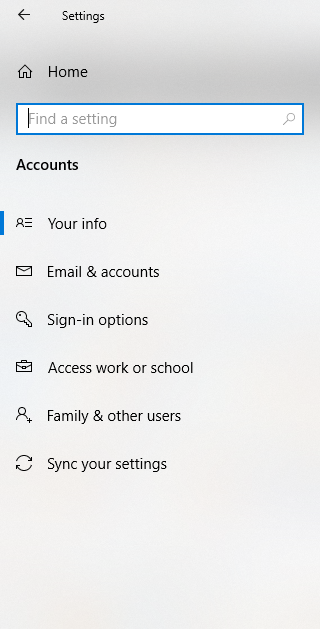
- Under Other users, click Add someone else to this PC.
- Choose I don't have this person's sign-in information.
- Choose Add a user without a Microsoft account.
- Enter a name and password for the new user and click Next.
- Back under Other users, select the new account and click Change account type.
- Select Administrator.
- Click OK.
Sign in to the new account. If the taskbar works there, move your files over and use the new profile.
5. Fix Problems With the Start Button
The Start menu is part of the taskbar, so it deserves a mention. Windows 10 brought it back as the main way to get around, but many users have reported it freezing, sometimes taking the whole taskbar and search box down with it.
These freezes are often caused by bugs or by updates being installed in the background. There's no single guaranteed fix, but repairing corrupted system files works in a lot of cases.
Step 1: Open Task Manager. Since the taskbar isn't responding, press Ctrl + Alt + Del and choose Task Manager.
Step 2: Run a new task. Click More details if needed, then File > Run new task.
Step 3: Open Windows PowerShell. Type PowerShell, tick Create this task with administrative privileges and click OK.
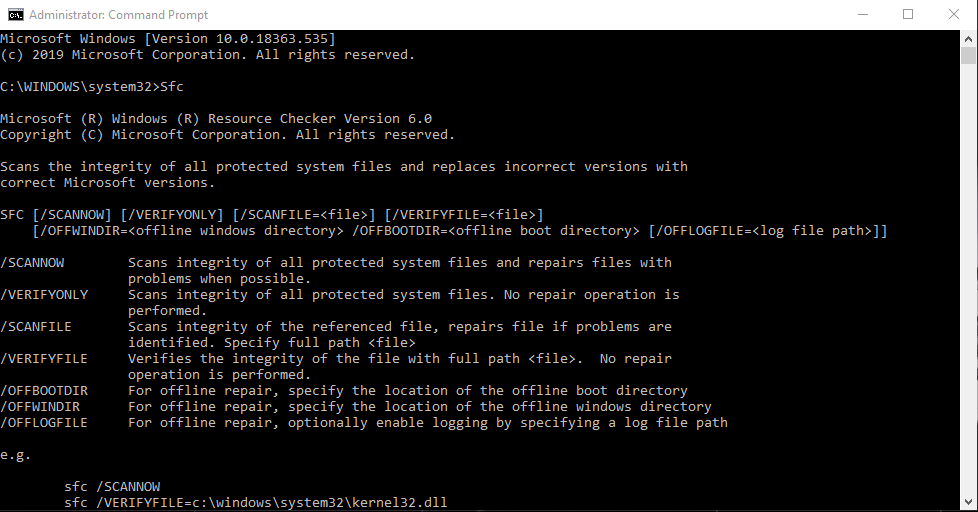
Step 4: Run System File Checker. Type sfc /scannow and press Enter. The scan takes a while and ends with one of three results:
- Windows Resource Protection found corrupt files and repaired them.
- Windows Resource Protection did not find any integrity violations.
- Windows Resource Protection found corrupt files but was unable to fix some of them.
If you get the third result, type DISM /Online /Cleanup-Image /RestoreHealth in the same window and press Enter. This downloads healthy copies of the damaged files from Windows Update and replaces them, so it can take some time. Run sfc /scannow again afterwards.
In many cases this gets both the taskbar and Start menu working again. If not, keep going.
6. Reinstall the Windows Apps
Open Windows PowerShell as administrator (see the previous step) and paste this command:
Get-AppXPackage -AllUsers | Foreach {Add-AppxPackage -DisableDevelopmentMode -Register "$($_.InstallLocation)\AppXManifest.xml"}
Wait until all the apps have been re-registered. If you see red error messages, ignore them and restart Windows once it's done.
7. Refresh (Reset) Your PC
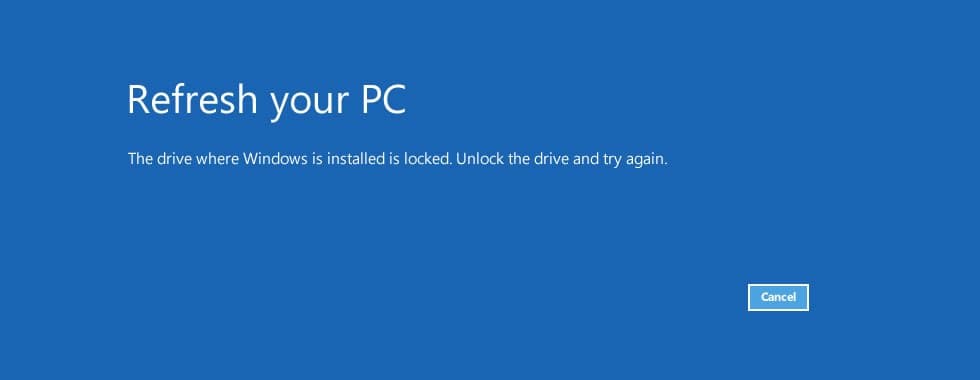
If nothing else works, resetting Windows is the last resort. Go to Settings > Update & Security > Recovery and click Get started under Reset this PC. Choose Keep my files to reinstall Windows without deleting your personal files (you'll need to reinstall your apps). Back up anything important first.
How to Lock the Taskbar in Windows
Once your taskbar is working again, you may want to lock it. By default it sits at the bottom of the screen, but it's easy to drag it somewhere else by accident. Locking it is a good idea, especially on a shared PC.
What Is the Windows Taskbar?
The taskbar gives you quick access to your favourite apps, key system settings and notifications. It's also home to the Start menu and the Windows search box.
How to Lock the Taskbar in Windows 11, 10, 8 and 7
Right-click any empty area of the taskbar and click Lock the taskbar. Do the same again to unlock it.
How to Lock the Taskbar From Settings
You can also lock it from the settings:
- Right-click an empty area of the taskbar and choose Taskbar settings (Windows 10) or Properties (Windows 7 and 8).
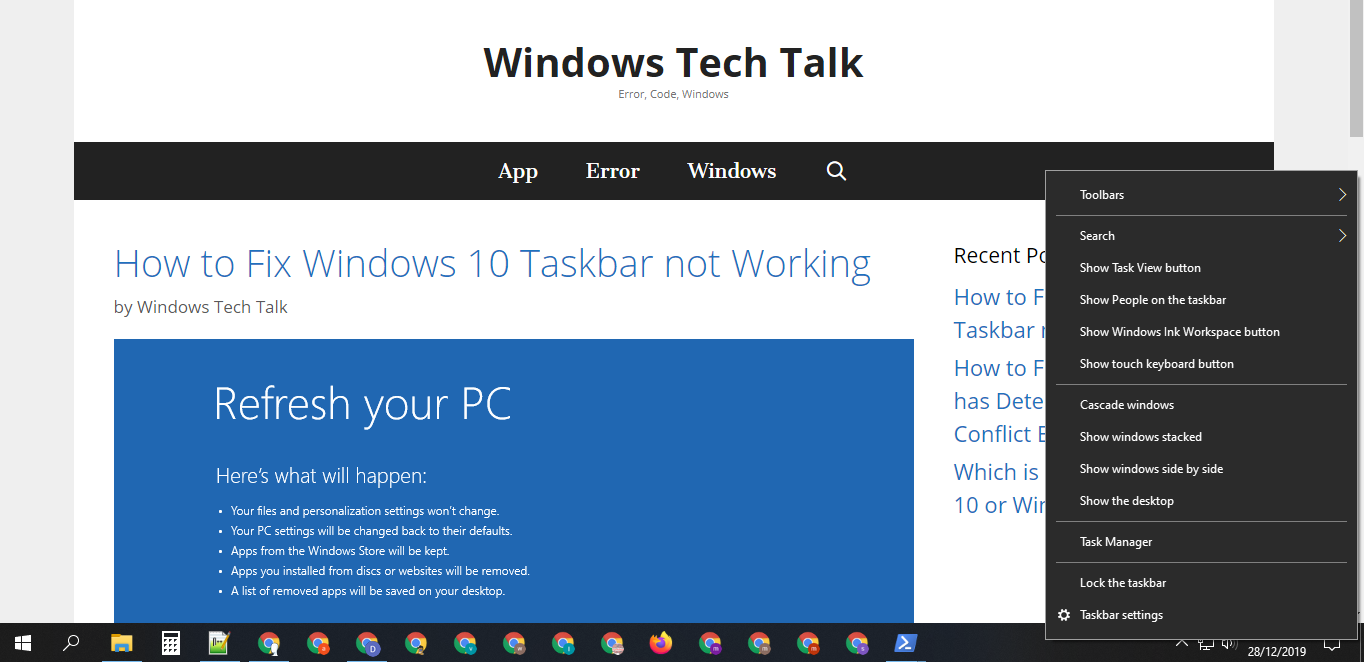
- Turn the Lock the taskbar toggle On.
References: techworm.net, lifewire.com